 QRJiffy
How to Scan a QR Code
To scan a QR code, open your phone’s camera, point it at the code for a second and tap the link or banner that appears — no app is needed on iPhone (iOS 11+) or Android 9+ phones. This guide covers phones, computers, screenshots and TV screens, codes that will not scan, and how to tell a safe code from a malicious one.
Updated · QRJiffy team
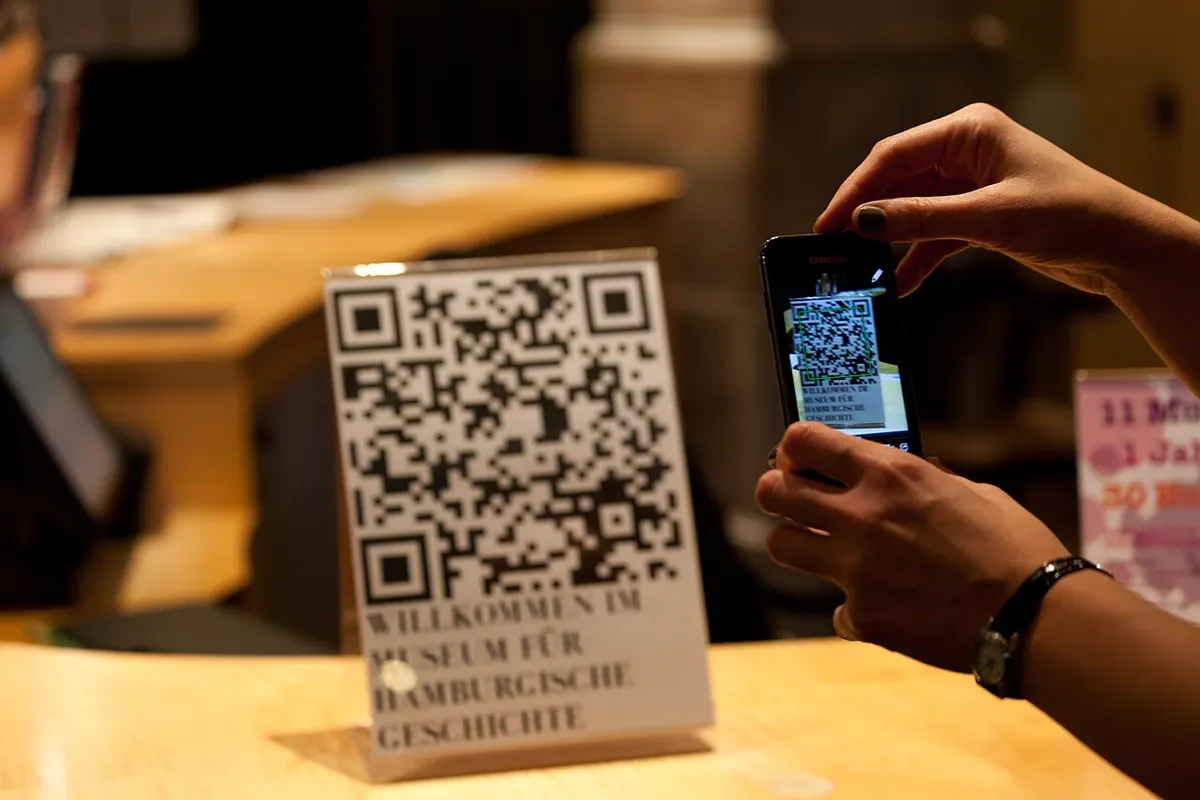
How do you scan a QR code on an iPhone?
Open the Camera app, point it at the QR code and tap the yellow banner that appears. iPhone and iPad have read QR codes natively since iOS 11.
- Open Camera and select the rear camera in Photo mode.
- Frame the whole code, including some blank space around it, and hold steady for a second.
- Read the banner: it shows the action and the domain (for example “Open safari.example.com”).
- Tap the banner to open the link, join the WiFi network or save the contact.
The Code Scanner in Control Center is a dedicated scanner with a torch button for dark places. If it is missing, add it in Settings › Control Center. If the Camera does not react, check that Scan QR Codes is switched on in Settings › Camera.
How do you scan a QR code on Android?
Point the Camera app or Google Lens at the code and tap the link that appears. The exact entry point depends on the phone maker:
- Camera app: Pixel, Samsung (Android 9+) and most recent phones detect QR codes in the standard photo mode. On Samsung, the option is Scan QR codes in Camera settings.
- Google Lens: open the Google app or the Lens icon in the search bar, point at the code and tap the result.
- Quick Settings: on Android 13 and later, swipe down twice and tap the Scan QR code tile (add it by editing the tiles if needed).
Android can also join networks directly: Settings › Network › WiFi › the QR icon next to “Add network” scans a WiFi QR code and connects.
How do you scan a QR code on a Windows PC or Mac?
On Windows 11, use the Camera app’s QR code scanning; on a Mac or any computer, use Google Lens in Chrome to read a code from an image.
- Windows 11: open Camera, switch to the barcode/QR mode (or enable QR scanning in Camera settings) and hold the code to the webcam.
- Chrome on Windows, macOS or Linux: right-click a QR code image on a web page and choose Search with Google Lens.
- Mac: macOS has no camera QR scanner, so scanning with an iPhone is usually quicker; codes in images can be read through Google Lens in Chrome.
How do you scan a QR code from a screenshot or picture?
Open the image in Photos (iPhone) or Google Photos (Android) and tap the QR code or the Lens button to read it. This works for codes in screenshots, saved images and photos of signs:
- iPhone: open the screenshot in Photos, then tap the QR code or the Live Text icon; iOS shows the link as a tappable banner.
- Android: open the image in Google Photos and tap Lens, or open Google Lens and pick the image from the gallery.
- Any device: upload or paste the image into the QR code scanner, which decodes it in the browser and shows the full content before you open anything.
How do you scan a QR code on a TV screen?
Point your phone camera at the TV from 0.5–2 m away and tap the banner, the same way as a printed code. TV codes for streaming sign-in (YouTube, Netflix, Disney+) are generated by the TV app and expire after a few minutes. If the code does not scan, lower the screen brightness or step back so the whole code fits the frame. A sign-in code opens a page where you confirm the device on your account.
What happens after you scan a QR code?
Your phone reads the text stored in the code and offers the action that matches its format. Links open in the browser or the matching app, WiFi codes join the network, contact codes open “Create contact”, event codes offer to add a calendar entry and SMS or email codes open a pre-filled message. The full list of formats is in types of QR codes.
Why won’t a QR code scan?
Most failed scans come from distance, blur, low contrast or a missing quiet zone — not from the phone. Work through these checks:
| Symptom | Likely cause | Fix |
|---|---|---|
| Camera never reacts | QR scanning disabled, or the code fills too little of the frame | Enable scanning in camera settings; move closer |
| Focus hunts back and forth | Too close, dirty lens or low light | Step back slightly, wipe the lens, turn on the torch |
| Works on one phone only | Dense code printed too small | Print larger or use a shorter link |
| Nothing on a dark or coloured code | Low contrast or inverted colours | Use a dark code on a light background |
| Scans but shows an error page | The link or file behind the code has changed or gone offline | Contact the owner to fix the link |
If you created the code yourself, the QR code size guide explains how big to print it for the scanning distance.
How do you know a QR code is safe to scan?
A QR code is safe to open when the preview shows a domain you recognise and the action matches what the sign promises. “Quishing” — QR phishing — uses codes that lead to fake login or payment pages. Protect yourself with these habits:
- Read the domain in the camera preview before tapping, and watch for look-alike spellings.
- Check public codes, such as parking meters and posters, for stickers placed over the original code.
- Never enter passwords or card details on a page reached from an unexpected code; type the site address yourself instead.
- Before paying through a payment QR code, confirm that the payee name your app shows is the business you intend to pay.
- Never install an app from a code that bypasses the official app store.
The QR code scams guide shows real quishing examples and how to report them.
Make a code your customers can scan on any phone with the free QRJiffy QR code generator, then test it with the steps above.
Frequently asked questions
Do I need an app to scan a QR code?
No. iPhones running iOS 11 or later and most Android phones scan QR codes with the built-in camera or Google Lens. A separate app is only needed on very old phones.
What is the QR code on my phone?
The QR code on your phone is usually a sharing code from an app, such as a WhatsApp contact, an Instagram profile or a WiFi network in Settings. Each app creates it so another phone can scan and open the same thing.
Is there a QR code scanner built into iPhone?
Yes, the iPhone Camera app and the Code Scanner in Control Center both read QR codes without any download. The Camera has scanned QR codes since iOS 11.
Why does my phone not react to a QR code?
The most common reasons are QR scanning switched off in camera settings, the code being too small or blurry for the distance, poor contrast, or a missing quiet zone. Move closer, clean the lens, add light and check the camera settings.
Can scanning a QR code hack my phone?
Scanning by itself does not run code on your phone. The risk comes from what the code opens — a phishing page, a fake payment request or a malicious download — so always check the link preview before you tap it.
Sources
- Scan a QR code with your iPhone camera — Apple Support
- Google Lens — Google
- Connect to Wi-Fi networks on your Android device (share a network as a QR code) — Android Help
- Barcode scanning (ML Kit) — Google for Developers