 QRJiffy
WiFi QR Code Generator
A WiFi QR code connects a phone to a wireless network without typing the password. It stores the network name (SSID), the password and the encryption type in one line of text. iPhone (iOS 11+) and Android (10+) join the network straight from the camera.
Just your email to download · no password needed
Phones read this code directly, so it has no scan count.
Encoded data
How to create a WiFi QR code
You create a WiFi QR code in 5 steps with the free generator above, and the code is ready to download as PNG or SVG.
- Type the network name (SSID) exactly as your phone’s WiFi list shows it.
- Enter the password and pick the encryption — WPA for almost every router sold since 2006.
- Tick hidden network only if the router does not broadcast its name.
- Download the code and test it: forget the network on your phone, then scan the code.
- Print it as a WiFi sign for the counter, table tent or guest room.
What does a WiFi QR code contain?
A WiFi QR code stores network name (SSID), encryption type, plus optional password, hidden network flag.
| Payload standard | ZXing WIFI: format (MECARD-style) |
|---|---|
| Native camera support | iPhone iOS 11+, Android 10+ |
| Needs internet to use | No — the phone connects straight to the router |
| Editable after printing | No — reprint when the password changes |
| Scan tracking | Not possible (no redirect link) |
| Recommended error correction | Q (25%) for laminated or outdoor signs |
| Minimum print size | 2.5 × 2.5 cm (1 in) |
| Field | Required | What it does | Example |
|---|---|---|---|
| Network name (SSID) | Yes | The exact, case-sensitive name of the WiFi network. | CafeGuest |
| Encryption type | Yes | WPA covers WPA, WPA2 and WPA3-transition networks; WEP is for routers older than 2004; None is for open networks. | WPA |
| Password | Optional | The network key, left empty only when encryption is None. | espresso2026 |
| Hidden network flag | Optional | Tells the phone to connect to a network that does not broadcast its name. | H:true |
WiFi QR code payload format
WIFI:T:<WPA|WEP|nopass>;S:<ssid>;P:<password>;H:<true|false>;;
WIFI:T:WPA;S:CafeGuest;P:espresso2026;;
This is the ZXing WiFi format that iOS and Android parse natively. The characters \ ; , : " inside the SSID or password are escaped with a backslash; the generator above escapes them for you.
Format reference: Barcode contents (payload formats for WiFi, contacts, events) (ZXing project)

How do I make a printable WiFi QR code sign?
Generate the code above, download the SVG, and place it on an A6 card (10.5 × 14.8 cm) with the network name and a “Scan to join WiFi” line.
- Print the code at least 5 × 5 cm on table signs read from 50 cm.
- Add the network name and password in 10 pt text below the code.
- Laminate the card and pick error correction Q so scratches do not break the code.
How do I scan a WiFi QR code on iPhone?
Open the Camera app, point it at the code, and tap the “Join Network” banner — iOS 11 and later connect without any app.
The Code Scanner in Control Center (iOS 12+) also joins WiFi codes. If the banner does not appear, enable Settings › Camera › Scan QR Codes.
How do I scan a WiFi QR code on Android?
Open the camera or Google Lens and tap “Connect to network”; Android 10 and later also scan from Settings › WiFi › Add network › QR icon.
Android also creates a WiFi QR code for a saved network: Settings › WiFi › the network › Share. The QR code scanning guide covers older phones.
What happens when someone scans a WiFi QR code?
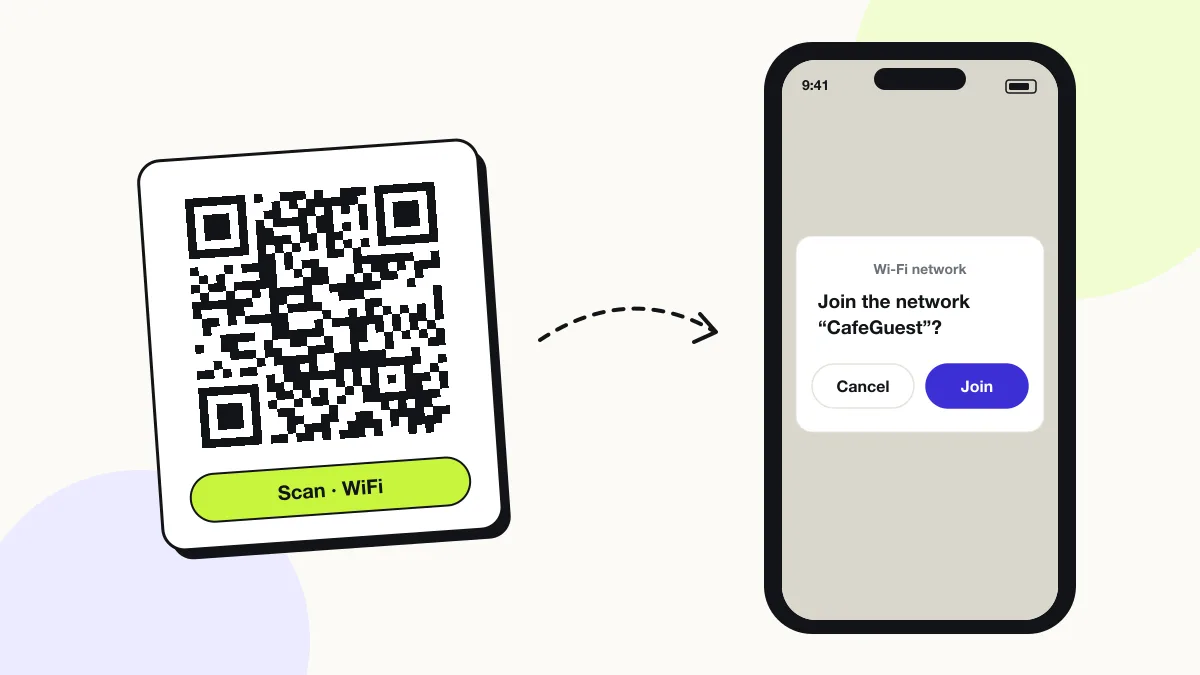
The phone camera decodes a WiFi QR code in under a second and shows a prompt; tapping it starts the action stored in the code. The prompt differs by device:
iPhone
The Camera app shows Join “CafeGuest” Network. One tap connects, and iOS remembers the network for automatic reconnection.
Android
The camera or Google Lens shows Connect to network. On Android 10+, Settings › WiFi › the QR icon beside “Add network” scans the code too.
Laptops
Windows and macOS do not join WiFi from a QR code. Print the SSID and password in small text under the code for laptop users.
Is there a scan limit on a WiFi QR code?
No, a WiFi QR code has no scan limit, because the phone reads the details straight from the pattern without visiting QRJiffy. That also means it works offline but cannot be edited or counted after printing; print a new code when the details change.
Where to use WiFi QR codes
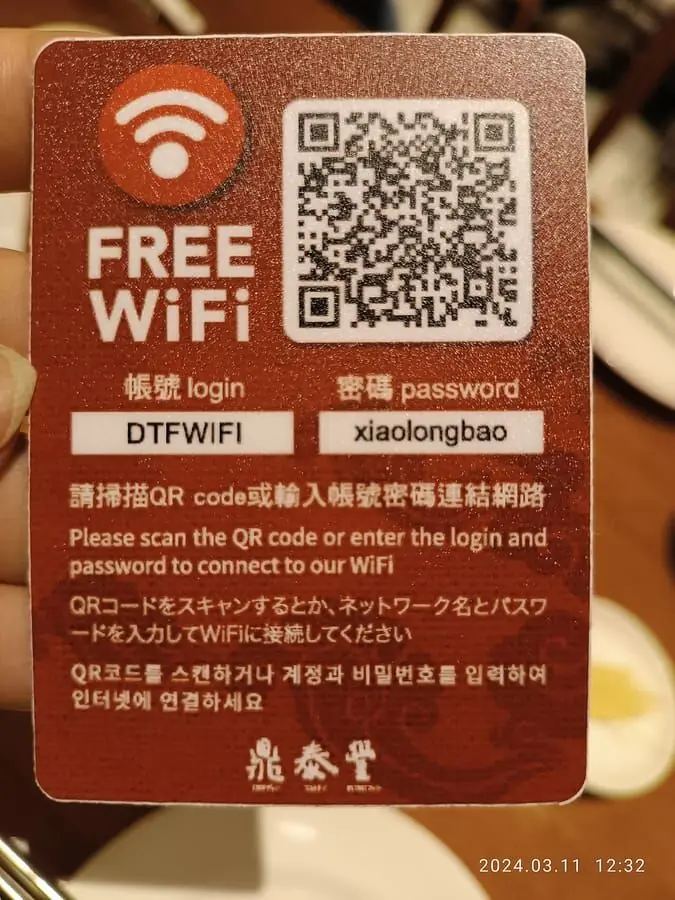
WiFi QR codes work in 4 common places: cafés and restaurants, hotels and holiday rentals, offices and co-working and homes.
Cafés and restaurants
A WiFi sign on each table ends the “what’s the password?” question at the counter.
Hotels and holiday rentals
A framed code in each room or the welcome book gives guests internet in one scan.
Offices and co-working
A guest-network code at reception keeps the staff network key private.
Homes
A code on the fridge or router connects visiting friends without spelling out a 16-character password.
WiFi QR code best practices
A WiFi QR code scans first time when it follows these 5 rules.
- Put the code on a separate guest network so the main network key is never printed.
- Print the SSID and password in small text below the code for laptops.
- Reprint the sign the same day you change the password — the old code fails silently.
- Remove trailing spaces from the SSID and password; they are stored literally and break the connection.
- Use error correction Q (25%) for laminated or outdoor signs.
WiFi QR code FAQ
Is it safe to share WiFi with a QR code?
It is as safe as telling someone the password, because the password is stored in the code as readable text. Anyone who photographs the code extracts it, so print codes for guest networks only.
Why does my WiFi QR code not connect?
The usual causes are a mistyped SSID, the wrong encryption type, or a password changed after printing. Regenerate the code and test it after forgetting the network on your phone.
Does a WiFi QR code work with WPA3?
Yes. Select WPA: phones that support WPA3 negotiate it automatically on WPA3 and WPA2/WPA3 transition networks.
What happens to a WiFi QR code when I change the password?
It stops connecting, because the old password is stored in the code. Generate a new code with the new password and replace the printed one.
Can I see who scanned my WiFi QR code?
No. A WiFi QR code connects directly to the router, so there is no scan log. The router’s connected-devices list shows who joined.