 QRJiffy
QR Code for Business Cards
A business card QR code is a vCard QR code printed on a business card that saves your name, phone, email and website to the scanner’s contacts in one tap. It replaces typing a card into a phone by hand. Create the code below, download it as SVG, and place it on the back of the card at 2 × 2 cm or larger.
Just your email to download · no password needed
Phones read this code directly, so it has no scan count.
Encoded data
How do you make a QR code for business cards?
You make a QR code for business cards in 5 steps with the free generator above.
- Enter your name, job title, company, mobile number, email and website in the form above.
- Leave out fields you do not want on every phone, such as a personal address.
- Download the code as SVG so it stays sharp at any print size.
- Place the code on the card at 2 × 2 cm (0.8 in) or larger with a 4-module white margin around it.
- Scan a printed proof with an iPhone and an Android phone before ordering the full run.
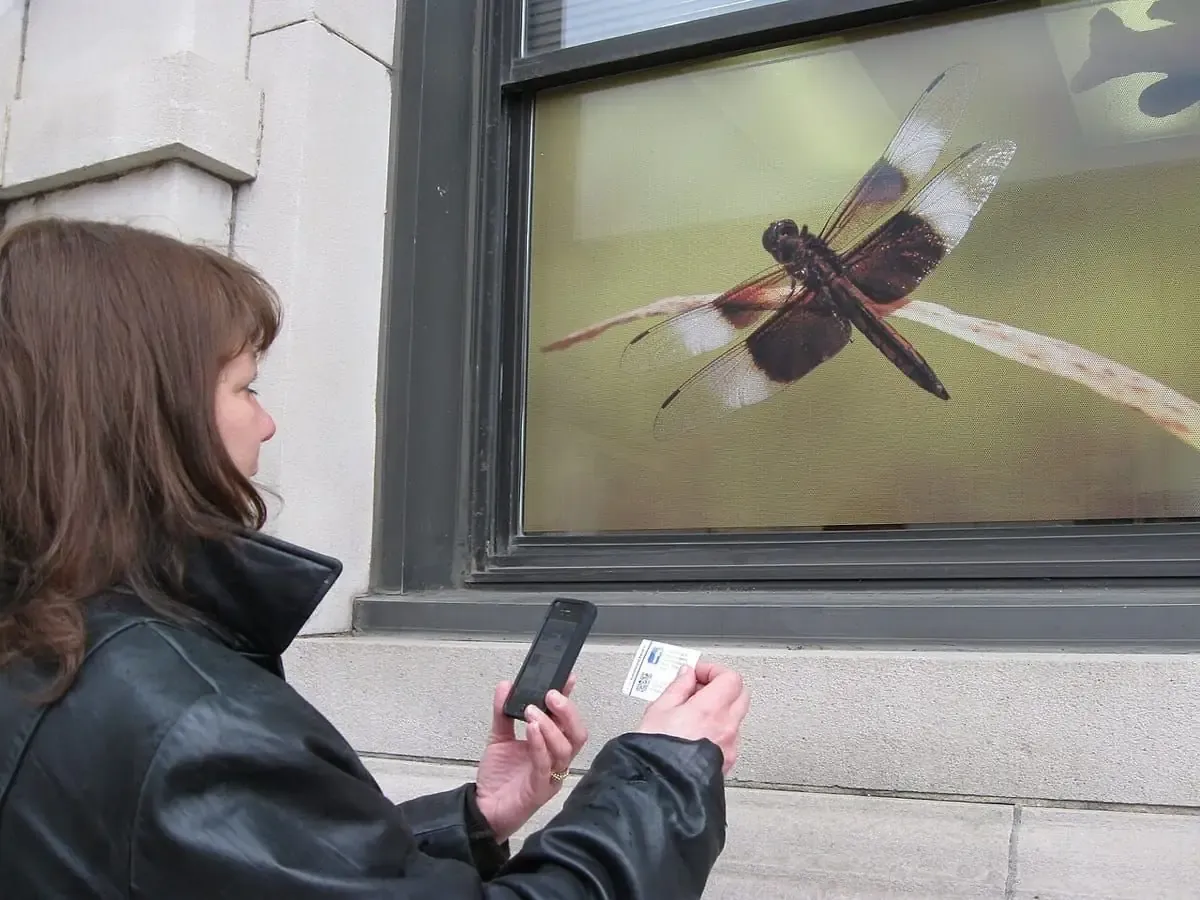
Is it worth having a QR code on a business card?
Yes — a QR code saves the recipient from typing your details, so your contact lands in their phone instead of a drawer.
A standard card holds 6–8 contact fields. Typing them takes about a minute; scanning a vCard QR code takes about 3 seconds.
- Contacts are saved without typos in phone numbers or email addresses.
- Extra fields such as a second phone number or website fit in the code, not on the card face.
- The code works offline because the vCard data sits inside the code itself.
How can I create a QR code business card?
You create a QR code business card by generating a vCard QR code, downloading it as SVG and placing it in your card design file.
Design tools such as Canva, Adobe Illustrator and Vistaprint’s editor accept SVG and PNG uploads. Use SVG for print; PNG files blur when enlarged.
What size should a QR code be on a business card?
A QR code on a business card needs at least 2 × 2 cm (0.8 × 0.8 in); 2.5 cm gives a margin for printer tolerance.
| Card format | Card size | Recommended QR size |
|---|---|---|
| US standard | 3.5 × 2 in (88.9 × 50.8 mm) | 0.8–1 in (2–2.5 cm) |
| EU / ISO 7810 | 85 × 55 mm | 2–2.5 cm |
| Japan | 91 × 55 mm | 2–2.5 cm |
How much do business cards with QR code cost?
Adding a QR code costs nothing extra when you generate it free and place it in your own design; printers charge the same price as a card without one.
The only paid part is printing. A vCard QR code from QRJiffy is free with no scan limit, because the contact details sit inside the code itself.
Should the QR code hold a vCard or a link?
A vCard QR code is the better default because it saves the contact directly; a link QR code suits cards that point to a portfolio or booking page.
| Attribute | vCard QR code | Link QR code |
|---|---|---|
| Scan action | Add contact | Open web page |
| Works offline | Yes | No |
| Code density | Higher (more data) | Lower (short URL) |
| Data stored in the code | Full contact card | Web address only |
Business cards QR code FAQ
Where can I create a free QR code for my business card?
You can create one free on this page: fill in the vCard form, download the SVG and add it to your card design. A free account saves the code so you can update the card details later.
Where should the QR code go on a business card?
The back of the card is the most common placement, because it leaves the front for name and logo. Keep the code away from the cut line by at least 3 mm.
Can ChatGPT generate QR codes?
No — ChatGPT can describe or write code that creates QR codes, but it does not output a scannable, print-ready QR image the way a dedicated generator does.
Does a business card QR code work on every phone?
Yes. iPhone Camera (iOS 11+) and Android Camera or Google Lens (Android 9+) read vCard QR codes and offer to add the contact.
QR code types used for business cards
4 QR code types cover most business cards uses: vCard QR code, Link QR code, LinkedIn QR code and Email QR code.
Further reading: QR code size guide · How to print a QR code · QR codes for other uses