 QRJiffy
How to Make a Cash App QR Code
You make a Cash App QR code by typing your $Cashtag into a Cash App QR code generator, adding an amount if you charge a fixed price, and downloading the picture. Scanning it opens Cash App on your name with the amount ready to confirm. It takes 2 to 3 minutes. The transfer runs inside Cash App, never through QRJiffy.
What do you need before you start?
You need 4 things ready, and no account to try the generator. A free account, or just your email, is asked for only at the download step.
- Your $Cashtag, copied from your Cash App profile.
- A fixed price if there is one, such as a haircut, a club fee or a food-truck meal.
- A friend’s phone with Cash App in the same country as you, to send a 1-dollar or 1-pound test.
- An email address, used once at download.
How do you make a Cash App QR code step by step?
Follow these 7 steps in the Cash App QR Code generator; the preview updates as you type. Each screenshot below is the real screen, filled in with a sample bakery’s details.
1Copy your $Cashtag from Cash App
Open Cash App and go to your profile. Your $Cashtag is the name that starts with a dollar sign: 1 to 20 characters with at least 1 letter. Copy it, then open the Cash App QR code generator in a browser on the same phone or on a computer.
2Paste it into the $Cashtag field
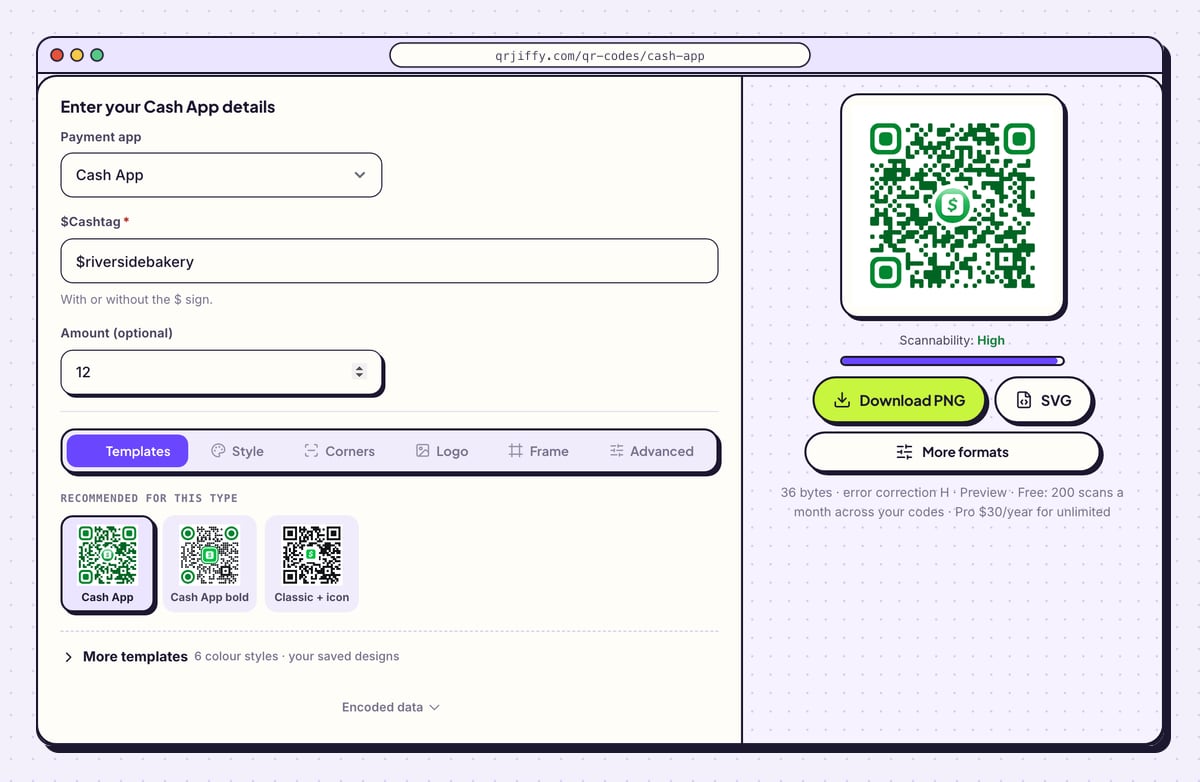
The form’s first box, Payment app, already says Cash App. Paste into $Cashtag. The hint under it reads “With or without the $ sign”, so $riversidebakery and riversidebakery give the same result. A pasted
cash.app/$riversidebakerylink is accepted too.The code on the right changes as soon as the tag is in. It leads to
cash.app/$riversidebakery, the same link Cash App lets you share by text.Tip: Read the tag back letter by letter. $riversidebakery and $riversidebakry are two different people.
3Decide whether the code carries an amount
For a set price, type it into Amount (optional). With 12 entered, the link ends in
/12and Cash App shows 12 for the payer to confirm. For tips, shared rent or anything that varies, leave the box blank and the payer keys in the sum inside Cash App.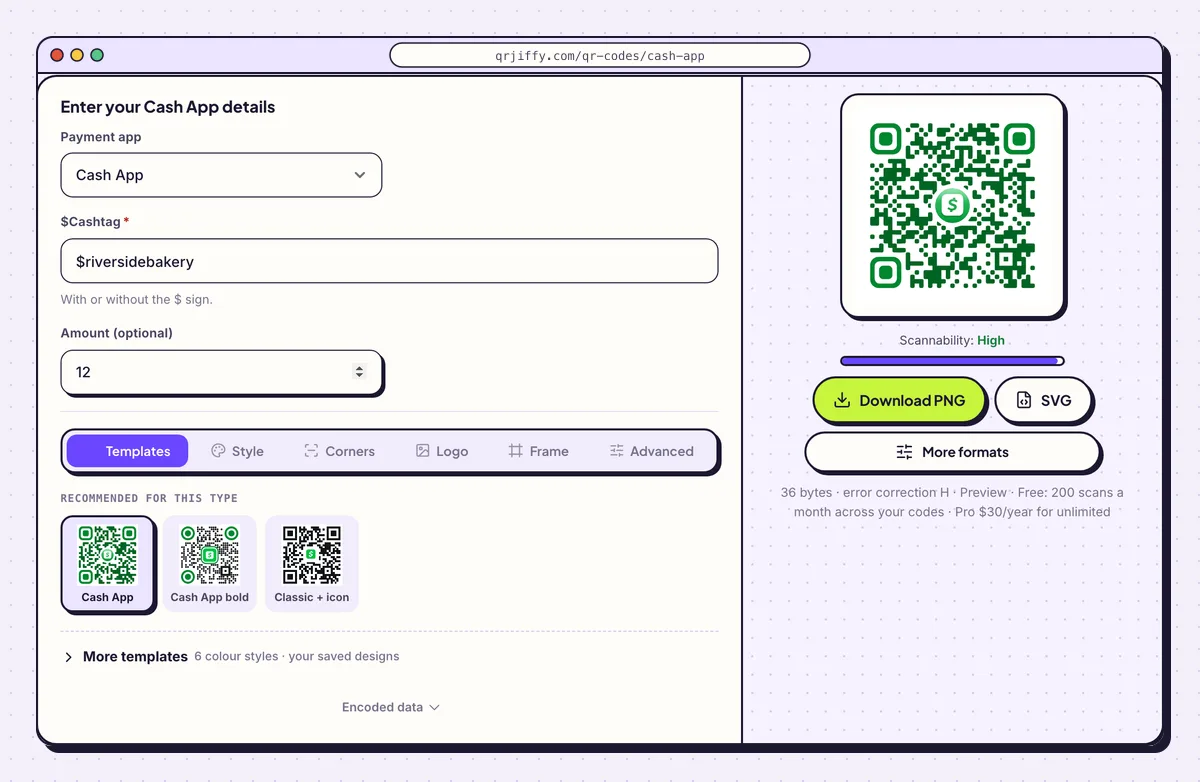
The sample: $riversidebakery with 12 as the fixed amount. 4Label the code and choose a safe green
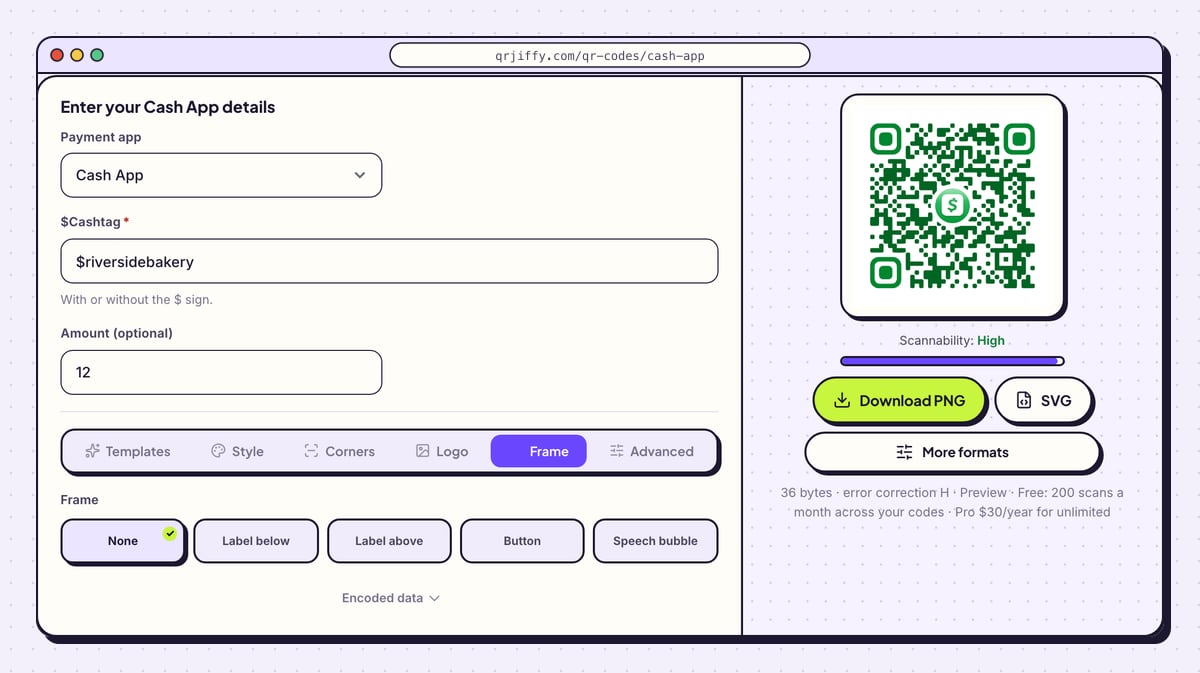
In the Frame tab, pick Label above, Label below or Speech bubble and write “Pay with Cash App”. Colour the frame with Frame colour and the words with Text colour.
Cash App’s bright green (#00D632) is too light for the dots by itself. In the Style tab use the darker #008A20 on white, which gives a camera enough contrast.
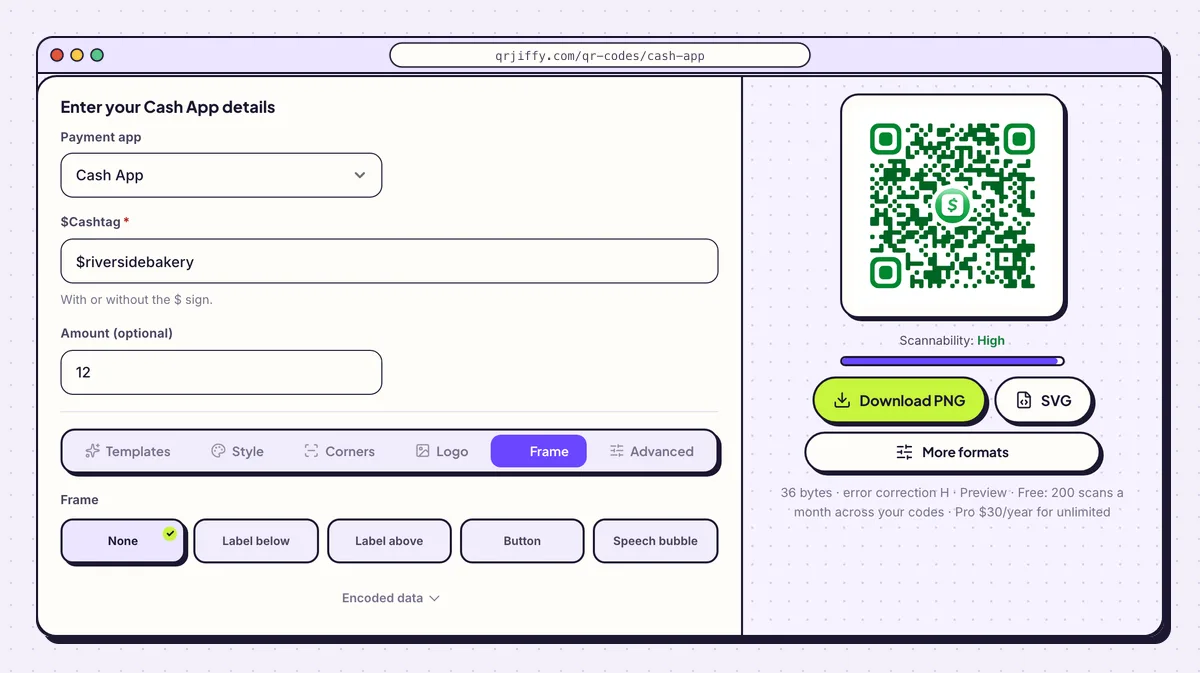
Six label layouts in the Frame tab; a short instruction gets more scans than a bare code. 5Download and keep the short link
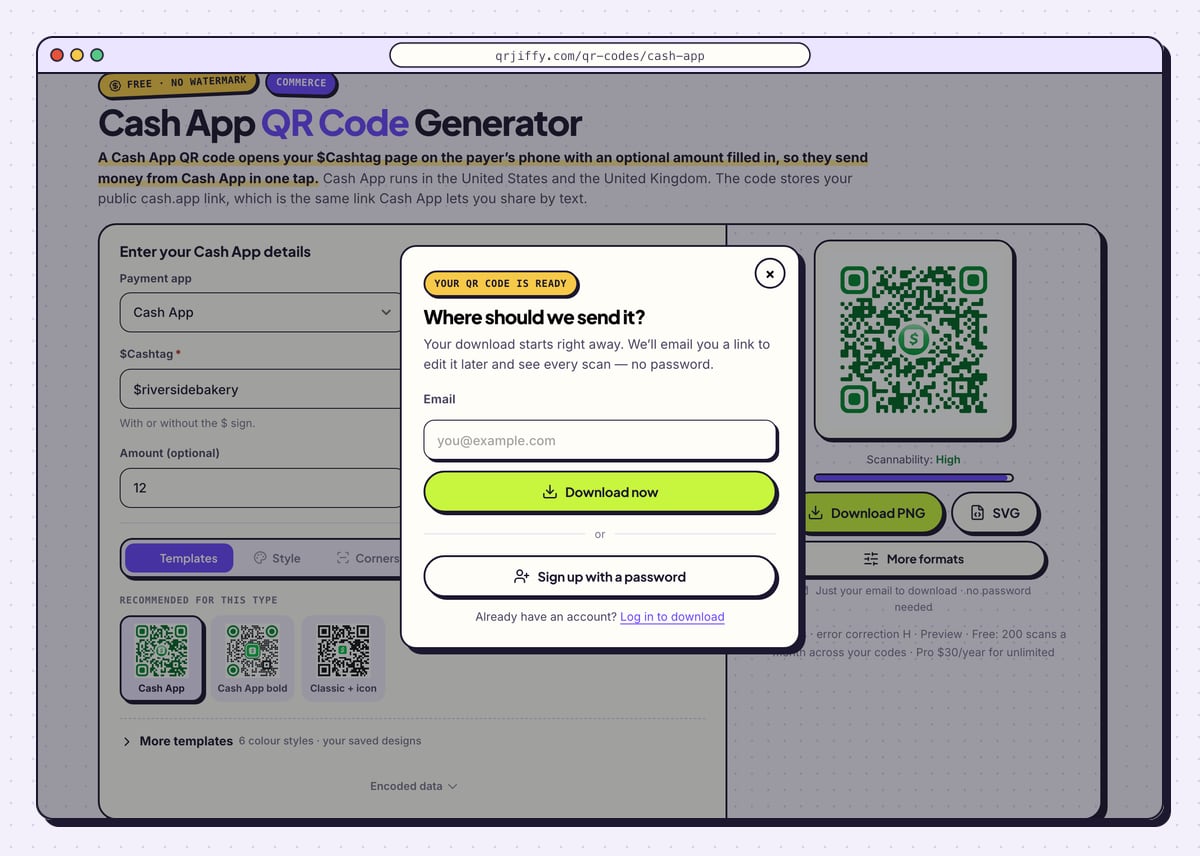
Press Download PNG or SVG. The “Where should we send it?” window wants an email; Download now saves the file immediately as something like
qrjiffy-cash-app-Sje2uWz.png. Below the buttons the page now lists a short link,qrjiffy.com/r/…. That link is inside the code and forwards to your cash.app address.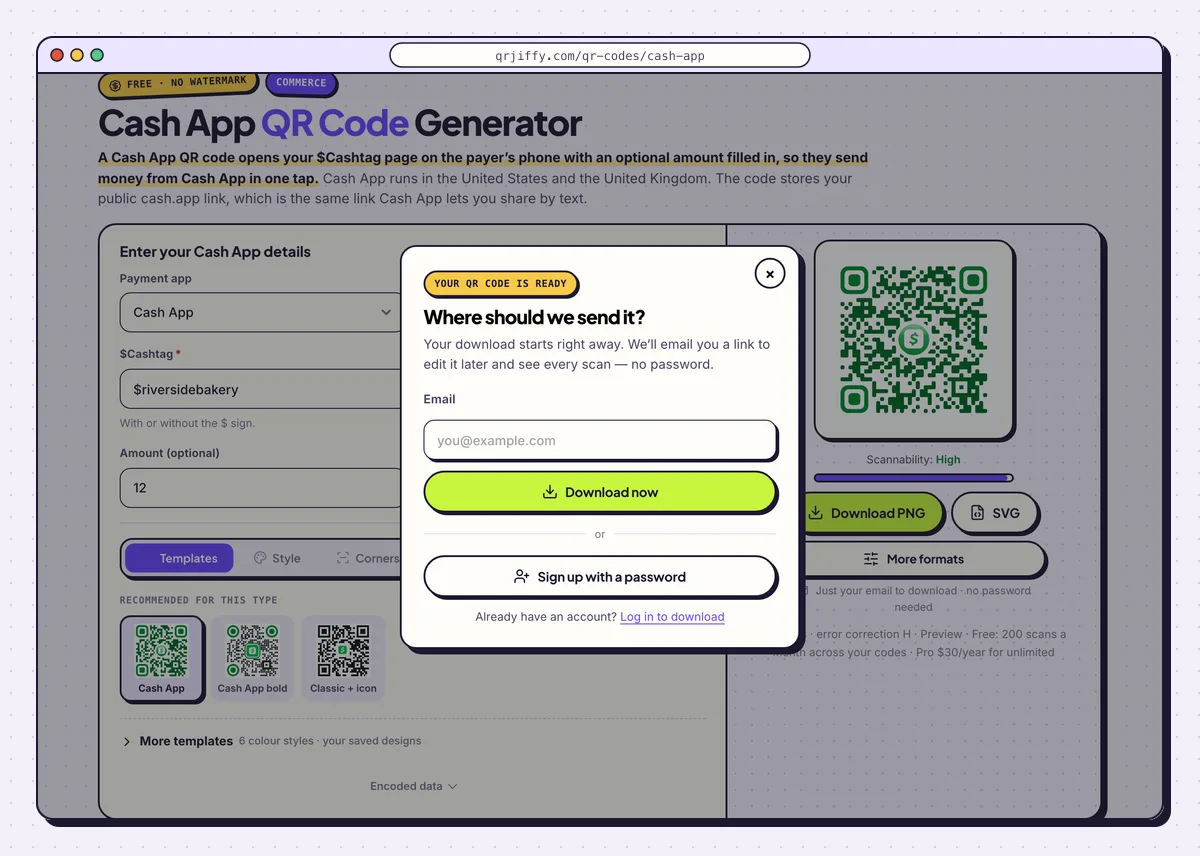
The pop-up appears once; after that the file saves without questions. 6Test it from another Cash App account
Ask a friend to scan the code with their camera. Cash App opens and shows your name and, if you set one, the amount. Have them send 1 dollar or 1 pound and watch it arrive in your activity. On a phone without the app, the link opens a cash.app web page that prompts a download.
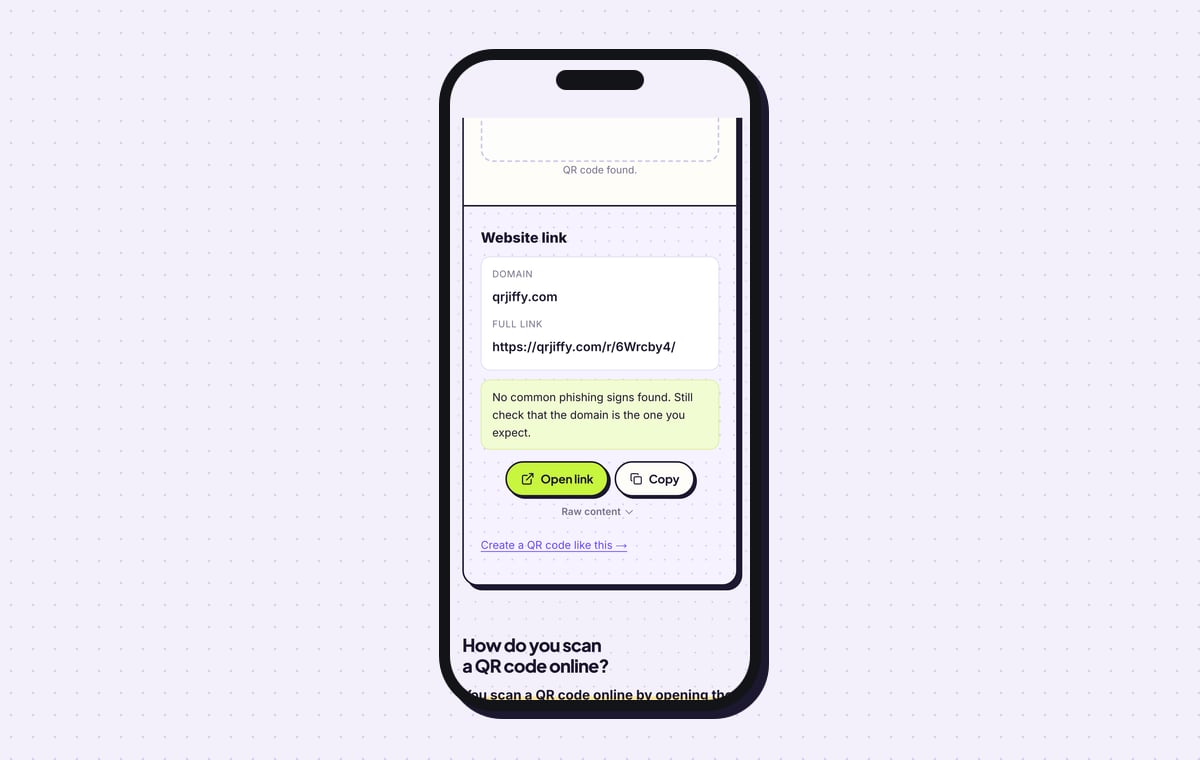
For a check that moves no money, drop the file into the QR code scanner. It lists “Website link”, the domain qrjiffy.com and the full short link.
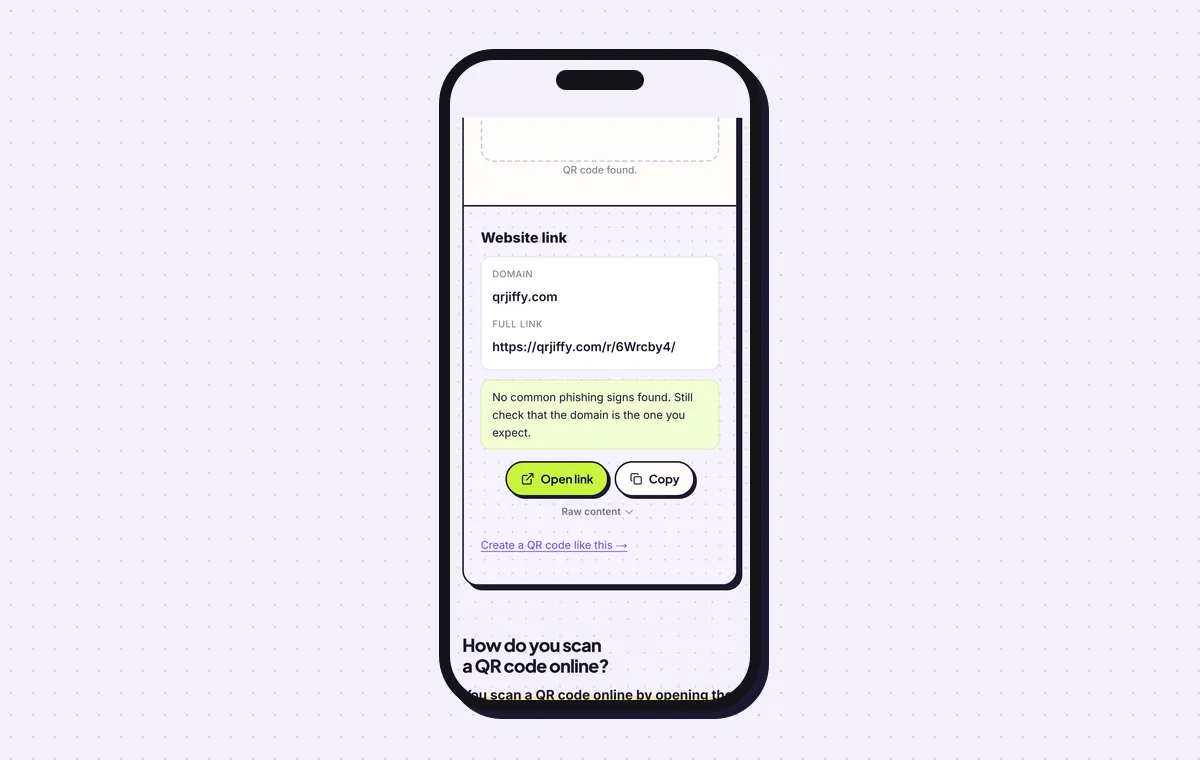
A no-payment check: the scanner lists the short link stored in the Cash App code. 7Print the sign and manage the code afterwards
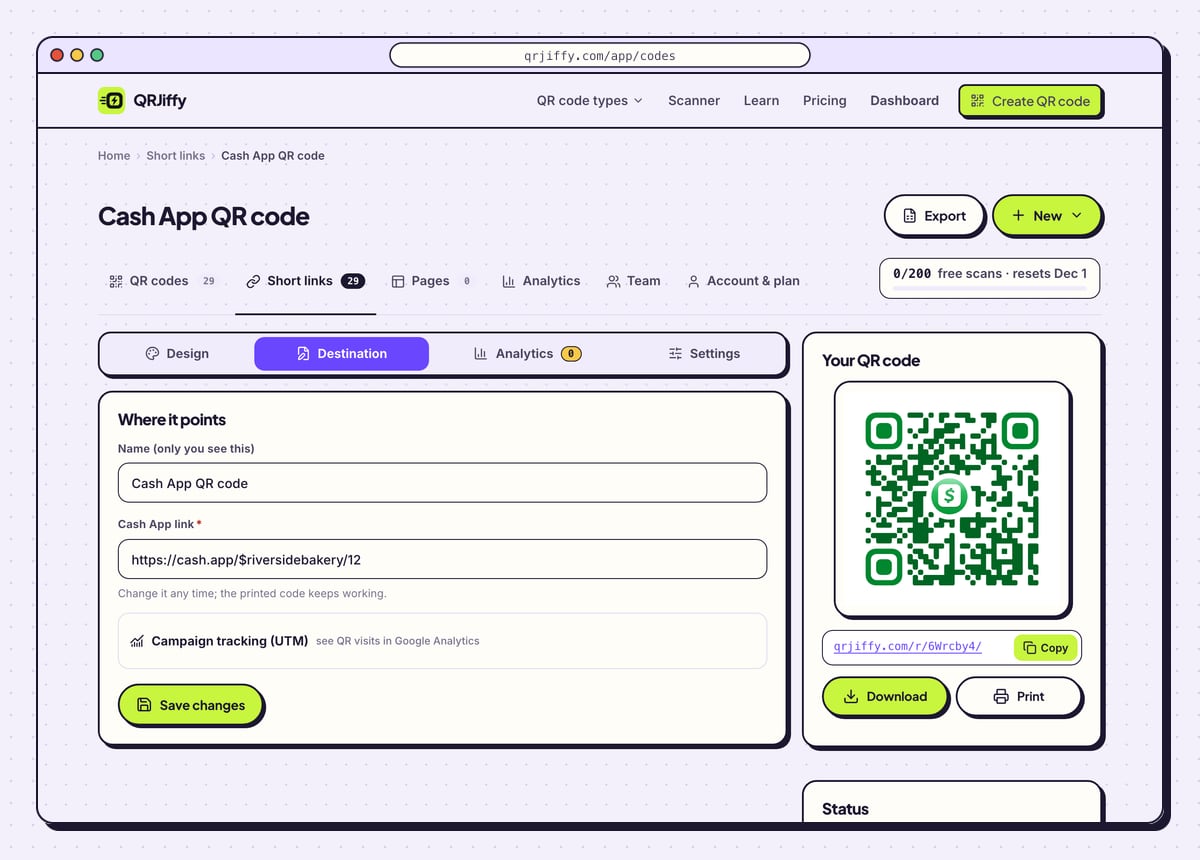
Print at 2.5 × 2.5 cm (1 in) or larger for a counter, and write your $Cashtag under the code. In the QRJiffy dashboard the code has Design, Destination, Analytics and Settings tabs. A new $Cashtag or a new price goes under Destination, and the sticker on the truck window keeps working. Analytics shows scans per day, device and country.
Tip: For a sign that gets handled or splashed, open Advanced and set error correction to Q, which recovers 25% of a damaged code.
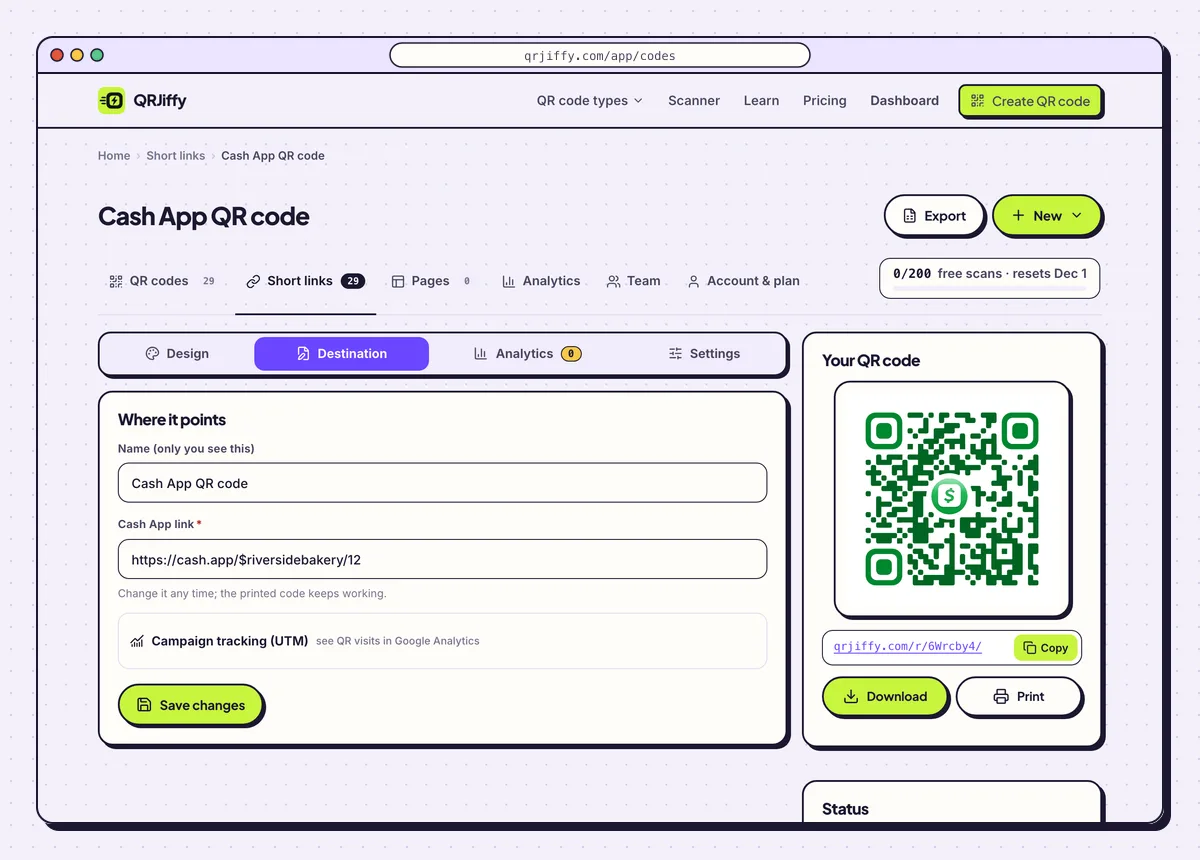
After printing, the Destination tab is where a new $Cashtag or price goes.
Open the Cash App QR Code generatorFree. Nothing to install.
How do you stop a Cash App QR code scam at your stall?
Print your name and $Cashtag beside the code, protect the sign, and scan it yourself every day. The usual trick is a fake sticker pasted over the real code, which sends money to the scammer’s tag. Payers see the difference only on the confirmation screen, where Cash App shows the recipient’s name.
- Before printing 100 copies: scan one and send a 1-unit test payment.
- On the counter: laminate the sign or keep it behind acrylic.
- For customers: the name in Cash App has to match the name on the sign before they tap to pay.
Where is the QR code inside Cash App, and why make another?
Cash App’s own code is on your profile: tap your profile picture, then the QR icon. It is designed for scanning inside Cash App. A QRJiffy code is for everything printed. It opens from any phone camera, carries an optional amount, takes your colours and a label, and downloads as a print-ready SVG.
Can someone take money from you with your Cash App QR code?
No, the code only reveals your public $Cashtag, and a $Cashtag cannot withdraw money from an account. It is the same tag you give anyone who pays you. The code holds no PIN, card or bank number. The risk runs the other way: a swapped code that makes your customers pay somebody else.
Where does a Cash App QR code work?
Cash App operates in the United States and the United Kingdom, and payments work between accounts in the same country. A UK customer cannot pay a US stall with it. Businesses use a Cash App for Business account, which charges a fee on each payment received. Personal payments from a linked debit card or balance carry no fee.
What mistakes stop a Cash App QR code from working?
These 5 mistakes cause most failed Cash App QR codes; each has a quick fix. Test the downloaded file with two different phones before you print anything.
| Mistake | Fix |
|---|---|
| One wrong letter in the $Cashtag | Paste the tag from your profile and confirm your name appears when a friend scans the code. |
| A fixed amount on a tip jar | Empty Amount (optional); tippers type their own figure. |
| Dots in Cash App’s light green | Switch to #008A20 on a white background and check Scannability says “High”. |
| The $Cashtag was changed after the stickers were printed | Paste the new cash.app link under Destination in the dashboard. |
| A paper sign taped to the counter with no cover | Laminate it, so a sticker placed on top is noticed. |
Frequently asked questions
Does it cost anything to make a Cash App QR code?
No. QRJiffy makes the code free with no watermark, and a free account includes 200 scans a month across all codes.
What does someone without Cash App see?
A cash.app web page that prompts them to download the app. They need a Cash App account to pay.
Can I use the same code for two prices?
No, a code holds one amount or none. Download one code per price and label each clearly.
Can I see who scanned my Cash App QR code?
No. The dashboard counts scans by day, device and country. Names appear only with payments, in your Cash App activity.
What size does a Cash App QR code need on a tip sign?
At least 2.5 × 2.5 cm (1 in). A sign read from 1 metre away needs a code about 10 cm wide.
Ready to make your Cash App QR code?
The generator is free and works in the browser on a phone or a computer. Your code downloads as PNG for screens or SVG for print.
Open the Cash App QR Code generator
Related guides: How to Print a QR Code · QR Code Size · QR Code Not Working