 QRJiffy
How to Make a Location QR Code for Google Maps
You make a location QR code by typing an address, a place name or GPS coordinates into a Google Maps QR code generator and downloading the image. A scan opens that place in Google Maps, one tap away from directions. Three minutes covers it. The code holds a short link, so the pin moves later without a reprint.
What do you need before you start?
You need 4 things ready, and no account to try the generator. A free account, or just your email, is asked for only at the download step.
- The address or place name, written the way you search for it in Google Maps, city included.
- For a gate, car park or trailhead: the latitude and longitude. Long-press the spot in Google Maps and the numbers appear in the search box.
- A phone with mobile data to check where the pin lands.
- An email address for the download and for the dashboard.
How do you make a Google Maps QR code step by step?
Follow these 7 steps in the Google Maps & Address QR Code generator; the preview updates as you type. Each screenshot below is the real screen, filled in with a sample bakery’s details.
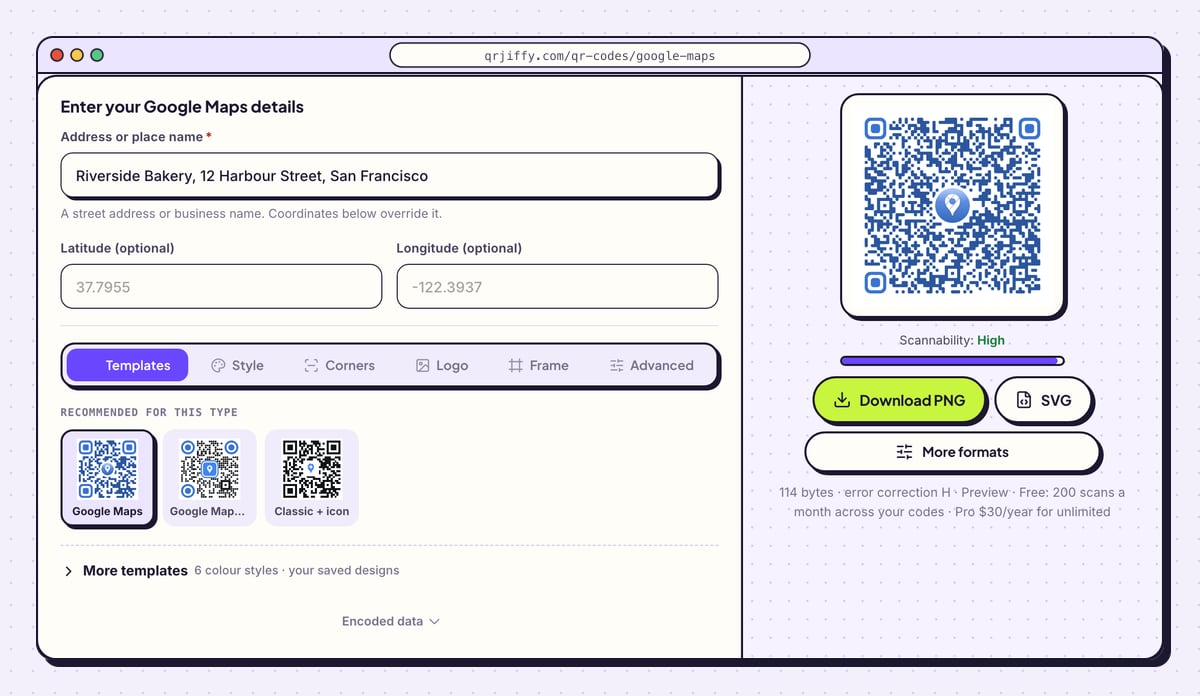
1Type the address or place name
On the Google Maps QR code generator, fill in Address or place name. The note below says “A street address or business name. Coordinates below override it.” The sample is “Riverside Bakery, 12 Harbour Street, San Francisco”.
A business with a Google listing is best entered by its exact listed name plus the city. Maps then opens the listing, with reviews and opening hours, and not a bare pin on the street.
Tip: Search the same words in Google Maps before you type them here. If Maps hesitates between two places, add the postcode.
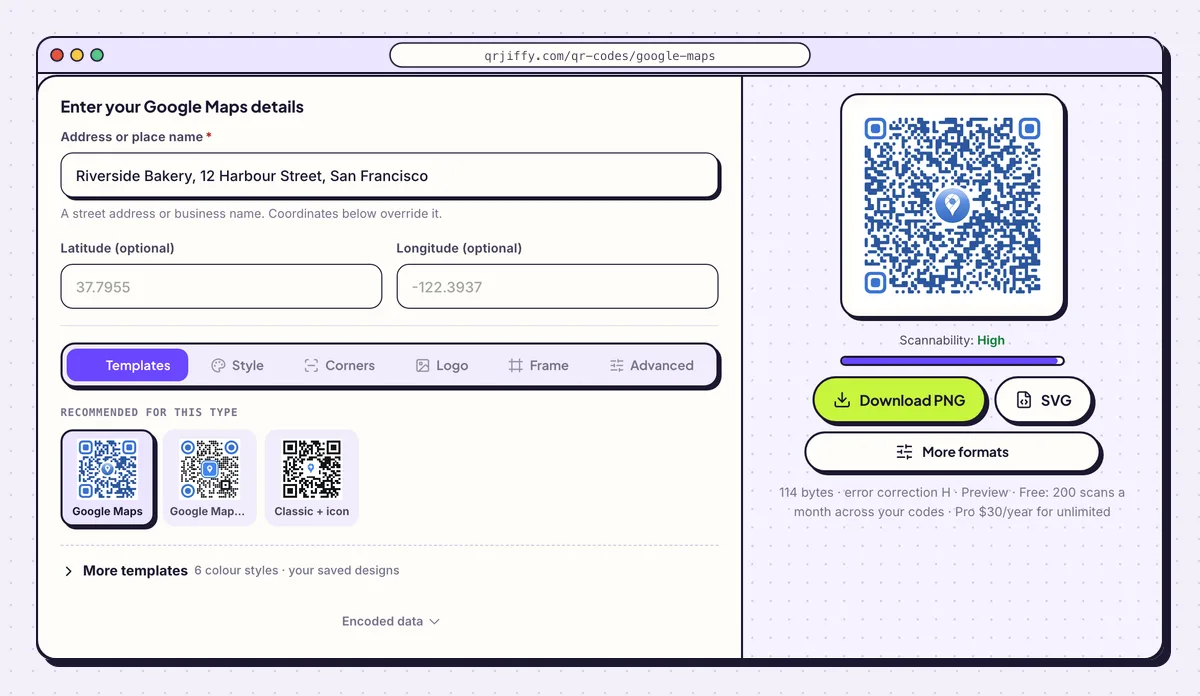
An address in the first field is enough. Latitude and longitude stay empty here. 2Add coordinates for a spot with no address
Entrances, parking bays and meeting points in a park have no street number. For those, fill in Latitude (optional) and Longitude (optional) in decimal degrees with a period, such as 37.7955 and -122.3937. Five decimal places put the pin within about 1 metre.
Coordinates win over the address field. Clear both number fields again if you return to an address, or the old pin stays in the code.
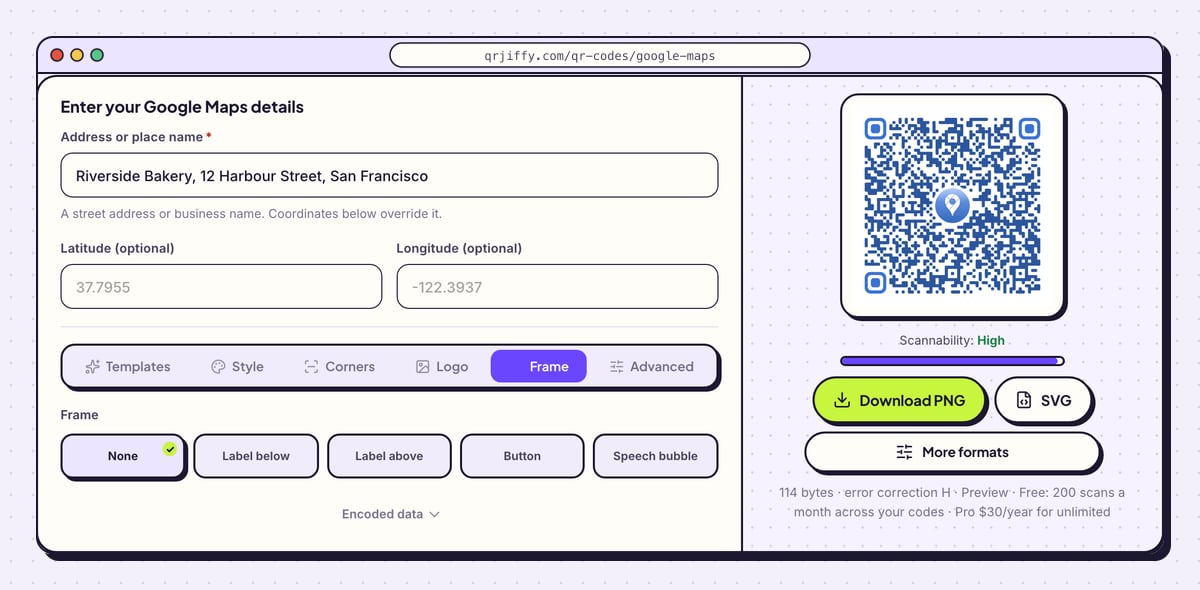
3Add a “Scan for directions” label
Under Frame, the layouts run from None to Call to action, with Label below, Label above, Button and Speech bubble between them. Choose one, enter “Scan for directions” or “Find the car park”, and adjust Frame colour and Text colour to suit the sign.
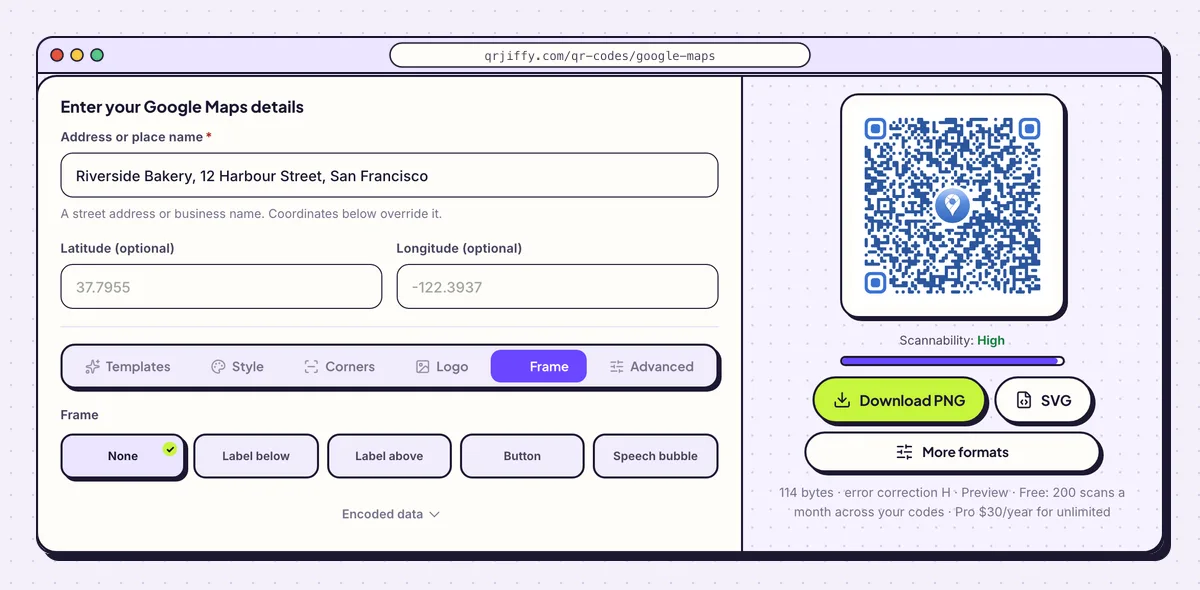
A frame with “Scan for directions” tells visitors the code opens a map. 4Download the location code
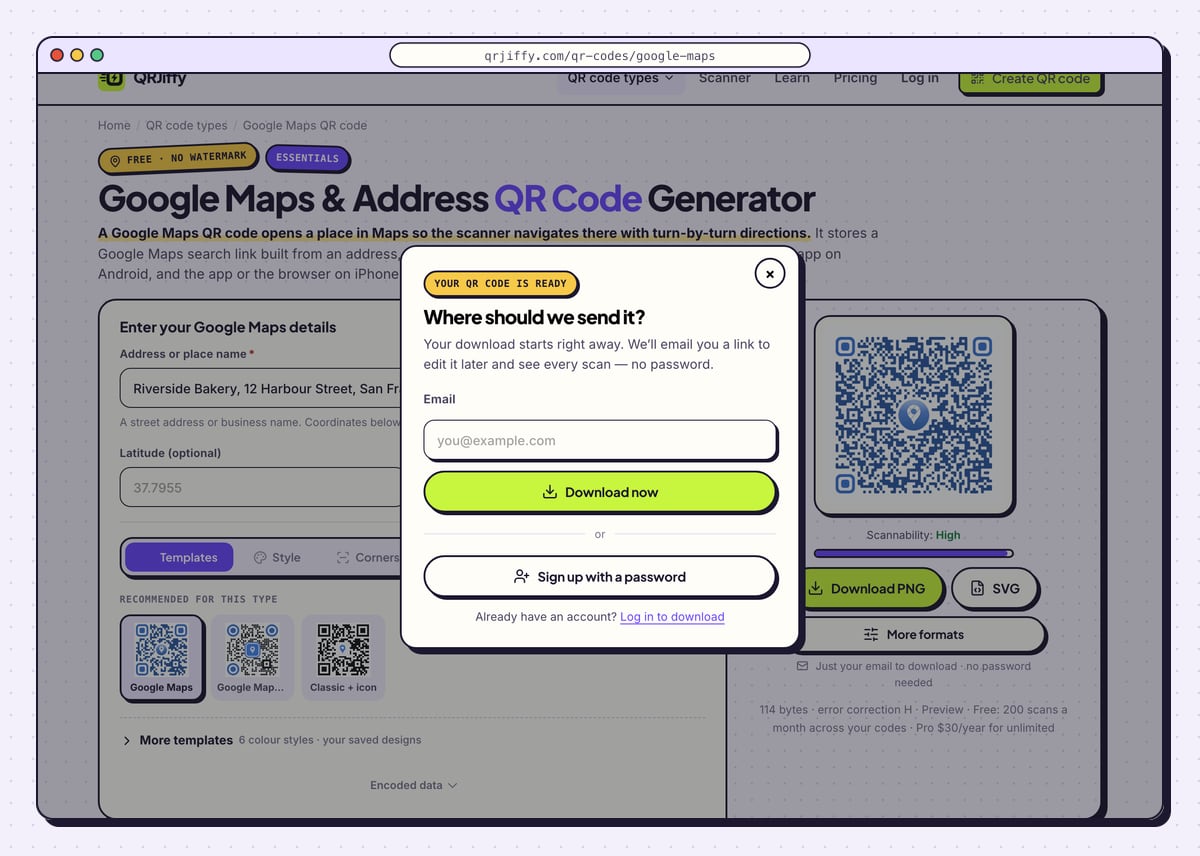
Select SVG for signage and Download PNG for invitations, emails and web pages. Enter an email in the box that appears the first time, then click Download now. The file is saved under a name like
qrjiffy-google-maps-BZT66iQ.png, and the page shows the matching short link,qrjiffy.com/r/followed by the same ID.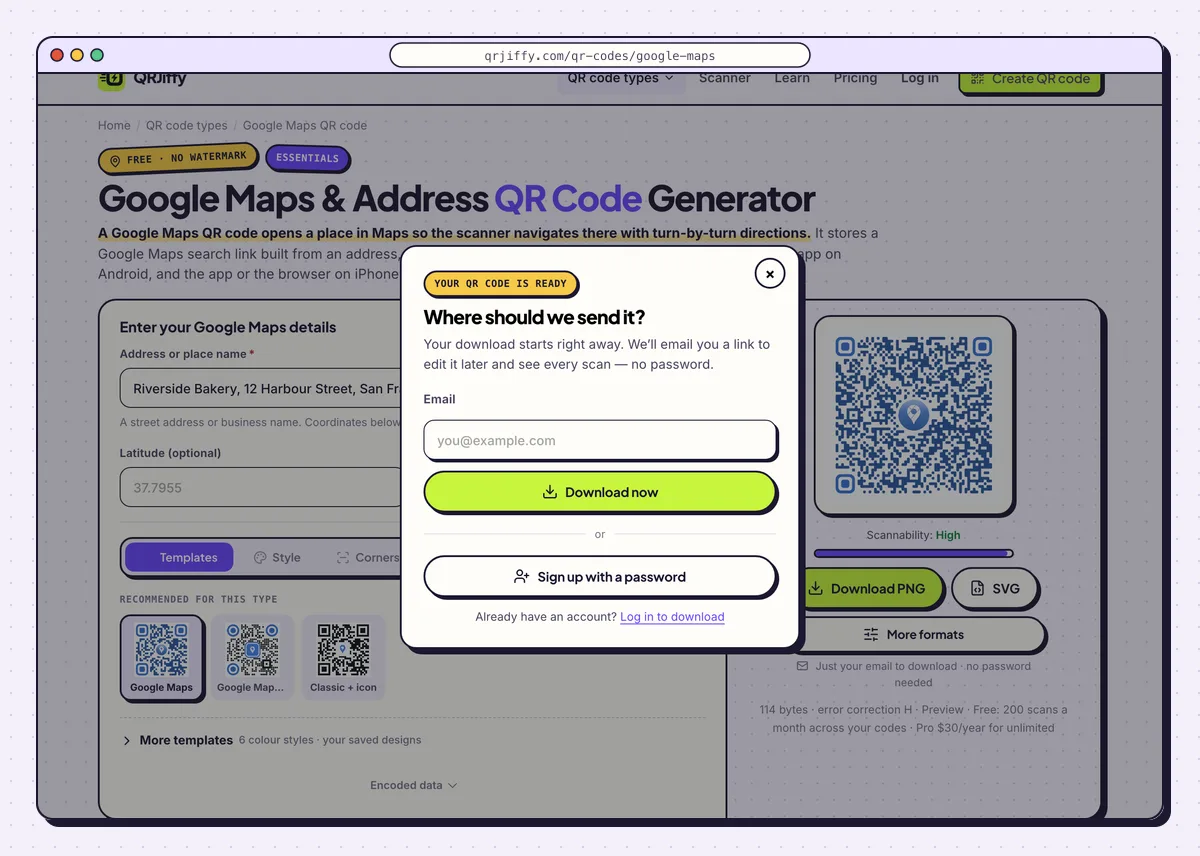
The download box for the location code, shown on the first download only. 5Check where the pin lands
Scan the file with a phone on mobile data. Google Maps opens on the place, with a Directions button. Zoom in and compare the pin with the real entrance. If it sits on the wrong side of the building, go back and use coordinates.
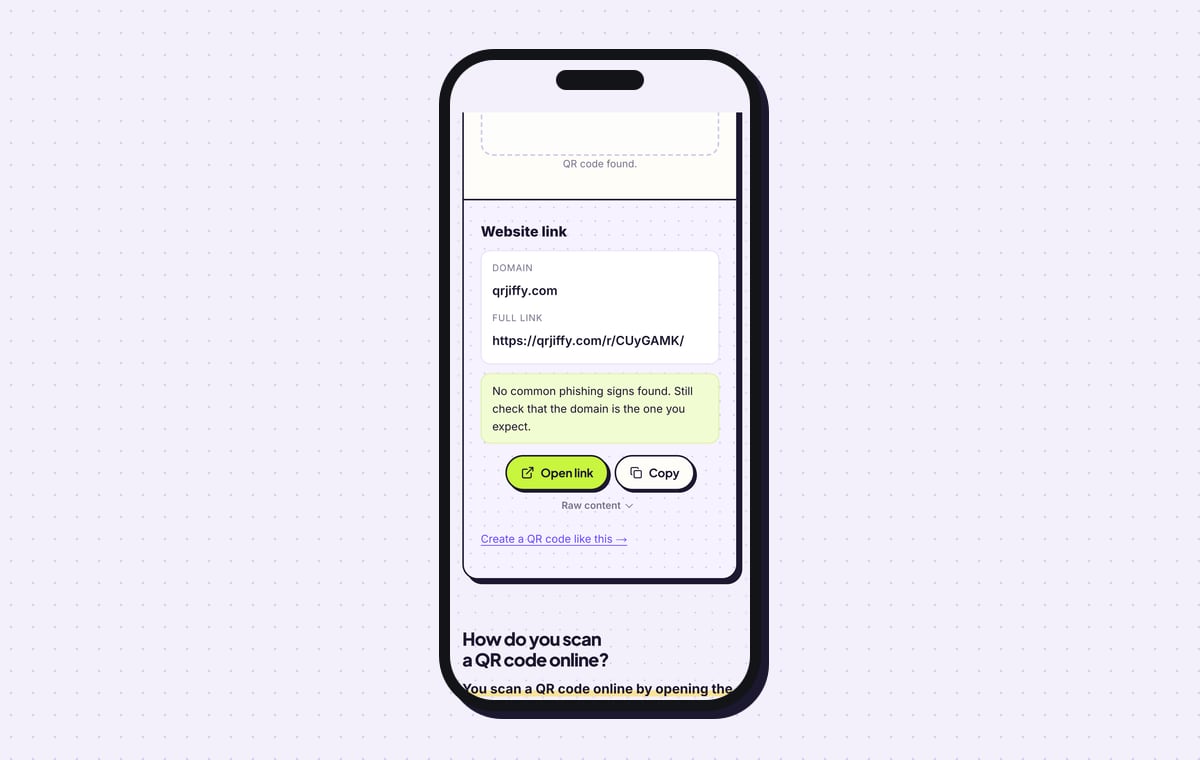
Uploading the file to the QR code scanner shows a “Website link” on the domain qrjiffy.com. That is the short link stored in the code; Open link forwards to the map.
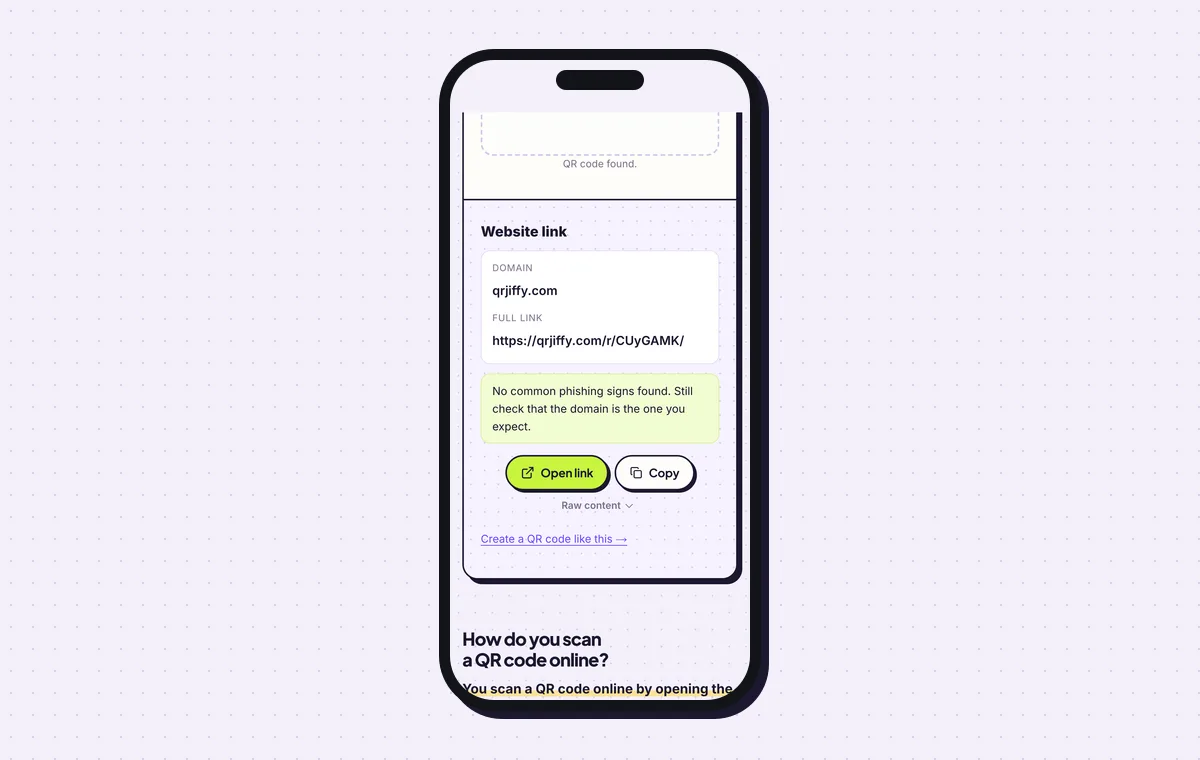
The scanner shows the short link, which forwards to the Google Maps search. 6Move the pin or view scans in the dashboard
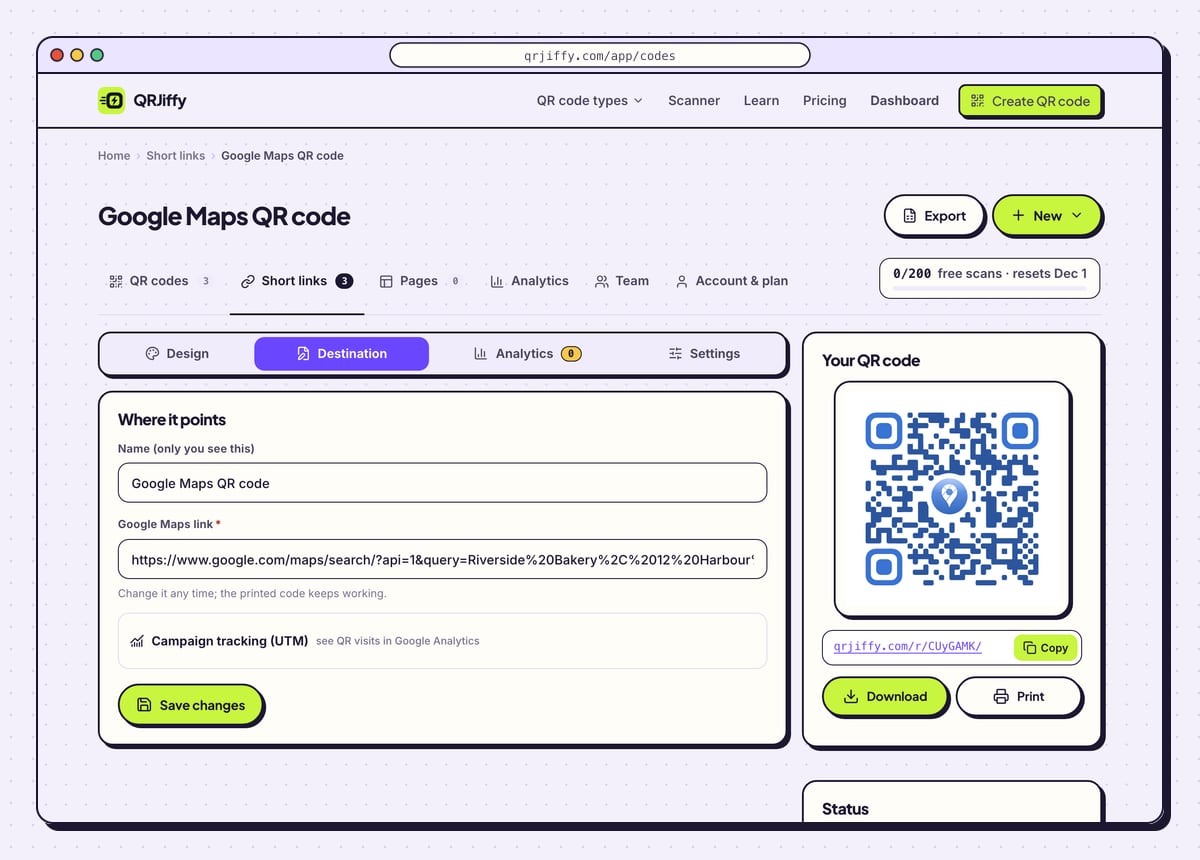
Log in and choose the code from your list. The Destination tab holds the place it opens: enter the new address after a move, or the new car park for this year’s event, and the signs already printed lead there. Settings and Design sit alongside.
The Analytics tab reports scans per day, per device type and per country. Free accounts have 200 scans a month in total, and the $30 a year Pro plan has no cap.
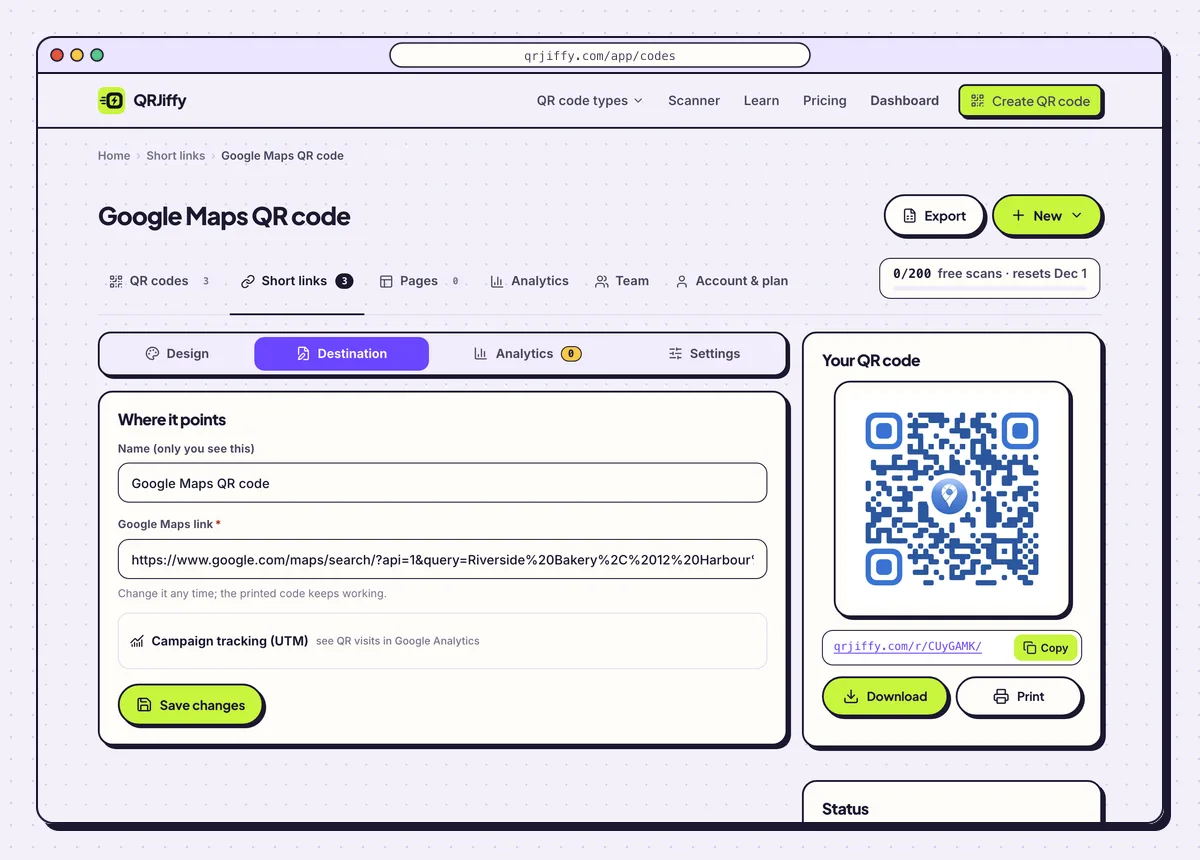
The location code’s dashboard page, where the destination is changed. 7Print it with the address underneath
A location code prints from 2 × 2 cm (0.8 in) on an invitation. A direction sign read from 2 m needs 20 cm. Outdoors, keep error correction at Q (25%) or higher in the Advanced tab, so rain marks and scratches do not stop the scan. Print the address in text under the code for people who navigate another way.
Open the Google Maps & Address QR Code generatorFree. Nothing to install.
What happens when someone scans a location QR code?
The phone follows the short link to a Google Maps search for your address or coordinates and shows the place with a Directions button. Cameras on iOS 11 or later and Android 9 or later read the code. The map loads online, unless the person has downloaded that area for offline use in Google Maps.
- Android: the link opens the Google Maps app on the place, with a Directions button.
- iPhone: the link opens the Google Maps app if it is installed, and Google Maps in Safari if not.
- Coordinates: a latitude and longitude pair drops an exact pin, accurate to about 1 metre at 5 decimal places.
How do you find the coordinates of a place?
Long-press the exact spot in Google Maps, and the latitude and longitude appear in the search box, ready to copy. The first number is the latitude and the second the longitude. Paste each into its own field in the generator and keep the minus sign where there is one: it marks west or south.
Can a location QR code open Apple Maps instead?
Yes, with a different link: put an Apple Maps address (https://maps.apple.com/?q=…) into a link QR code. That code opens Apple Maps on an iPhone and a browser map on Android. A Google Maps link never opens Apple Maps. On an iPhone it opens the Google Maps app when installed and Safari otherwise.
Can you change the location after the sign is printed?
Yes. Replace the address or coordinates in the Destination tab of the dashboard, and the printed code opens the new place. The pattern holds only the short link, so nothing on the sign changes. This keeps one set of signs usable when a shop relocates, or when a recurring event moves its entrance.
What mistakes stop a Google Maps QR code from working?
These 6 mistakes cause most failed Google Maps QR codes; each has a quick fix. Test the downloaded file with two different phones before you print anything.
| Mistake | Fix |
|---|---|
| A street address with no city or postcode | Write the full address, as you would search it in Google Maps. |
| Latitude and longitude typed in each other’s field | Latitude goes first. Scan the code and look at the pin before printing. |
| Coordinates written with a comma as the decimal mark | Use decimal degrees with a period, such as 37.7955. |
| Old coordinates left in the form under a new address | Empty both coordinate fields. They override the address. |
| A business name that differs from its Google listing | Copy the name from the listing so Maps opens it with reviews and hours. |
| A sign with no written address | Print the address in text beneath the code. |
Frequently asked questions
Is a location QR code free to make?
Yes. You create and download it for free, without a watermark. Free accounts get 200 scans a month over all their codes, and Pro is $30 a year with unlimited scans.
Does the person need the Google Maps app?
No. Without the app, the link opens Google Maps in the browser.
Does a location QR code work offline?
No. The map loads over the internet, unless the area was downloaded for offline use in Google Maps beforehand.
Can one QR code show several locations?
No. One code opens one place. A web page that lists all your locations, behind a link QR code, covers several.
Can I use a link copied from Google Maps?
Yes. In Google Maps choose Share, then Copy link, and paste that maps.app.goo.gl link into the link QR code generator.
Ready to make your Google Maps QR code?
The generator is free and works in the browser on a phone or a computer. Your code downloads as PNG for screens or SVG for print.
Open the Google Maps & Address QR Code generator
Related guides: How to Print a QR Code · QR Code Size · QR Code Not Working