 QRJiffy
How to Make a Google Review QR Code
You create a QR code for Google reviews by copying your review link from Google Business Profile, pasting it into a Google review QR code generator and downloading the code. A customer who scans it lands on your star-rating box, with no searching for the business name. Finding the link takes 2 minutes and making the code takes 2 more.
What do you need before you start?
You need 4 things ready, and no account to try the generator. A free account, or just your email, is asked for only at the download step.
- Access to your Google Business Profile: search your business name on Google while signed in as an owner or manager.
- The review link from “Ask for reviews”. It looks like
https://g.page/r/…/review. - Without profile access: the business’s Place ID from Google’s Place ID Finder. It starts with “ChIJ”.
- Your logo file if you want it in the centre of the code.
How do you make a Google review QR code step by step?
Follow these 6 steps in the Google Review QR Code generator; the preview updates as you type. Each screenshot below is the real screen, filled in with a sample bakery’s details.
1Find your review link in Google Business Profile
Search your business name on Google while signed in to the account that manages the profile. In the profile panel, click Ask for reviews. Google shows a link such as
https://g.page/r/…/review: copy it.Each location has its own profile and its own link. A business with three shops needs three links and three codes, so that reviews land on the right branch.
Tip: Paste the link into a private browser window first. The star-rating box for your business opens, which proves the link is the right one.
2Paste the review link into the generator
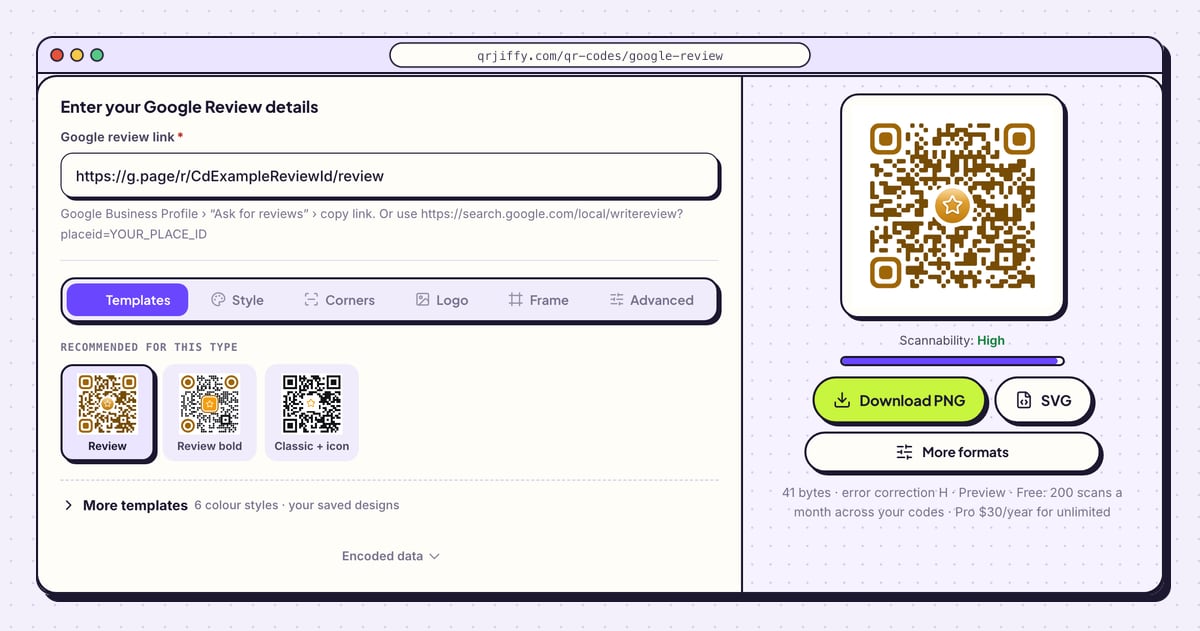
Open the Google review QR code generator and paste the link into Google review link. The text under the field repeats where to find it and gives the second accepted format,
https://search.google.com/local/writereview?placeid=followed by a Place ID. The code on the right is drawn the moment the link is in.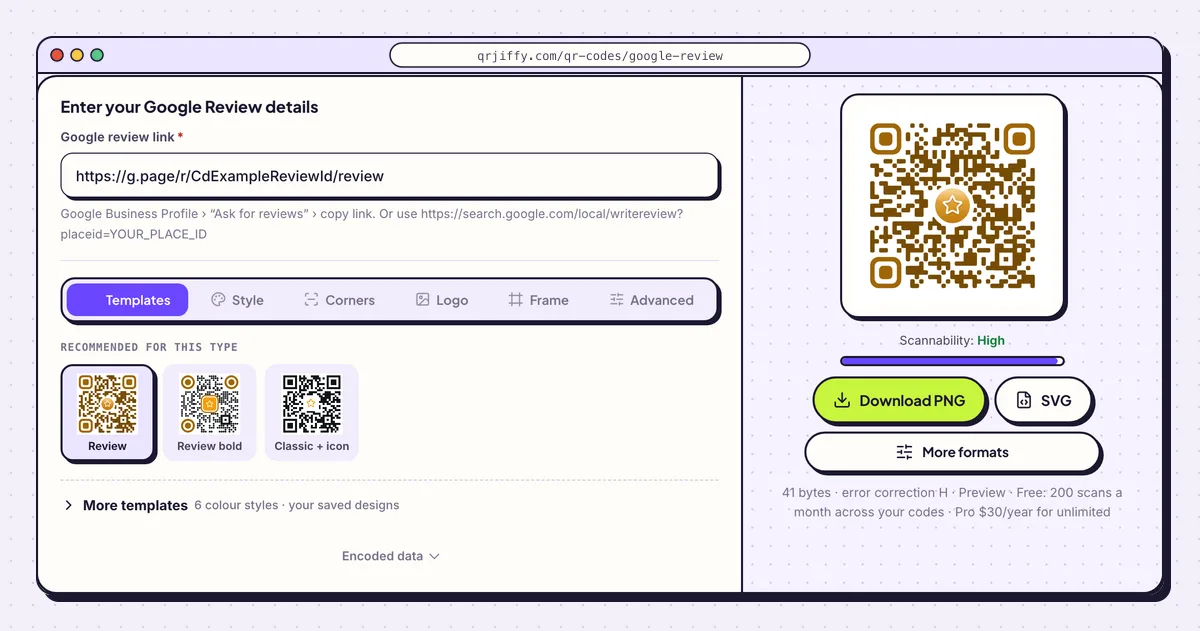
The review link from Google Business Profile goes into the only field on the page. 3Add a “Scan to review us” label and your logo
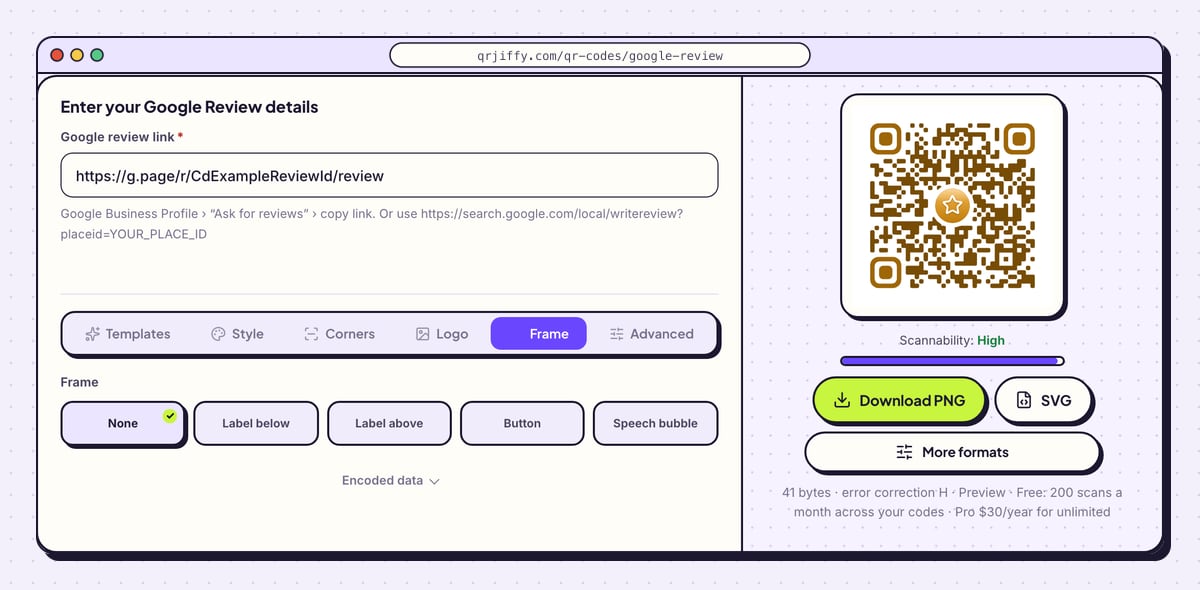
In the Frame tab, pick Call to action or Label below and type a line such as “Enjoyed your visit? Scan to review us”. A label beside the till does the asking for staff who forget to. Frame colour and Text colour take your brand colours.
The Logo tab puts your logo in the centre, and error correction rises to H (30%) automatically. Keep the logo under about 20% of the code area and leave the dots dark on a light background.
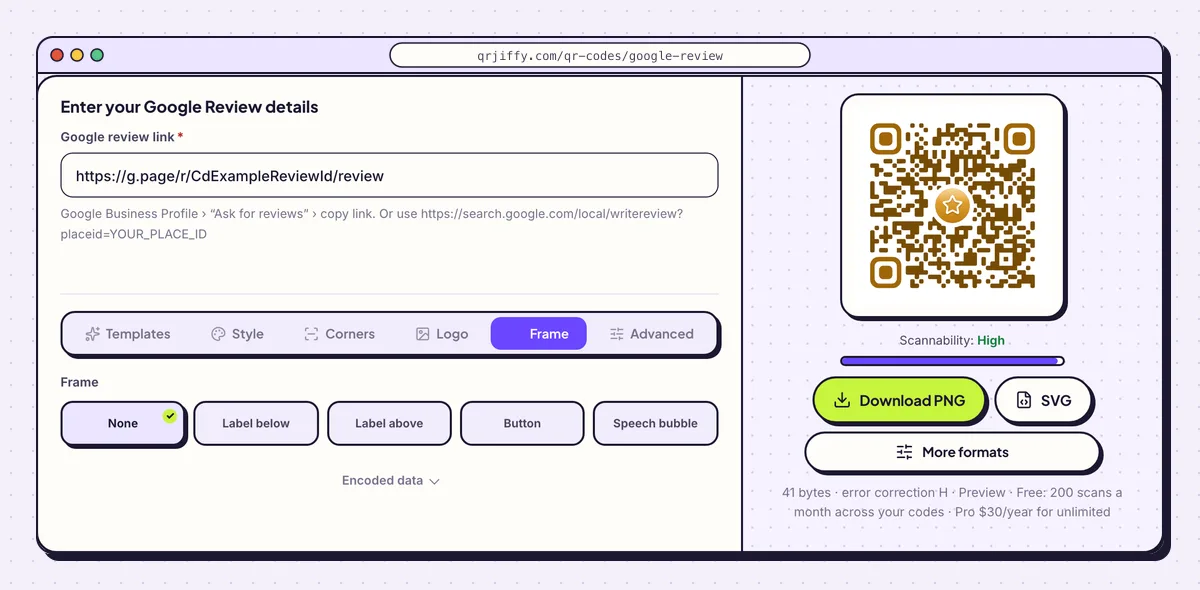
A frame with a short request turns the code into a small sign of its own. 4Download the code as PNG or SVG
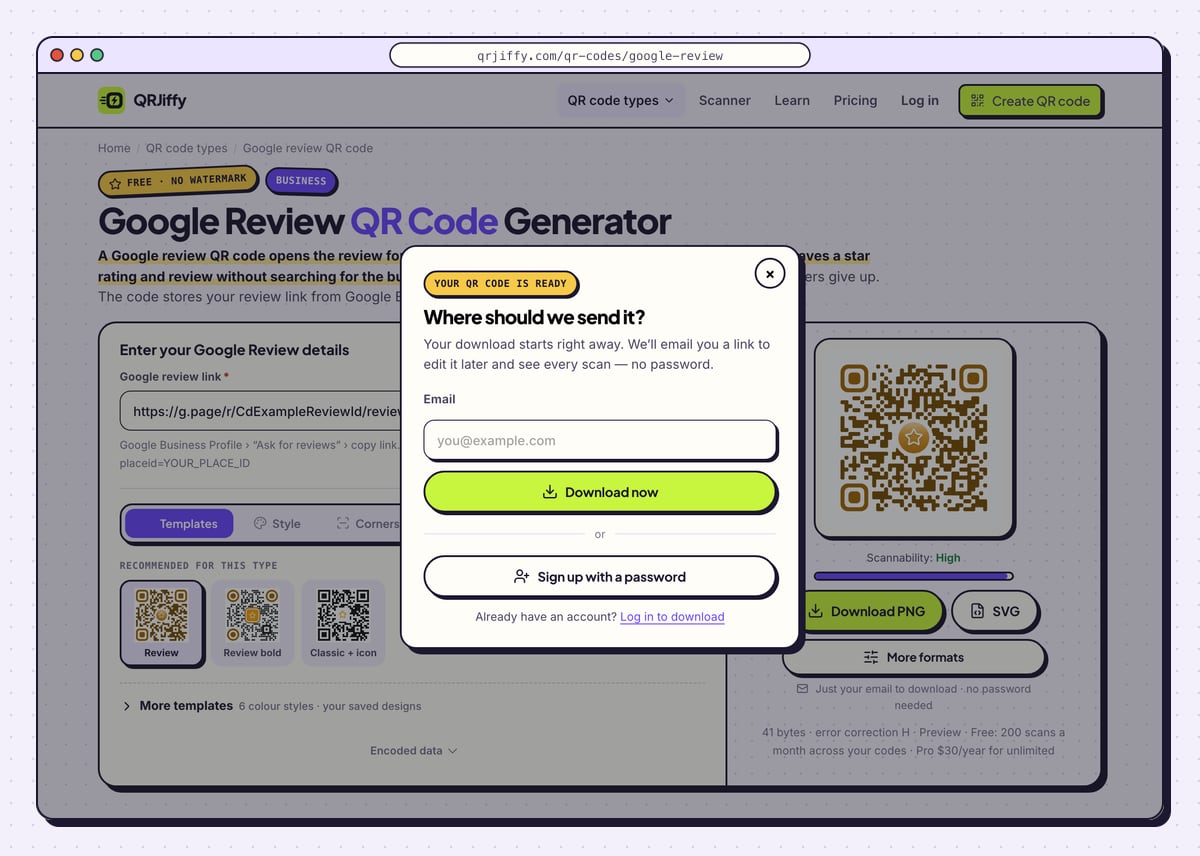
SVG is the file for acrylic counter stands and anything a print shop makes, because it stays sharp at any size. Download PNG suits receipts, emails and office printers. Enter an email in the “Where should we send it?” box and press Download now; the file, named like
qrjiffy-google-review-g47iA3w.png, saves immediately.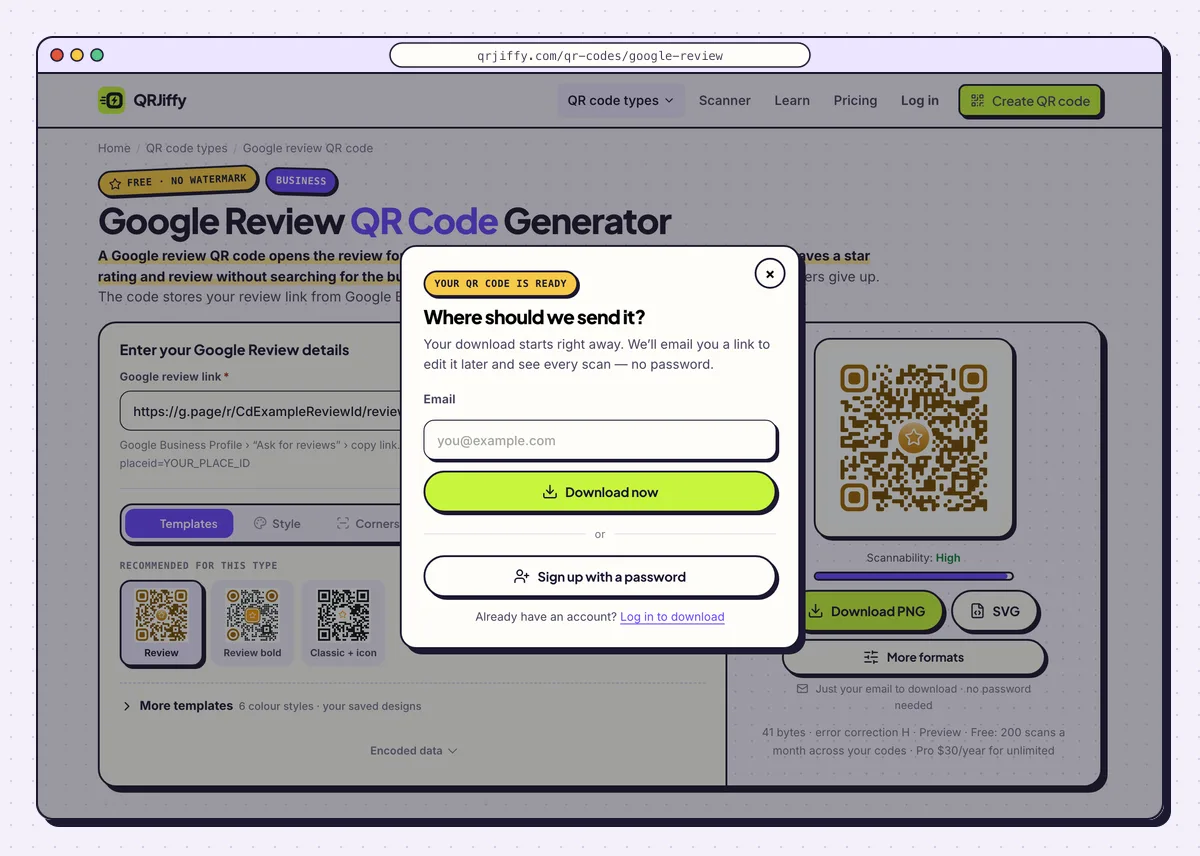
One email address unlocks the download and a link to manage the code afterwards. 5Scan it while signed out of your own account
Scan the code on a phone that is not signed in as the profile owner. The review box opens in Safari or the Google Maps app on an iPhone and in Google Maps on Android, with five empty stars ready. A phone with no Google account signed in sees a sign-in page first, which is normal: Google posts reviews under an account.
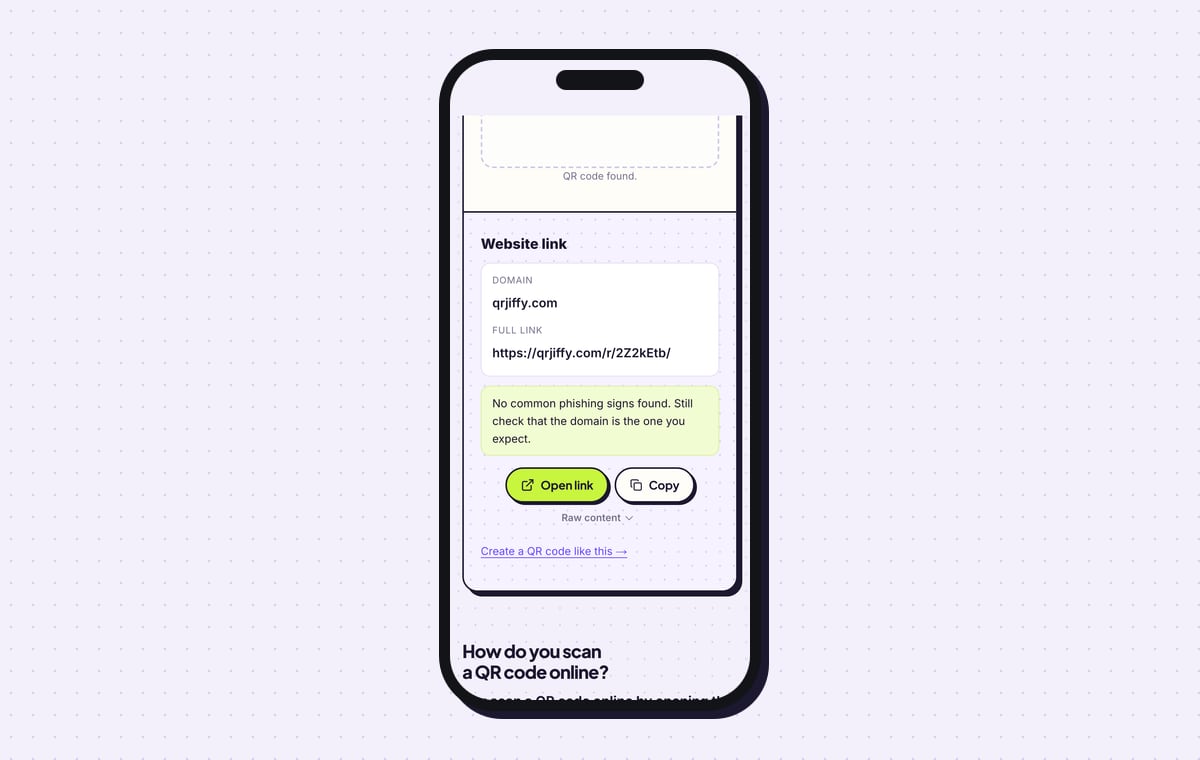
QRJiffy’s own scanner reads the downloaded file as “Website link” with the domain qrjiffy.com and the full short link. Tap Open link there to follow it through to Google.
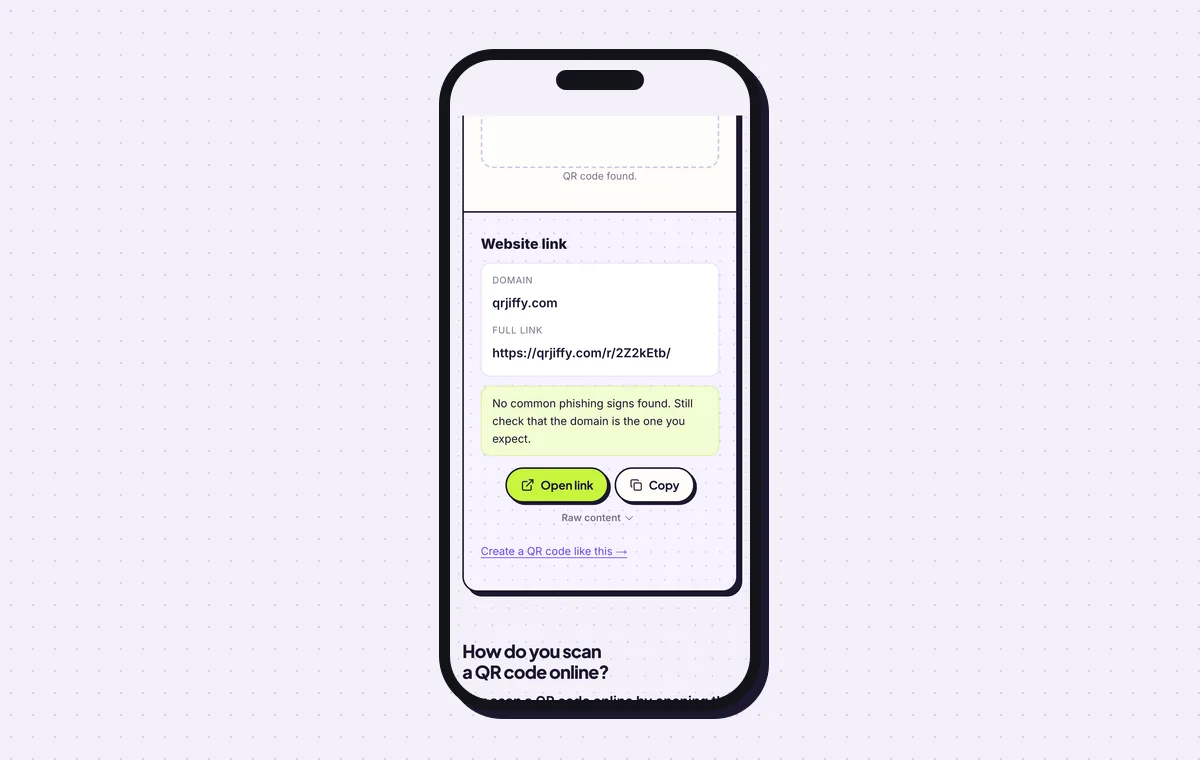
The file holds a qrjiffy.com short link that forwards to the Google review box. 6Print it where customers pay, then watch the scans
Print the code at 5 cm wide on a counter stand and at least 2.5 × 2.5 cm (1 in) on a receipt or card. Use error correction Q (25%) from the Advanced tab for stands that get handled and wiped. Place the stand beside the card reader, where customers wait for a few seconds with a phone in hand.
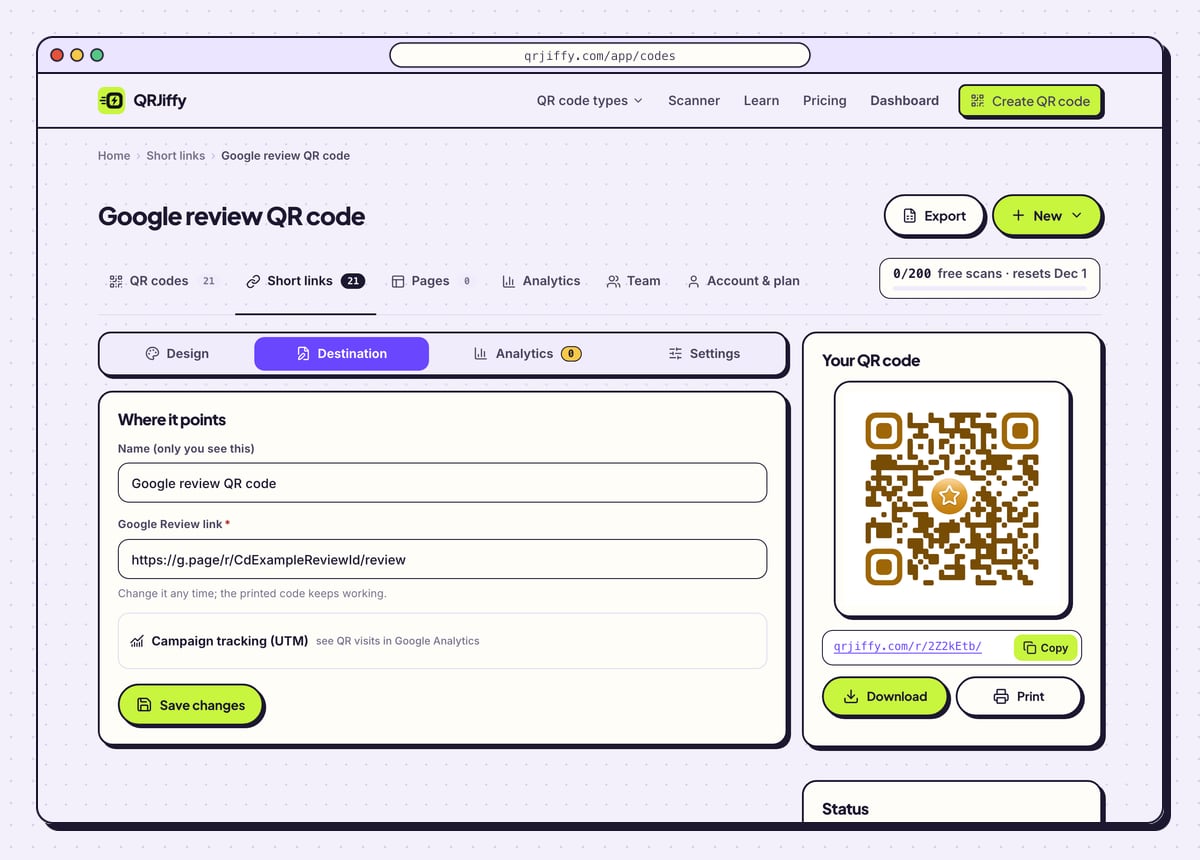
The dashboard keeps the code under Design, Destination, Analytics and Settings. Analytics shows scans by day, device and country, and new reviews show in Business Profile. If the business moves to a new profile, paste the new review link into Destination and keep the stands.
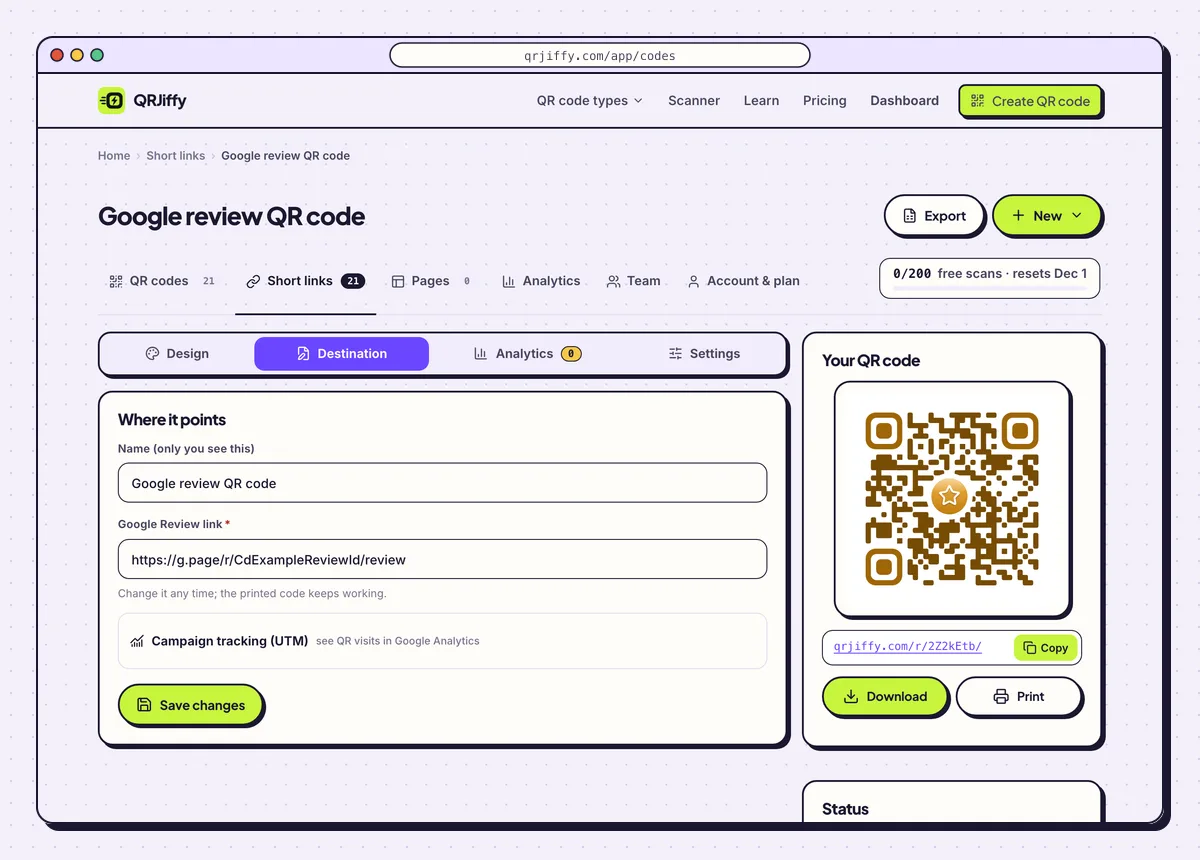
Scans appear under Analytics. The review link behind the stand is changed under Destination.
Open the Google Review QR Code generatorFree. Nothing to install.
How do you get a Google review link without access to the profile?
Build the link from the Place ID: add the ID to the end of https://search.google.com/local/writereview?placeid=. This works for any business listed on Google Maps, including one whose profile you do not manage. Both link formats open the same review box.
- Open Google’s Place ID Finder (developers.google.com/maps › Place ID Finder).
- Type the business name and select it on the map.
- Copy the Place ID, a string that starts with “ChIJ”.
- Paste the writereview address followed by the ID into the generator.
Does Google make its own review QR code?
Yes. The “Ask for reviews” panel in Google Business Profile offers a QR code to download next to the link. Google’s version is a plain black PNG. A code made from the same link on QRJiffy takes your colours, a logo and a label, downloads as SVG for large stands, and counts its scans.
Is it allowed to reward customers for scanning and reviewing?
No. Google’s review policy prohibits discounts, gifts and prize entries in exchange for reviews. It also prohibits “review gating”, which means asking only happy customers. Google removes such reviews and can suspend reviews on the profile. Put the code where every customer sees it and attach no reward to it.
What does the customer see after scanning?
The customer sees your business name with five empty stars and a text box, ready to post. iPhones on iOS 11 or later and Android phones on Android 9 or later scan with the built-in camera. A customer who is not signed in to Google is asked to sign in before the review is posted.
What mistakes stop a Google review QR code from working?
These 6 mistakes cause most failed Google review QR codes; each has a quick fix. Test the downloaded file with two different phones before you print anything.
| Mistake | Fix |
|---|---|
| The code opens the Google Maps listing instead of the review box | Use the link from “Ask for reviews” or the writereview Place ID link, not the share link of the listing. |
| One code is printed for several branches | Make one code per location. Every Google profile has its own review link. |
| The sign offers 10% off for a review | Remove the offer. Incentives break Google’s policy and the reviews get deleted. |
| The code was tested only on the owner’s phone | Test on a phone signed out of the owner account to see what customers see. |
| A logo covers a third of the code | Shrink the logo to about 20% of the code area and keep error correction at H. |
| The stand sits on a shelf behind the counter | Move it next to the card reader and print the code 5 cm wide. |
Frequently asked questions
Is a Google review QR code free to make?
Yes. The review link from Google costs nothing, and the code made from it on QRJiffy is free to download without a watermark.
Does the Google review link ever change?
Rarely. The link stays the same while the profile exists. After a move to a new profile, change the destination of the code in the QRJiffy dashboard and keep the printed stands.
Can I see which customers scanned the code?
No. The dashboard shows totals by day, device and country, with no names. Google shows the reviews themselves in Business Profile.
Can the same steps make a Yelp or Tripadvisor review code?
Yes. Paste the review page link from Yelp, Tripadvisor or Trustpilot into the same field and the code opens that page.
How many scans does a free account include?
A free account includes 200 scans a month across all its codes. Pro costs $30 a year and has no scan limit.
Ready to make your Google review QR code?
The generator is free and works in the browser on a phone or a computer. Your code downloads as PNG for screens or SVG for print.
Open the Google Review QR Code generator
Related guides: How to Print a QR Code · QR Code Size · QR Code Not Working