 QRJiffy
How to Make a GS1 Digital Link QR Code
You make a GS1 Digital Link QR code by entering a GTIN you licensed from GS1, plus an optional batch and serial number, into a GS1 Digital Link generator and downloading the code for your pack artwork. The result is a web address with the GTIN in a standard path. A 2D checkout scanner reads the GTIN from it, and a phone opens it as a link.
What do you need before you start?
You need 4 things ready, and no account to try the generator. A free account, or just your email, is asked for only at the download step.
- A GTIN licensed from your national GS1 organisation. It is the number printed under your existing EAN or UPC barcode.
- The batch or lot number and, for per-item identity, the serial number.
- A decision on the resolver domain: your own domain, or the GS1 global resolver.
- Access to a 2D-capable checkout scanner for the test in step 6.
How do you make a GS1 Digital Link QR code step by step?
Follow these 7 steps in the GS1 Digital Link QR Code generator; the preview updates as you type. Each screenshot below is the real screen, filled in with a sample bakery’s details.
1Enter the GTIN
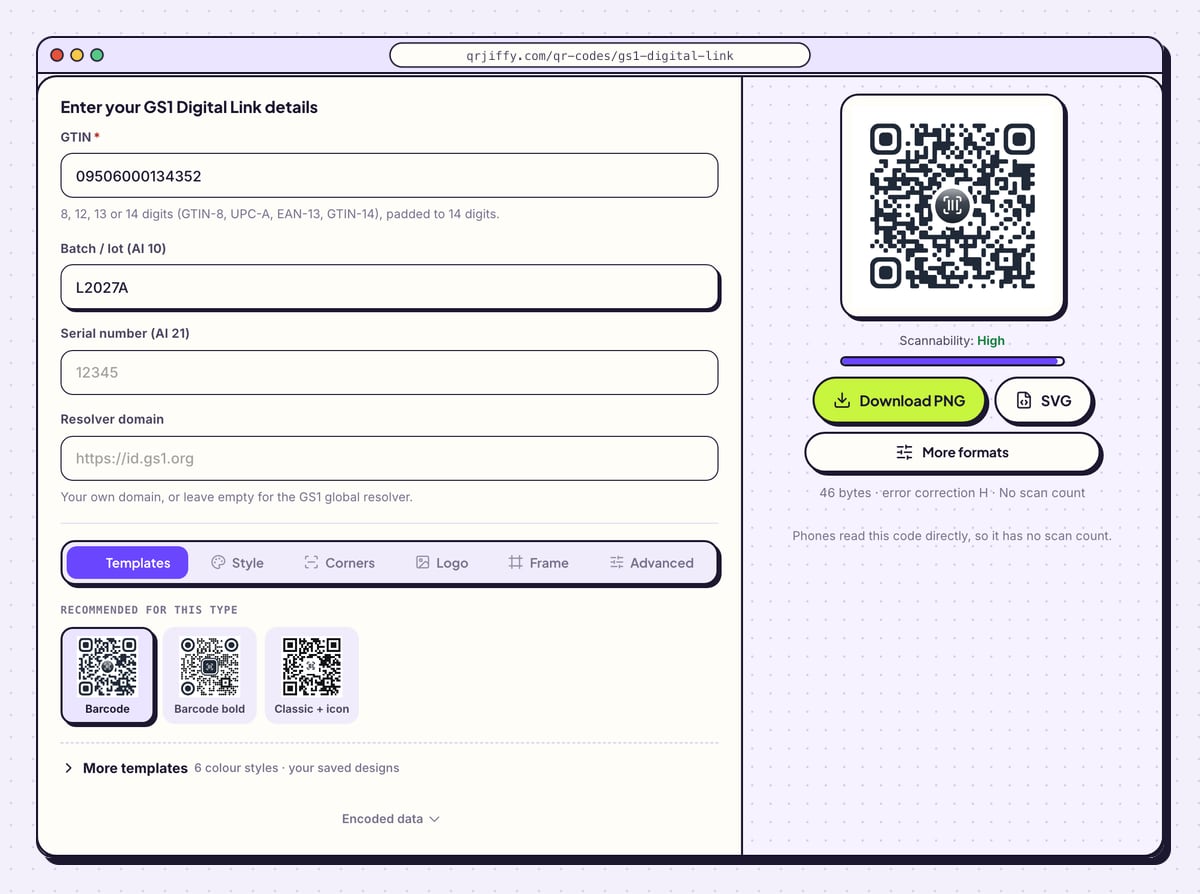
Open the GS1 Digital Link QR code generator, headed “Enter your GS1 Digital Link details”. Type the number into GTIN. The field accepts 8, 12, 13 or 14 digits (GTIN-8, UPC-A, EAN-13, GTIN-14) and pads the number to 14 digits. The sample is 09506000134352.
Tip: Use only a GTIN your company licensed. An invented number causes conflicts at checkouts and on marketplaces.
2Add the batch and serial number
Batch / lot (AI 10) takes the production lot, up to 20 characters, such as L2027A. It supports stock rotation and targeted recalls. Serial number (AI 21) identifies one individual unit, for warranty or authentication. Both are optional.
“AI” means Application Identifier, the GS1 code for each data element:
01for the GTIN,10for the batch,21for the serial. The form has no expiry-date field.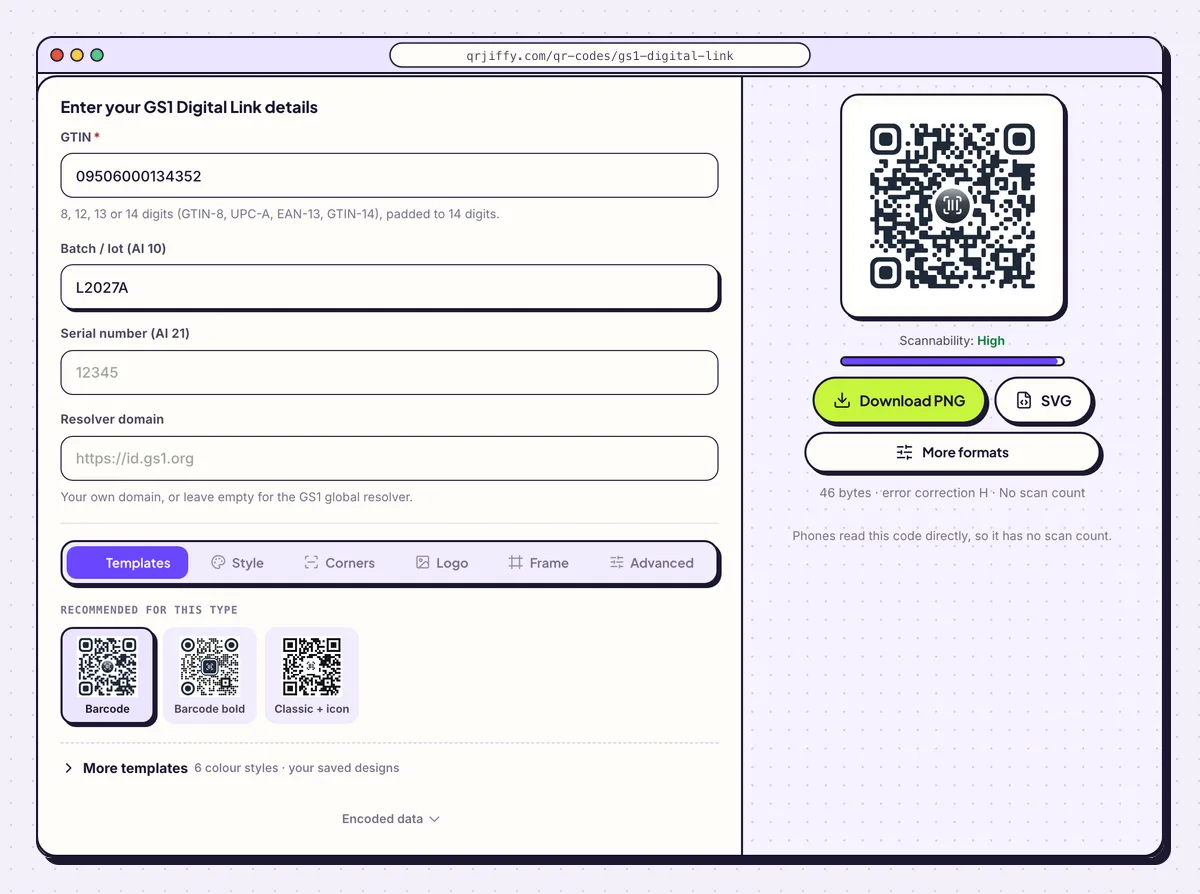
GTIN and batch entered; the preview already holds the full GS1 Digital Link address. 3Set the resolver domain
Resolver domain is the web address at the front of the link, and it decides where phone scans go. Leave it empty and the code uses
https://id.gs1.org, the GS1 global resolver. Enter your own, such ashttps://id.example.com, to control the page shoppers reach and to redirect them later.For the sample the result is
https://id.gs1.org/01/09506000134352/10/L2027A. Open Encoded data under the design tabs to read your own link before downloading.Tip: Set up the redirect on your domain before the packs ship. The checkout does not use the domain, but every shopper’s phone does.
4Check error correction and margin in Advanced
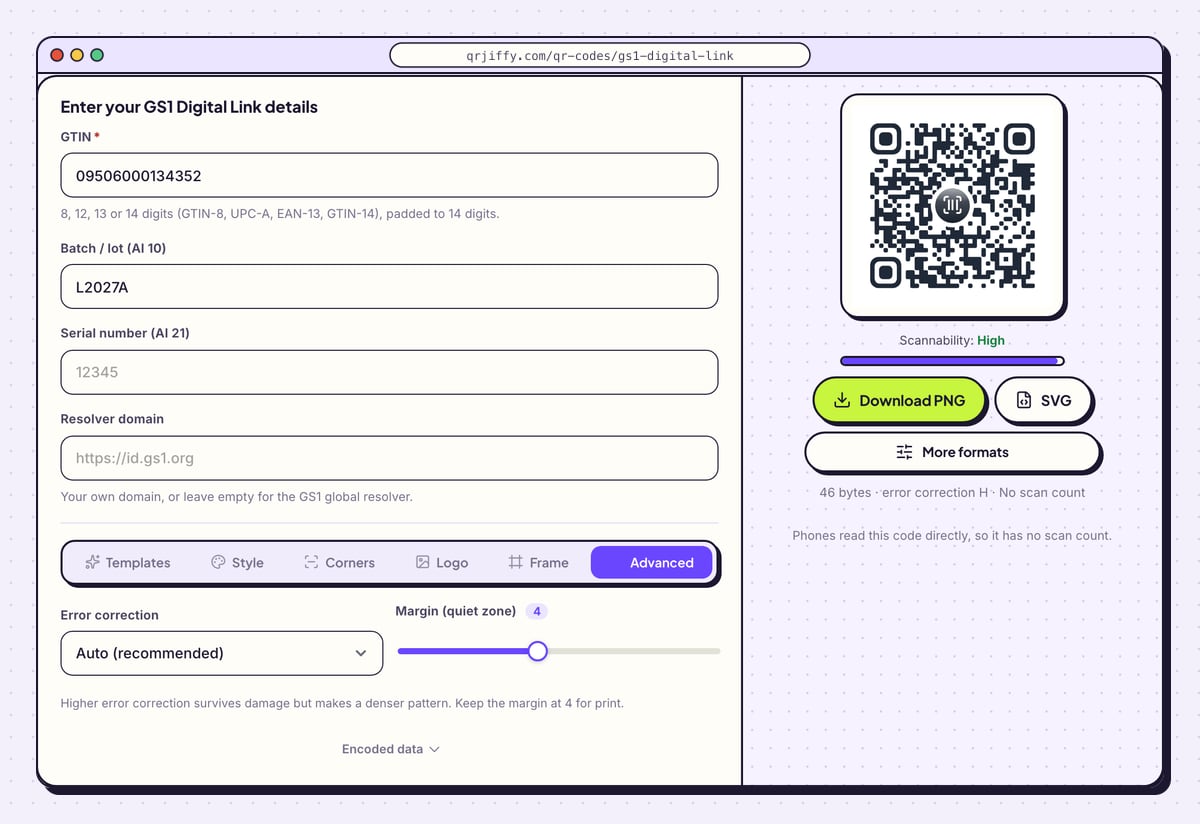
Open the Advanced tab. It has two controls: Error correction, set to Auto (recommended), and Margin (quiet zone), set to 4. For a flat retail label pick M, which recovers 15% of the code; pick Q, at 25%, for curved packs. Leave the margin at 4: the note under the slider says to keep it there for print.
Skip decorative styling here. Plain dark dots on white, with nothing in the quiet zone, give checkout scanners the best conditions.
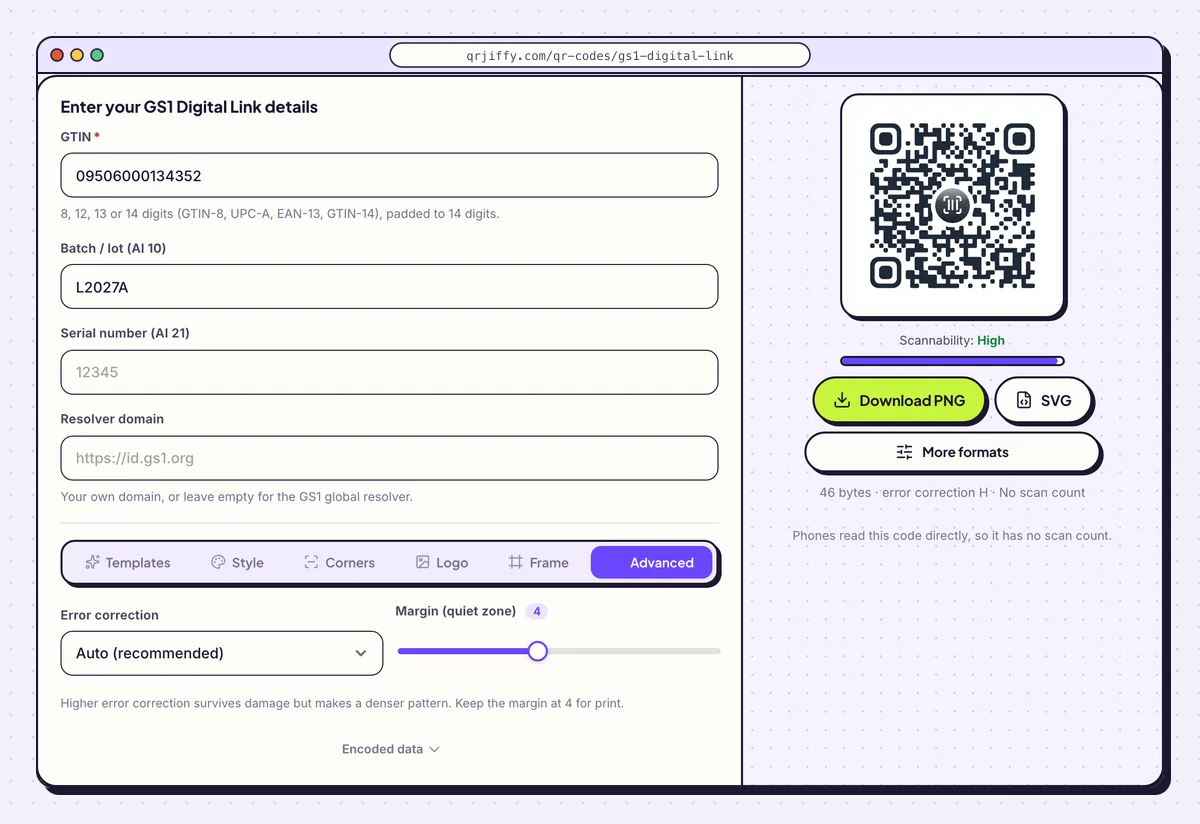
The Advanced tab holds the two settings that matter on packaging: error correction and margin. 5Download the SVG
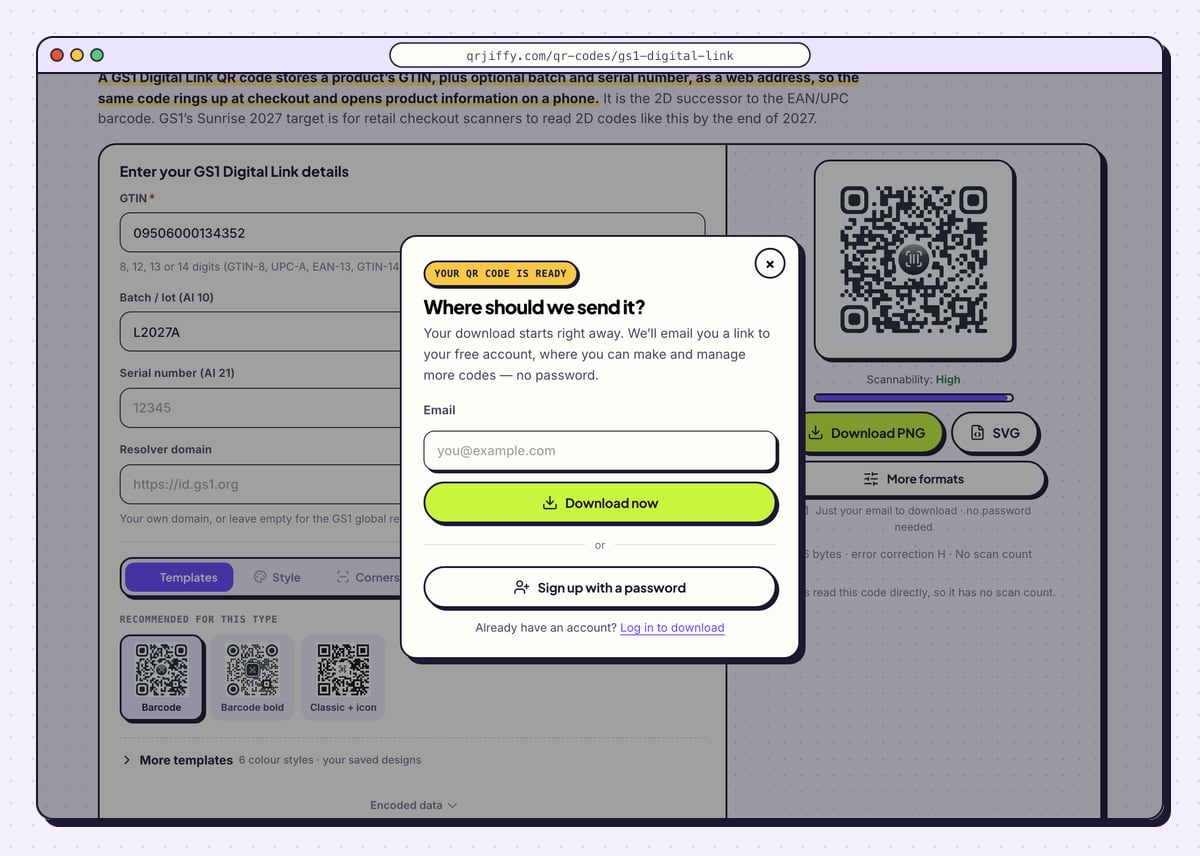
Click SVG for pack artwork, or Download PNG for a proof sheet. The dialog asks for an email once, and Download now saves the file, named
qrjiffy-gs1-digital-link.pngfor the PNG. Under the preview the generator states “Phones read this code directly, so it has no scan count”: the code contains your GS1 link itself, with no short link in front.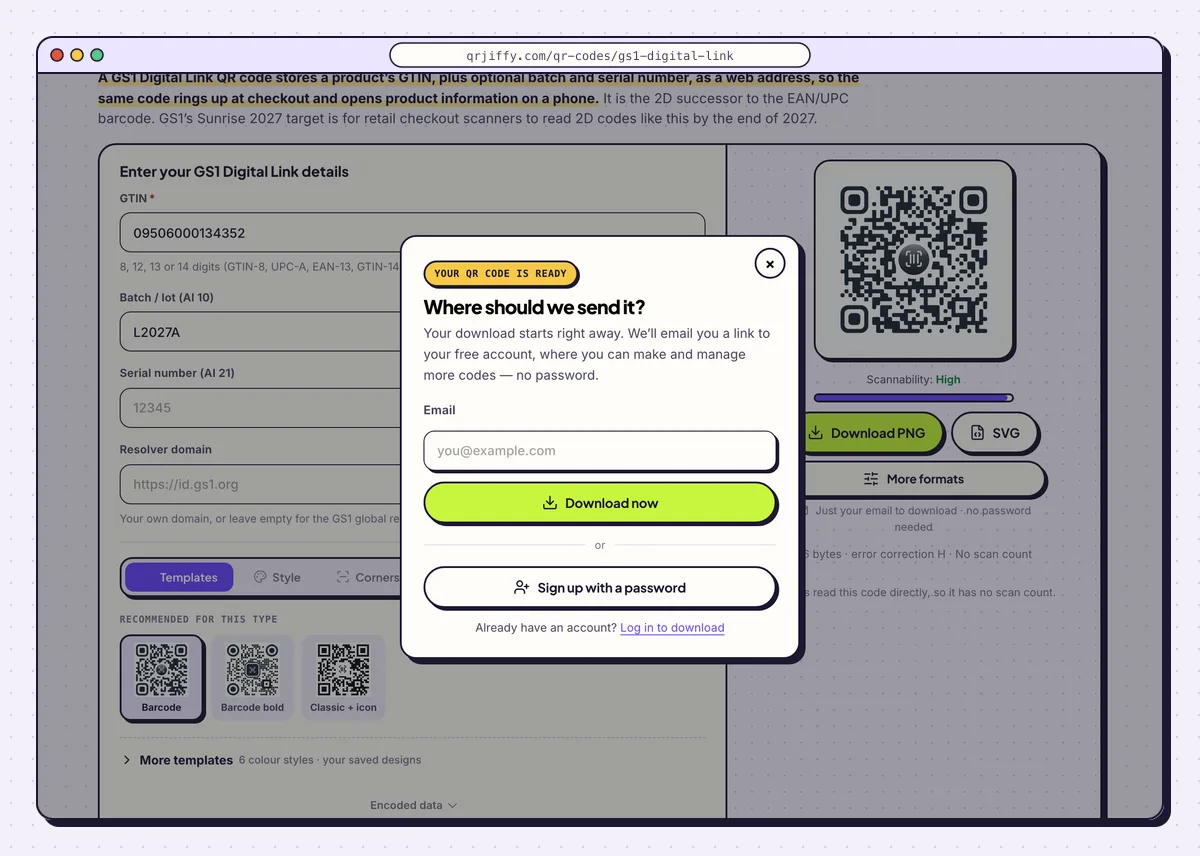
The download dialog, the last screen before the artwork file saves. 6Test with a phone and a 2D checkout scanner
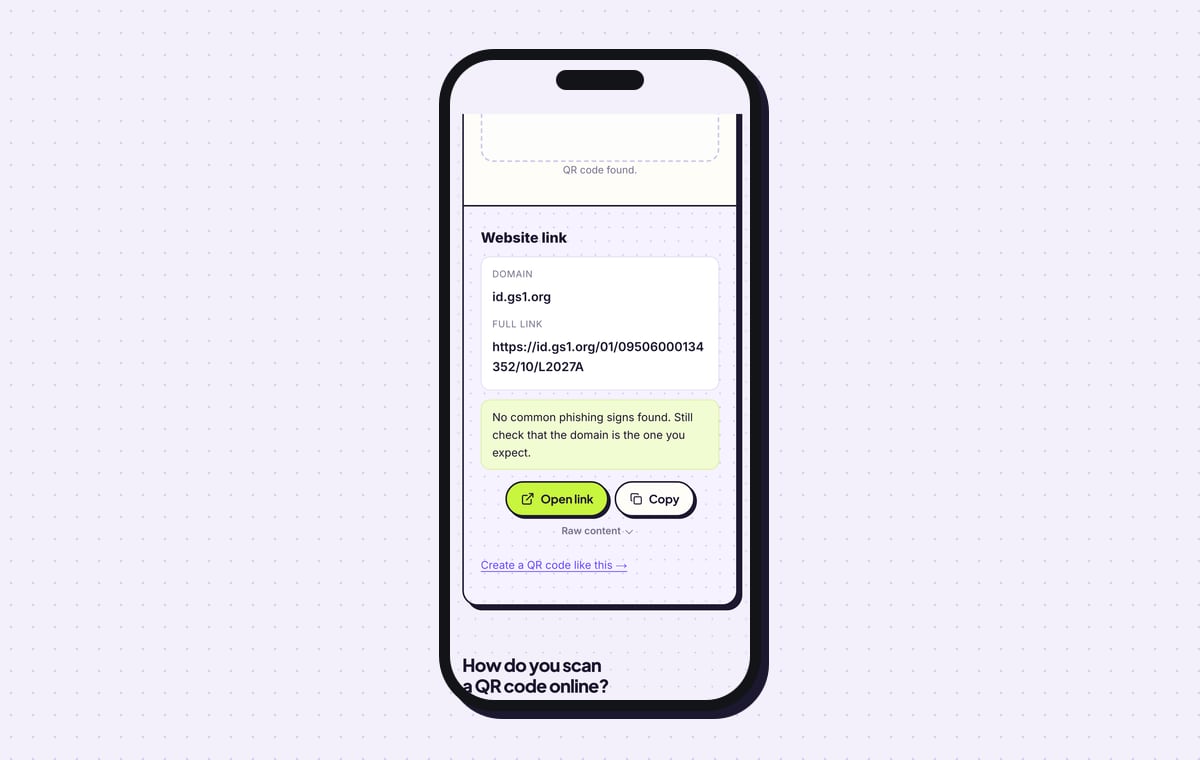
Run two tests. First, a phone: scan the code and confirm the link opens the page you expect. The QR code scanner shows the domain id.gs1.org and the full link, so you can read the GTIN and batch back digit by digit.
Second, a 2D-capable point-of-sale scanner configured for GS1 Digital Link: it has to return the same product as your EAN-13 or UPC barcode. A phone test alone does not prove the code works at the till.
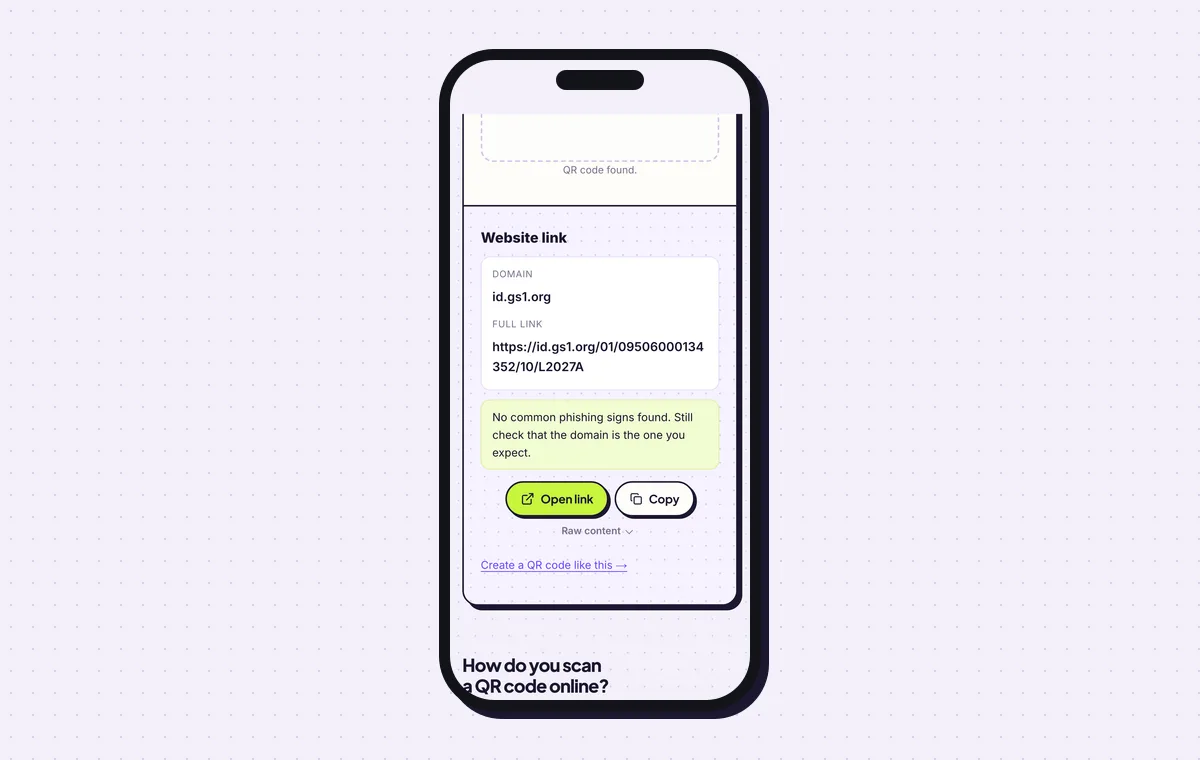
Read the GTIN after /01/ and the batch after /10/ in the decoded link. 7Place it on the pack next to the existing barcode
Put the SVG on the artwork with its 4-dot quiet zone intact. Check the symbol size and contrast against the GS1 General Specifications, or with your national GS1 organisation, before the print run. Keep the EAN or UPC barcode on the pack until your retailers confirm that their tills scan 2D codes.
Open the GS1 Digital Link QR Code generatorFree. Nothing to install.
What is Sunrise 2027 and do you need this code now?
Sunrise 2027 is GS1’s target for retail checkout scanners worldwide to read 2D barcodes, including GS1 Digital Link QR codes, by the end of 2027. EAN and UPC barcodes stay valid during the transition. Brands add the QR code beside the linear barcode now, so one pack works with old and new scanners. Many retailers are still upgrading, which is why both symbols stay on the pack.
How is a GS1 Digital Link QR code different from an ordinary QR code?
A GS1 Digital Link QR code carries a GTIN in a standard URL path that checkout systems parse; an ordinary QR code carries any link, and only phones open it. The format is defined in ISO/IEC 18975.
- At the checkout: a 2D scanner extracts the GTIN, and the batch if present, with no internet connection.
- On a phone: the camera opens the address, and the resolver sends the shopper to product information.
- In the supply chain: warehouse scanners read batch and serial data for stock rotation and recalls.
- Licence: the GTIN comes from GS1. Generating the QR code itself is free.
Can you change a GS1 Digital Link QR code after printing?
No, the GTIN, batch and serial are fixed in the printed pattern, and a different value means a new code. What stays flexible is the phone destination, when the link starts with your own resolver domain: your server redirects scans to a new page at any time. Scan counts come from that server too. QRJiffy puts no short link in this code. Checkout systems have to read the /01/ path, so the address is never shortened.
Which resolver domain do you use, yours or id.gs1.org?
Use your own brand domain when you want to control where shoppers land; leave the field empty to use the GS1 global resolver. GS1 Digital Link allows any domain. Checkouts read only the GTIN path, so the choice does not affect scanning at the till. Choose a domain you will keep for the product’s whole shelf life.
What mistakes stop a GS1 Digital Link QR code from working?
These 6 mistakes cause most failed GS1 Digital Link QR codes; each has a quick fix. Test the downloaded file with two different phones before you print anything.
| Mistake | Fix |
|---|---|
| A made-up or borrowed GTIN | License GTINs from your national GS1 organisation and enter the exact number under your barcode. |
| The link is run through a URL shortener | Print the full address. Checkout systems need the /01/ path to find the GTIN. |
| The EAN or UPC barcode is dropped from the artwork | Keep both symbols until your retailers confirm 2D scanning. |
| Only a phone test is done | Also scan the proof at a 2D-capable checkout scanner configured for GS1 Digital Link. |
| A logo and heavy styling crowd a small pack code | Use plain dark dots on white, margin 4, and error correction M or Q. |
| The resolver domain has no redirect behind it | Configure the redirect on your domain first, or leave the field empty. |
Frequently asked questions
Do I need a GS1 membership to make this code?
Yes, for retail use. The GTIN has to be licensed from your national GS1 organisation. Generating the QR code is free.
Will the code scan at checkout today?
Yes, on 2D-capable scanners configured for GS1 Digital Link. Many retailers are still upgrading, so the linear barcode stays on the pack.
Can I add an expiry date?
The standard supports it: Application Identifier 17 is added as a query parameter in YYMMDD format, such as ?17=271231 for 31 December 2027. The form has fields for GTIN, batch and serial only.
Is a GS1 QR code the same as a GS1 DataMatrix?
No. Both are 2D symbols. GS1 DataMatrix is used mainly in healthcare and phone cameras do not open it as a web link; a GS1 Digital Link QR code opens on any phone.
Does the checkout need internet to read it?
No. The scanner reads the GTIN from the code itself. Only phone scans load a web page.
Ready to make your GS1 Digital Link QR code?
The generator is free and works in the browser on a phone or a computer. Your code downloads as PNG for screens or SVG for print.
Open the GS1 Digital Link QR Code generator
Related guides: How to Print a QR Code · QR Code Size · QR Code Not Working