 QRJiffy
How to Make a Multi-Link (Link in Bio) QR Code
You make a multi-link QR code by pasting the address of your Linktree or other link-in-bio page into a multi-link QR code generator, or by building a page of buttons on QRJiffy. No QR code stores two destinations. The code opens one page, and that page offers the choices: order, book, menu, watch.
What do you need before you start?
You need 4 things ready, and no account to try the generator. A free account, or just your email, is asked for only at the download step.
- The address of your link page: a Linktree, bio.link, Beacons or Carrd page, or a page on your own site.
- Without a link page: a list of 3 to 7 links with a short label for each.
- The one action that matters most, to sit at the top.
- An iPhone and an Android phone for the button test.
How do you make a Multi-link QR code step by step?
Follow these 7 steps in the Multi-Link QR Code generator; the preview updates as you type. Each screenshot below is the real screen, filled in with a sample bakery’s details.
1Copy the address of your link page
Open your link-in-bio page in a browser and copy its address from the address bar, for example
https://linktr.ee/yourname. Every service that gives the page a public URL is compatible. A page on your own website that lists the links counts too.No page yet? Skip to the builder section below, which creates one on QRJiffy with up to 25 buttons.
2Paste it into the list-of-links field
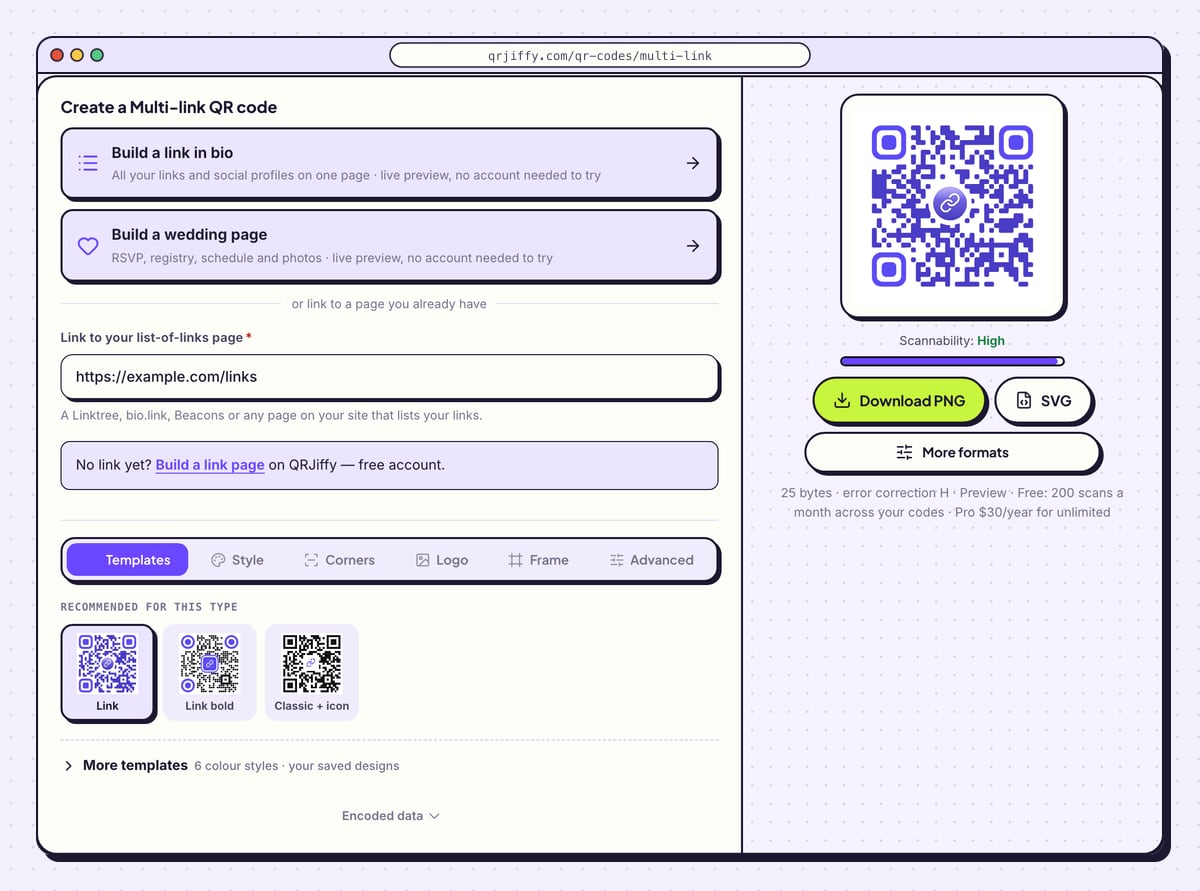
The multi-link QR code generator shows a Build a link in bio card first, then the field Link to your list-of-links page. Paste the address there. The sample uses
https://example.com/links.The preview redraws with a link icon in its centre. The buttons on your page are not part of the code, so the pattern is the same density whether the page has 2 buttons or 20.
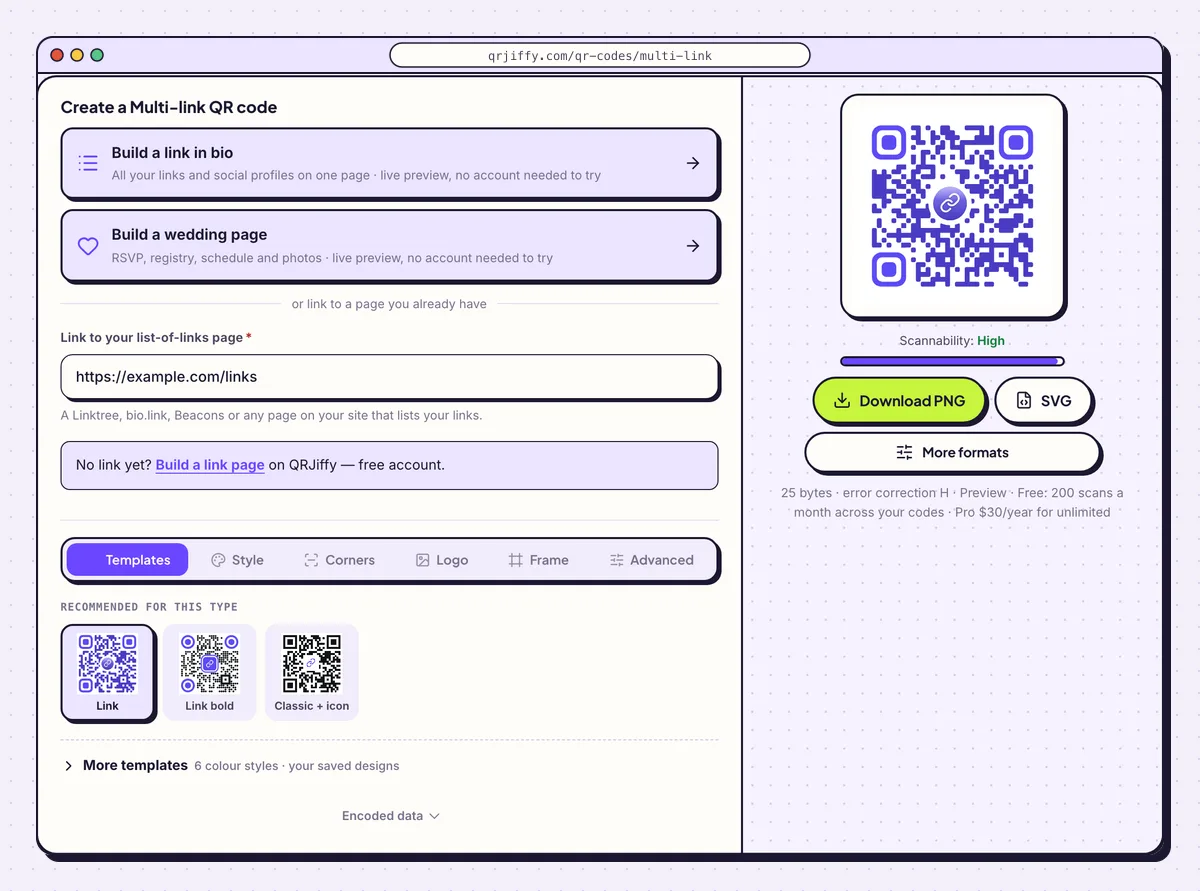
The address of the link page is the only thing the code needs. 3Swap the link icon for your own logo
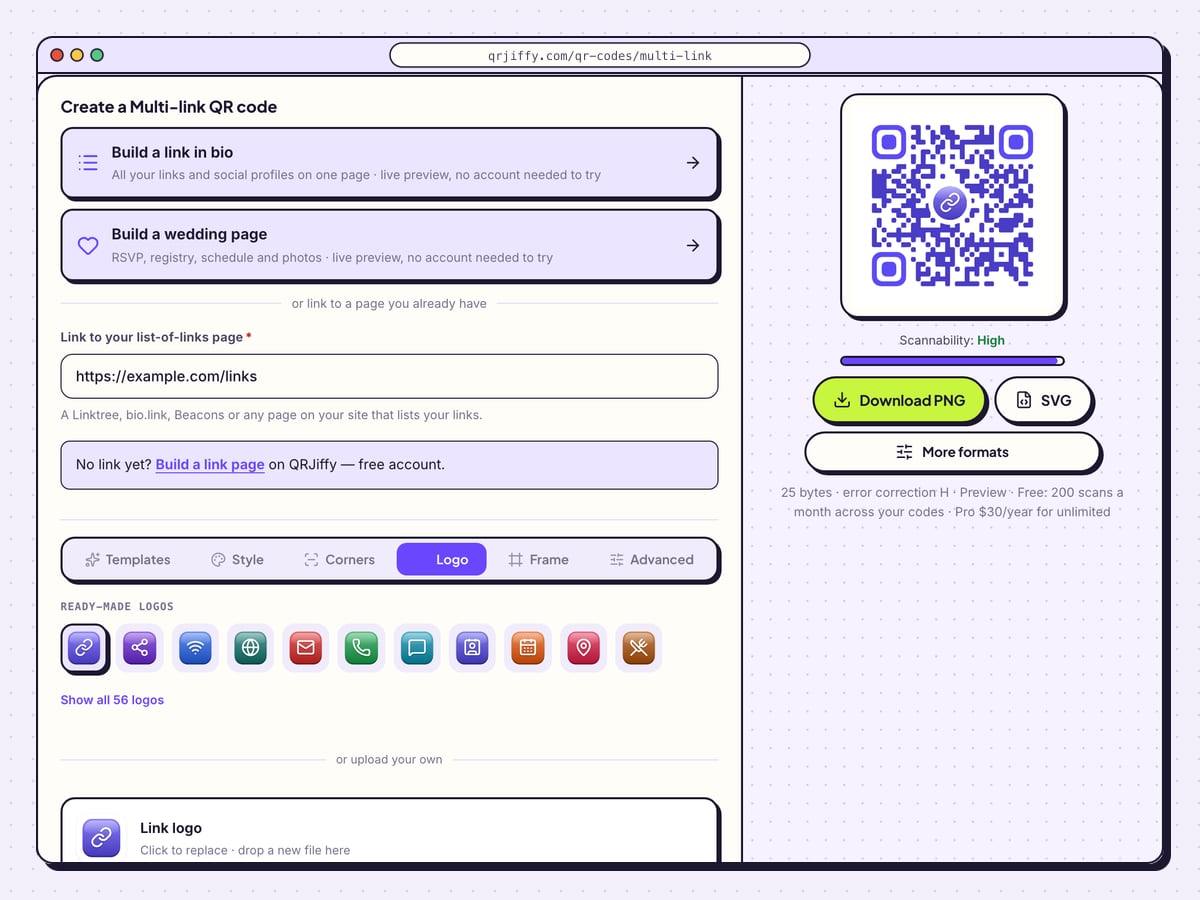
The Logo tab shows the default “Link logo” in an upload box. Click the box, or drop a file on it, to place your own logo in the centre of the code. A recognisable logo tells people whose links they are about to open.
Adjust Logo size, choose a shape from Square, Rounded, Circle or None, and add a Border when the logo blends into the dots. The Remove button clears the centre completely.
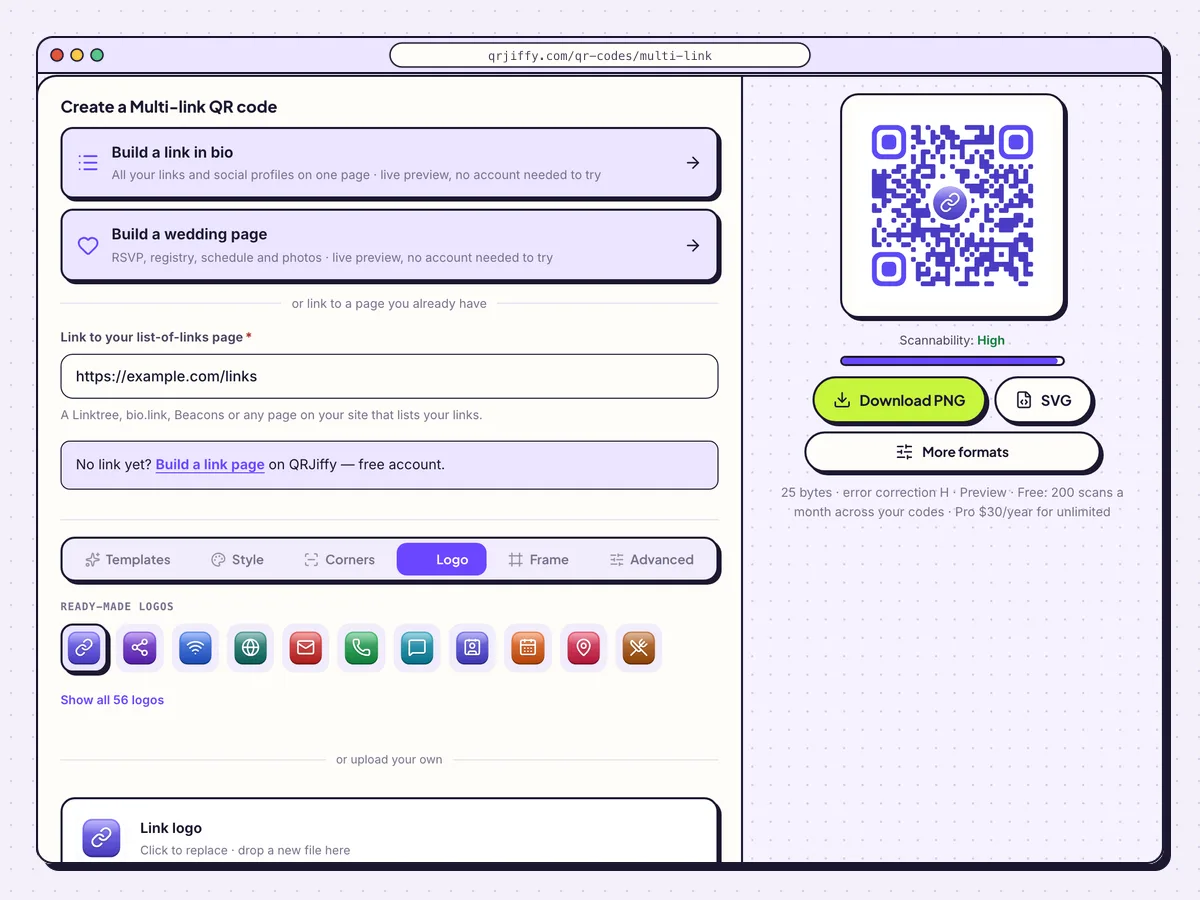
Your own logo in the centre replaces the generic link icon. 4Download the multi-link code
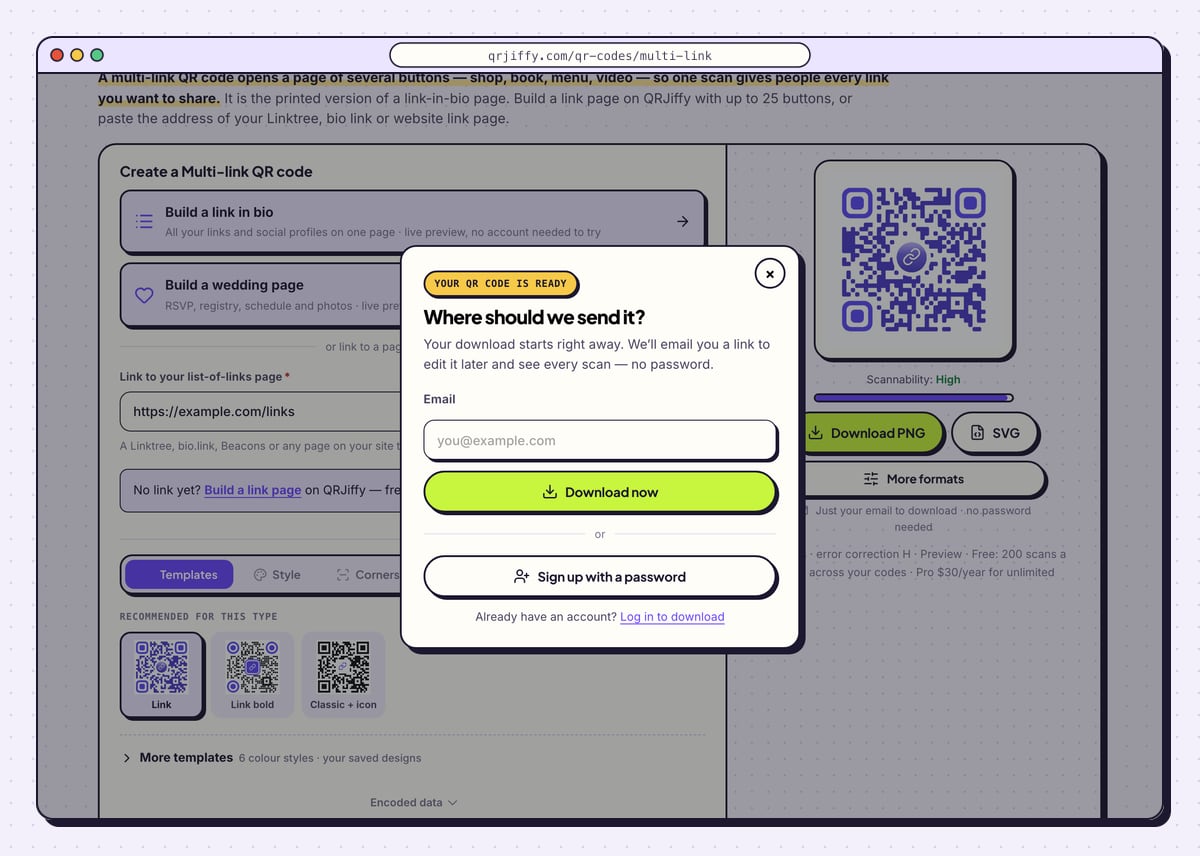
Pick the format by where the code goes: SVG for table tents, shelf talkers and stickers, Download PNG for the last slide of a talk. A one-time dialog collects an email address; Download now closes it and saves the file. Sign up with a password is the alternative on the same screen.
The download is named
qrjiffy-multi-link-FwLGzct.pngin the sample.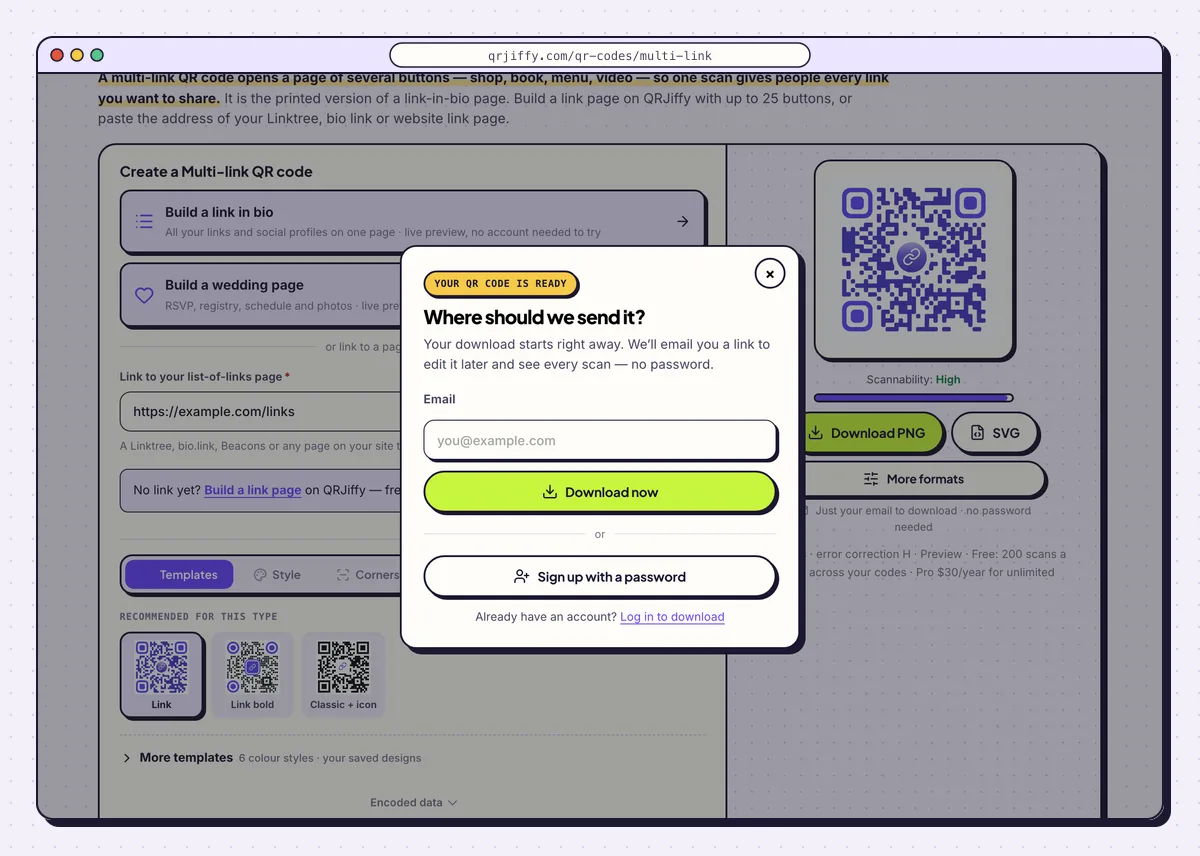
The dialog asks for an email a single time. 5Scan the code and tap each button
Scan the code and work down the page, tapping each button to confirm its destination loads. Do it on an iPhone, where the page opens in Safari, and on an Android phone, where it opens in Chrome. Buttons that point to apps hand off to those apps.
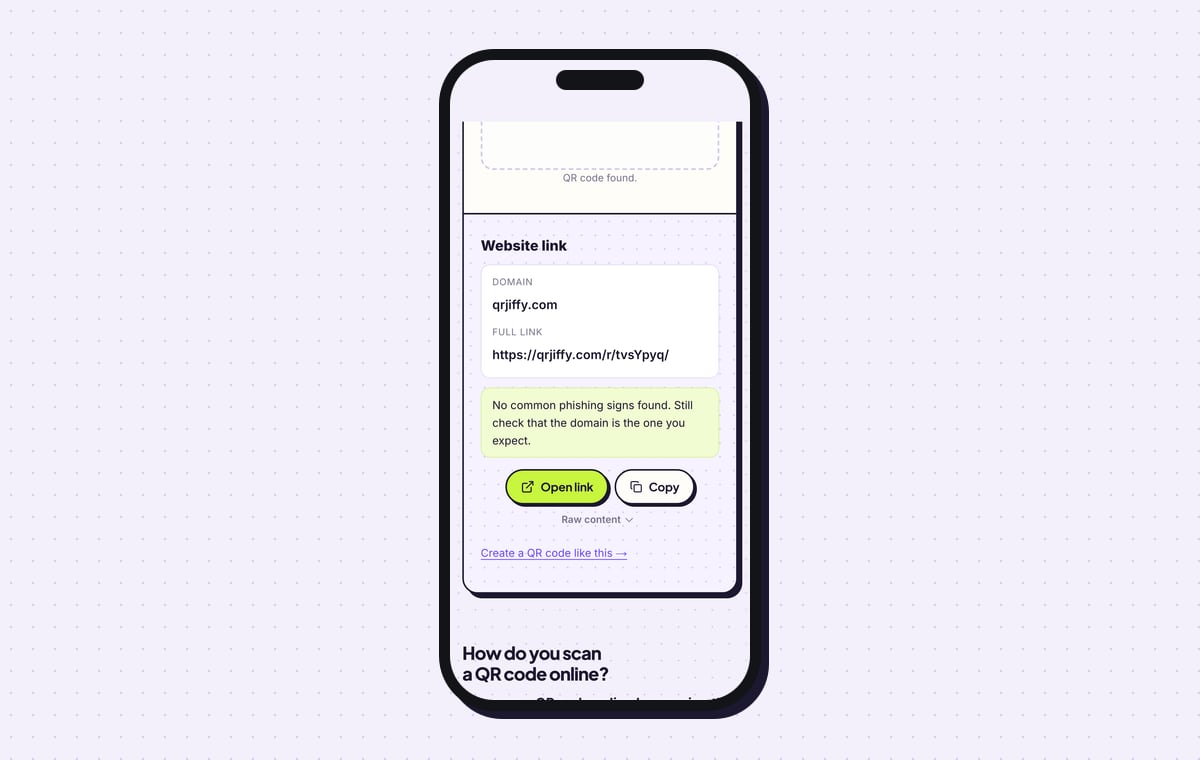
People also scan from inside Instagram or TikTok. The page then opens in that app’s built-in browser, which supports all standard buttons. The QRJiffy scanner shows the file as a Website link on qrjiffy.com with an Open link button.
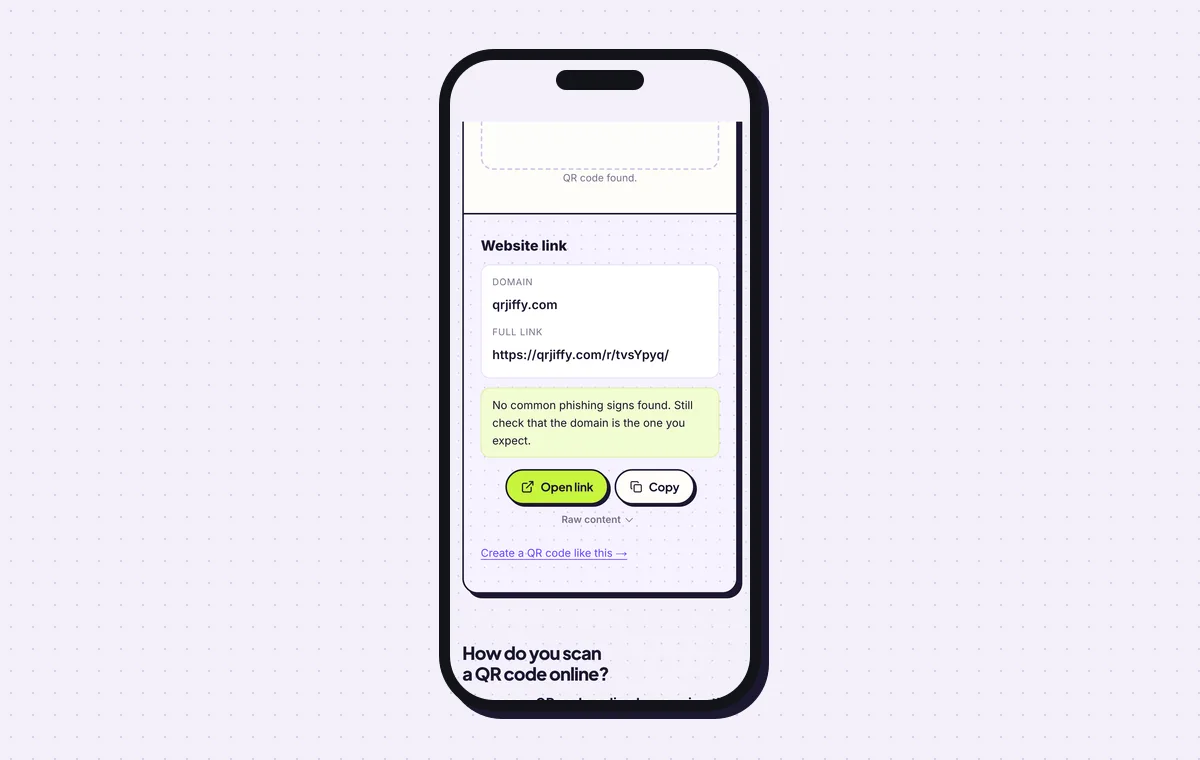
After the code checks out, every button on the page needs its own tap test. 6Change services or reorder links later
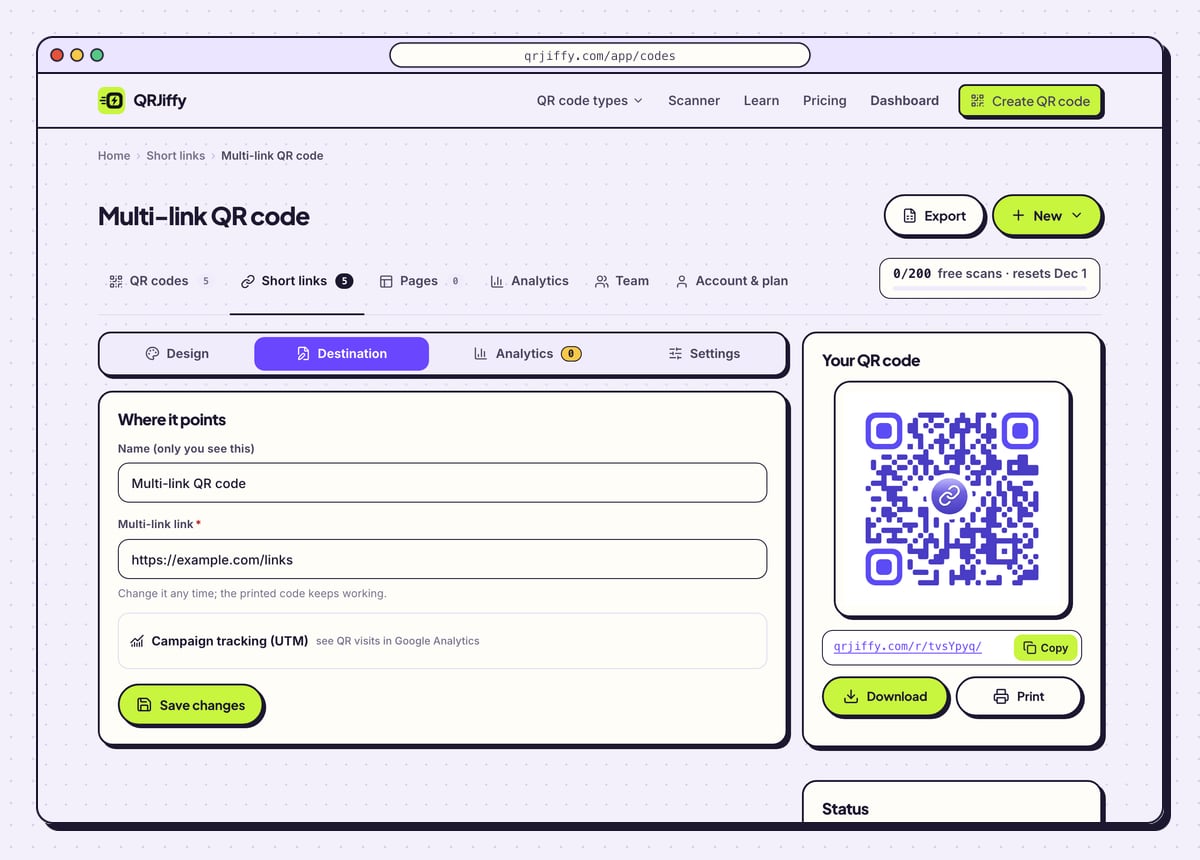
Moving from one link-in-bio service to another changes the page address. In the dashboard, open the code, choose Destination and paste the new address; the stickers already printed open the new page.
Check Analytics for scans by day, device and country, and move the busiest action to the top of your page. A free account includes 200 scans a month across all codes. Pro costs $30 a year and has no scan limit.
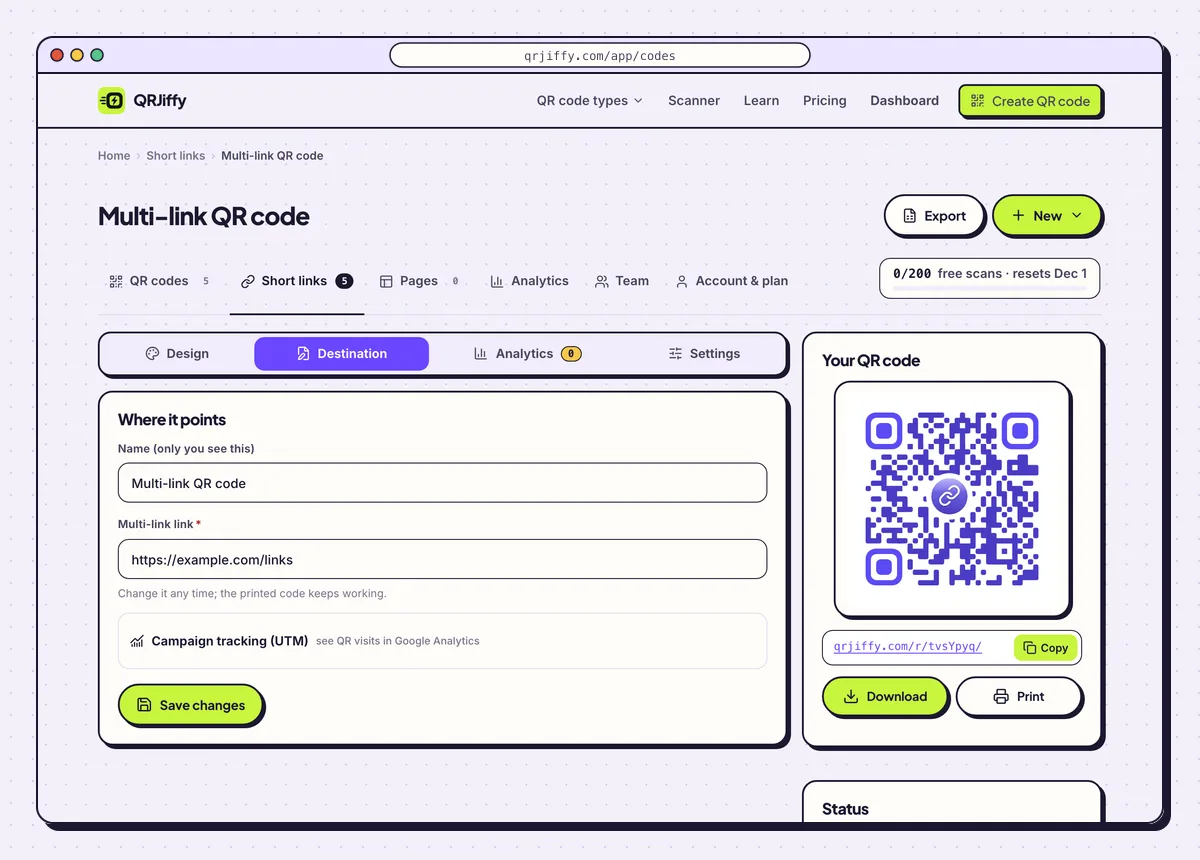
Switching link-in-bio services means one paste under Destination. 7Print it with “Scan for all links”
Print “Scan for all links” beside the code, so people know a menu of choices is waiting and not a single page. The minimum size is 2 × 2 cm with a blank margin of 4 dots. A table tent read from 50 cm needs 5 cm.
Restaurants put menu, reservations, delivery and reviews behind one table tent. Speakers put slides, recording, newsletter and contact on the final slide.
Open the Multi-Link QR Code generatorFree. Nothing to install.
How do you build a link-in-bio page on QRJiffy?
1Name the page and write the buttons
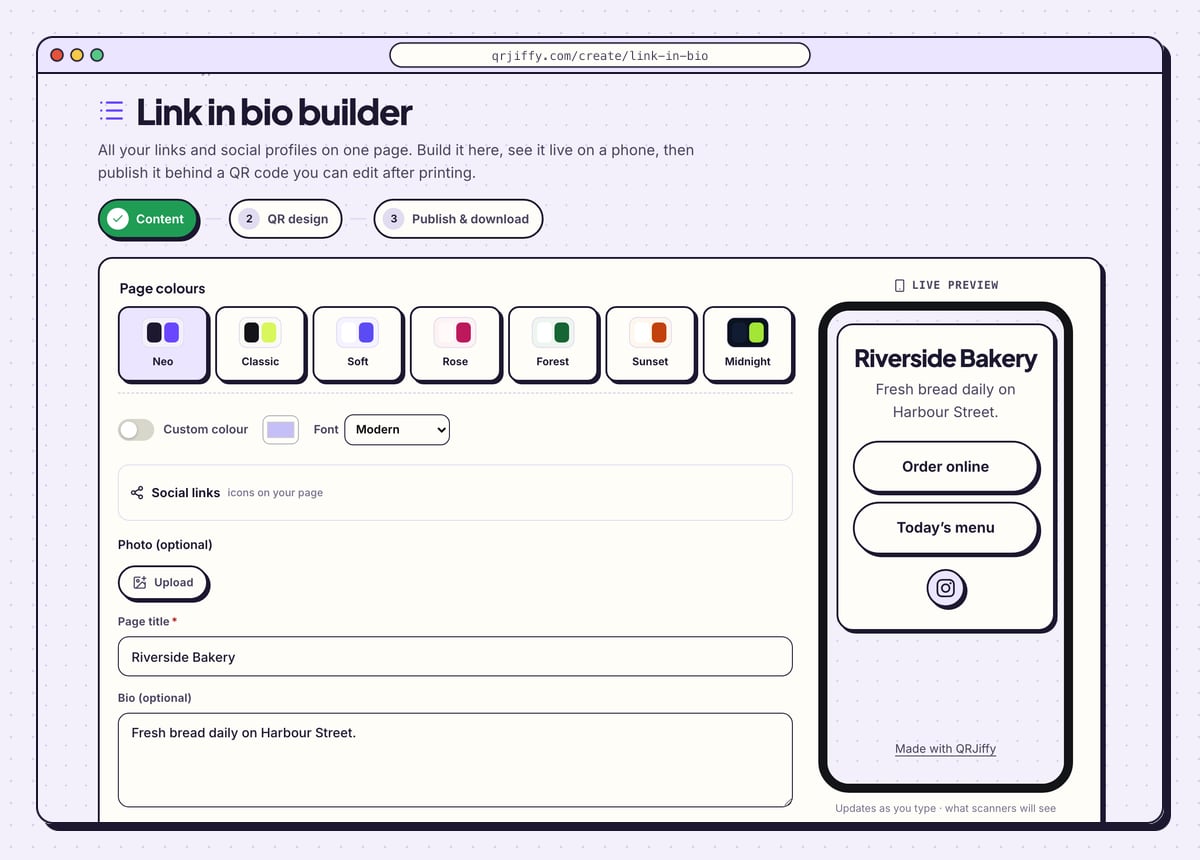
In Content, type a Page title and a Bio (optional). The sample page is titled “Riverside Bakery” with the bio “Fresh bread daily on Harbour Street.” For each button, enter a Button text and a Link: the sample has “Order online” and “Today’s menu”.
Start each label with a verb and keep it under 25 characters, so it fits on one line on a phone. The page takes up to 25 buttons; 3 to 7 is the range that gets tapped.
Tip: Put the action you want most first. The top button receives the most taps.
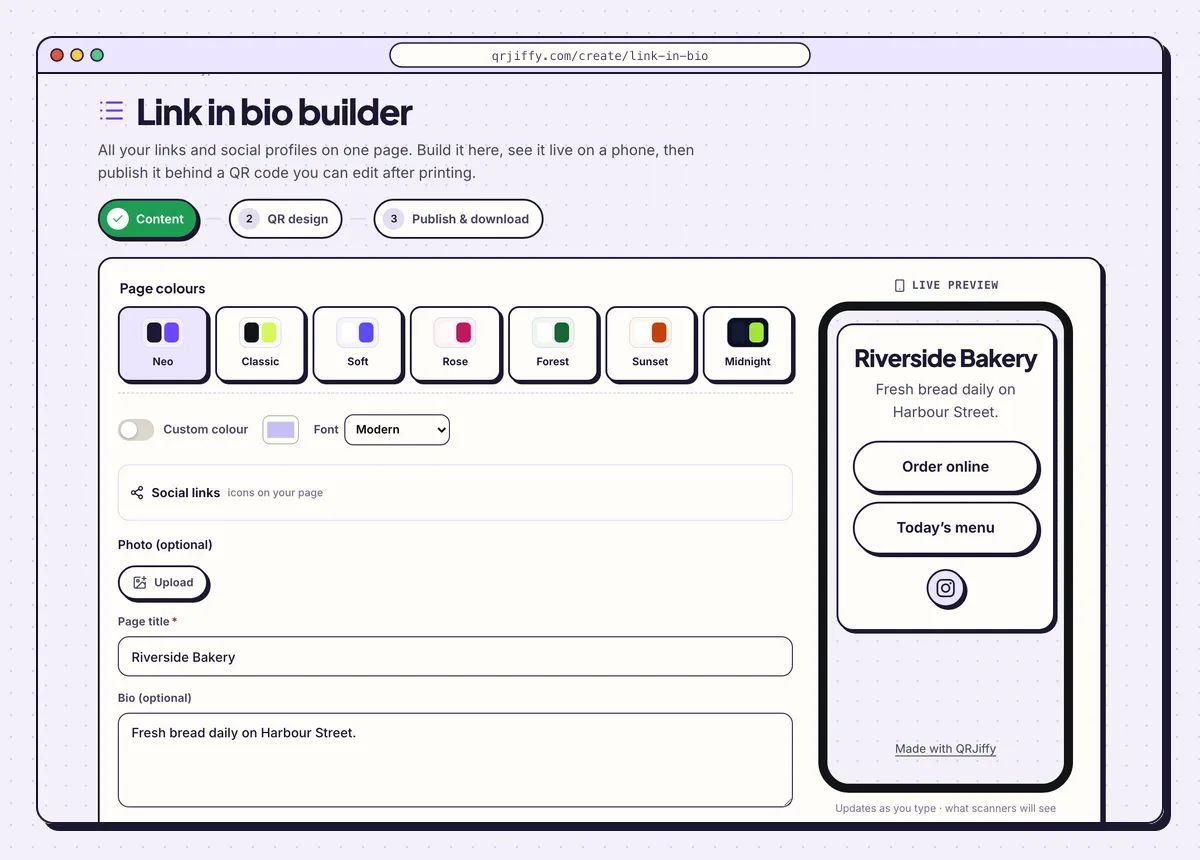
Title, bio and buttons on the left; the phone preview updates on the right. 2Pick the page colours and add profile icons
Page colours offers seven ready themes, and the Custom colour switch unlocks your own. The Font menu changes the typeface of the whole page. Photo (optional) adds a logo or portrait above the title.
Open Social links to group your profiles as small icons under the buttons. This keeps the buttons for actions and the icons for follows. The sample shows one Instagram icon.
3Design the code and move to publishing
Press Next: QR design and give the code its colours and shape. A dark colour taken from the page theme ties the print to the page. Then continue to the third step, Publish & download.
The panel there reads “Ready to publish” and explains that the page goes live at its own short link.
4Publish and test the live page
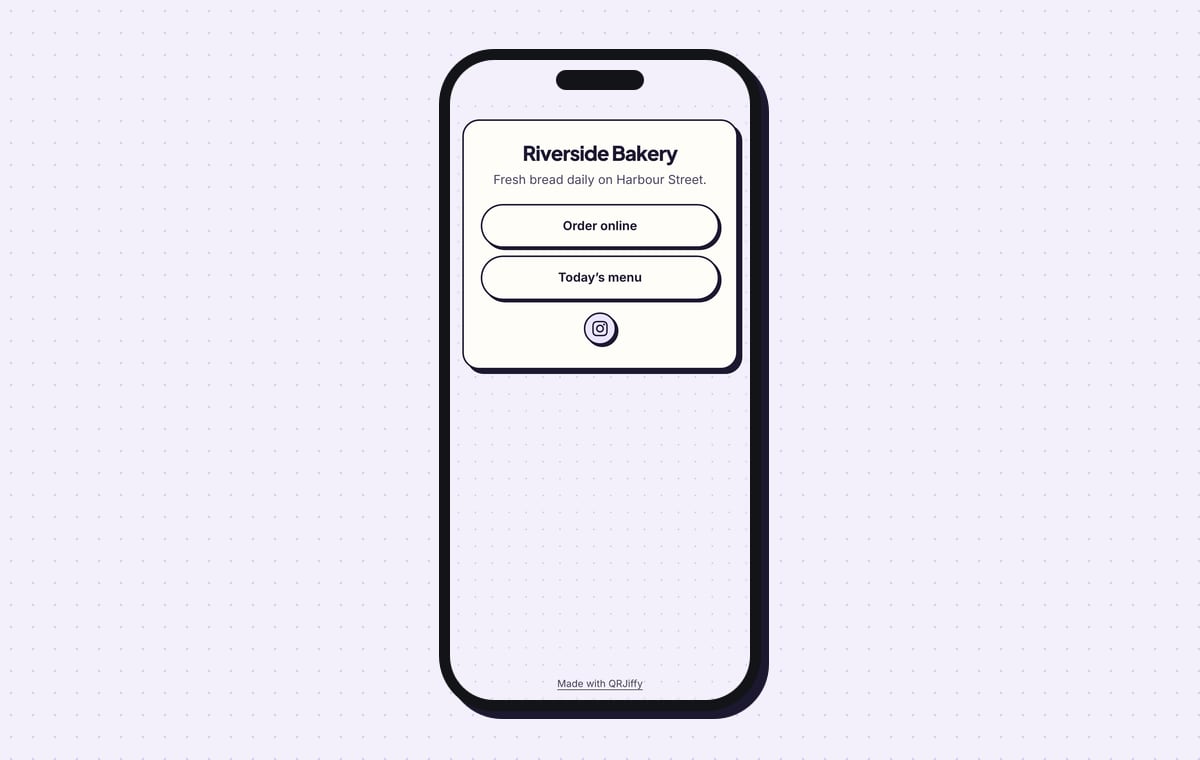
Click Publish & download PNG and sign in with a free account. The page is now live and the code is in your downloads folder. Scan it and tap “Order online”, “Today’s menu” and the Instagram icon in turn.
To add, remove or reorder buttons later, edit the page from your dashboard. The printed code keeps opening the same page with the new links.
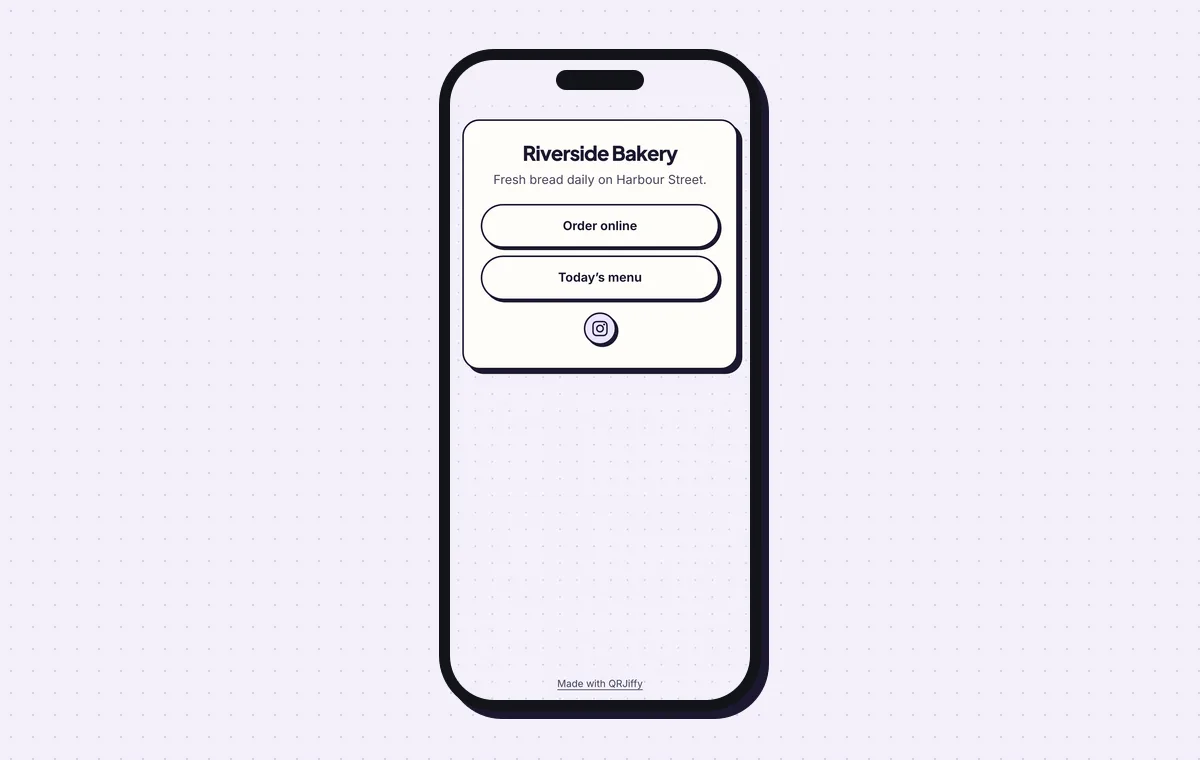
The live page: two action buttons and one profile icon under the bakery’s name.
Build a link in bioLive preview. No account needed to try.
Can a QR code have two or more links?
No, a QR code stores one link only, and no QR standard holds two destinations. “Multiple links” always means one link to a page of buttons. The scanner opens the page and picks the link they need.
Can you turn a Linktree into a QR code?
Yes, paste the linktr.ee address into the generator; Linktree’s own Share menu also offers a QR code. Making it in the generator adds custom colours, a choice of error correction level and a vector SVG for print. The destination behind the code is also replaceable, so a later move away from Linktree needs no reprint.
How many links belong on the page?
A multi-link page performs best with 3 to 7 buttons. Past 7, scanners have to scroll and the bottom links receive few taps. Three habits keep the page tight:
- Lead with the action you want most, for example “Order online”.
- Group secondary links, such as social profiles, under one button or as icons.
- Remove buttons that receive under 2% of taps each month.
How is this different from a social media QR code?
A social media QR code lists profiles to follow, while a multi-link QR code lists actions such as ordering, booking or watching. Both store one link to a page.
What mistakes stop a Multi-link QR code from working?
These 5 mistakes cause most failed Multi-link QR codes; each has a quick fix. Test the downloaded file with two different phones before you print anything.
| Mistake | Fix |
|---|---|
| The page has 15 buttons | Cut it to 3–7. Links below the fold receive few taps. |
| Button labels wrap onto two lines on a phone | Keep labels under 25 characters and begin with a verb, such as “Book a table”. |
| The main action sits fourth in the list | Move it to the top; the first button gets the most taps. |
| A button was edited and nobody tested it | Tap every button on an iPhone and an Android phone after each edit. |
| The code is printed with no hint that several links wait behind it | Print “Scan for all links” next to it. |
Frequently asked questions
Which link-in-bio services work with the generator?
Every service that gives your page a public URL works, for example Linktree, Beacons, bio.link and Carrd.
Do I reprint the code when I change a link?
No. Edit the buttons on the page, or point the code at another page in the dashboard. The printed code keeps working.
How many buttons does a QRJiffy link page take?
Up to 25. Pages with 3 to 7 buttons get the most taps per button.
Does the page open correctly from the Instagram in-app camera?
Yes. It opens in the app’s built-in browser, which supports all standard buttons.
Is a multi-link QR code free?
Yes. The code is free to create and download. Publishing a page from the builder needs a free account, which includes 200 scans a month.
Ready to make your Multi-link QR code?
The generator is free and works in the browser on a phone or a computer. Your code downloads as PNG for screens or SVG for print.
Open the Multi-Link QR Code generator
Related guides: How to Print a QR Code · QR Code Size · QR Code Not Working