 QRJiffy
How to Make a LinkedIn QR Code
You make a LinkedIn QR code by pasting your profile address, or just the part after /in/, into a LinkedIn QR code generator and downloading the code as PNG or SVG. An interviewer or a conference contact scans it and reaches your profile with the Connect button, without searching among people who share your name. The LinkedIn mobile app has its own code as well, covered further down.
What do you need before you start?
You need 4 things ready, and no account to try the generator. A free account, or just your email, is asked for only at the download step.
- Your LinkedIn profile address: Me › View profile › Contact info in LinkedIn, or the address bar on desktop.
- A custom public URL, set under Me › View profile › Edit public profile & URL, so the address has no trailing ID numbers.
- A public profile, switched on under Edit public profile, so people who are logged out still see it.
- The resume, card or badge file the code goes into, with a free space of at least 2 × 2 cm.
How do you make a LinkedIn QR code step by step?
Follow these 7 steps in the LinkedIn QR Code generator; the preview updates as you type. Each screenshot below is the real screen, filled in with a sample bakery’s details.
1Shorten your LinkedIn address first
A default LinkedIn address ends in a string of ID characters, as in
linkedin.com/in/priya-raman-4a7b19123. Open Me › View profile › Edit public profile & URL on LinkedIn and set a custom public URL. The result,linkedin.com/in/priya-raman, is 10 characters shorter and reads cleanly when printed under the code.Do this before generating anything. LinkedIn stops serving the old address once the custom URL changes.
2Enter the profile address in the LinkedIn generator
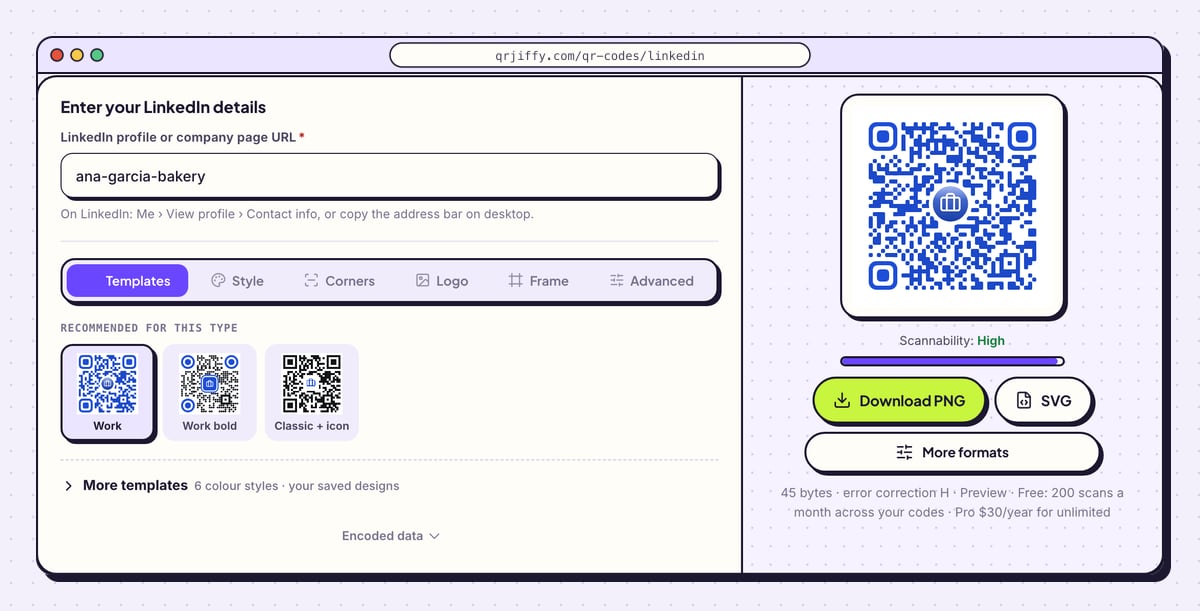
Open the LinkedIn QR code generator and find LinkedIn profile or company page URL. Paste the full address, or type only the custom part:
ana-garcia-bakeryis expanded tohttps://www.linkedin.com/in/ana-garcia-bakery. Hyphens stay in place.For a company page, paste the complete link beginning
linkedin.com/company/, because a bare name is read as a personal profile. The blue code in the preview updates immediately, with 45 bytes shown for the sample address.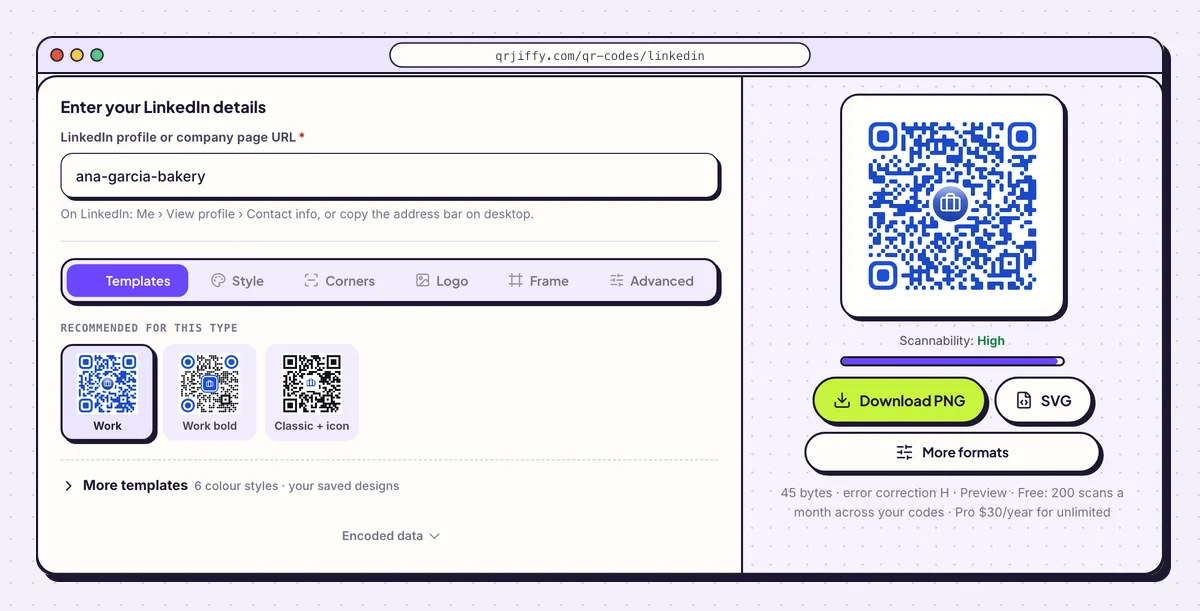
The custom part of the address is enough. The generator adds linkedin.com/in/ in front. 3Pick a dot pattern and a dark colour in Style
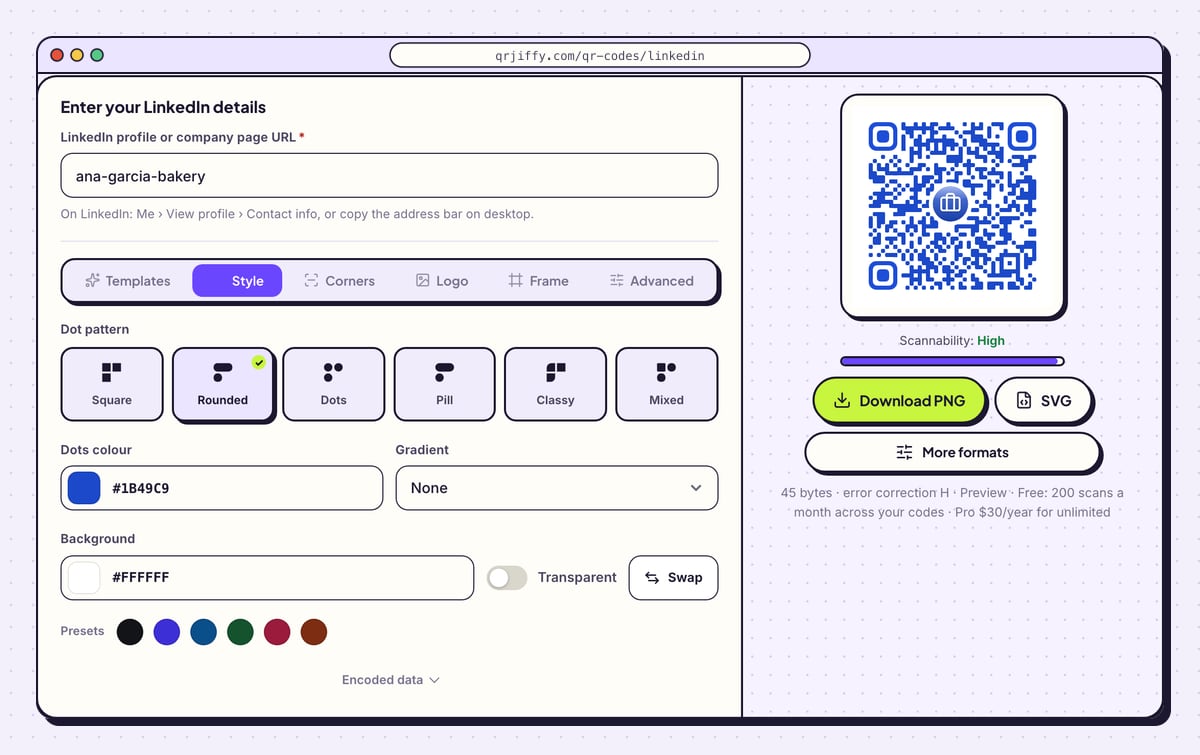
Open the Style tab. Dot pattern offers Square, Rounded, Dots, Pill, Classy and Mixed; the sample uses Rounded. Dots colour starts on LinkedIn blue,
#1B49C9, and takes any hex value, so match it to the heading colour of your resume.Leave Background on white,
#FFFFFF. Dark navy or black dots on white paper suit a resume; avoid light grey. Leave Gradient on None for documents.Tip: The Transparent switch removes the white background. Use it only when the code sits on white paper anyway.
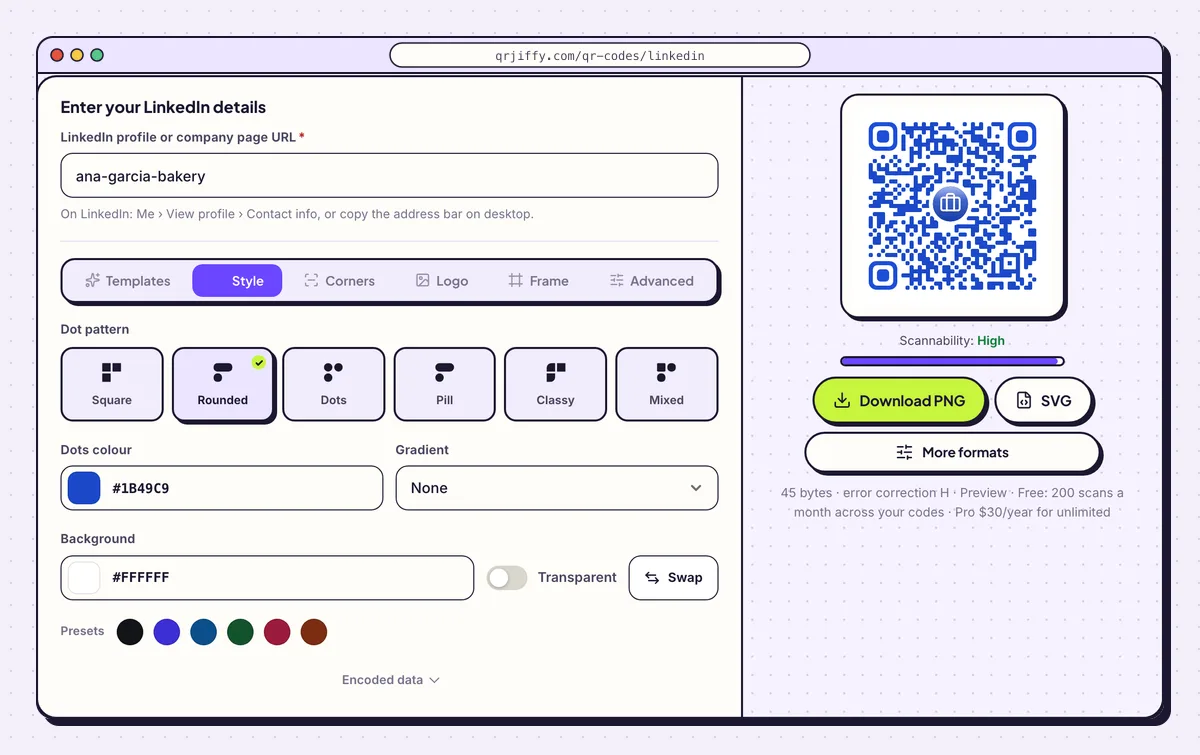
Style sets the shape and colour of the dots. Blue on white is the starting point for LinkedIn. 4Download an SVG for documents or a PNG for slides
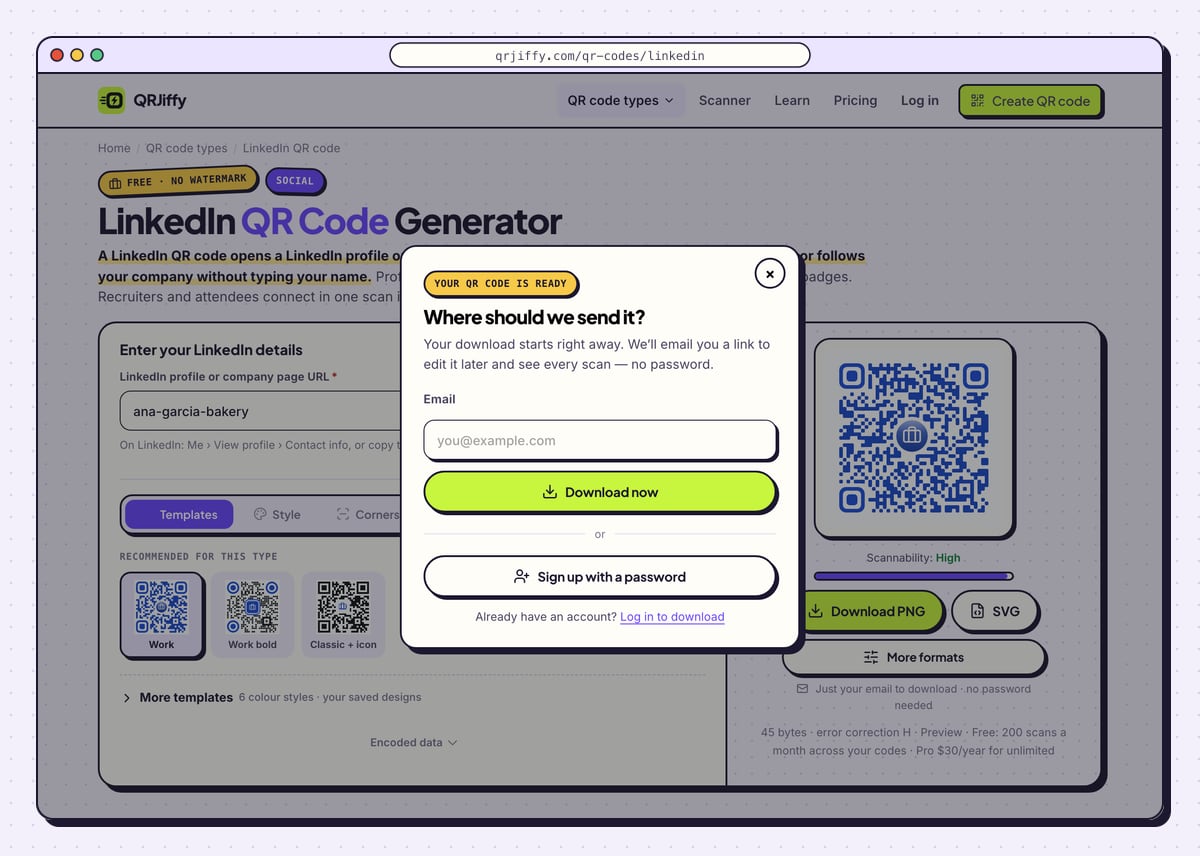
Choose SVG for a resume or business card: a vector file stays crisp at 2 cm. Choose Download PNG for the closing slide of a talk. The first download opens a prompt for an email address with a Download now button, and Sign up with a password beneath it.
The file lands in your downloads folder as
qrjiffy-linkedin-5FQvnAH.pngor a similar name. Under the preview, the generator now lists the short link the code holds.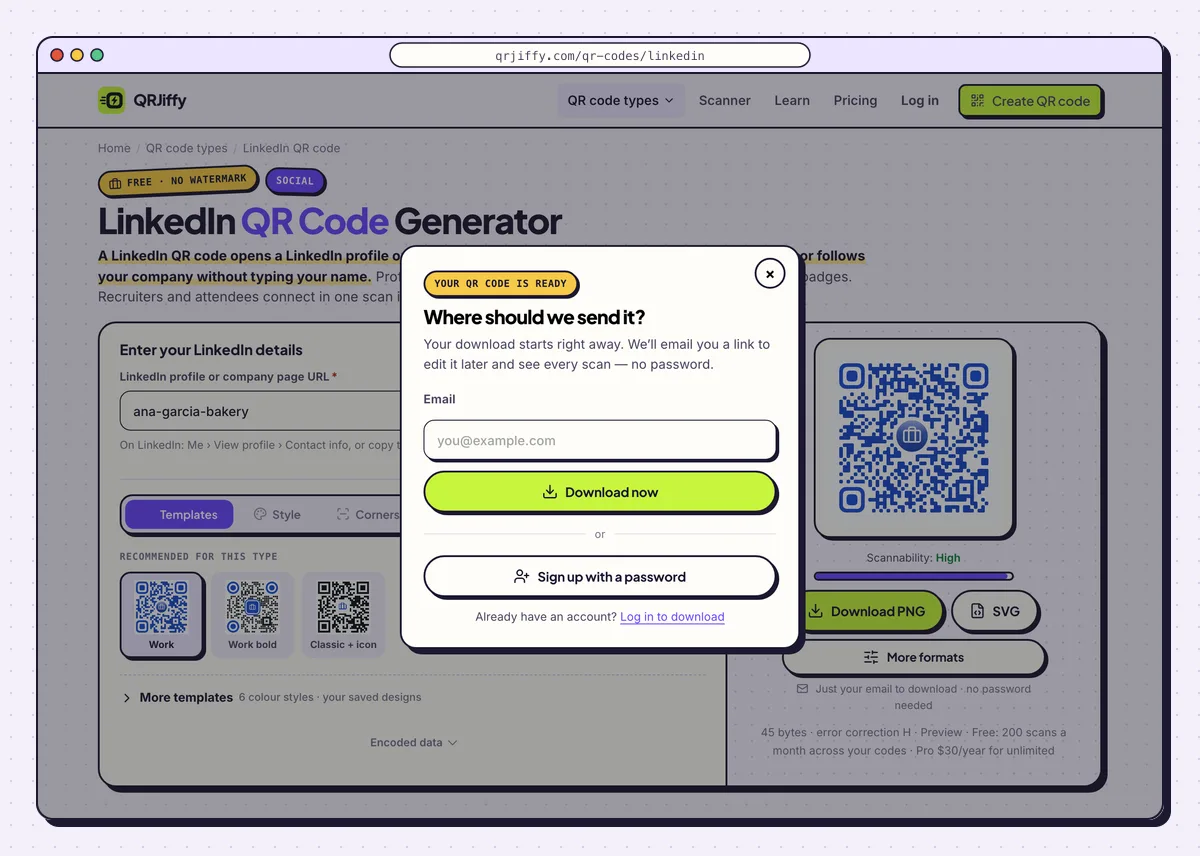
Enter an email once and the file is saved straight away. 5Scan the printed page from 30 cm
Print one copy of the resume or card and scan it from 30 cm, the distance at which an interviewer holds a sheet of paper. The profile opens in the LinkedIn app with a Connect button. Then scan from a phone that is logged out, to confirm the public view appears.
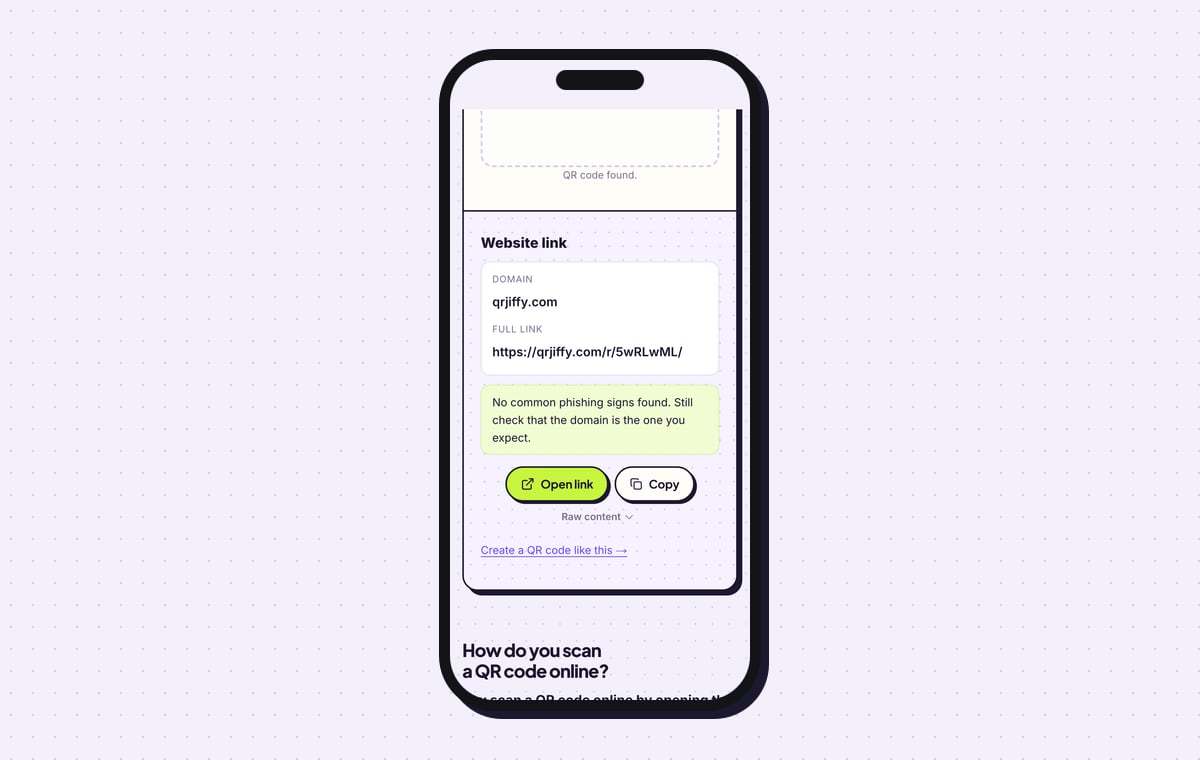
The QRJiffy scanner reads the same file as a Website link with qrjiffy.com as the domain. Open link takes you through to the profile, and Copy puts the short link on the clipboard.
Tip: The Scan tab inside the LinkedIn app reads standard QR codes too, so recruiters who open it at a job fair are covered.
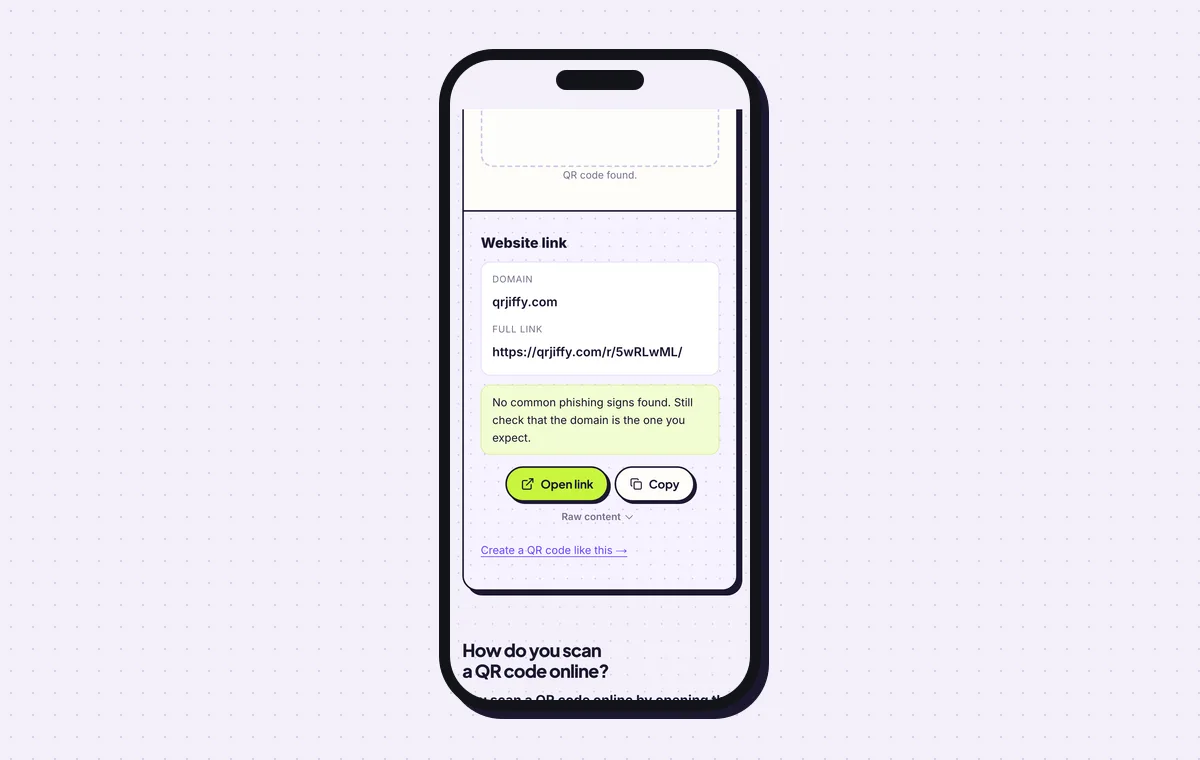
The scanner confirms the code holds a working short link before the resume is sent out. 6Update the link after a job or URL change
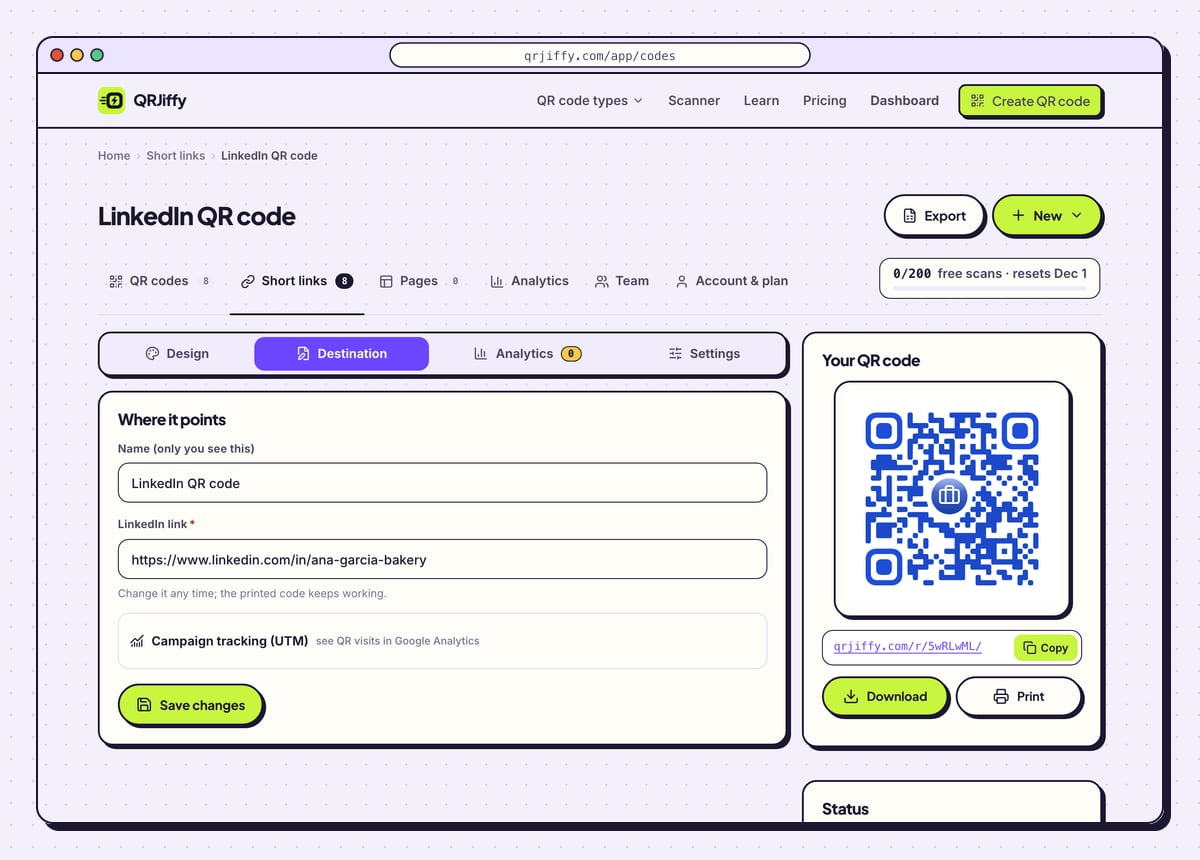
Because the code holds a short link, the address behind it is editable. Open the code in your dashboard and go to Destination. Paste a new custom URL there, or swap the personal profile for a company page, and the cards already handed out keep working.
Analytics shows scans by day, device and country. A free account counts up to 200 scans a month over all codes; Pro is $30 a year with no cap.
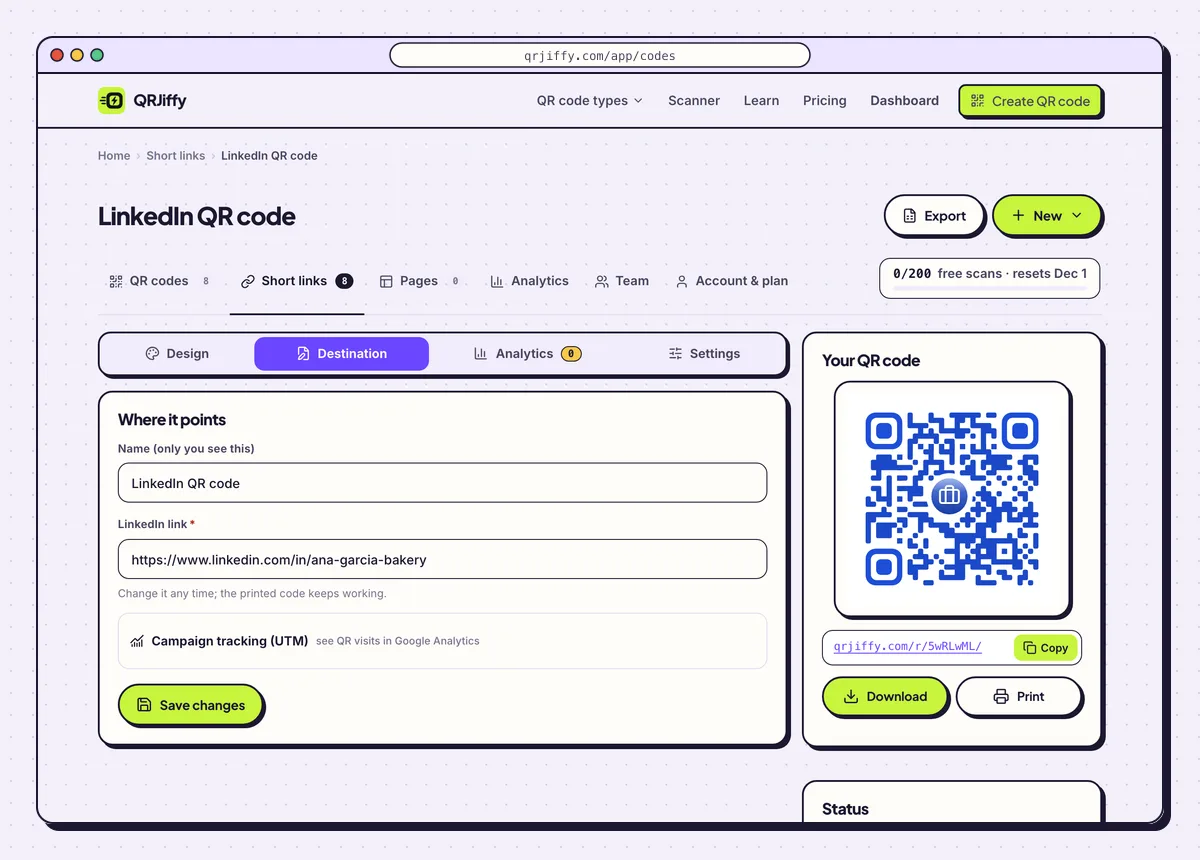
The dashboard keeps the code editable after the resume or card is printed. 7Place the code on the resume, card or badge
On a resume, set the code in the header at the top right, beside your email and phone, at 2 × 2 cm. Keep the full profile address in text as well: applicant tracking systems read text and ignore images. On a business card, give the code the back of the card with no other graphics.
A conference badge needs 3 × 3 cm so the code scans from arm’s length. For badges that bend, set error correction to Q in the Advanced tab.
Open the LinkedIn QR Code generatorFree. Nothing to install.
Where is the QR code in the LinkedIn app?
The LinkedIn mobile app shows your QR code behind the QR icon on the right of the search bar, in the “My code” tab. The desktop website does not show it. The path on iPhone and Android is the same:
- Open the LinkedIn app.
- Tap the QR code icon at the right end of the search bar.
- Choose My code to display yours, or Scan to read another person’s.
- Tap Save to photos or Share my code to export it.
When is a generated LinkedIn code better than the app’s code?
A generated code is the better choice for anything printed, for company pages and for work done on a desktop computer. LinkedIn’s own code appears only in the mobile app and is saved to the phone’s photos. The generator runs in any desktop browser, gives a vector SVG for resumes, and lets you choose the colour and error correction level.
Does a LinkedIn QR code belong on a resume?
Yes on the printed copy: it lets an interviewer open your full profile, recommendations and portfolio from the paper in one scan. Applicant tracking systems read text, not images, so the text address stays on the page too.
Is this the same as LinkedIn’s login QR code?
No, login and authenticator QR codes are one-time security codes that LinkedIn generates during sign-in. A profile QR code opens your public profile every time it is scanned. No generator creates the sign-in codes.
What mistakes stop a LinkedIn QR code from working?
These 5 mistakes cause most failed LinkedIn QR codes; each has a quick fix. Test the downloaded file with two different phones before you print anything.
| Mistake | Fix |
|---|---|
| The default address with trailing ID numbers was encoded | Set a custom public URL under Edit public profile & URL, then paste the shorter address. |
| The profile is hidden from logged-out visitors | Make the profile public under Edit public profile, so every scanner sees it. |
| The custom URL was changed after the cards were printed | Paste the new address under Destination in the dashboard. LinkedIn no longer serves the old one. |
| The code is light grey to look subtle on the resume | Use dark navy or black on white paper. |
| The text address was removed to make room for the code | Keep both. Applicant tracking systems read the text, people scan the code. |
Frequently asked questions
Can I create a LinkedIn QR code on a desktop computer?
Yes. LinkedIn’s own code is limited to the mobile app, but the generator works in any desktop browser.
Can the code open a company page instead of a person?
Yes. Paste the full company page link, which starts with linkedin.com/company/. Scanners land on the page with a Follow button.
How big does a LinkedIn QR code need to be on a business card?
At least 2 × 2 cm, which is 0.8 in. On a conference badge use 3 × 3 cm so it scans from arm’s length.
Does the person scanning need a LinkedIn account?
No, as long as your profile is public. Logged-out visitors then see the public version of the profile in a browser.
Which error correction level suits a resume?
M, which recovers 15% of the code, suits flat documents. Use Q, at 25%, for badges that bend. A centre logo sets the level to H.
Ready to make your LinkedIn QR code?
The generator is free and works in the browser on a phone or a computer. Your code downloads as PNG for screens or SVG for print.
Open the LinkedIn QR Code generator
Related guides: How to Print a QR Code · QR Code Size · QR Code Not Working