 QRJiffy
How to Make a QR Code for an Image
You make an image QR code by copying the public link of a photo or shared album and pasting it into an image QR code generator, then downloading the code. A phone photo is about 1,000 times larger than a QR code’s 2,953 bytes, so the code stores where the picture lives. There are two routes: link a picture you already host, or build a gallery page of up to 12 photos on QRJiffy.
What do you need before you start?
You need 4 things ready, and no account to try the generator. A free account, or just your email, is asked for only at the download step.
- The picture as JPG, PNG, GIF or WebP. Export iPhone HEIC photos as JPG, because most Android phones do not display HEIC.
- The image resized to 2,000 px on its long side, so it loads quickly over mobile data.
- A public link: a direct address ending in .jpg or .png, or a shared album link from Google Photos (Share › Create link).
- For a gallery page: up to 12 photos on the device you are working on.
How do you make an Image QR code step by step?
Follow these 7 steps in the Image to QR Code generator; the preview updates as you type. Each screenshot below is the real screen, filled in with a sample bakery’s details.
1Decide between one picture and an album
The kind of link decides what the scanner sees. A direct image link, ending in
.jpgor.png, shows that one picture full-screen with no page around it. An album link shows the picture inside the hosting service’s page, with its buttons and the other photos.- Your website: upload the file and copy its address.
- Google Photos: open the album, choose Share, then Create link.
- iCloud Photos: Share, then Copy iCloud link. These links expire after 30 days, so use them for a weekend event and not for a permanent print.
Open the link in a private browser window. The picture must show without a sign-in.
Tip: Nowhere to host a single picture? Use “Upload an image” in the generator. QRJiffy hosts PNG, JPG, WebP and GIF files.
2Paste the image link into the generator
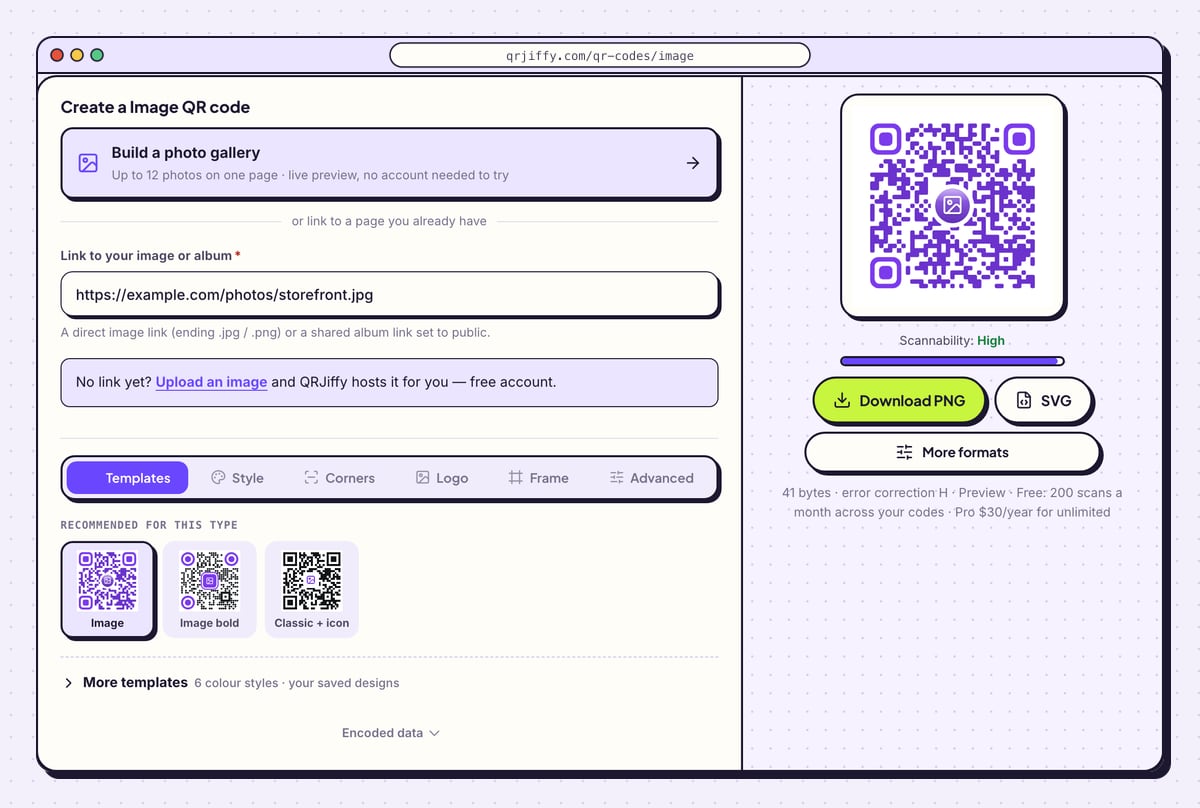
Open the image QR code generator and paste the address into Link to your image or album. The hint under the field asks for a direct image link (ending .jpg / .png) or a shared album link set to public. The preview on the right turns into your code immediately.
Above the form sits a card titled Build a photo gallery. It leads to the page builder described further down, for readers who have photos on their device and no link yet.
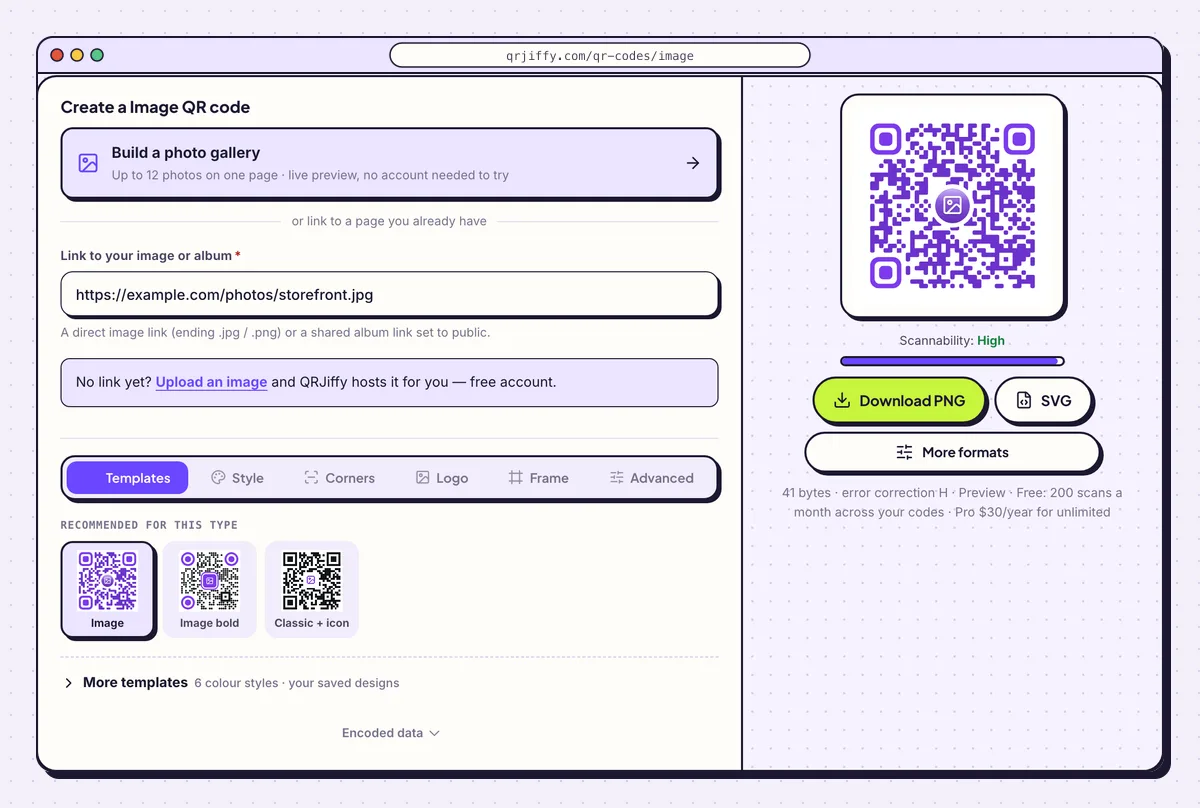
A direct .jpg link, here a photo of the bakery’s storefront. 3Style the dots to suit the print
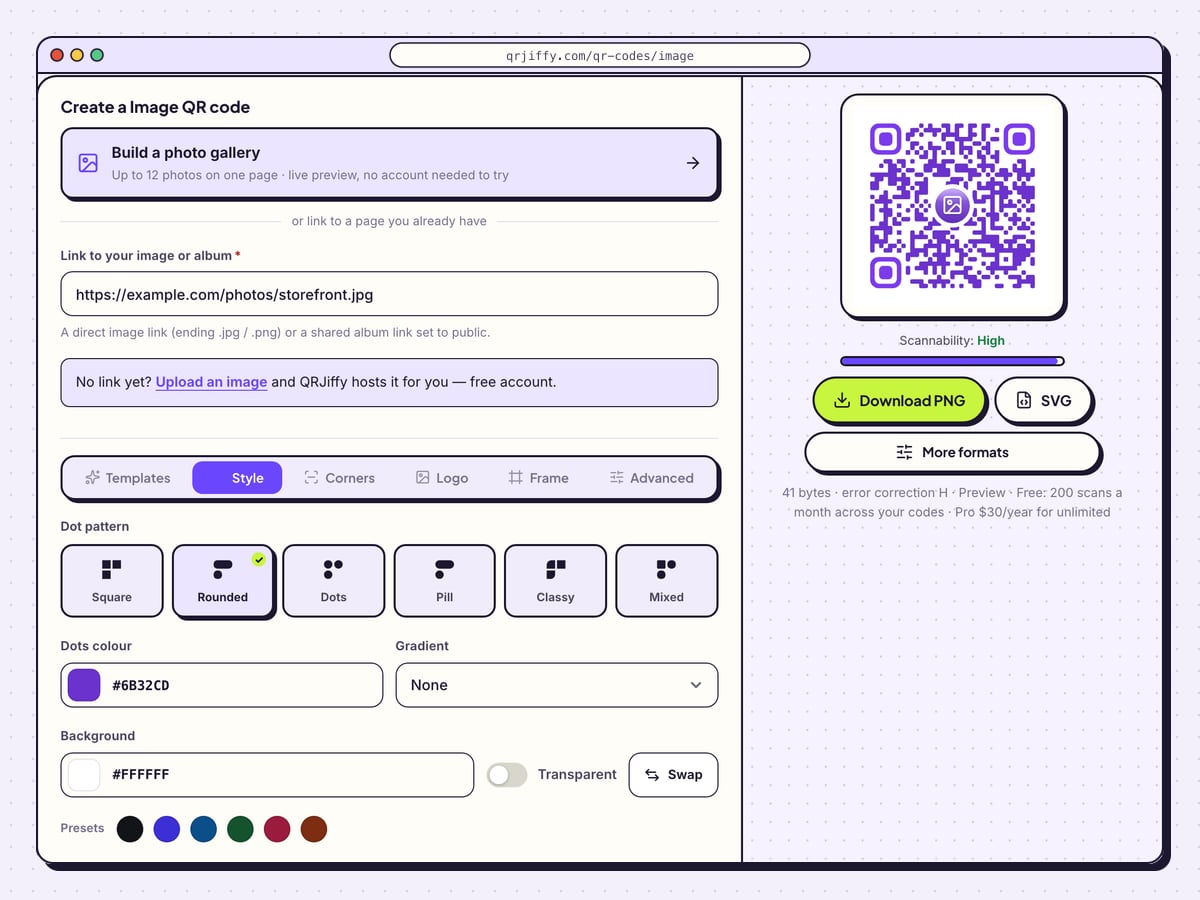
Open the Style tab. The dot shapes are Square, Rounded, Dots, Pill, Classy and Mixed. Dots colour sets the ink, Gradient blends it into a Second colour along a chosen Direction, and Background sets the paper colour, with a Transparent option.
An image code often lands on a photo print, a canvas label or a portfolio card, so a softer shape such as Rounded sits well beside the artwork. Keep the dots much darker than the background, and check that the Scannability bar still reads “High” after each change.
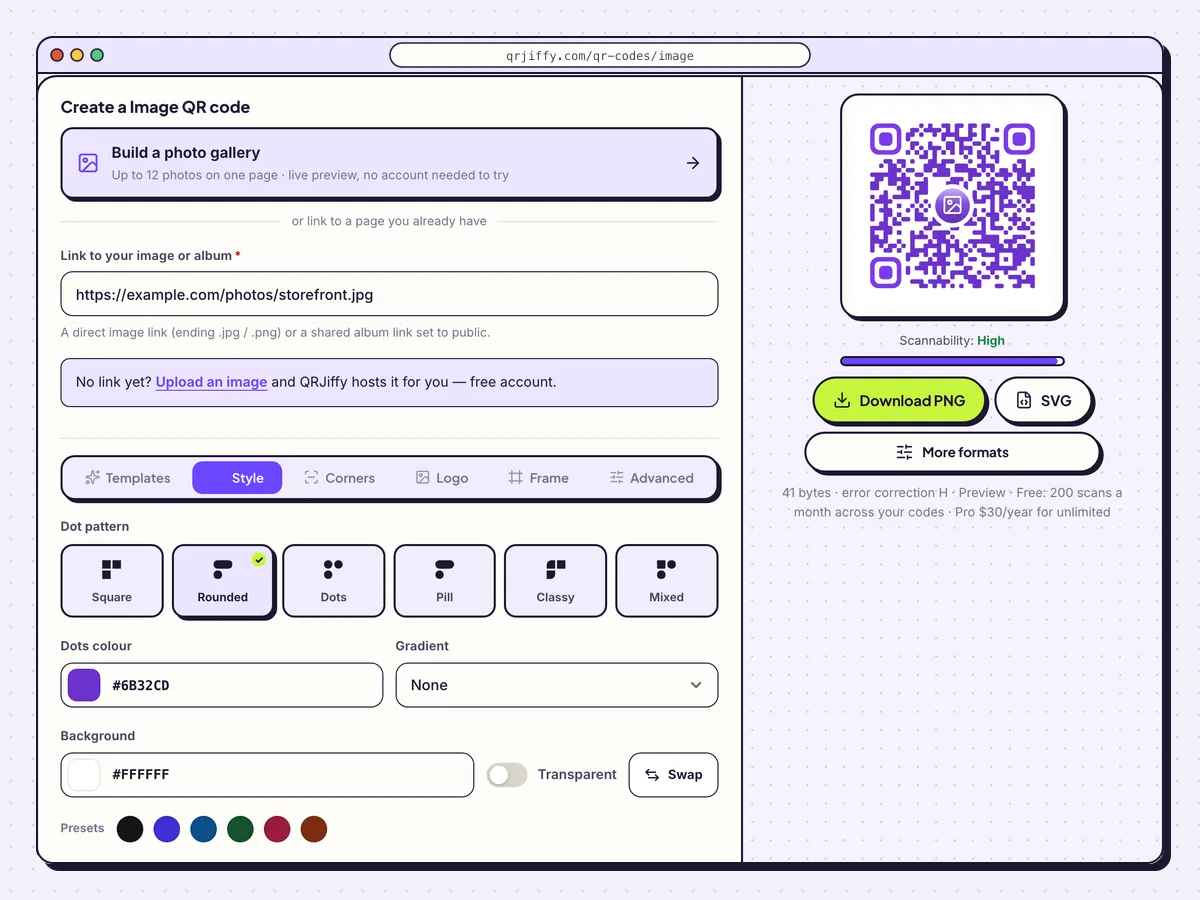
The Style tab changes the dot shape and the colours of the code. 4Download the code
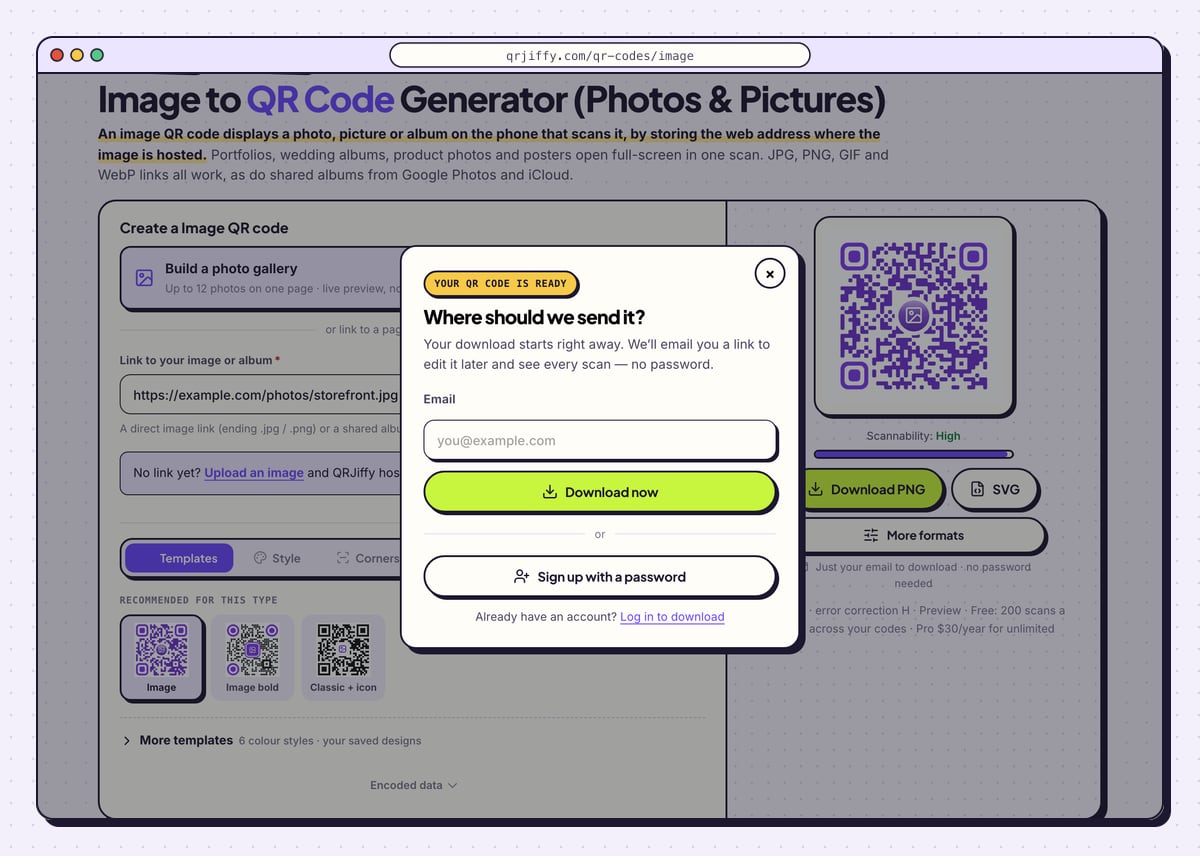
Press Download PNG or SVG. PNG suits a phone screen or a home printer, and SVG suits a photo lab or a framer, since it scales to any size without blur. In the “Where should we send it?” window, type an email and click Download now. The saved file is called something like
qrjiffy-image-M5TSf9h.png.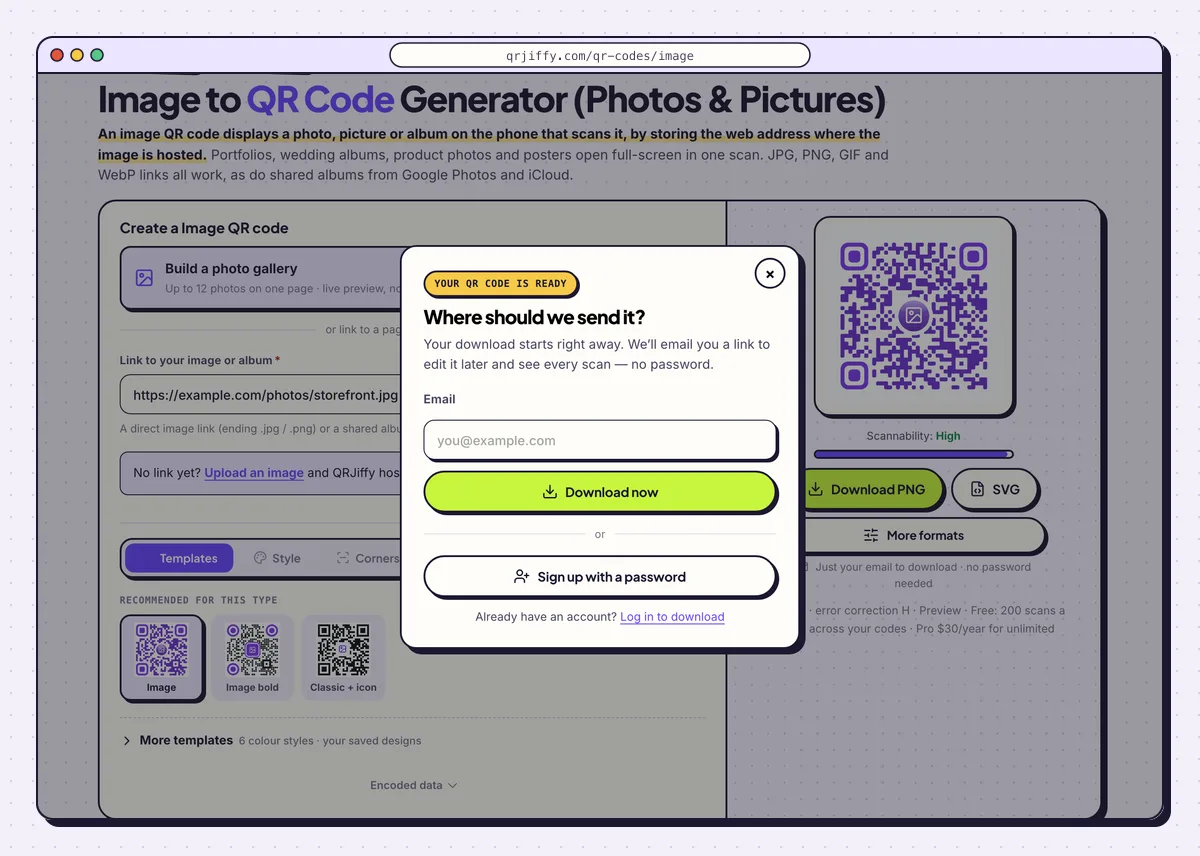
Enter an email and the image code downloads straight away. 5Change the picture later from the dashboard
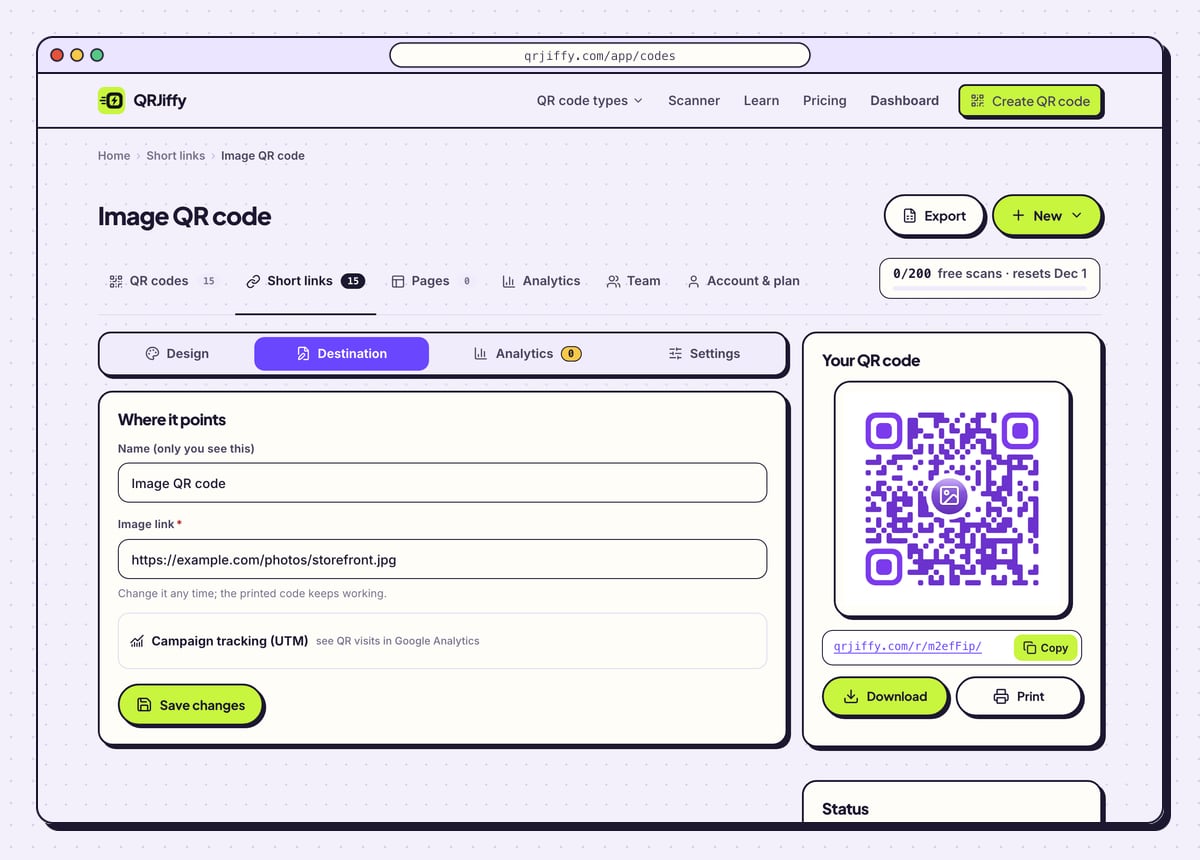
Under the buttons, the page lists the code’s short link, for example
qrjiffy.com/r/…, and a link to the dashboard. The dashboard page for the code has four tabs: Design, Destination, Analytics and Settings.Destination is the one that matters for pictures. A gallery wall label opens this month’s exhibition photo today and next month’s after you paste a new link, with the same printed label.
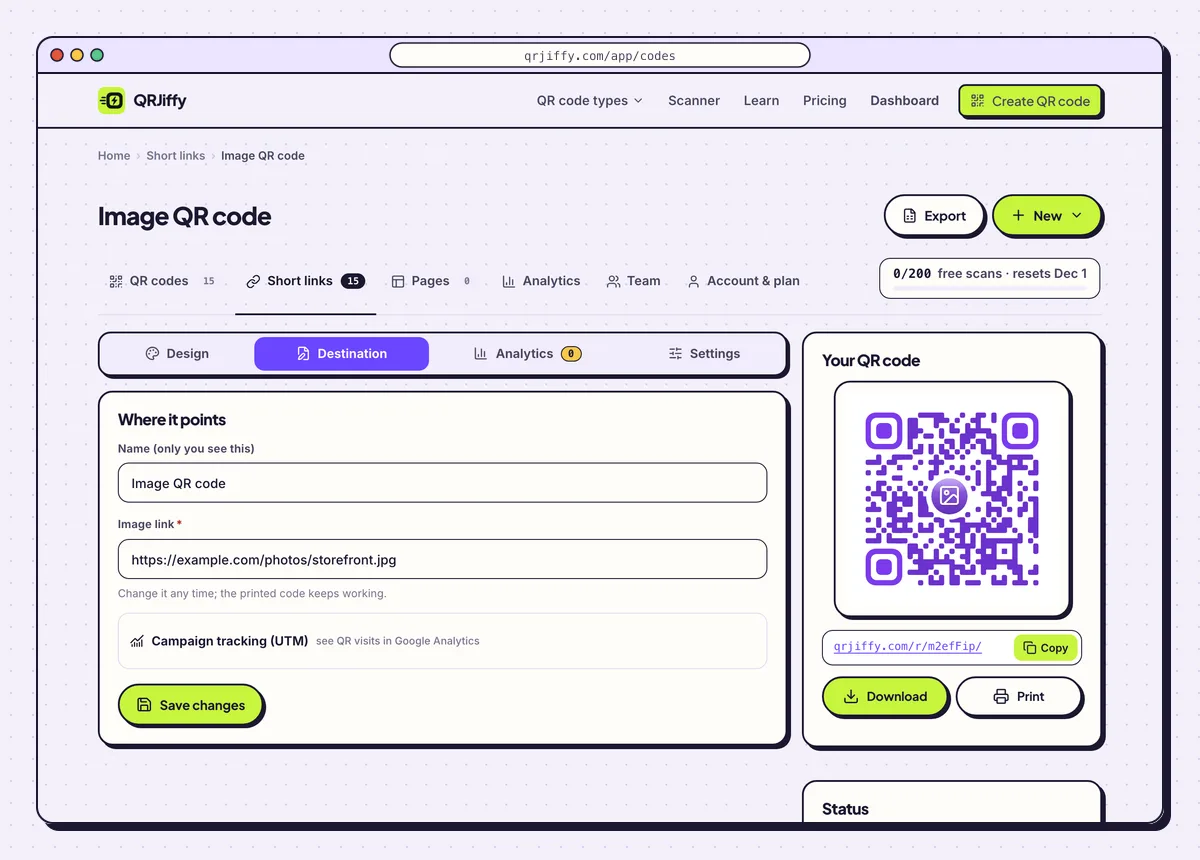
The code’s dashboard page, where the picture link is replaced after printing. 6Scan it with an iPhone and an Android phone
Scan the code from your screen with both kinds of phone. On an iPhone the Camera banner opens the picture in Safari, and a long press offers Save to Photos. On Android the picture opens in Chrome, and a long press offers Download image. A picture that shows on the iPhone and not on the Android phone is almost always a HEIC file.
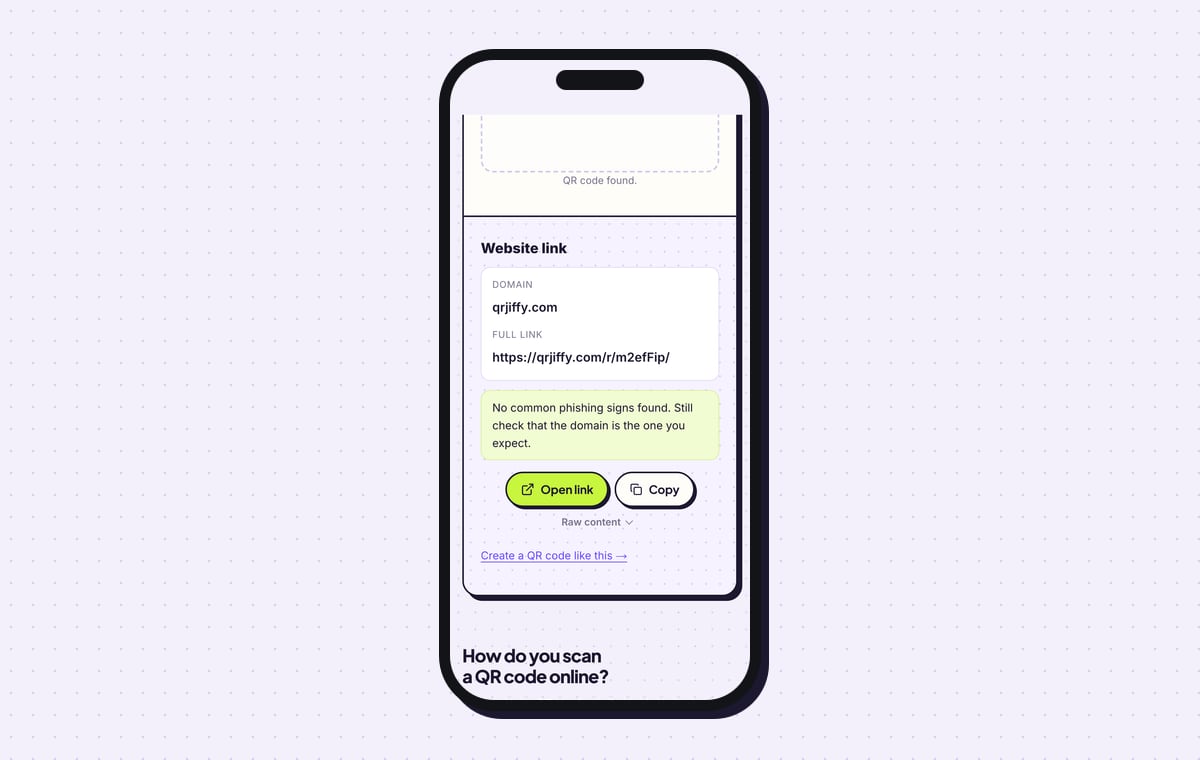
The QRJiffy scanner reads the downloaded file too. It labels the content “Website link”, names qrjiffy.com as the domain and prints the short link in full.
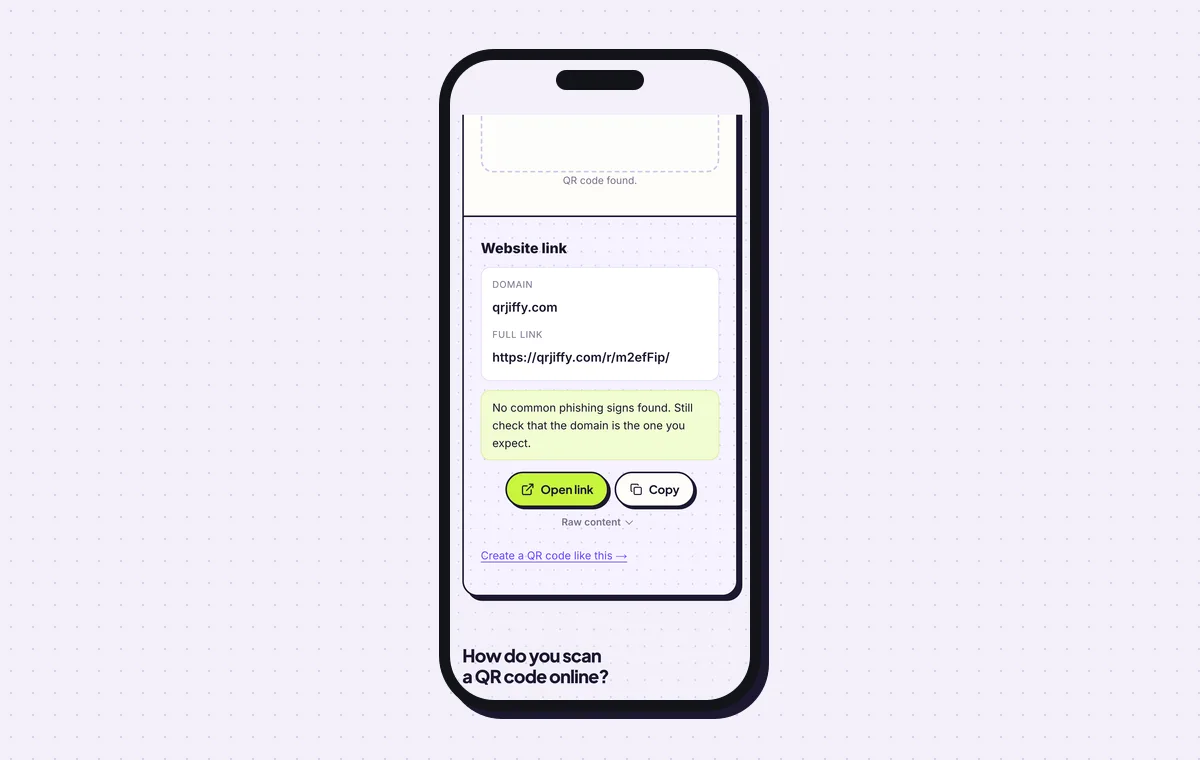
The scanner confirms the file holds the short link that forwards to the picture. 7Print the code on a light, matte area
Print the code at least 2 × 2 cm (0.8 in), with a clear margin of 4 dots. On a photo print, place it on a light, matte area: glossy finishes reflect light and slow scanning. Raise error correction to Q (25%) in the Advanced tab for photo prints and canvases.
Name the action beside the code, for example “Scan to see all 120 wedding photos”. The QR code size guide covers larger formats such as posters and banners.
Open the Image to QR Code generatorFree. Nothing to install.
How do you put several photos behind one QR code?
Build a gallery page: QRJiffy’s gallery builder puts up to 12 photos on one page and gives that page its own QR code. This route needs no hosting and no album link. The builder is free to try without an account, and publishing the page needs a free account.
1Add your photos, a title and a description
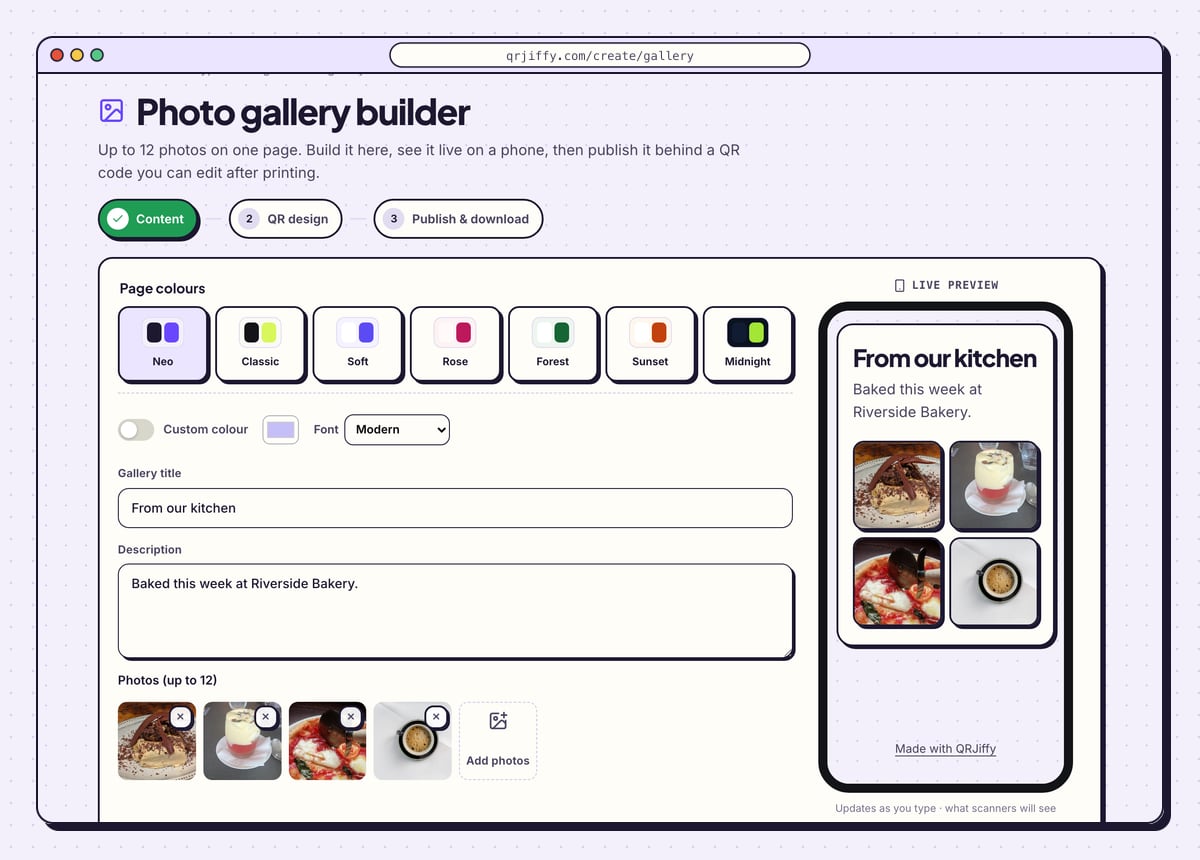
Click Build a photo gallery on the generator page. The builder has three steps across the top: Content, QR design and Publish & download. In Content, pick a theme (Neo, Classic, Soft, Rose, Forest, Sunset, Midnight or Custom colour), then fill in Gallery title and Description.
Click Add photos and choose up to 12 pictures. The phone preview beside the form shows the page as a visitor sees it, and it updates with every photo.
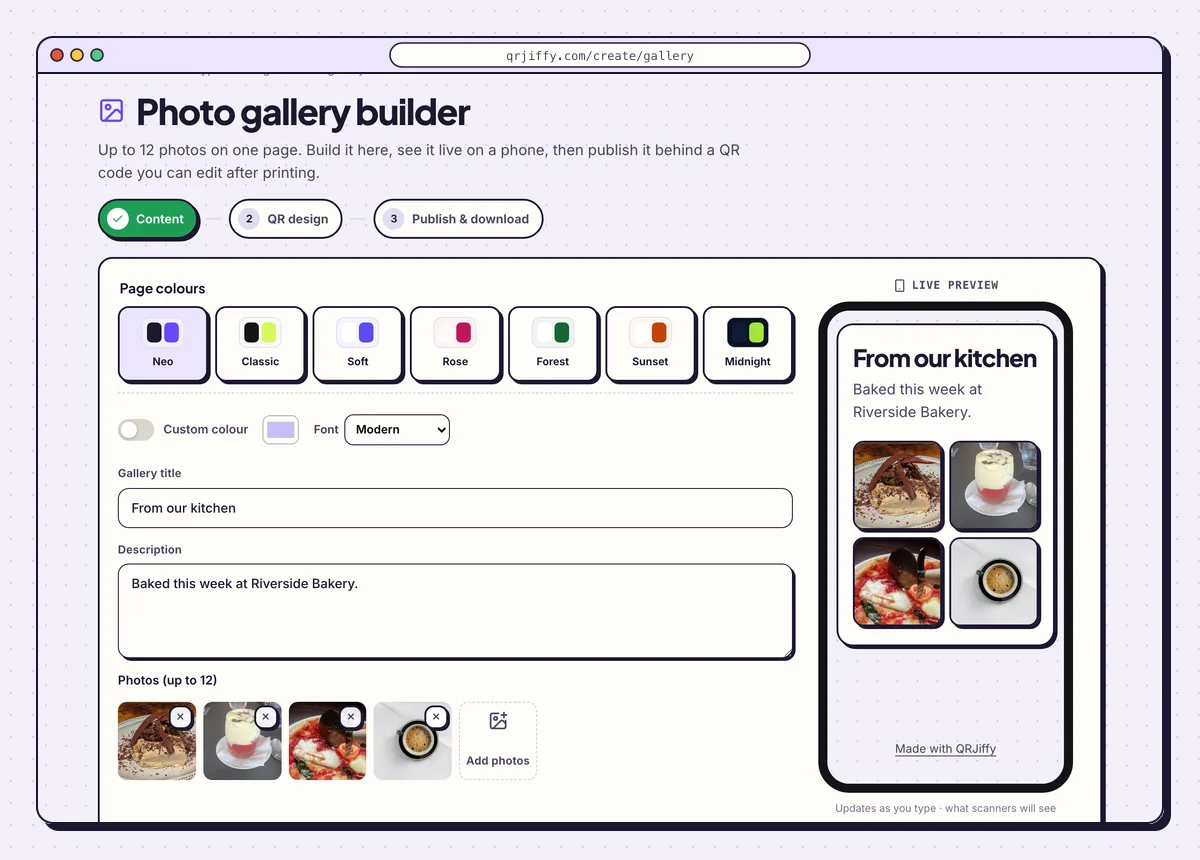
The Content step with a sample gallery of four photos and its live phone preview. 2Design the code for the gallery
Click Next: QR design. This step styles the code that opens the gallery, with the same kind of controls as the generator: dot shape, colours, a logo and a frame label. A label such as “Scan for the photos” tells guests at a table what the card is for.
3Publish the page and download its code
The last step, headed “Ready to publish”, explains that the page goes live at its own short link. Click Publish & download PNG and sign in to a free account when asked. The gallery is then online and the code is saved to your device.
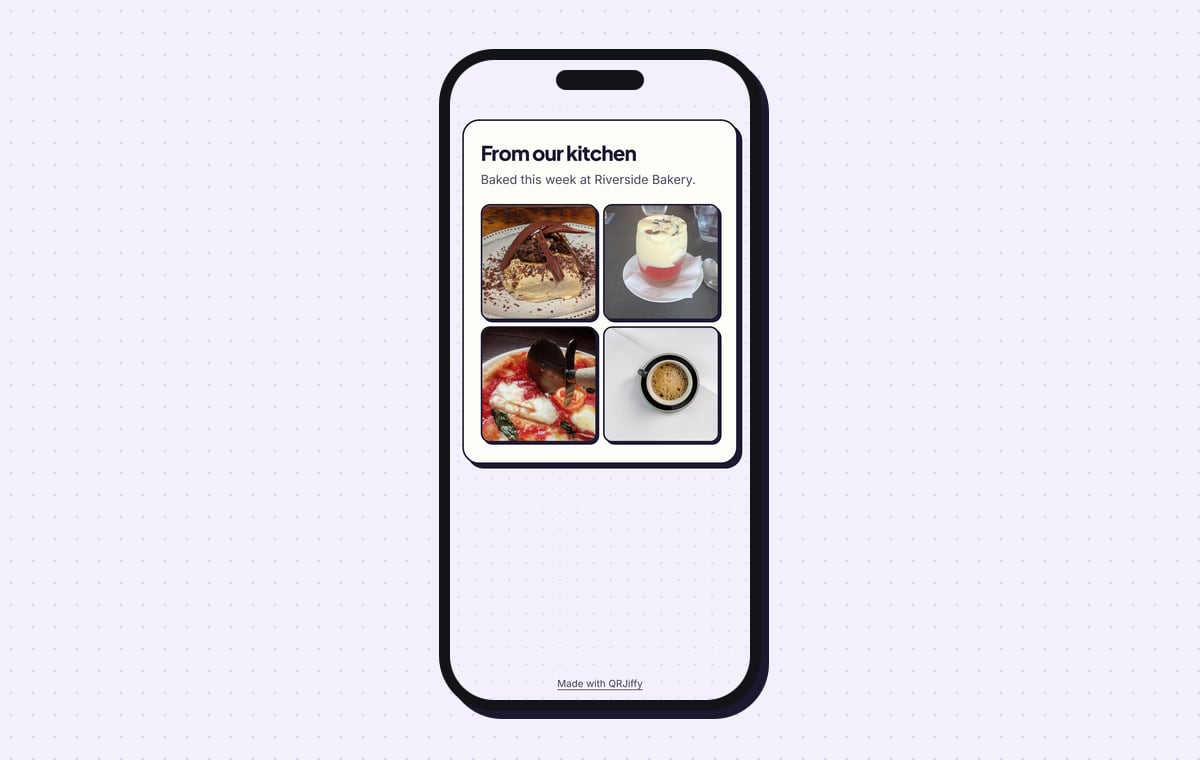
The page stays editable. Add, remove or reorder photos later and the printed code keeps opening the current version. Scans appear in your dashboard, with 200 scans a month included on a free account.
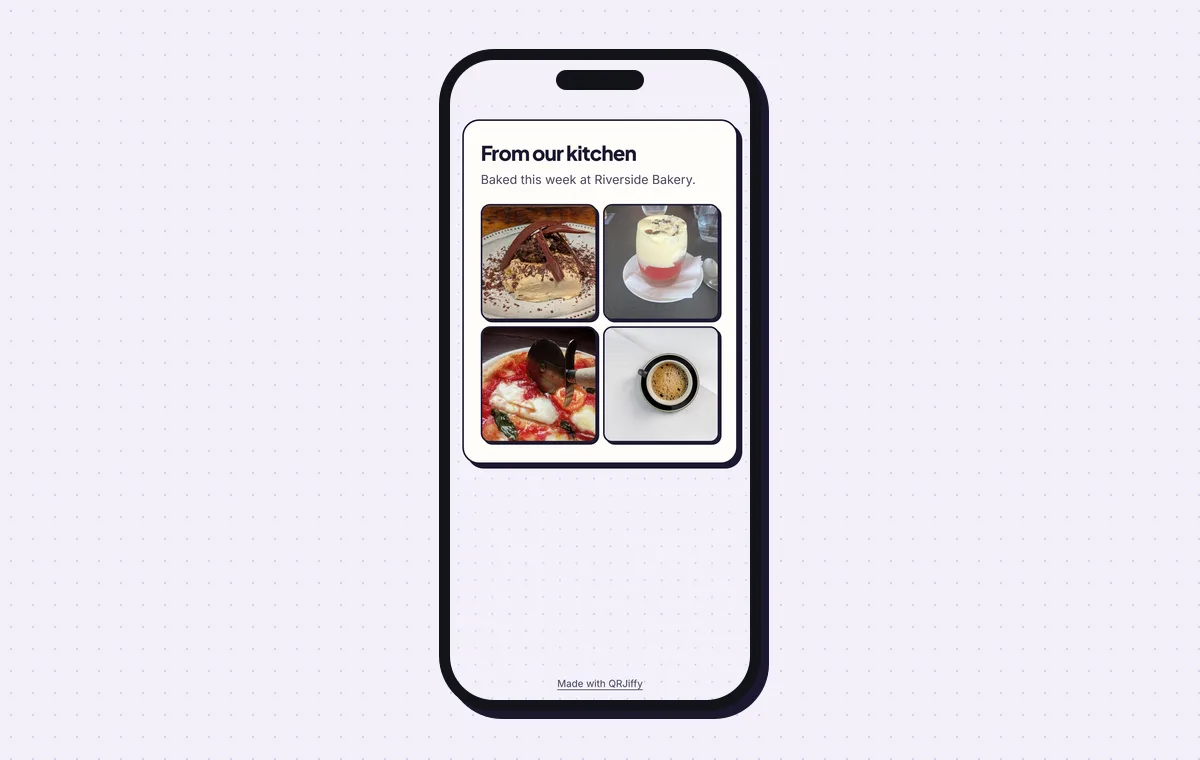
The published gallery as a visitor sees it after scanning.
Build a photo galleryLive preview. No account needed to try.
What does someone see when they scan an image QR code?
They see the picture in their phone’s browser: alone and full-screen for a direct image link, or inside an album page for a shared album link. The built-in camera reads the code on iOS 11 or later and Android 9 or later. The phone loads the image over the internet, so the viewer needs a connection.
- Direct .jpg or .png link: the picture alone, with a long-press option to save it.
- Google Photos or iCloud album: an album page with every picture in it.
- QRJiffy gallery page: your title, description and up to 12 photos on one themed page.
Is a QR code for an image the same as a QR code with an image in it?
No. A QR code for an image opens a picture when scanned, while a QR code with an image has a logo or picture placed in the middle of the pattern. Both are searched with similar words. For the second kind, open the Logo tab of any QRJiffy generator and add your picture; error correction rises automatically so the covered dots are recovered.
Can you change the picture after the QR code is printed?
Yes. The printed code holds a short link, so a new image link in your QRJiffy dashboard replaces the picture on every existing print. The same fix repairs a code whose image was deleted or whose album sharing was switched off. A gallery page is edited in place: add or remove photos and the next scan shows the current set.
What mistakes stop an Image QR code from working?
These 5 mistakes cause most failed Image QR codes; each has a quick fix. Test the downloaded file with two different phones before you print anything.
| Mistake | Fix |
|---|---|
| An iPhone photo is uploaded as HEIC | Export it as JPG first; HEIC does not display on most Android phones. |
| An iCloud link is used on a printed frame or plaque | iCloud links end after 30 days. Use Google Photos, your website or a QRJiffy gallery page. |
| The album is shared with named people only | Create a public share link and open it in a private browser window to confirm. |
| A full-resolution 12-megapixel file is linked | Resize to 2,000 px on the long side so it loads fast on mobile data. |
| The code is printed over a busy or glossy part of the photo | Place it on a light, matte area and set error correction to Q (25%). |
Frequently asked questions
Is it free to make a QR code for a picture?
Yes. The image QR code generator is free and puts no watermark on the code. A free account includes 200 scans a month across all your codes.
Which image formats can a QR code open?
JPG, PNG, GIF and WebP open in every phone browser. HEIC opens on iPhones only, so convert it to JPG.
Can I see how many people viewed the picture?
Yes. The dashboard counts scans of the code by day, device and country.
How many photos can one QR code show?
A QRJiffy gallery page holds up to 12 photos. A shared album link from Google Photos shows every picture in that album.
Ready to make your Image QR code?
The generator is free and works in the browser on a phone or a computer. Your code downloads as PNG for screens or SVG for print.
Open the Image to QR Code generator
Related guides: How to Print a QR Code · QR Code Size · QR Code Not Working