 QRJiffy
How to Make a Social Media QR Code
You make a social media QR code by pointing one code at a page that lists all your profiles, either a page you already have or one you build on QRJiffy. A QR code holds exactly one link, so the list of networks lives on that page. Each scanner then taps the network they already use.
What do you need before you start?
You need 4 things ready, and no account to try the generator. A free account, or just your email, is asked for only at the download step.
- The address of a page that lists your profiles: a “follow us” page on your site, a Linktree or a bio link.
- No such page yet? The handles of each profile, for the page builder described below.
- A decision on the order. The first button on the page gets the most taps.
- An iPhone and an Android phone to test the buttons on.
How do you make a Social media QR code step by step?
Follow these 7 steps in the Social Media QR Code generator; the preview updates as you type. Each screenshot below is the real screen, filled in with a sample bakery’s details.
1Choose between linking a page and building one
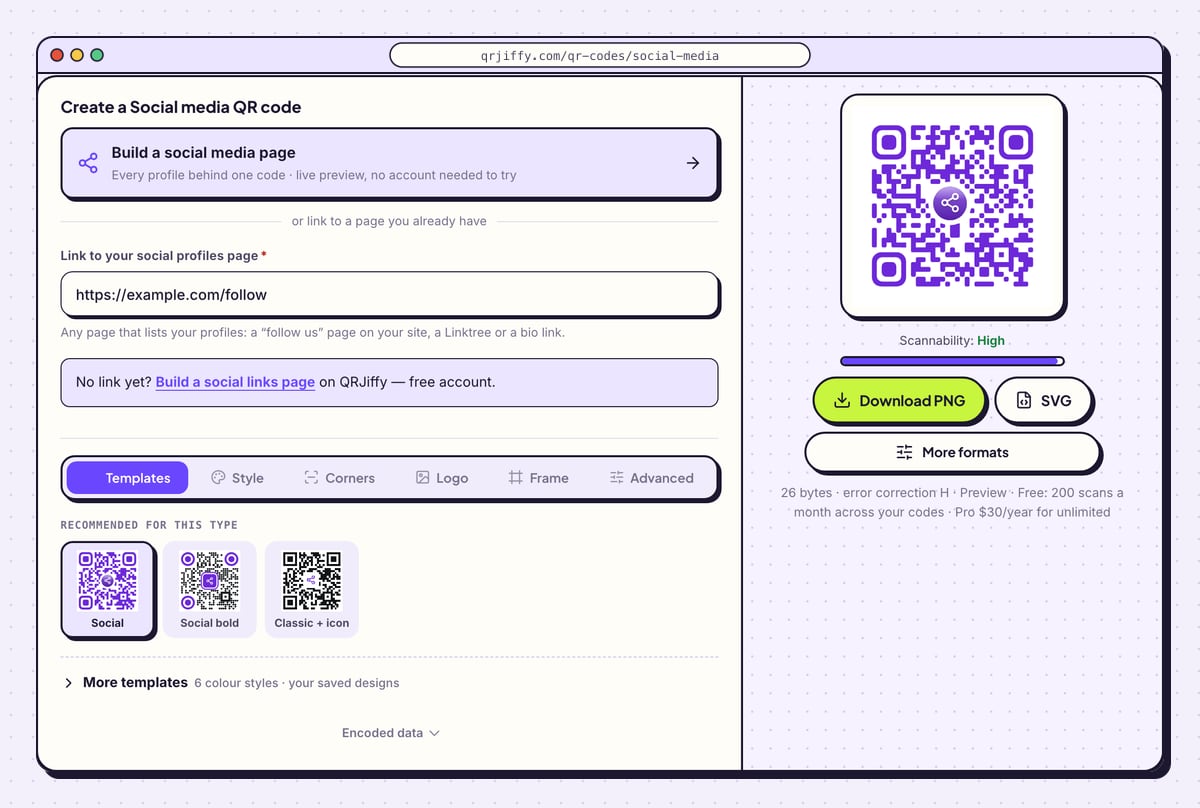
The social media QR code generator opens with two routes. The card at the top, Build a social media page, starts the page builder. Below it, under the words “or link to a page you already have”, sits the field for an existing address. This walkthrough takes the second route; the builder has its own section further down.
Before continuing, open your existing page on a phone and tap every profile on it.
2Paste the address of your profiles page
Paste the page’s address into Link to your social profiles page. The sample uses
https://example.com/follow. Any page that lists the profiles qualifies, whether it sits on your own domain or on a link-in-bio service.The purple code in the preview is drawn from that single address, 26 bytes long in the sample. Adding or removing networks on the page later does not alter the code.
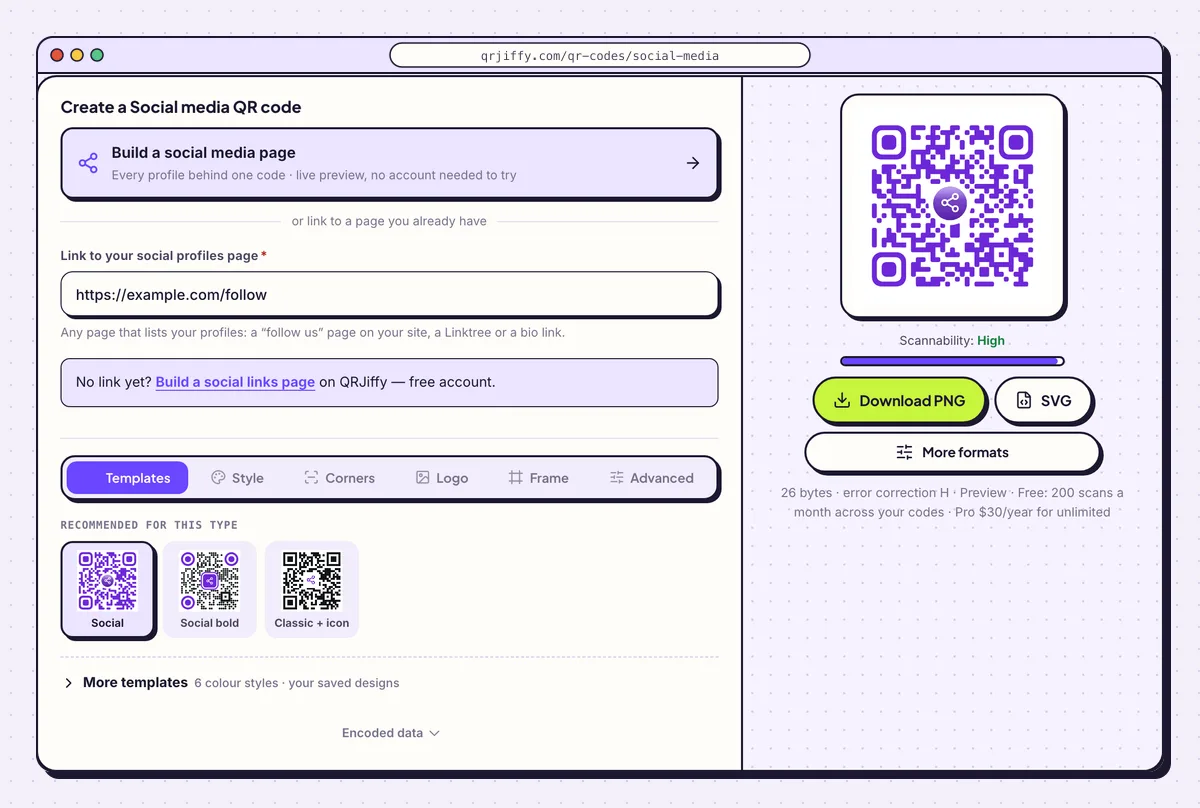
Two routes on one screen: build a page, or link to the one you have. 3Match the code to your brand colour
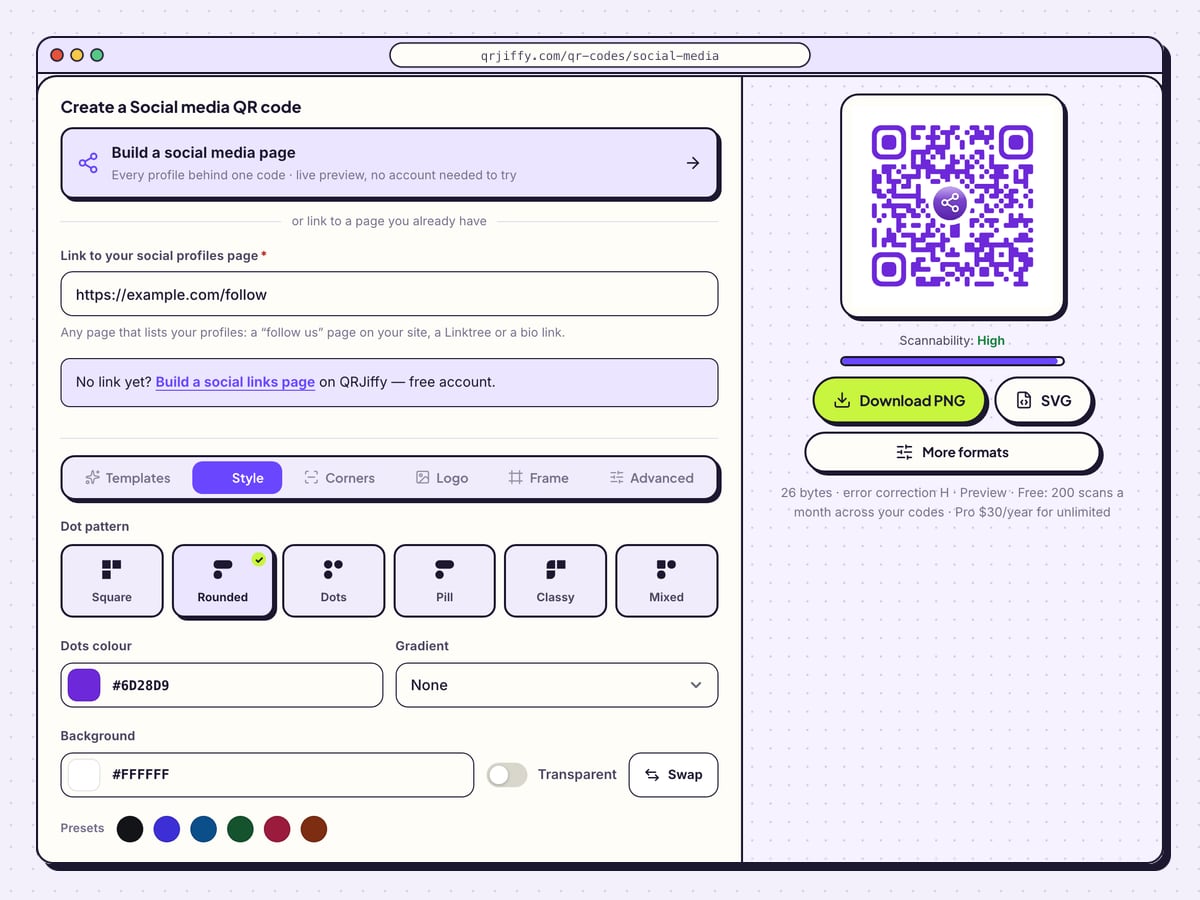
One code now stands for several networks, so it takes your brand colour, not the colour of any one platform. In the Style tab, click Dots colour and enter your hex value, or pick one of the Presets circles. Keep Background light.
The six entries under Dot pattern, from Square to Mixed, change the texture of the code. The share icon in the centre stays readable with all of them, and the Scannability reading under the preview confirms the result.
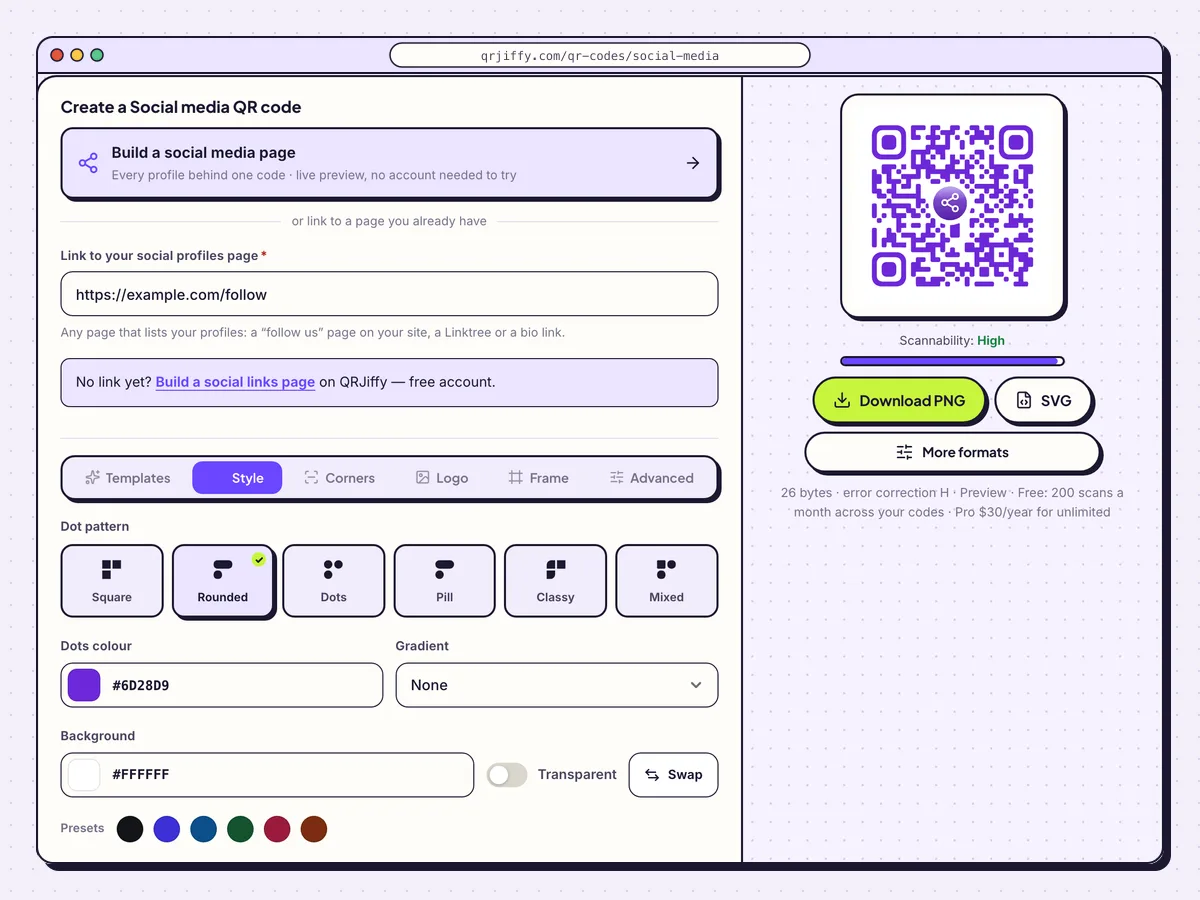
A dark brand colour on a light background suits a code that covers every network. 4Download the finished code
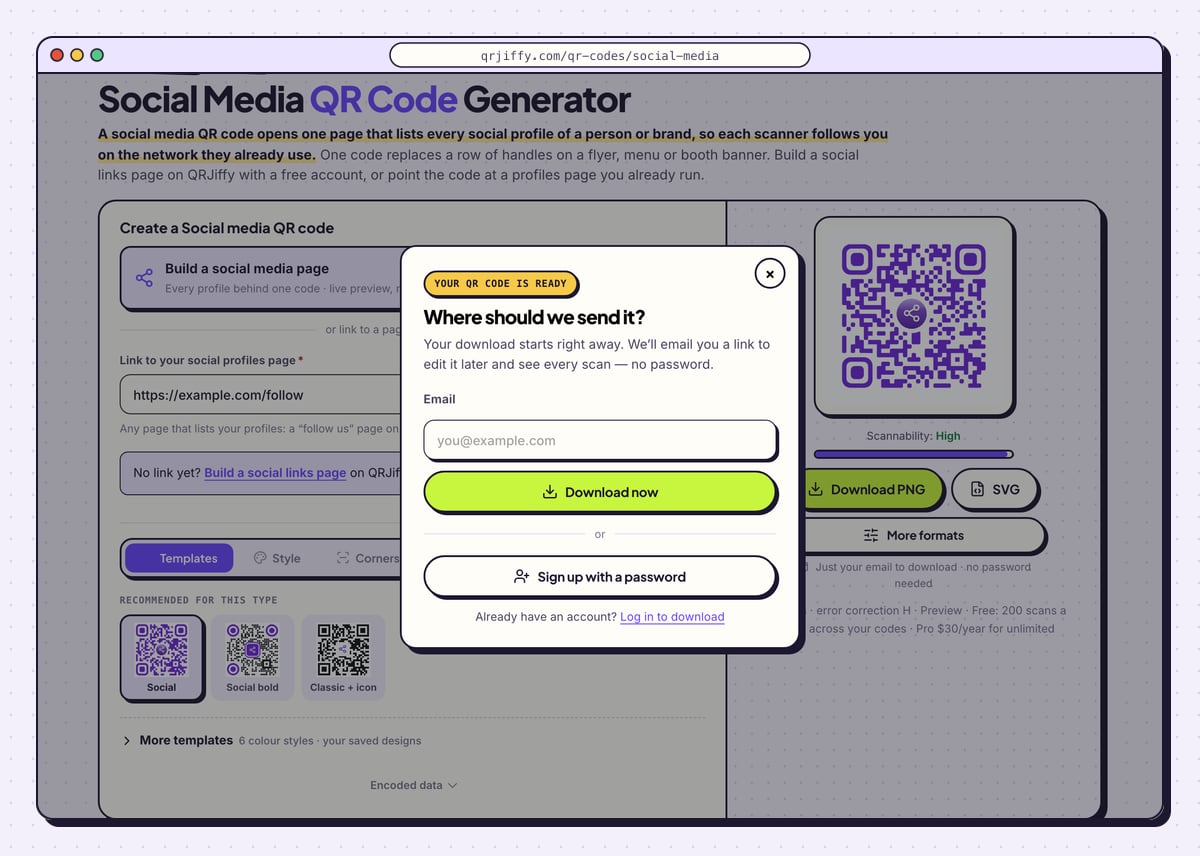
Click SVG for banners, table tents and packaging, or Download PNG for screens. The site asks for an email on the first download and starts the file as soon as you press Download now. Choosing Sign up with a password creates a normal account in one go.
You receive
qrjiffy-social-media-mxRK4MR.pngor a file with your own code’s ID. The same ID appears in the short link printed under the preview.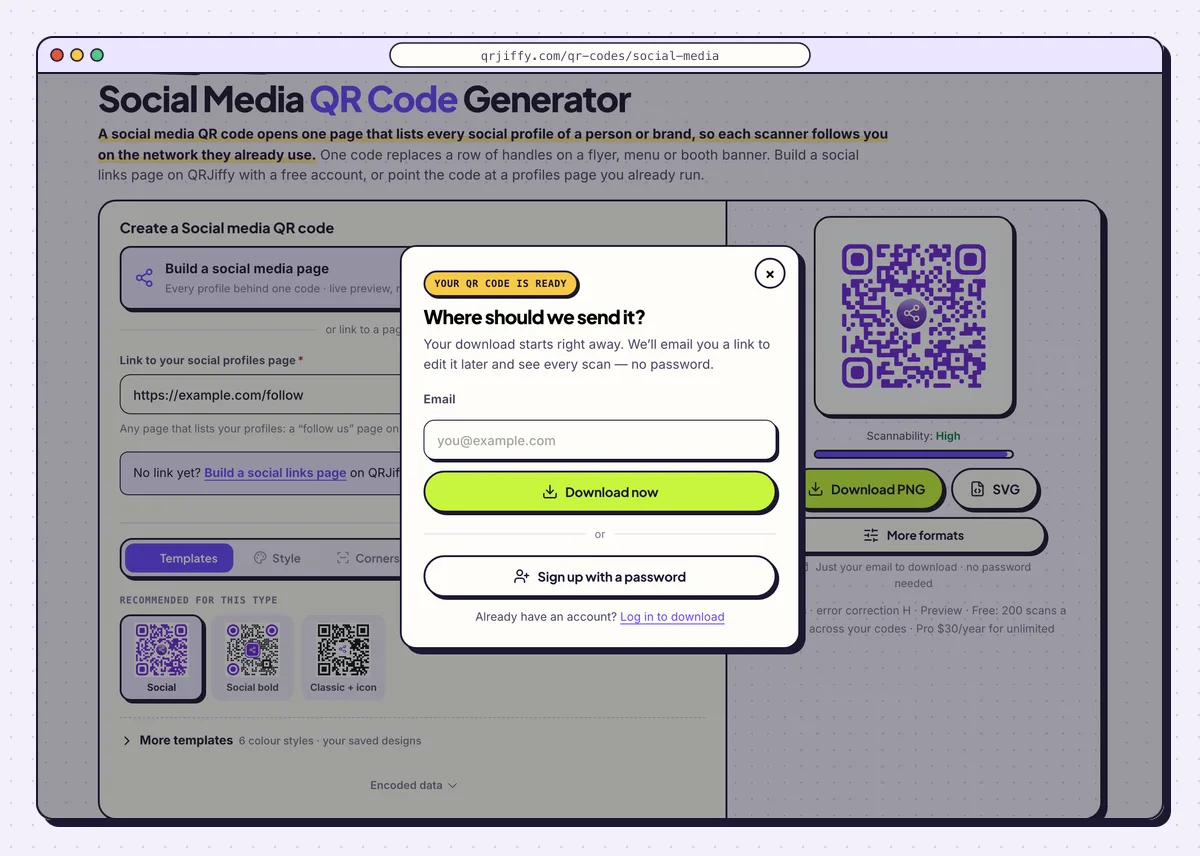
Enter an email, press Download now, and the file is on your device. 5Scan the code and tap every network button
Scan with an iPhone: the page opens in Safari, and each network button opens its app. Scan with an Android phone: the page opens in Chrome and the buttons hand off to Instagram, TikTok or YouTube. Where an app is missing, the button falls back to the network’s web profile.
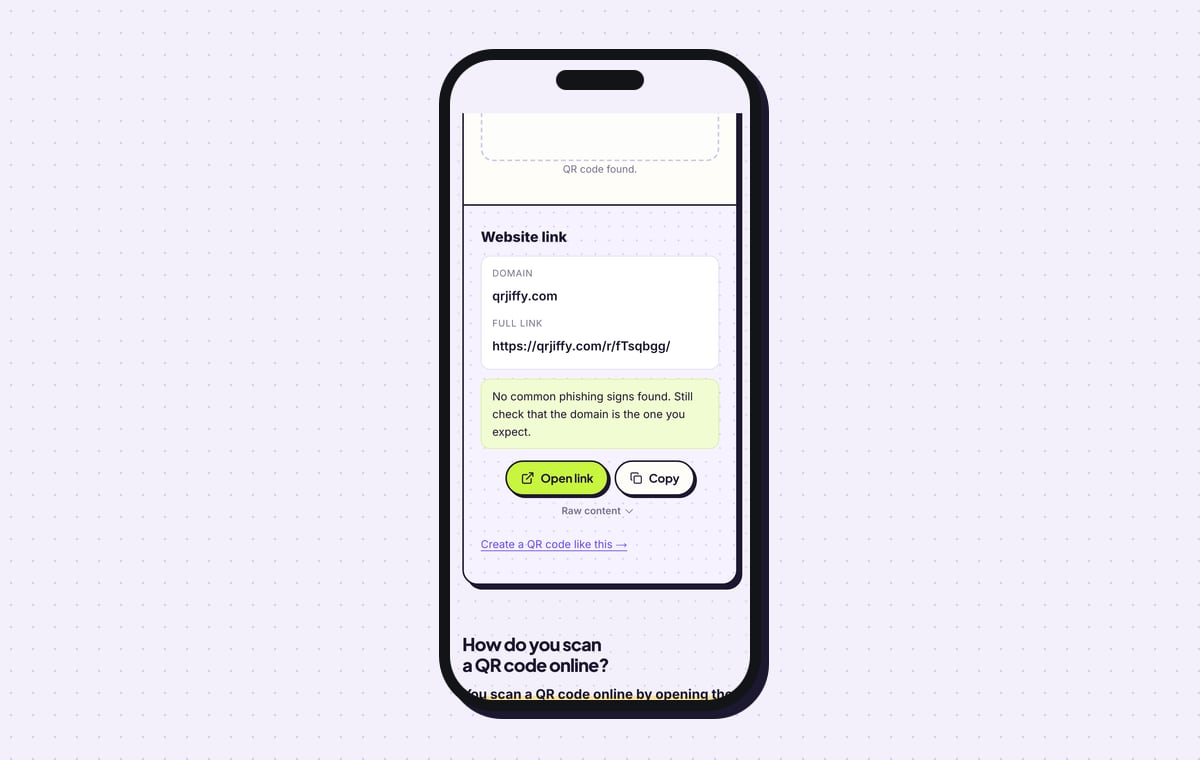
Tap every button on both phones. The QRJiffy scanner verifies the code itself: it reads a Website link on qrjiffy.com and opens your page through Open link.
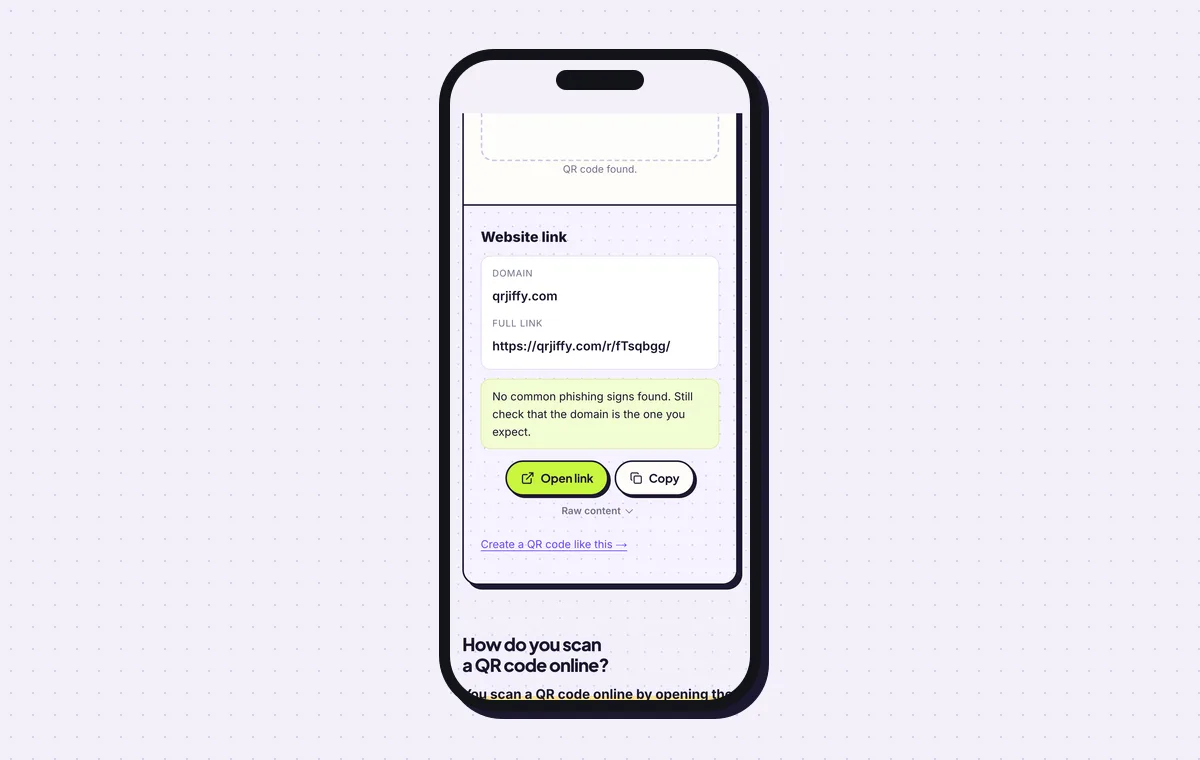
The scanner checks the code; the buttons on the page still need a tap each. 6Move the code to a new page without reprinting
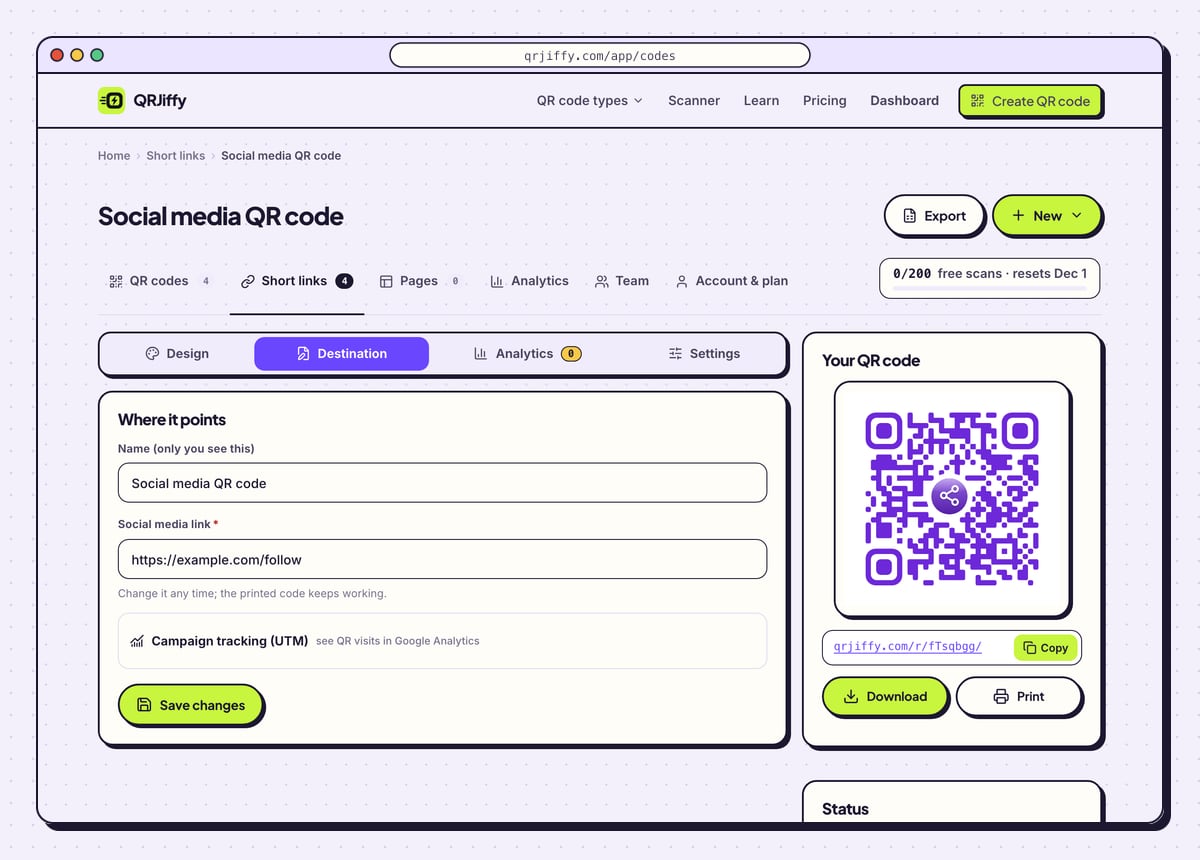
The banner is printed, and six months later the profiles page moves to a new address. Open the code in the dashboard, select Destination and paste the new address. The banner keeps working.
Under Analytics, scans appear by day, device and country. Free accounts hold 200 scans a month over all codes, and Pro is unlimited at $30 a year.
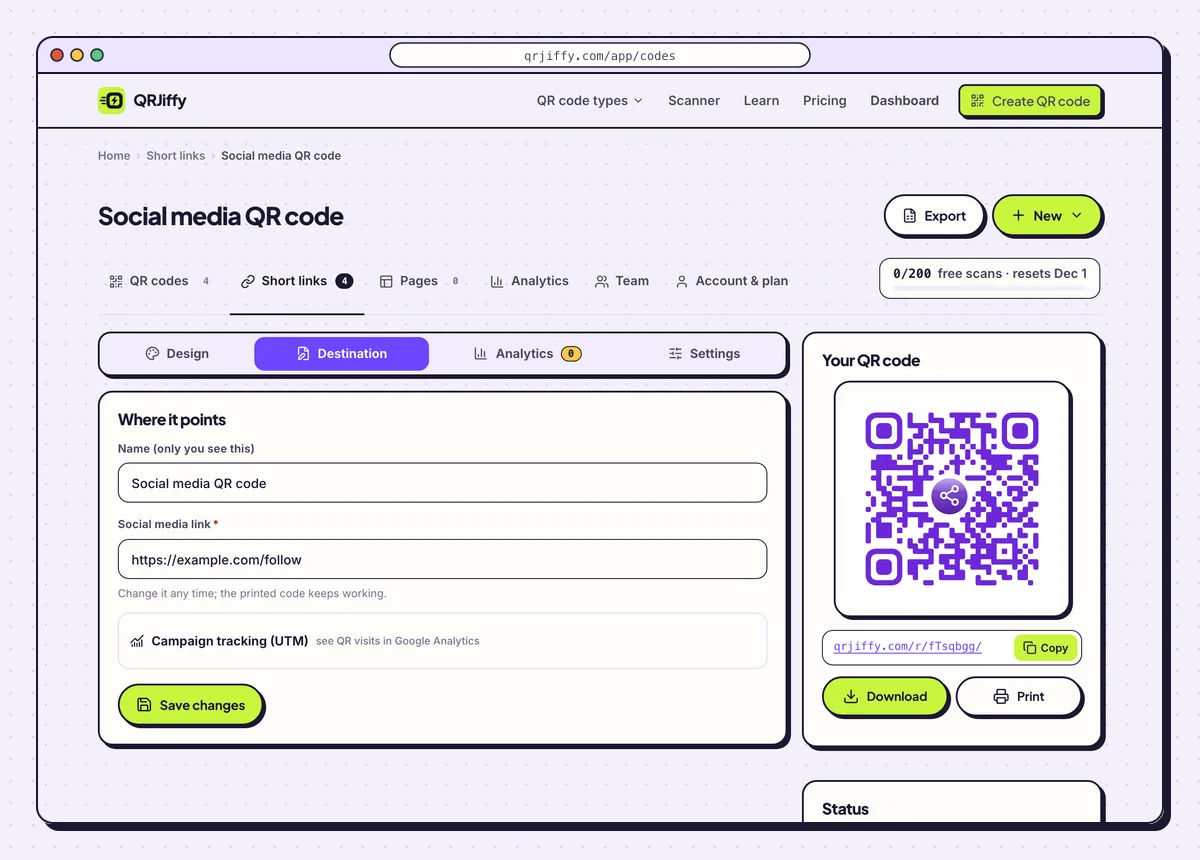
Destination swaps the page behind the code; the printed banner is untouched. 7Print one code where the handles used to be
One code replaces the row of handles on a flyer, a menu or a booth banner. Print it at least 2 × 2 cm on small items. A booth banner read from 3 m needs a code about 30 cm wide. Put a benefit next to it, for example “Scan for daily recipes”.
Shop counters, event booths, creator merch and restaurant table tents are typical placements.
Open the Social Media QR Code generatorFree. Nothing to install.
How do you build a social media page on QRJiffy?
1Enter the page title, bio and colours
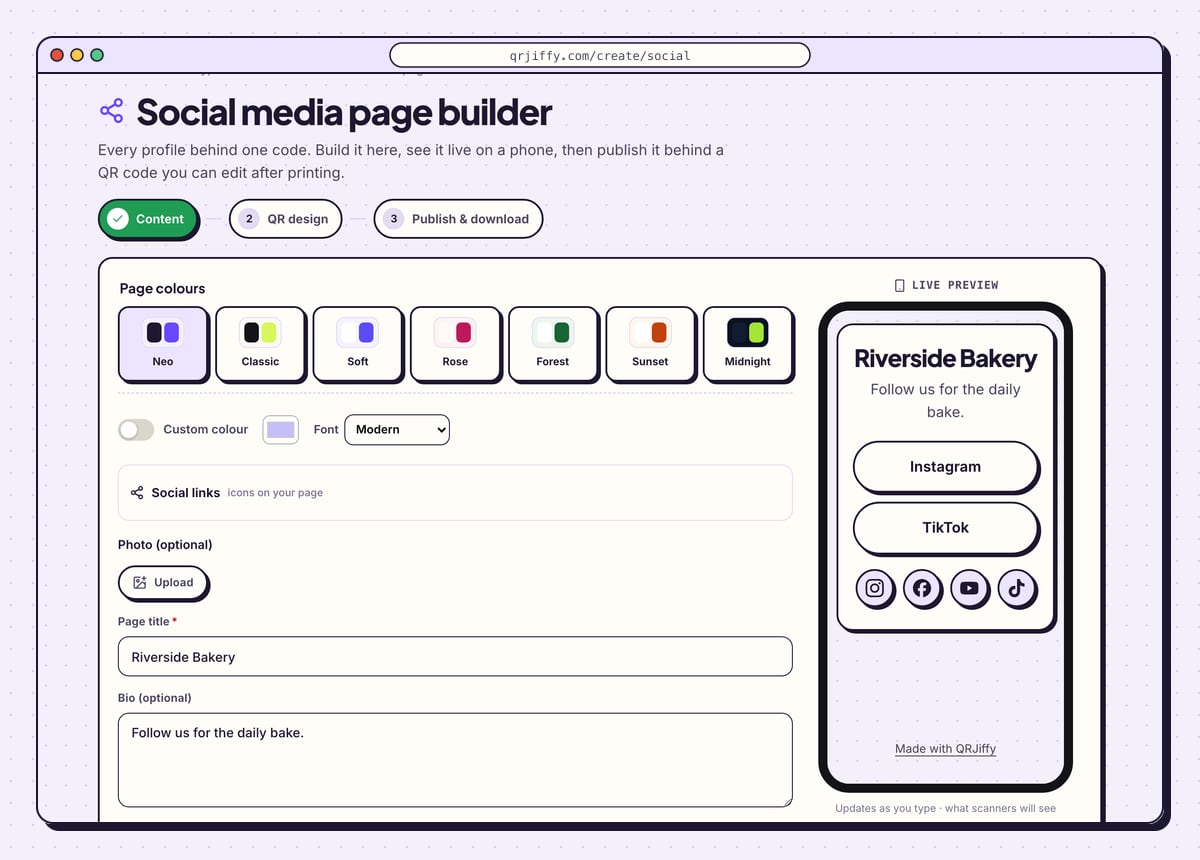
The Content step starts with Page colours: seven themes named Neo, Classic, Soft, Rose, Forest, Sunset and Midnight, plus a Custom colour switch and a Font menu. Type the name people know you by into Page title and one line into Bio (optional).
The sample reads “Riverside Bakery” and “Follow us for the daily bake.” Photo (optional) takes an avatar through Upload, which confirms whose profiles these are.
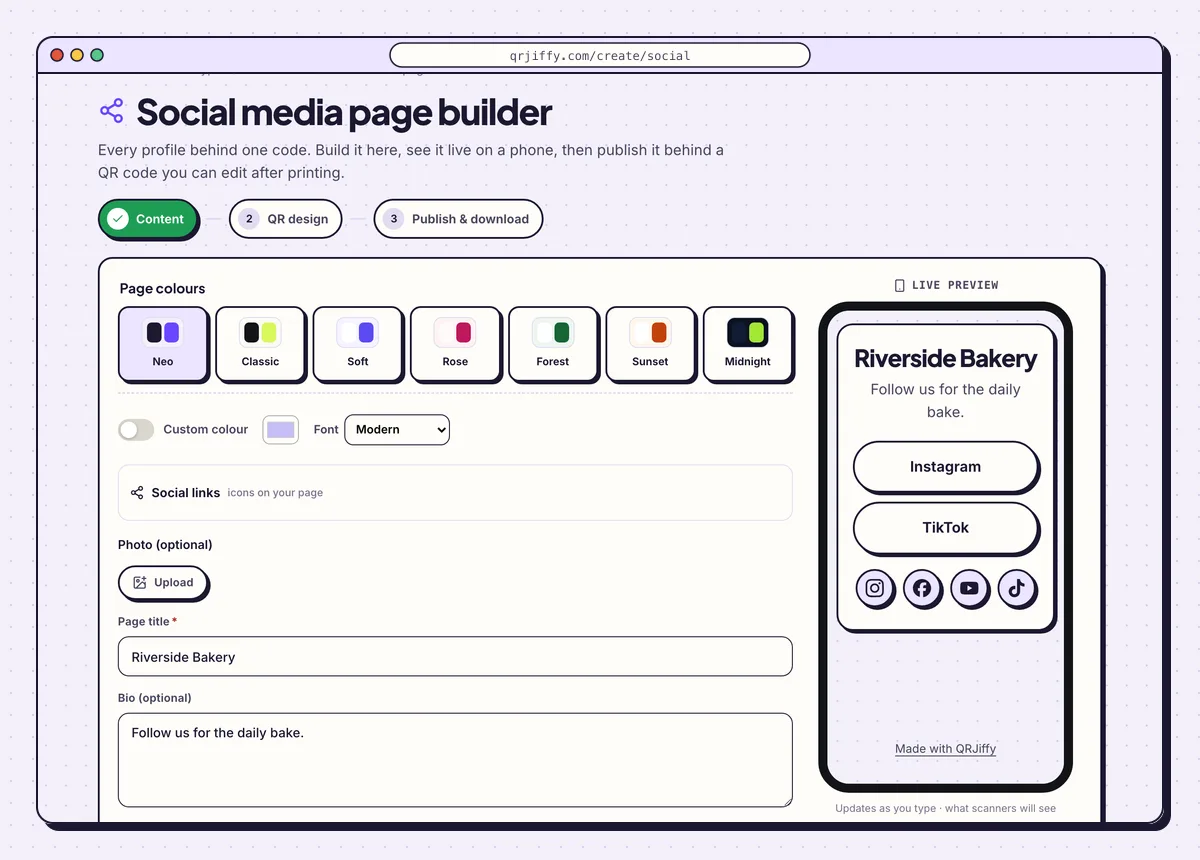
The Content step: themes at the top, title and bio below, live preview on the right. 2Add your profiles as icons and buttons
Open Social links, described on screen as “icons on your page”, and fill in a handle for each network you use. Sixteen are offered, including Instagram, Facebook, LinkedIn, X, YouTube, TikTok, WhatsApp, Telegram, Threads, Pinterest and Snapchat. Each handle becomes a round icon at the foot of the page.
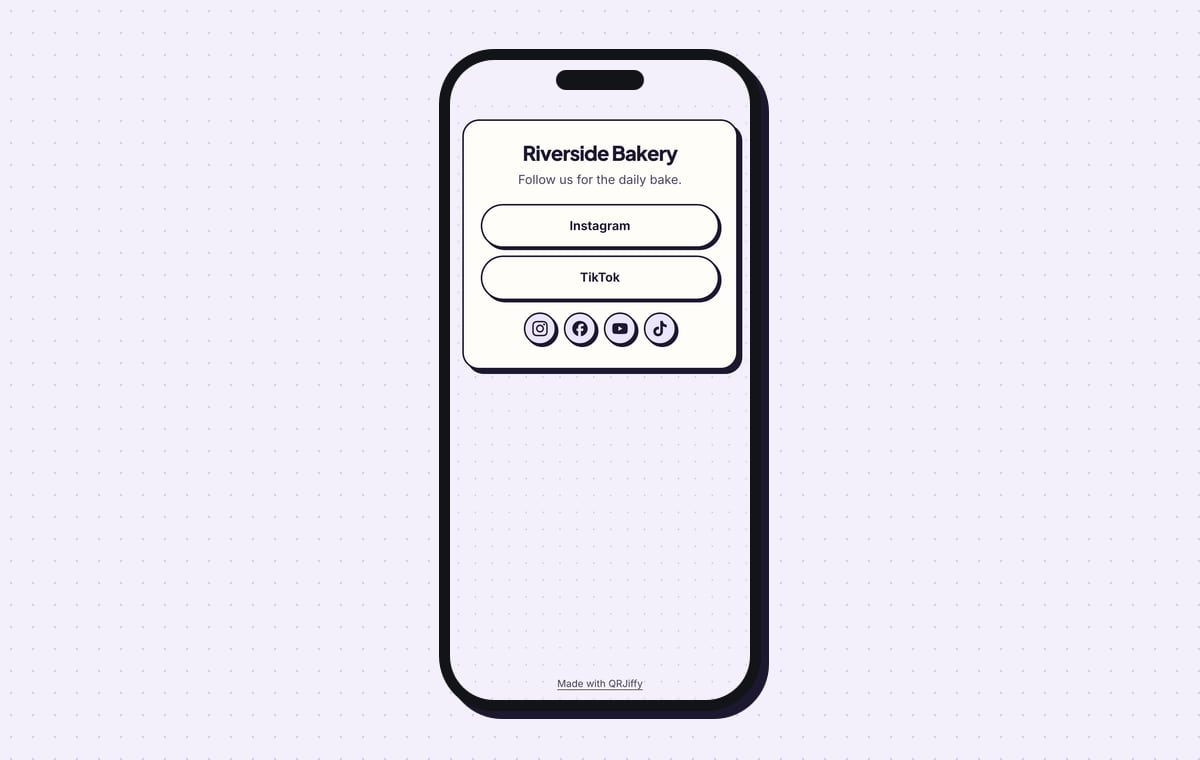
For the networks that matter most, add a full-width button as well: fill in Button text and Link. The sample has an Instagram button and a TikTok button above four icons.
Tip: Leave out any network you have not posted on for 90 days.
3Style the code in the QR design step
Click Next: QR design. The second step is where the code gets its colours and shape. Choose a dark colour that fits the page theme you picked, so the print and the page look like one piece.
A centred logo is safe here too, because error correction rises to H when a logo is added.
4Publish the page and download the code
The last step is headed “Ready to publish”. Click Publish & download PNG, signing in to a free account when asked. The page goes live at its own short link, and the PNG of the code downloads.
From then on, edits to the page appear on the next scan. Adding a new network in a year’s time needs no new print.
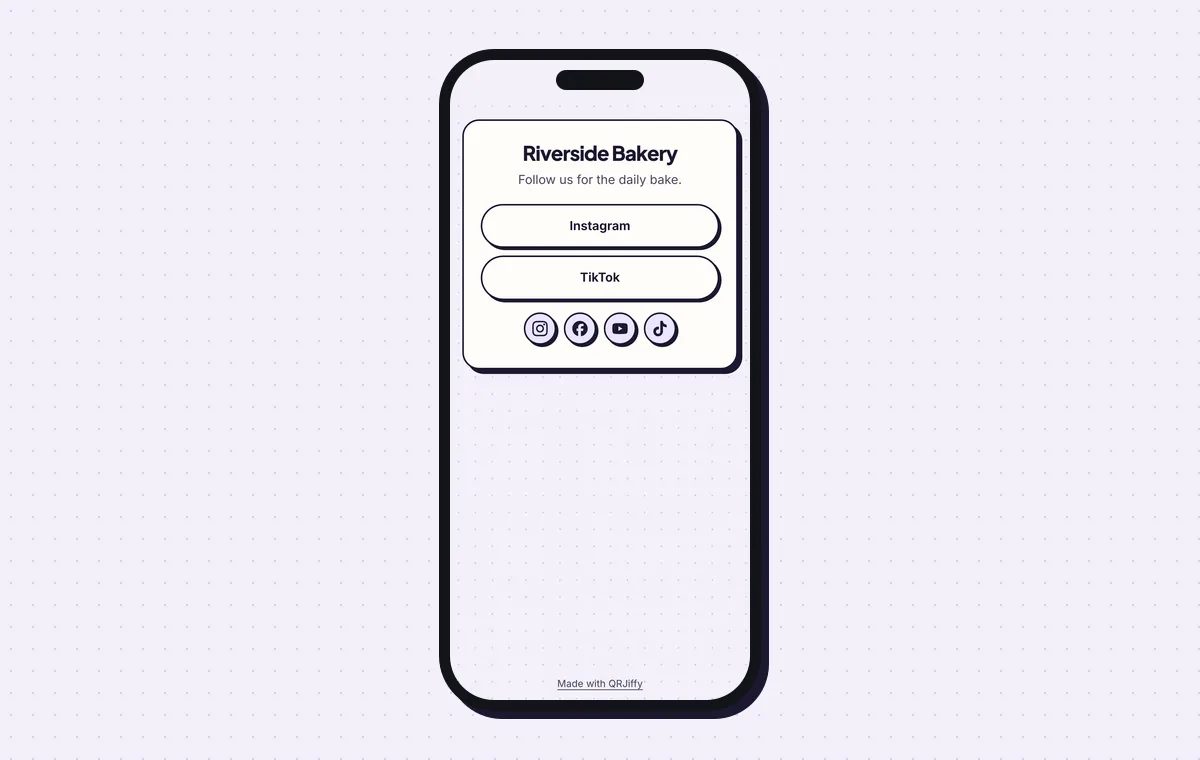
The published page as a scanner sees it: two buttons and four profile icons.
Build a social media pageLive preview. No account needed to try.
Can one QR code hold all your social media links?
One QR code reaches all your profiles by opening a single page that lists them; the code itself stores one link. The number of profiles has no limit, since they sit on the page. Most brands list 3 to 6 networks.
Is one code for every network better than a code per network?
A code for a single network gets more follows when one platform is the goal, because the scan opens the follow button directly. A social media code adds one tap and lets each person choose. The trade-off looks like this:
- Taps to follow: 2 with a social media code (choose the network, then follow), 1 with a single-network code.
- Best for: brands active on 3 or more networks, against a campaign for one platform.
- Rule of thumb: when one platform brings over 70% of your followers, print that platform’s code instead.
What order do the networks go in?
Put your strongest network first, because the first button on the page receives the most taps. Remove networks you have stopped posting on. Keep the page itself under 1 MB so it loads in under 2 seconds on a 4G connection.
What mistakes stop a Social media QR code from working?
These 5 mistakes cause most failed Social media QR codes; each has a quick fix. Test the downloaded file with two different phones before you print anything.
| Mistake | Fix |
|---|---|
| One button on the page leads to a deleted or renamed profile | Tap every button after each edit, on an iPhone and on an Android phone. |
| The weakest network sits at the top | Move the strongest network to the first position. |
| Ten networks are listed and four are inactive | Remove any network with no post in the last 90 days. |
| The page is heavy with images and loads slowly on mobile data | Keep it under 1 MB. |
| A multi-network code is used when one platform drives nearly all follows | Print a single-network code when one platform brings over 70% of followers. |
Frequently asked questions
Do I need Linktree to make a social media QR code?
No. Build the page on QRJiffy with a free account, or link to any page that lists your profiles, including one on your own website.
Does the code still work when I add a profile later?
Yes. Add the profile to the page. The code stores the page address, not the list of networks, so nothing is reprinted.
Is a social media QR code free?
Yes. Making the code is free and it has no watermark. A free account saves it for later edits and includes 200 scans a month.
Can the code have a logo in the middle?
Yes. A centred logo works with error correction H, which recovers 30% of the code. The three corner squares must stay visible and unchanged.
What if the scanner does not have one of the apps?
That button opens the network’s web profile in the browser, so the visitor still sees your posts.
Ready to make your Social media QR code?
The generator is free and works in the browser on a phone or a computer. Your code downloads as PNG for screens or SVG for print.
Open the Social Media QR Code generator
Related guides: How to Print a QR Code · QR Code Size · QR Code Not Working