 QRJiffy
How to Make a Survey QR Code
You make a survey QR code by copying the public link of your survey from the form tool, pasting it into a survey QR code generator and downloading the code. Any tool with a shareable link works, including Google Forms, Typeform, Microsoft Forms and SurveyMonkey. With no survey yet, a one-question star-rating page takes 5 minutes to build in the same place.
What do you need before you start?
You need 4 things ready, and no account to try the generator. A free account, or just your email, is asked for only at the download step.
- A survey of 3 to 5 questions that takes under 60 seconds on a phone.
- The survey’s public link, copied from the tool’s share or collect screen.
- The form set to accept answers without sign-in.
- A reason to scan to print beside the code, such as “1-minute survey: help us improve”.
How do you make a Survey QR code step by step?
Follow these 6 steps in the Survey & Feedback QR Code generator; the preview updates as you type. Each screenshot below is the real screen, filled in with a sample bakery’s details.
1Copy the public link from your survey tool
Each tool keeps the link in a different place:
- Google Forms: Send › link icon › Shorten URL.
- Microsoft Forms: Collect responses › Copy link.
- Typeform: Share › Copy link.
- SurveyMonkey: Collect responses › Web link.
Open the copied link in a private browser window. The first question appears with no login screen when the link is the public one.
Tip: Printing codes for several rooms or branches? Add a hidden or pre-filled field to each link, such as ?location=room-12, so one survey tags every answer with its placement.
2Paste it into the survey generator
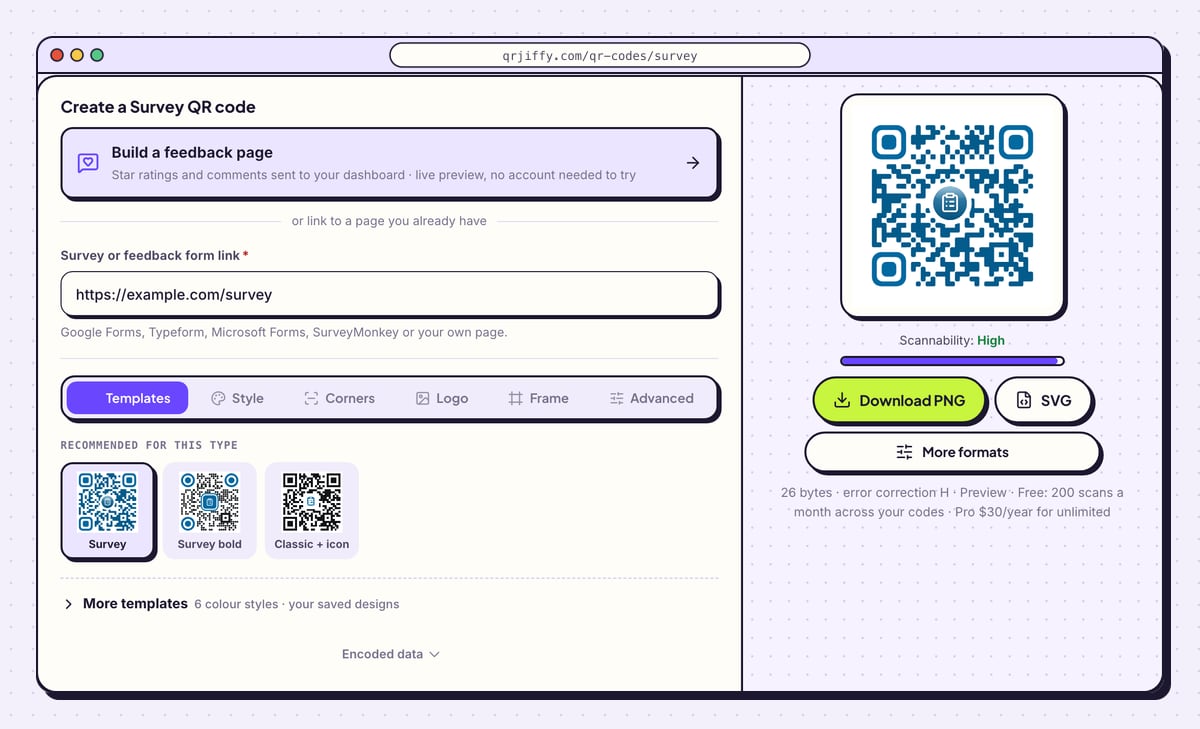
Open the survey QR code generator and paste the address into Survey or feedback form link. The helper text lists the supported sources: Google Forms, Typeform, Microsoft Forms, SurveyMonkey or your own page. The code appears on the right as soon as the link is complete.
The card above the field, Build a feedback page, is the route for people with no survey tool. It is described below.
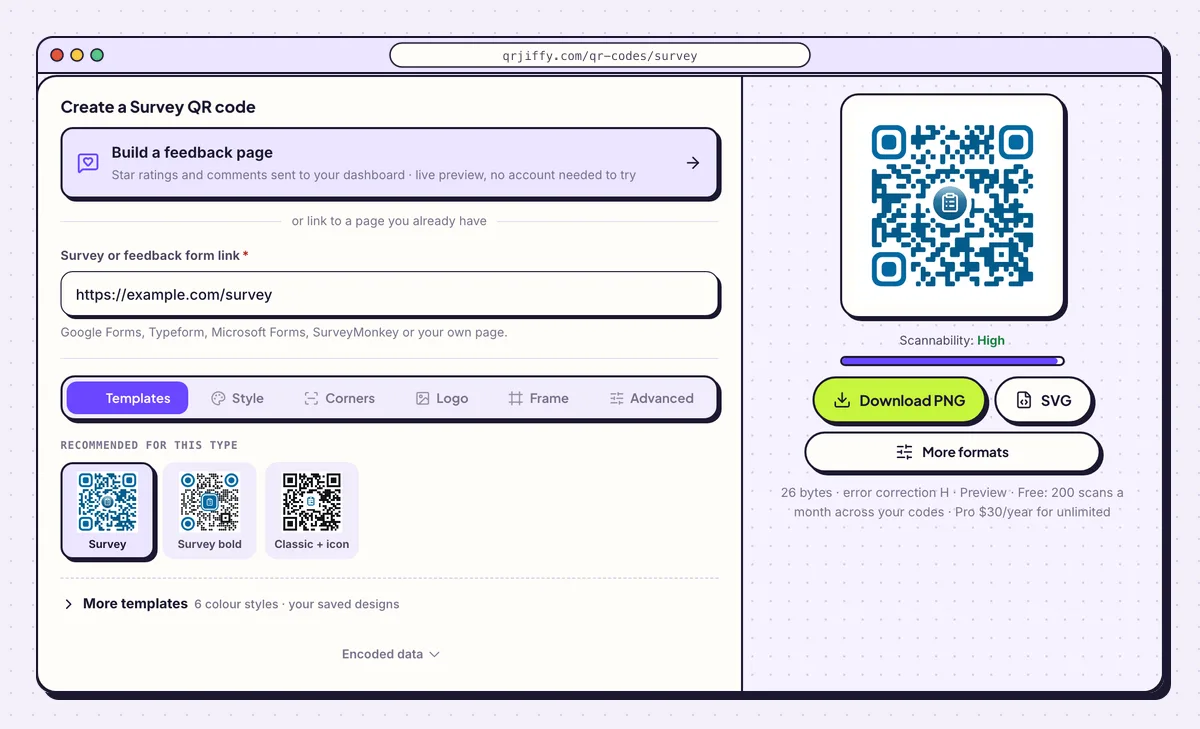
The survey link goes in one field. The sample is example.com/survey. 3Pick a dot style and colour
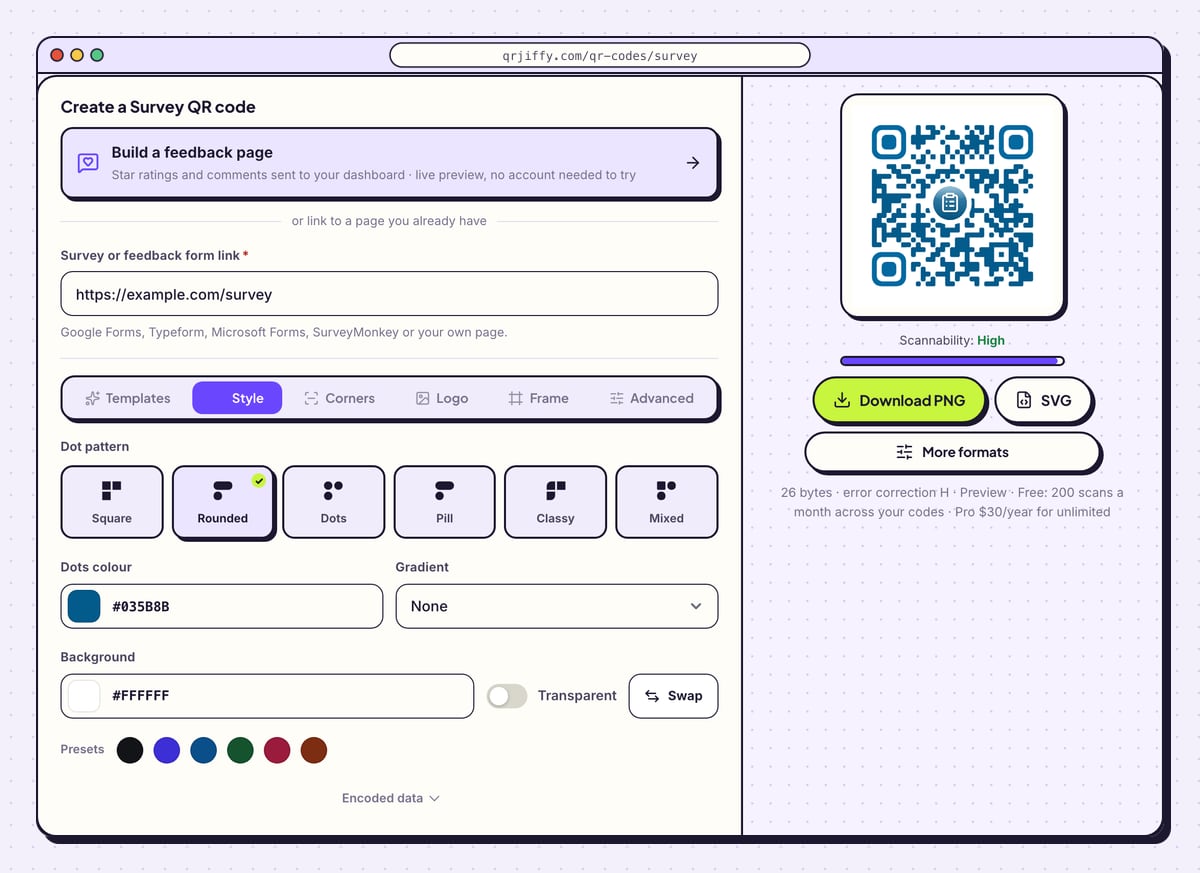
The Style tab sets the dot pattern: Square, Rounded, Dots, Pill, Classy or Mixed. Dots colour takes a brand colour, and Gradient blends it into a Second colour along a chosen Direction.
Leave Background white or another light colour. The Transparent switch is for placing the code on a light poster; on a dark or busy poster it makes the code unreadable.
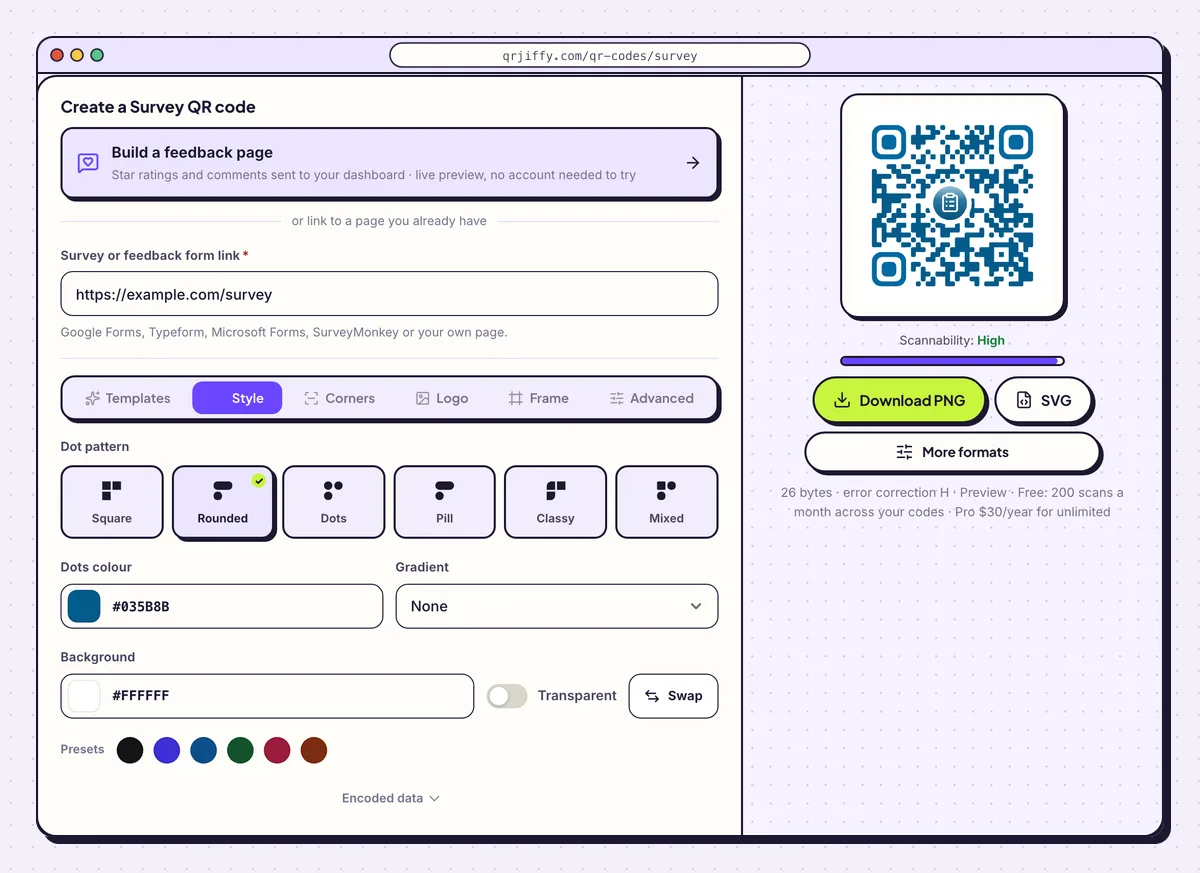
The Style tab controls the dot pattern, colours, gradient and background. 4Download the survey code
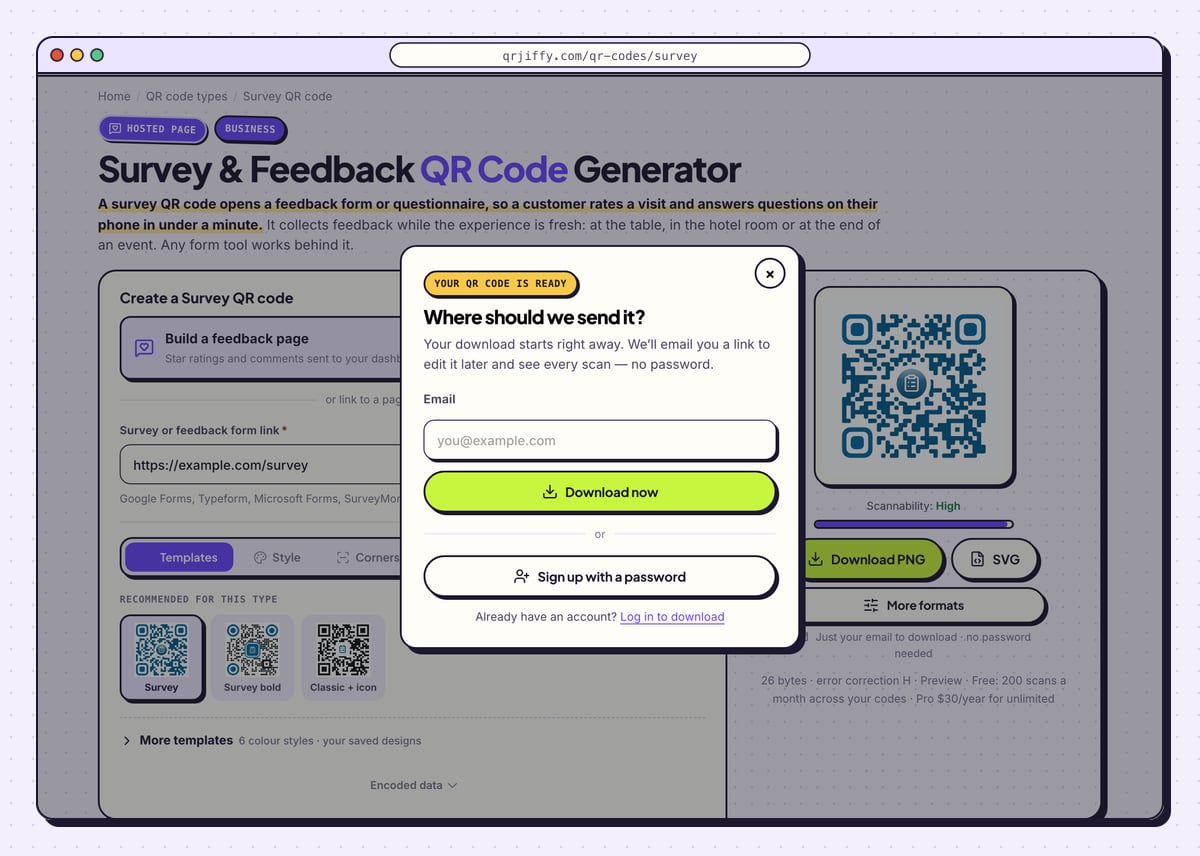
Press Download PNG for a slide or a printed card, or SVG for a poster. The box “Where should we send it?” asks for an email on the first download, and Download now delivers the file without a wait. It is saved as something like
qrjiffy-survey-YvRh3VR.png.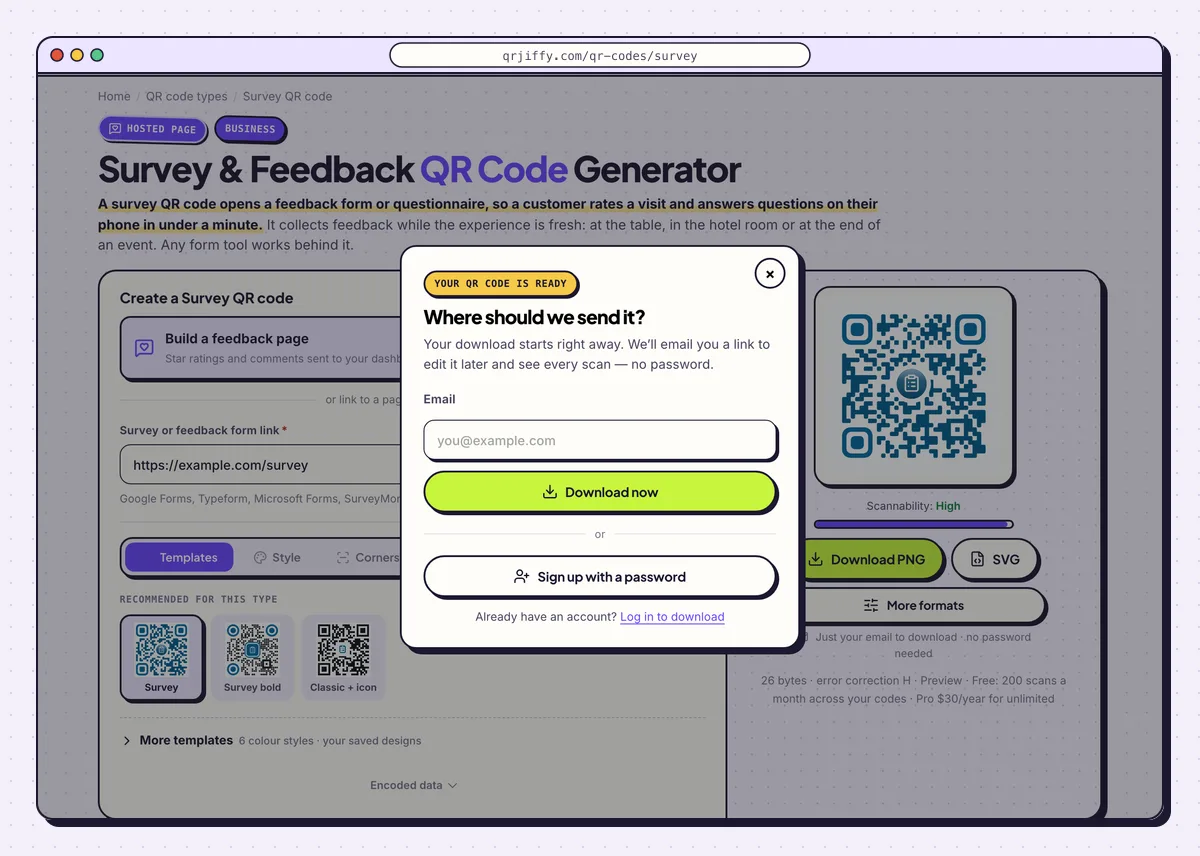
The email step happens once per browser. 5Send one test response from a phone
Scan the code with your phone camera. The survey opens in Safari on iPhone and in Chrome on Android, with no app. Answer every question, submit, and find the answer in the tool’s results screen. This proves the survey accepts answers from anyone with the link.
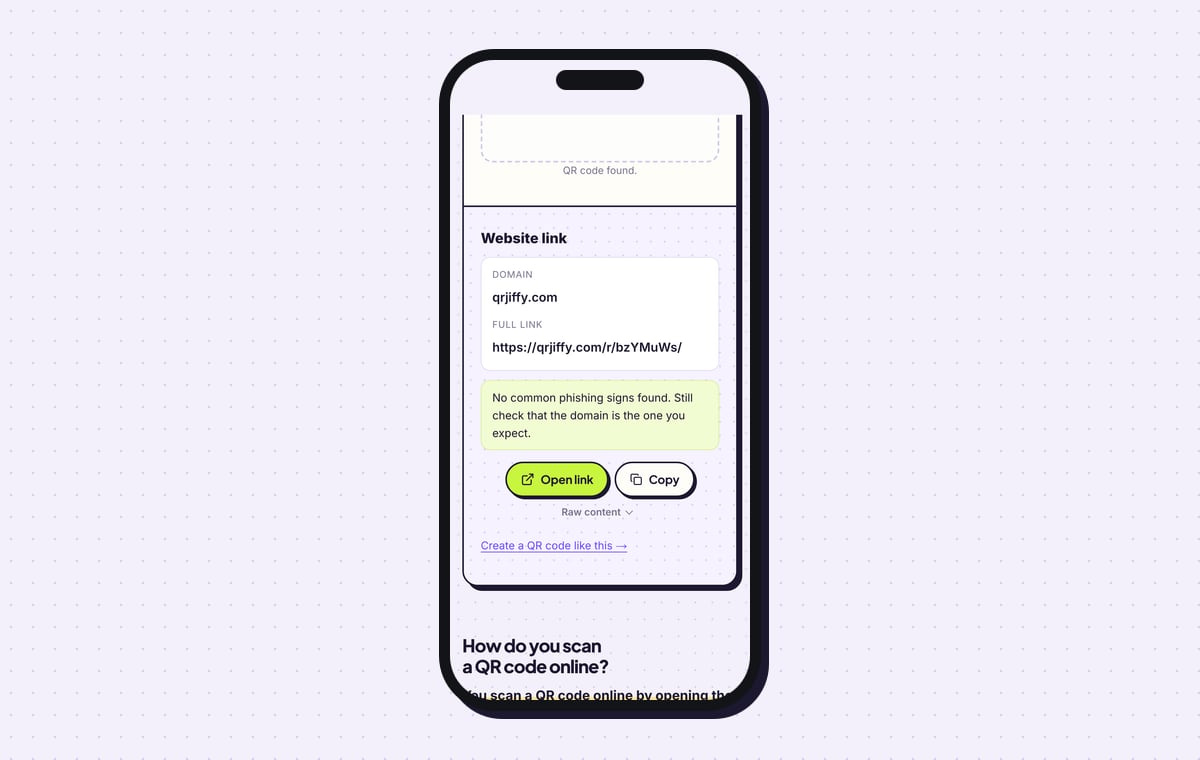
The QRJiffy scanner reads the file as “Website link” with the domain qrjiffy.com. The code stores a short link, and the short link forwards to the survey.
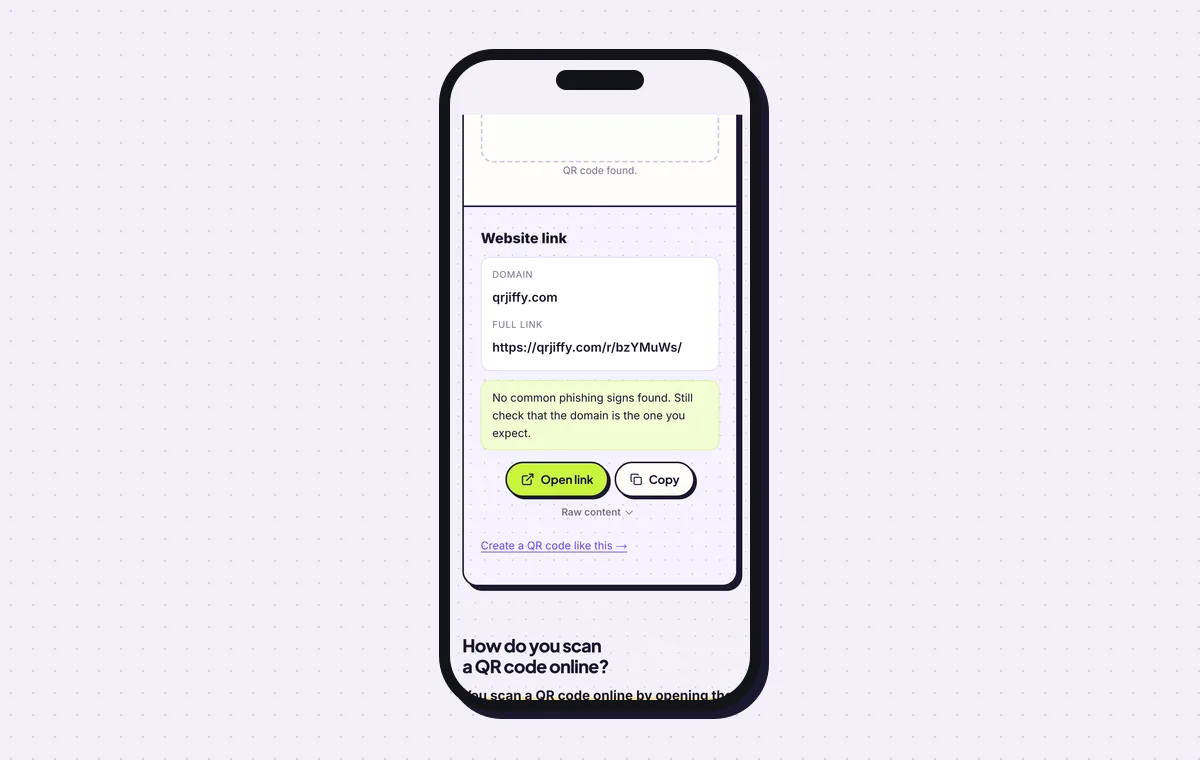
What the downloaded file contains, read back by the scanner. 6Print it with the time cost and compare scans with answers
Print the code 2 × 2 cm (0.8 in) or larger on a bill card, and 4 cm on a poster read from 40 cm. Choose error correction Q (25%) in Advanced for surfaces that get cleaned. Write the time beside it: “1-minute survey”.
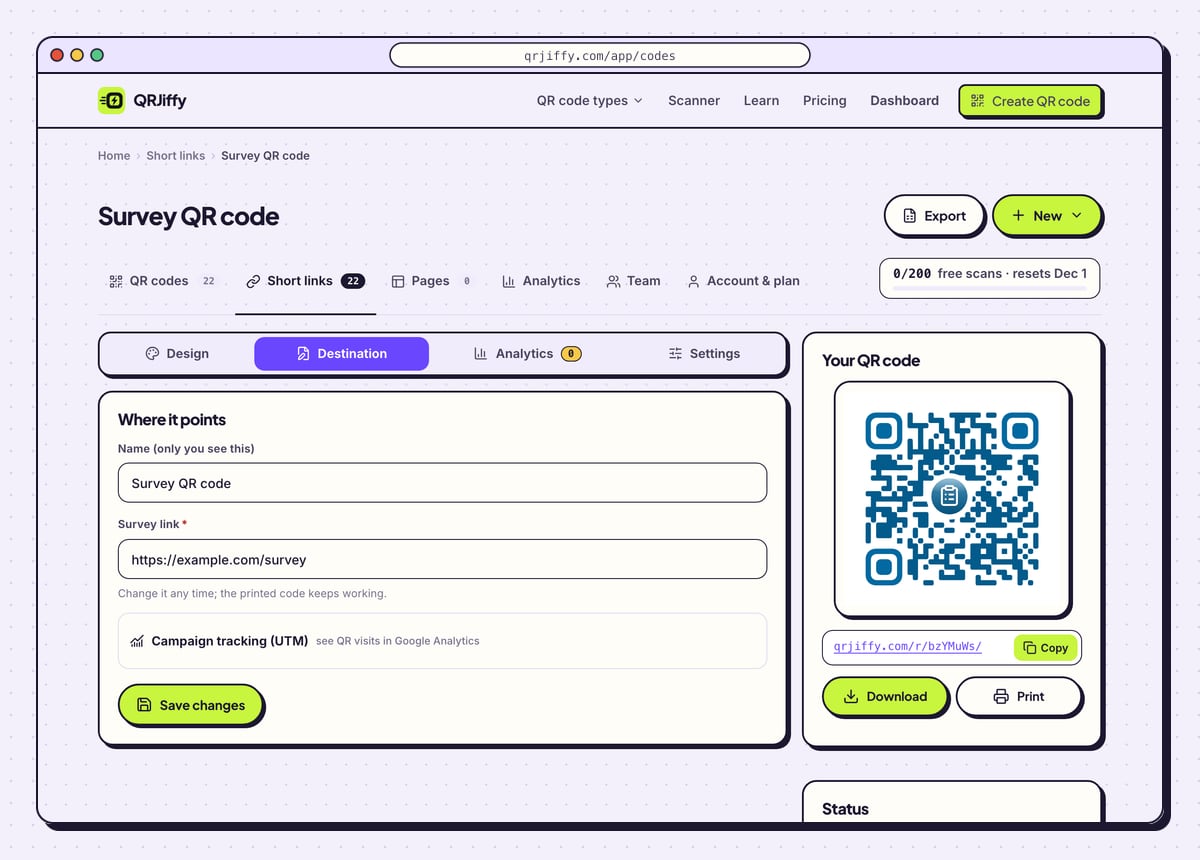
In the dashboard, the Analytics tab counts scans by day, device and country. Divide the answers in your survey tool by the scans to get the completion rate. The Destination tab swaps in next quarter’s survey while the printed cards stay on the tables.
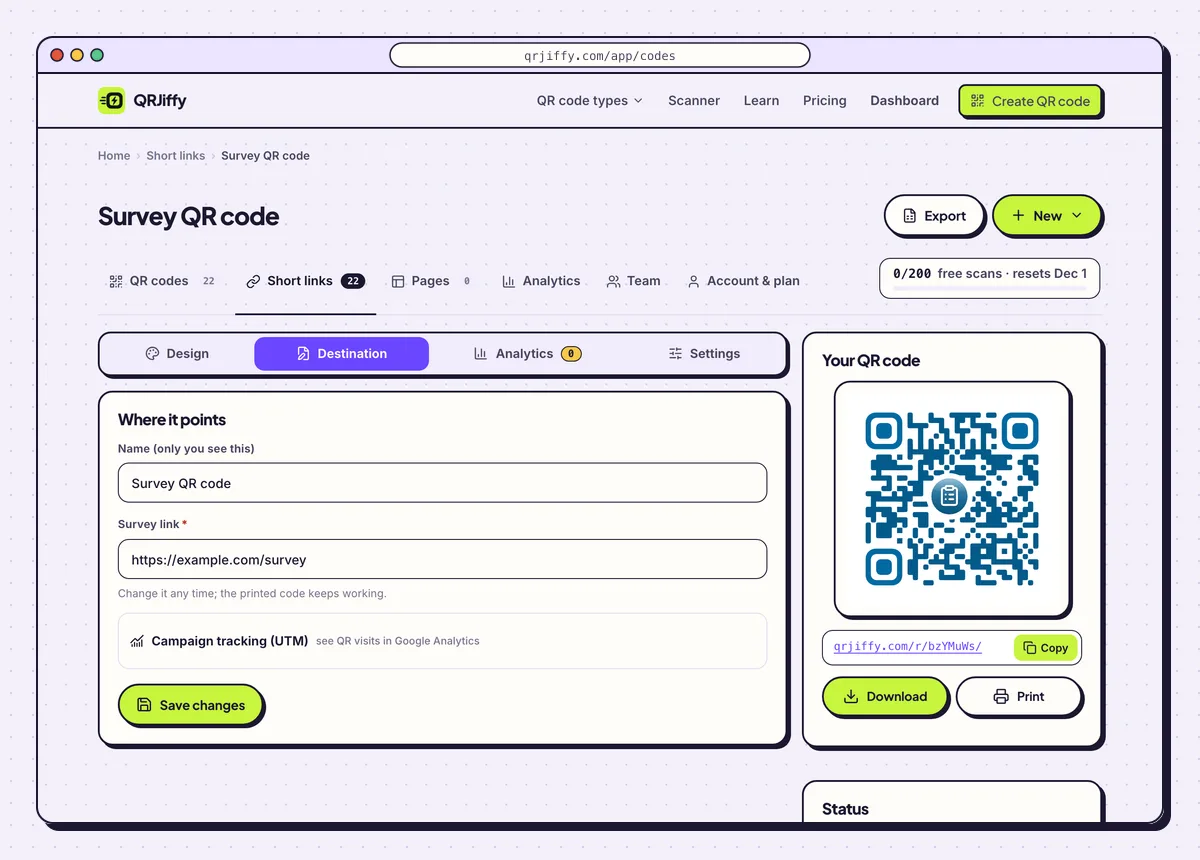
Scan counts live under Analytics; the survey link is replaced under Destination.
Open the Survey & Feedback QR Code generatorFree. Nothing to install.
No survey yet? How do you build a feedback page on QRJiffy?
1Write the question
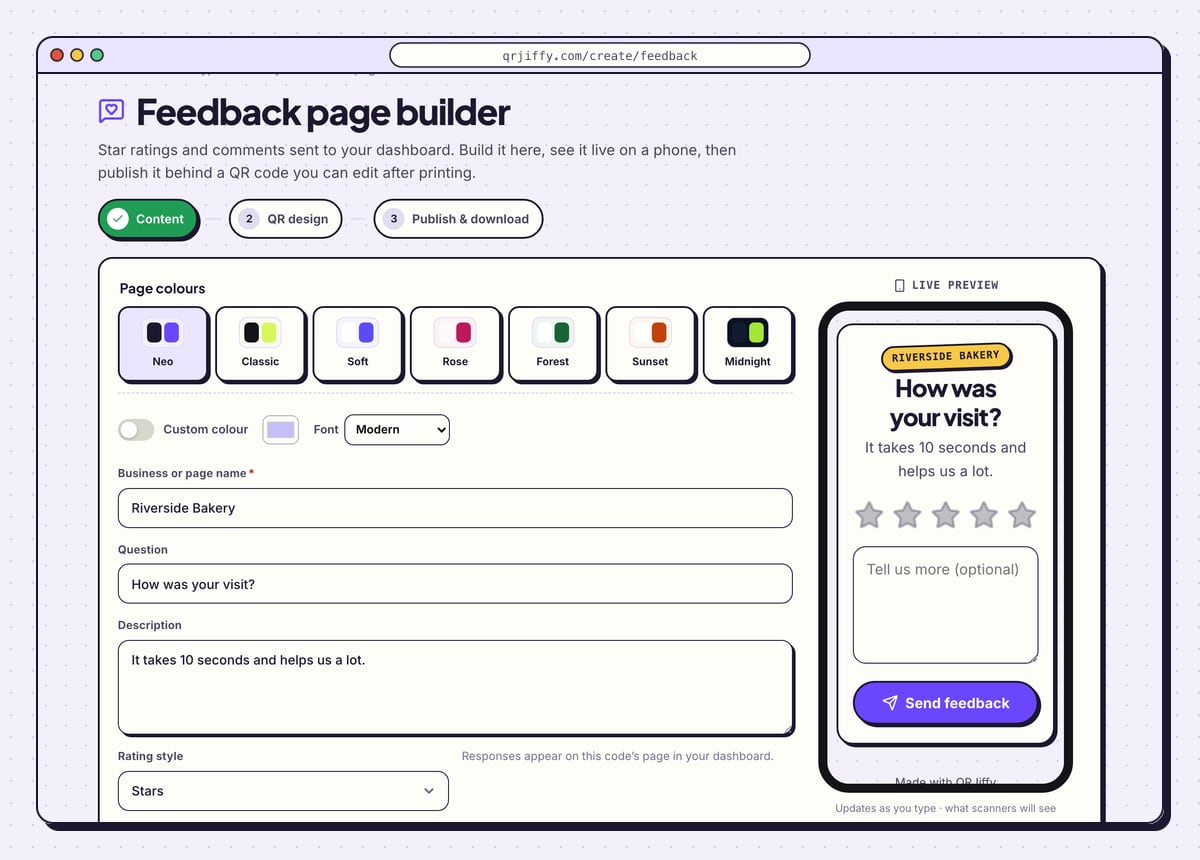
Type your name into Business or page name, the headline into Question and a line of encouragement into Description. The sample uses “How was your visit?” and “It takes 10 seconds and helps us a lot.” Rating style sets how people rate, and a note beside it says responses appear on this code’s page in your dashboard.
The colour themes at the top (Neo to Midnight, or Custom colour) restyle the page in one click.
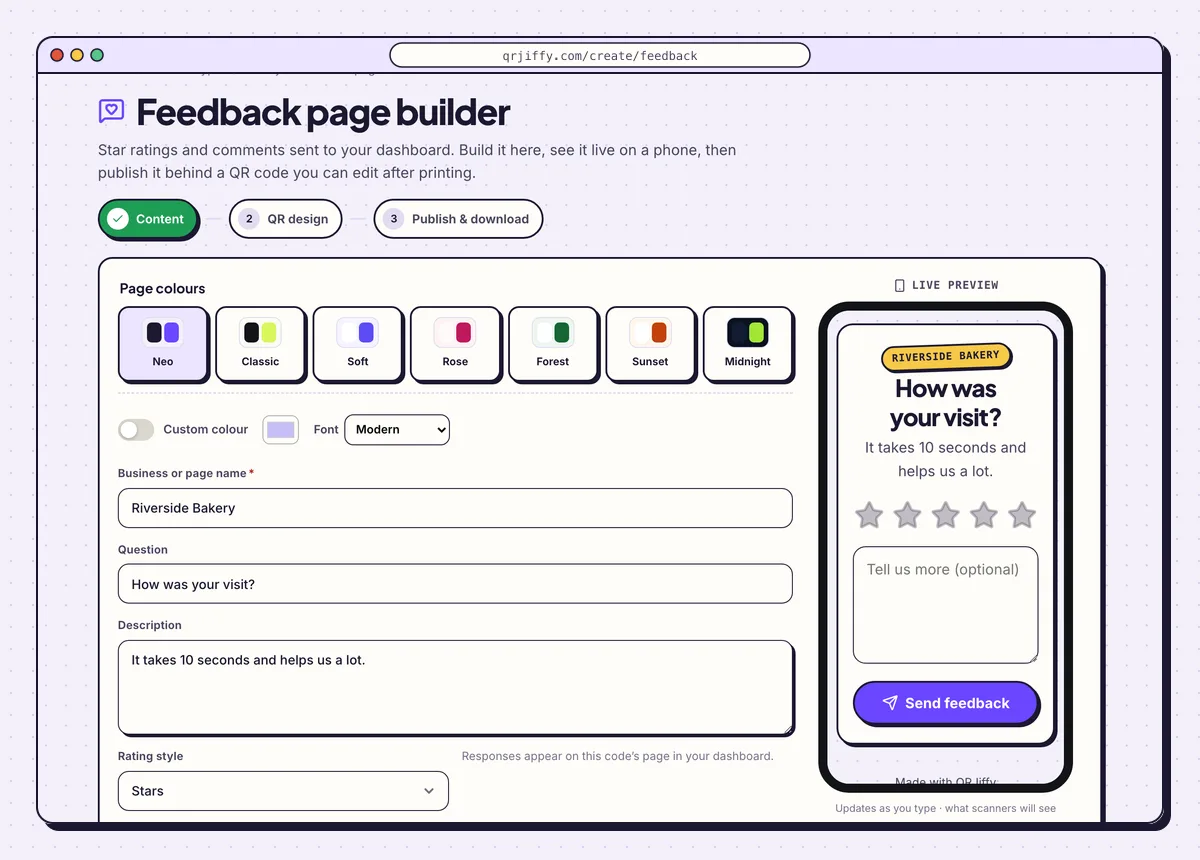
Three fields make the page: a name, a question and a description. 2Publish the page and download its code
Click Next: QR design, adjust the code, and continue to the third step. Publish & download PNG creates the page at its own short link and saves the code. A free account is required at this point, because the answers need somewhere to go.
3Rate your own page once
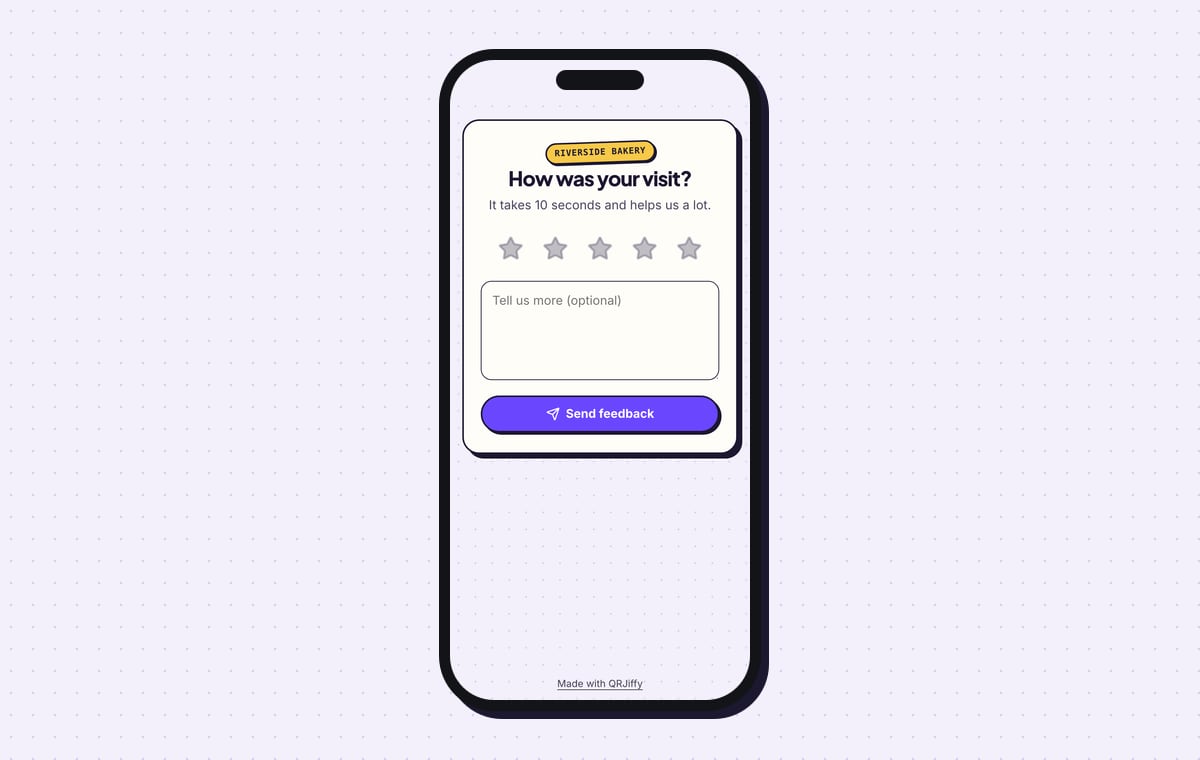
Scan the code. The page shows the business name on a badge, the question, five stars, a box labelled “Tell us more (optional)” and a Send feedback button. Tap a star, send it, and open the code in your dashboard to see the response listed.
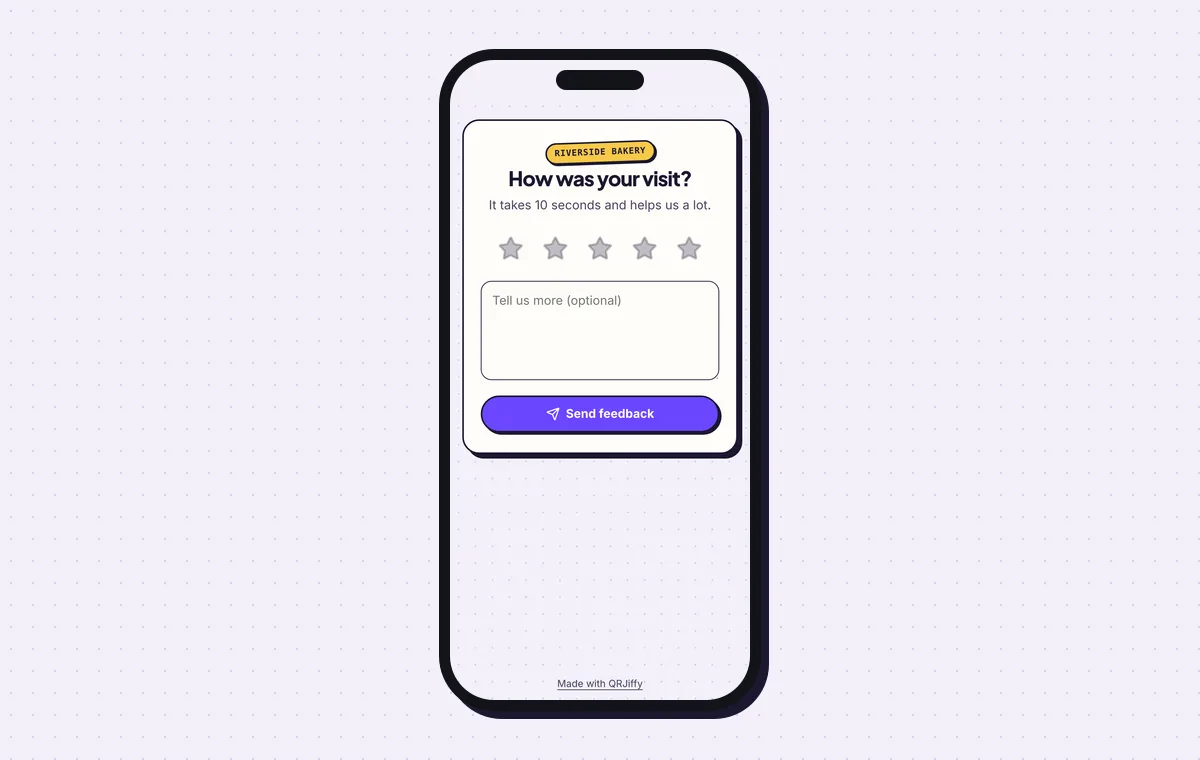
The published feedback page: one question, five stars, one optional comment.
Build a feedback pageLive preview. No account needed to try.
How many questions belong in a QR code survey?
Three to five questions that take under 60 seconds on a phone. People who scan are standing at a counter or sitting at a table with a bill. Lead with one rating question, then one or two follow-ups, then an optional comment. Every extra screen lowers the completion rate.
Is a survey taken from a QR code anonymous?
Yes, when the survey does not require sign-in and asks for no name or email. In Google Forms, turn off “Collect email addresses”. In Microsoft Forms, turn off “Record name”. QRJiffy’s scan count holds the day, device type and country of each scan and no names.
Can the same printed code open a different survey later?
Yes. The printed code stores a short link, and the dashboard points that link at a new survey. A hotel prints one card per room and changes the questions each season. Editing questions inside the survey tool needs no change in QRJiffy at all, since the survey’s own link stays the same.
How does one survey cover several tables or branches?
Give each printed code its own link with a pre-filled or hidden field that names the placement. A link ending in ?location=room-12 tags every answer from room 12. The alternative is one shared code and a “Which branch?” question at the start, which costs each respondent one more tap.
What mistakes stop a Survey QR code from working?
These 5 mistakes cause most failed Survey QR codes; each has a quick fix. Test the downloaded file with two different phones before you print anything.
| Mistake | Fix |
|---|---|
| The survey asks for a Microsoft or Google sign-in | Allow answers from anyone with the link. Sign-in walls lose most respondents. |
| The survey has 15 questions | Cut it to 3 to 5 questions that finish in under 60 seconds. |
| The code holds the editor link, not the public one | Copy the link from the tool’s share or collect screen and open it in a private window to check. |
| The card says only “Feedback” | Print the time cost and the benefit: “1-minute survey: help us improve”. |
| The Transparent background is used on a dark poster | Switch Transparent off and keep a white or light background behind dark dots. |
Frequently asked questions
Is a survey QR code free?
Yes. The code is free to create and download, and most form tools have a free plan. A free QRJiffy account includes 200 scans a month across its codes.
Which survey tools work with a QR code?
Every tool that gives a public link works. Google Forms, Typeform, Microsoft Forms, SurveyMonkey and Jotform are common examples.
Does the QR code itself collect personal data?
No. The code only opens the survey. Email addresses are collected only when the survey has a question that asks for one.
Where do answers from the QRJiffy feedback page go?
They appear on the page of that code in your QRJiffy dashboard, as star ratings with optional comments.
How big does a survey QR code need to be on a poster?
4 cm wide for a poster read from 40 cm. The rule is one tenth of the reading distance, with a minimum of 2 × 2 cm.
Ready to make your Survey QR code?
The generator is free and works in the browser on a phone or a computer. Your code downloads as PNG for screens or SVG for print.
Open the Survey & Feedback QR Code generator
Related guides: How to Print a QR Code · QR Code Size · QR Code Not Working