 QRJiffy
How to Make a UPI QR Code
You make a UPI QR code by entering your UPI ID and payee name into a UPI QR code generator, optionally adding an amount in rupees and a note, then downloading the code. Google Pay, PhonePe, Paytm, BHIM and bank apps all read it. The steps take about 3 minutes. Money goes from the payer’s bank to yours, with nobody in between.
What do you need before you start?
You need 4 things ready, and no account to try the generator. A free account, or just your email, is asked for only at the download step.
- Your UPI ID (VPA) in the form name@bank. Copy it from Google Pay, PhonePe, Paytm or your bank app.
- The account holder name exactly as the bank records it, for the payee name.
- For a fixed bill: the amount in INR and a short reference such as an order number.
- A second UPI app or a family member’s phone for a ₹1 test.
How do you make an UPI QR code step by step?
Follow these 7 steps in the UPI QR Code generator; the preview updates as you type. Each screenshot below is the real screen, filled in with a sample bakery’s details.
1Open the UPI QR code generator
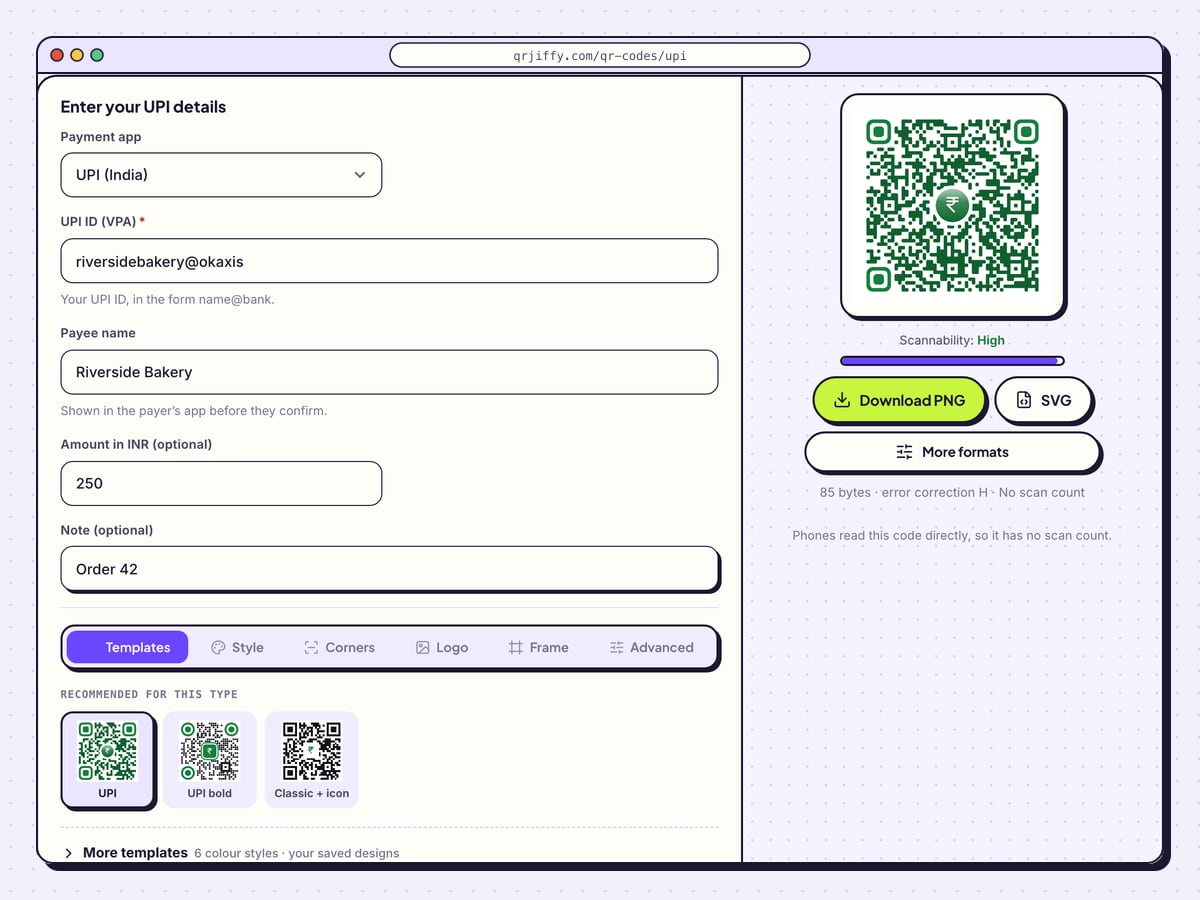
Open the UPI QR code generator. Payment app reads UPI (India), and four fields follow: UPI ID (VPA), Payee name, Amount in INR (optional) and Note (optional). Under the sample code a line states “Phones read this code directly, so it has no scan count.”
2Enter your UPI ID and payee name
Type the virtual payment address into UPI ID (VPA), for example riversidebakery@okaxis. It has the form name@bank. This address is linked to your bank account, so a single wrong character sends money elsewhere or makes the payment fail.
In Payee name, type the name on the bank account: Riverside Bakery in the sample. The payer’s app shows it before they confirm. A name that differs from the bank’s record makes some apps display a mismatch warning.
Tip: Do not type the ID from memory. Copy it from the app’s profile screen, where the same address is shown with your bank account.
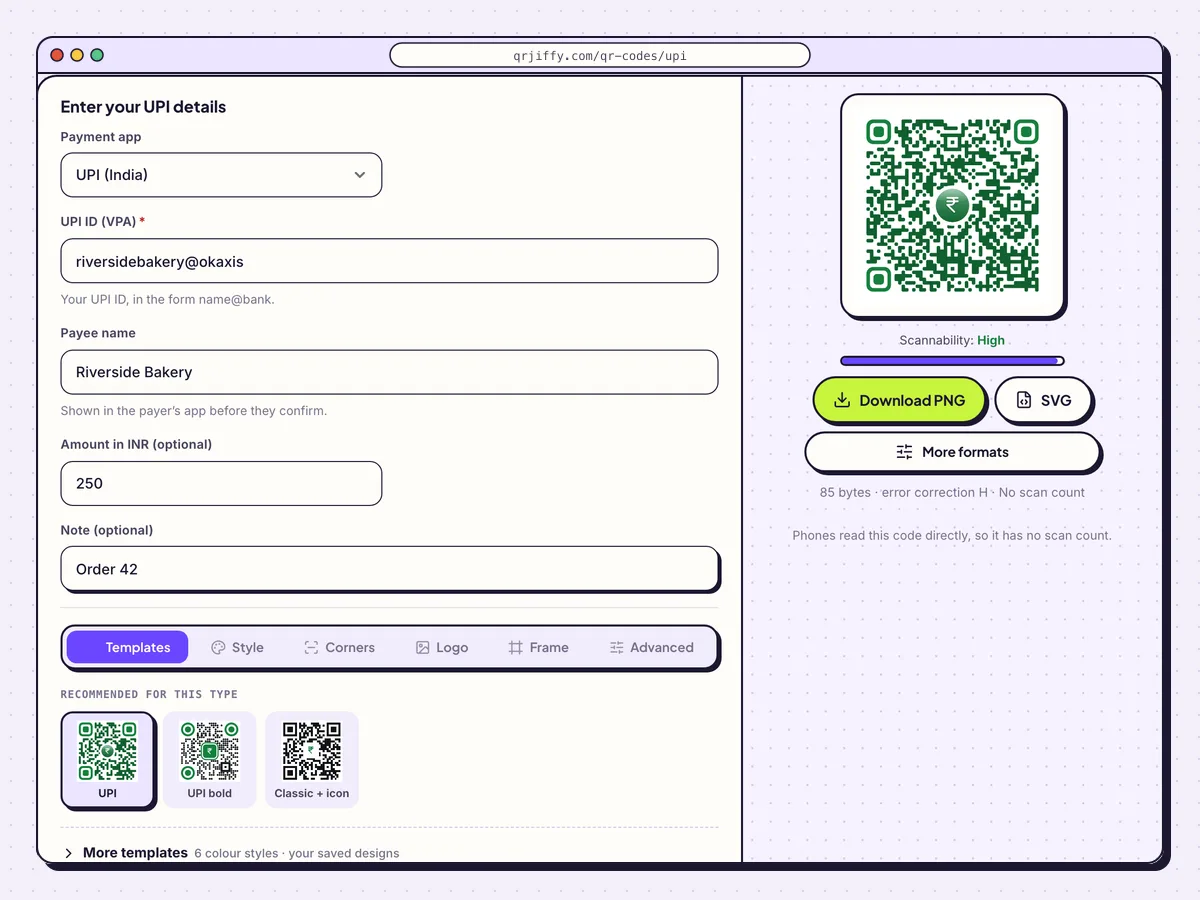
All four UPI fields filled in for a ₹250 order. 3Choose a counter code or a fixed-amount code
Leave Amount in INR (optional) and Note (optional) empty for a counter code: one standee, every customer, any sum. The payer types the amount.
For a single bill, enter the rupees, such as 250, and a note such as Order 42. The amount arrives pre-filled, and the note appears on both statements, which makes matching payments to orders quick.
4Add “Scan to pay with any UPI app”
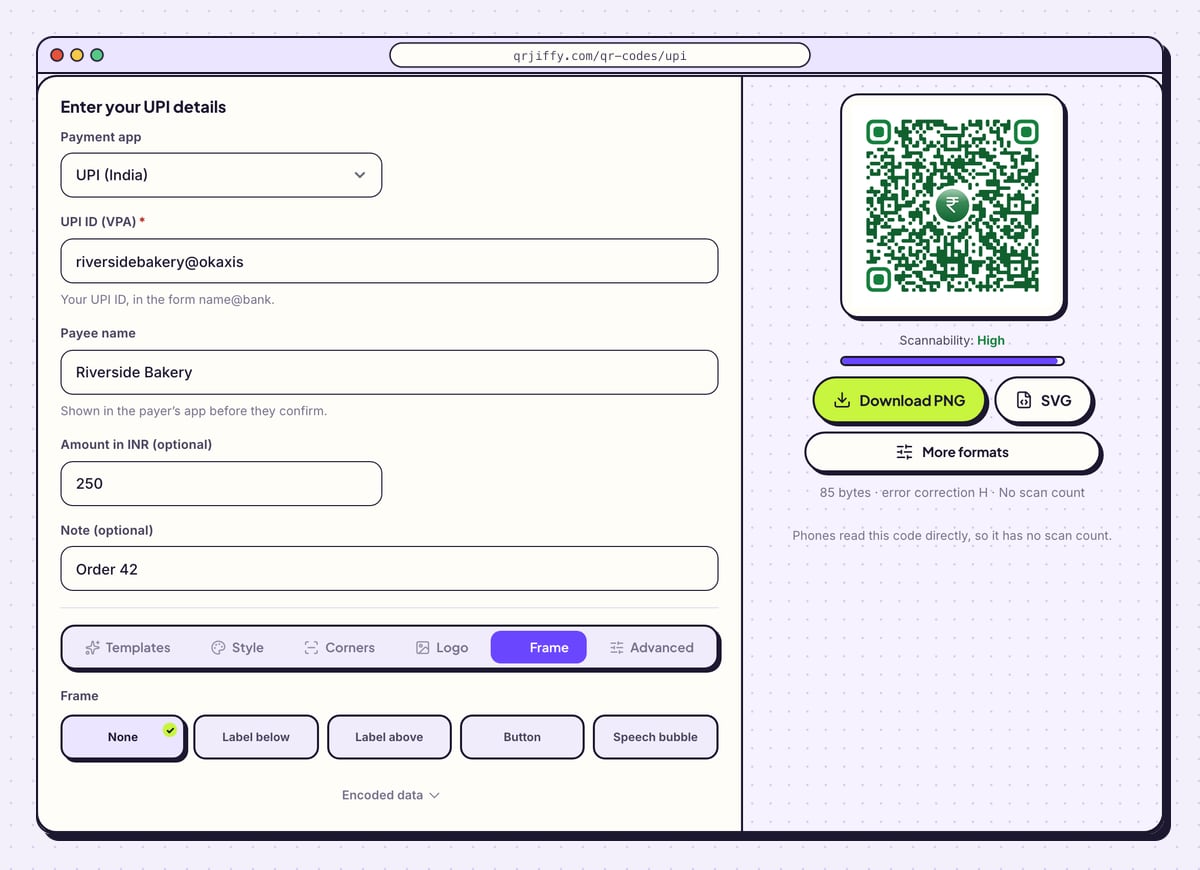
Open Frame and select Label below or Call to action. Type a line such as “Scan to pay with any UPI app”, then set Frame colour and Text colour. The other choices are None, Label above, Button and Speech bubble. Keep the dots dark on a white background.
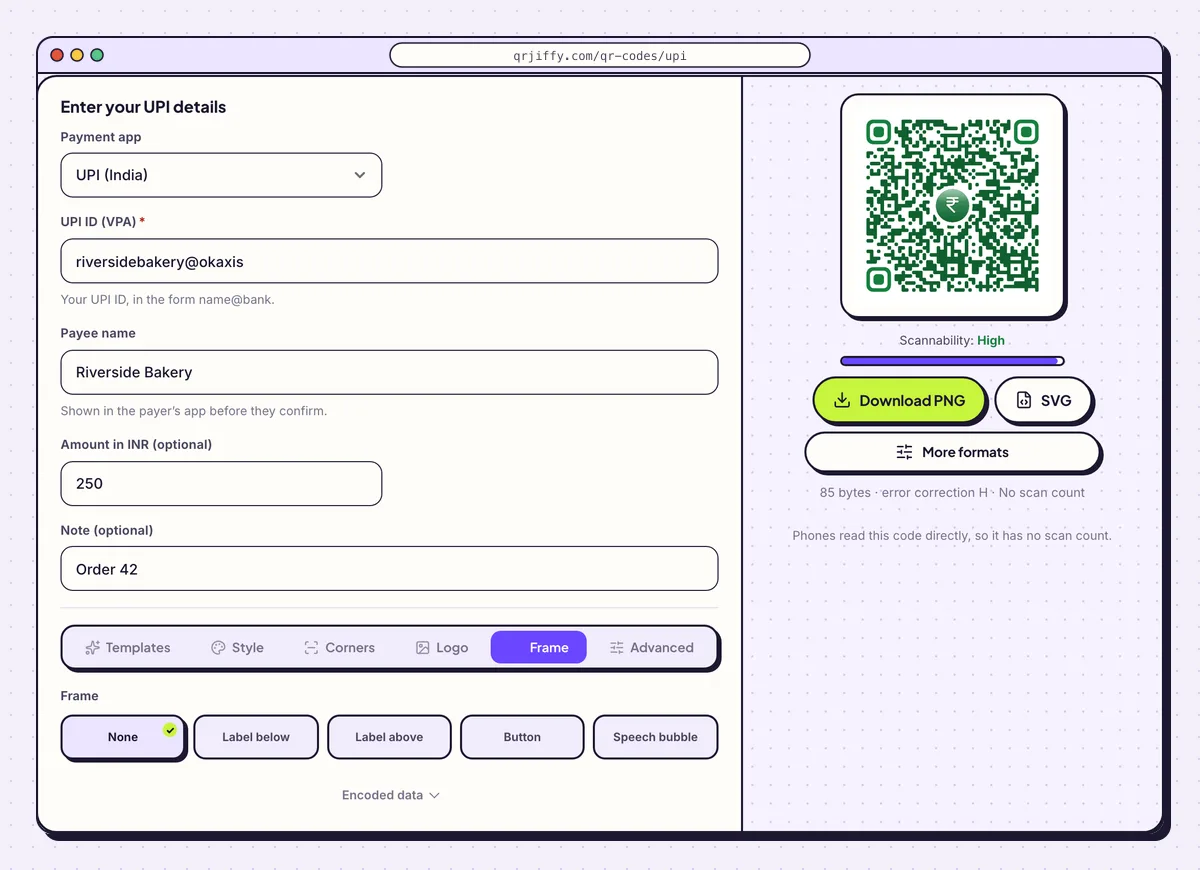
A label tells customers the code is for UPI before they open an app. 5Download the code
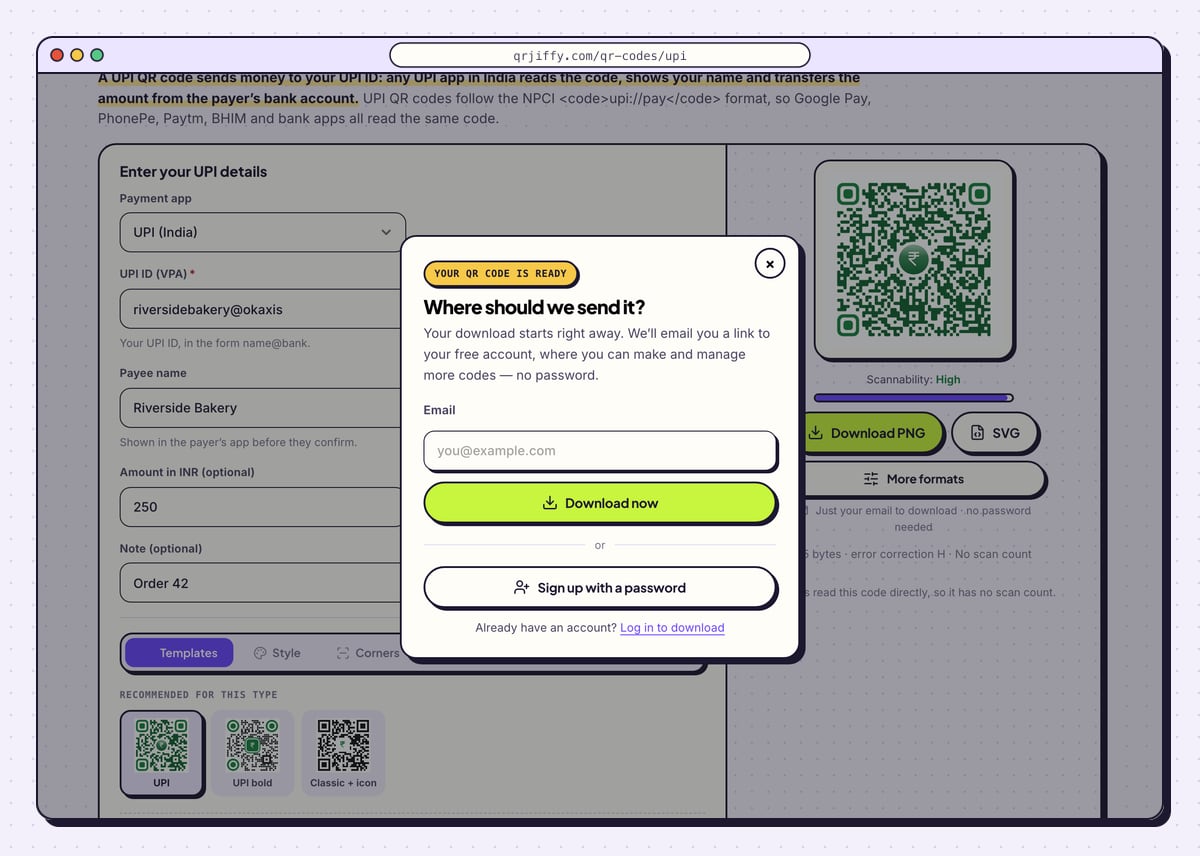
Click Download PNG to send the code on WhatsApp or drop it into an invoice, or SVG for a printed standee. Give an email address in the box that opens and click Download now. The file is called
qrjiffy-upi.png. No short link is created: the image contains the UPI details themselves.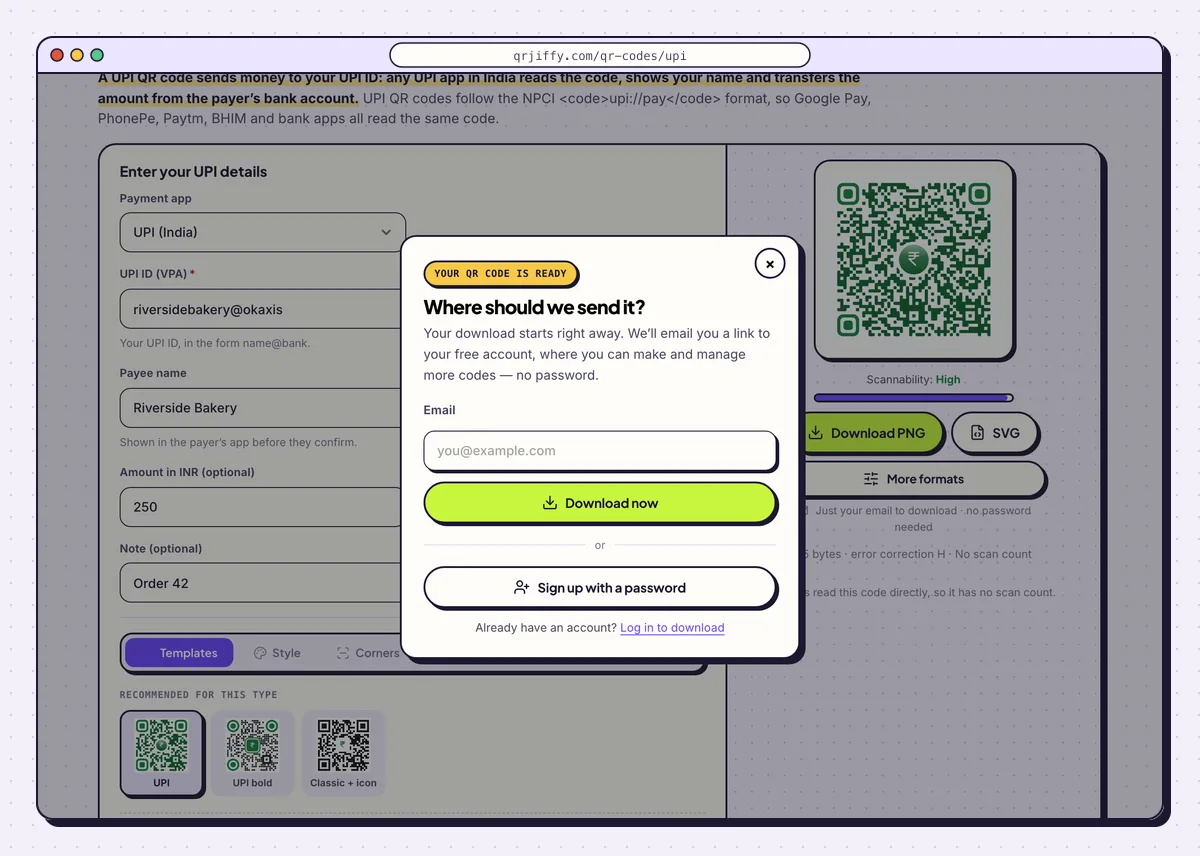
The email box appears at the first download; the UPI code then saves to your device. 6Pay yourself ₹1 to test it
Open the scanner inside a different UPI app and scan the code. The app shows the payee name and the amount. Check both, enter the UPI PIN and send ₹1. For a fixed-amount code, download a copy with the amount left empty and test with that. Confirm the credit appears in your bank account.
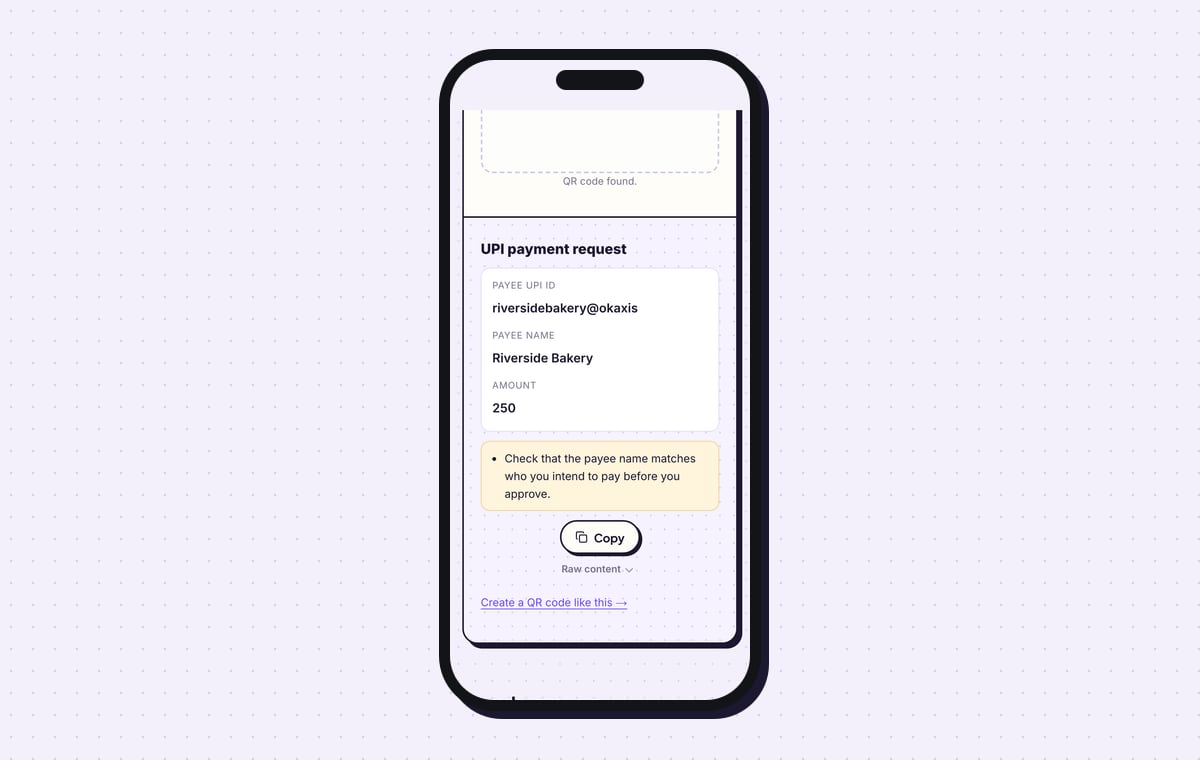
The QR code scanner on QRJiffy decodes the file as a “UPI payment request” with the payee UPI ID, the payee name and the amount, and reminds you to check the payee name before approving.
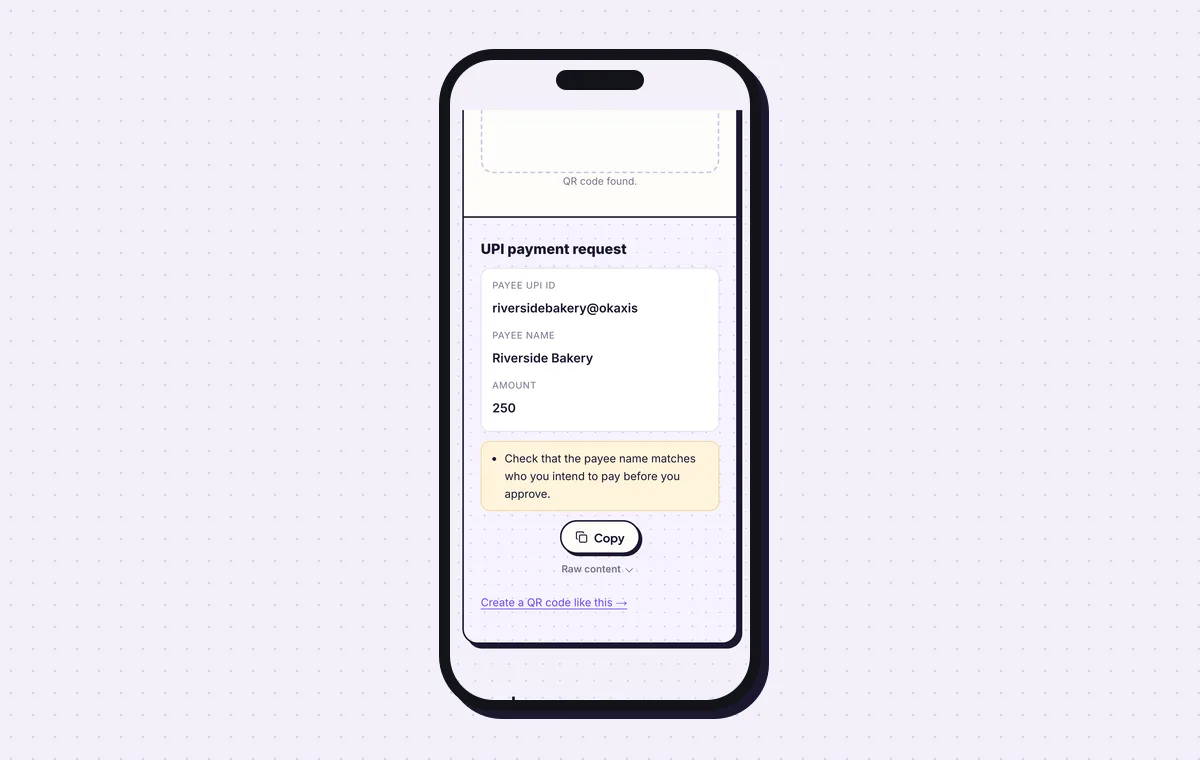
The scanner lists the UPI ID, name and amount exactly as stored in the code. 7Print the standee with your name and UPI ID
Print the code at least 2.5 × 2.5 cm (1 in) on a counter sign and 2 × 2 cm on a paper bill. Write the payee name and the UPI ID in text below it. Customers compare the printed name with the one their app shows, and anyone whose scan fails types the ID by hand. Laminate the standee. For help with paper and sizes, read how to print a QR code.
Open the UPI QR Code generatorFree. Nothing to install.
How do you make sure a UPI QR code pays the right account?
Scan the code in a UPI app and read the payee name on the confirmation screen before entering the PIN. That name is the check for you as the owner and for every customer. Fraudsters paste their own UPI sticker over a shop’s code, so the name on screen is the only thing that reveals the swap.
- Print the payee name beside the code, in letters large enough to read at the counter.
- Inspect the standee each morning and put it behind acrylic or lamination.
- The code holds only a public UPI ID. Money leaves an account only when its owner enters their UPI PIN.
Can you edit a UPI QR code after printing it?
No, the UPI ID, name, amount and note are stored inside the pattern, so any change means making and printing a new code. There is no short link behind it and no scan count. Your bank statement and UPI app list every credit, which is the record that matters. Moving to a new bank or a new UPI ID? Replace every standee the same day, because the old code still scans and still pays the old ID.
Which apps and phones scan a UPI QR code?
Every UPI app scans it, including Google Pay, PhonePe, Paytm, BHIM, Amazon Pay and most Indian bank apps. The code follows the NPCI upi://pay format, which is why one printed code serves all of them.
- Inside a UPI app: the built-in scanner shows your name and the amount, and the payer enters a PIN.
- Android camera or Google Lens: recognises the code and offers to open an installed UPI app.
- iPhone Camera: hands the code to a UPI app such as Google Pay or PhonePe when one is installed.
Is there a fee to accept UPI payments by QR code?
No, person-to-merchant UPI payments from a bank account carry no merchant discount rate, so receiving money through a UPI QR code costs nothing. QRJiffy charges nothing for the code and adds no watermark. Because the UPI ID sits in the code directly, no third party stands between the payer’s bank and yours.
What mistakes stop an UPI QR code from working?
These 5 mistakes cause most failed UPI QR codes; each has a quick fix. Test the downloaded file with two different phones before you print anything.
| Mistake | Fix |
|---|---|
| A typo in the UPI ID | Copy the ID from your UPI app and confirm the ₹1 test arrives before printing. |
| A shop nickname in Payee name instead of the bank’s account name | Use the name exactly as the bank holds it, so apps show no mismatch warning. |
| A fixed amount left on the counter standee | Clear Amount in INR (optional) and download again; counter codes work best open. |
| The bank account changed and the old standee is still out | Generate a new code with the new UPI ID and swap every printed copy. |
| Customers scan with the camera and nothing opens | Add a label telling them to scan from inside their UPI app. |
Frequently asked questions
Can I make a UPI QR code with a fixed amount?
Yes. Enter the rupees in Amount in INR and the payer’s app opens with that amount already filled in.
What is the difference between a counter code and a bill code?
A counter code shows the same UPI ID for every payment. A bill code is generated per sale by billing software with the exact amount and an order reference. QRJiffy makes counter codes, with or without a fixed amount.
Does a UPI QR code work outside India?
Yes, in a limited way. Indian account holders use UPI in some countries, such as Singapore, UAE, France and Nepal, and the payee account stays in India.
Does the payer need internet to pay?
Yes. The payer’s UPI app needs mobile data or WiFi to complete the transfer.
Can I track scans of a UPI QR code?
No. UPI apps read the code directly, so there is nothing to count. Your bank statement lists every credit.
Ready to make your UPI QR code?
The generator is free and works in the browser on a phone or a computer. Your code downloads as PNG for screens or SVG for print.
Open the UPI QR Code generator
Related guides: How to Print a QR Code · QR Code Size · QR Code Not Working