 QRJiffy
How to Make a vCard QR Code
You make a vCard QR code by entering your name, phone number, email and company in a vCard QR code generator, then downloading the code it produces. One scan offers to save you as a contact, even with no signal. The form takes about 4 minutes. A second route, further down, builds a digital business card page.
What do you need before you start?
You need 4 things ready, and no account to try the generator. A free account, or just your email, is asked for only at the download step.
- Your mobile number in international format, starting with + and the country code, for example +1 415 555 0199.
- The email address and website you want saved, spelled as on your printed card.
- Your company name and job title, with their exact capitalisation.
- An iPhone and an Android phone for the test in step 6.
How do you make a vCard QR code step by step?
Follow these 7 steps in the vCard QR Code generator; the preview updates as you type. Each screenshot below is the real screen, filled in with a sample bakery’s details.
1Open the vCard generator and stay on the form
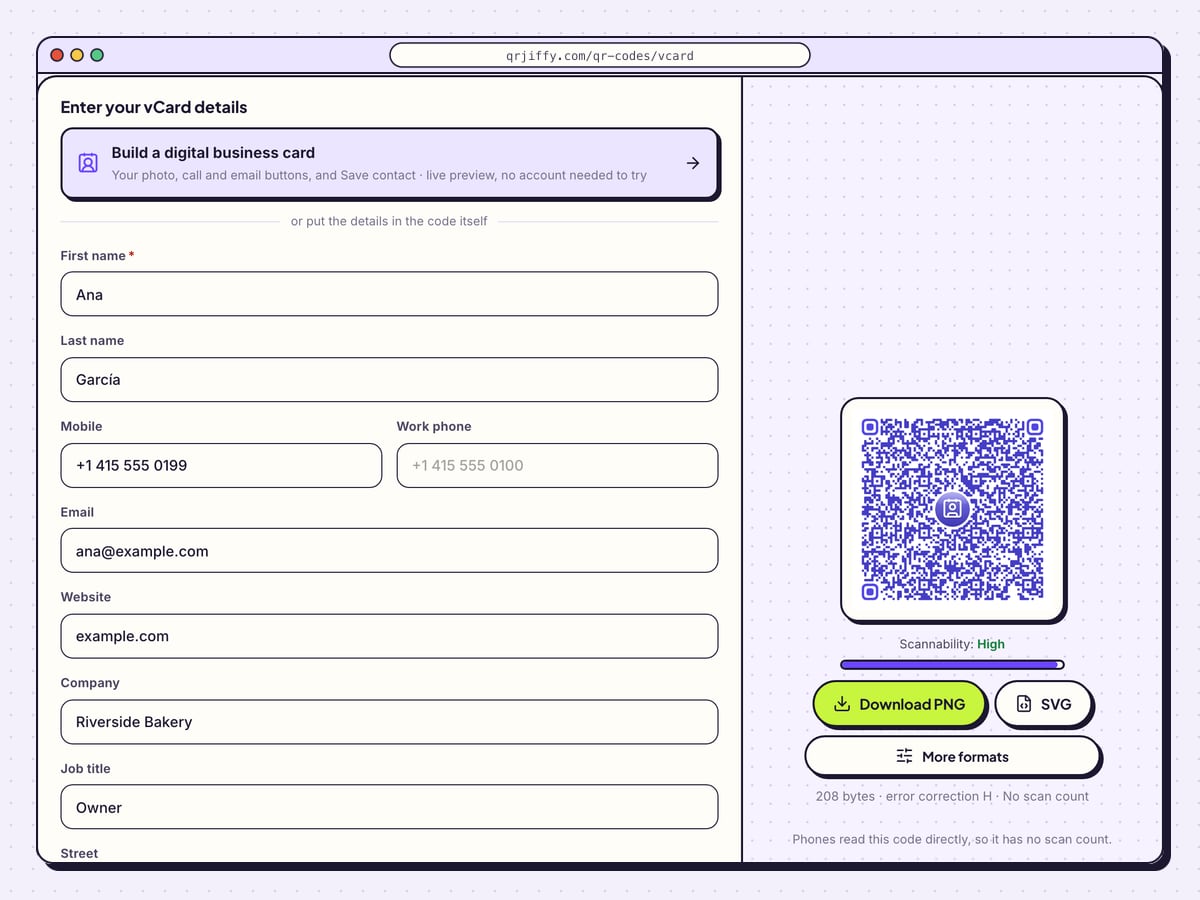
The vCard page offers two routes. The card at the top, Build a digital business card, leads to the page builder described later. The form underneath makes a code that stores the contact inside the pattern, and these steps follow it.
2Enter your name and phone numbers
Fill in First name (the only required field) and Last name. Put your number in Mobile and, if you have one, a second number in Work phone. Write both with + and the country code so they dial from any country.
The sample mobile, +1 415 555 0199, is stored as
+14155550199.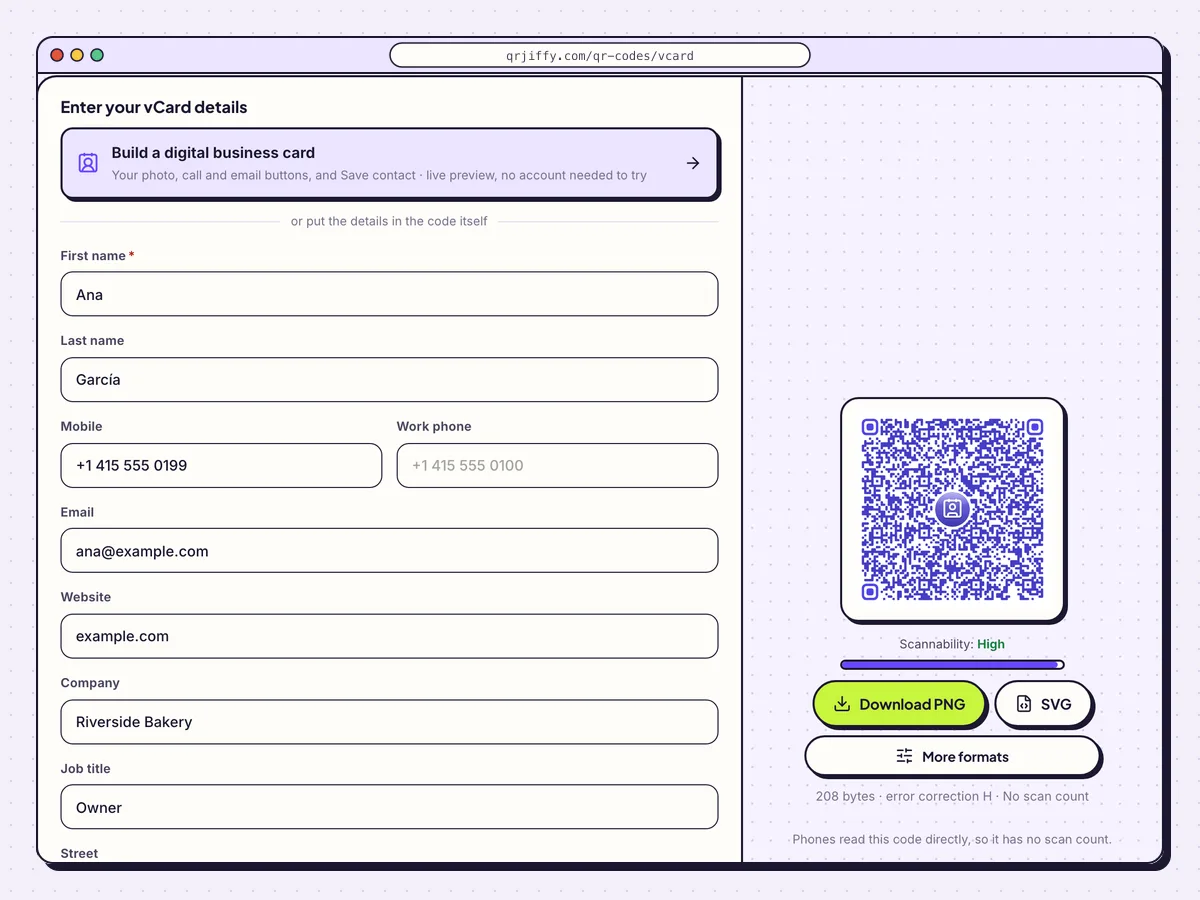
The vCard form with a sample contact. Only the first name is required. 3Add email, company and address
Continue down the form: Email, Website, Company and Job title, then the five address fields from Street to Country. A website typed as example.com is saved as
https://example.com.Each field adds dots, and five fields scan faster than twelve. The sample card, with nine fields, comes to 208 bytes. Skip the street address unless clients visit you.
4Place a logo in the middle of the code
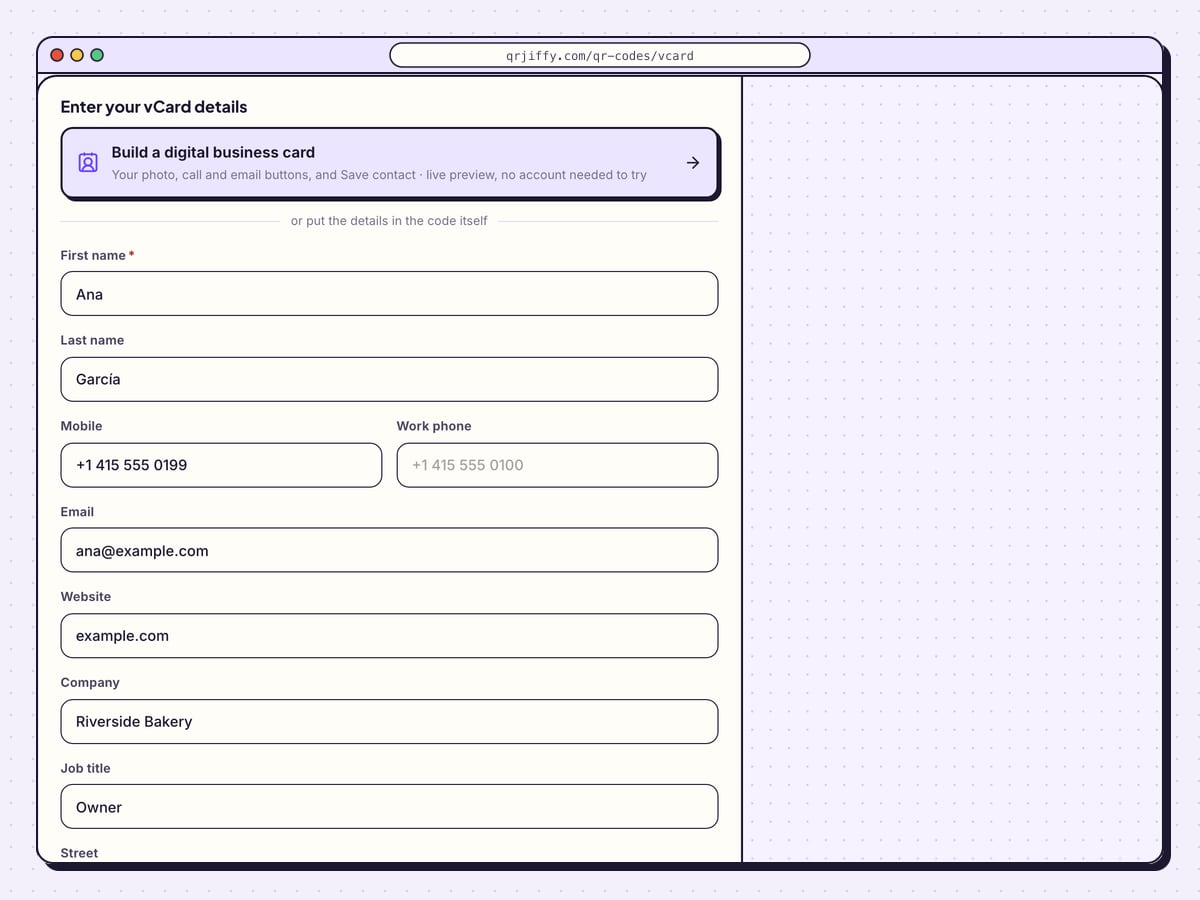
Under the Logo tab, click the Contact logo box to swap the contact-card icon for your company mark, and set Logo size with the slider.
A vCard code is dense, and a logo covers part of it. On a card with ten or more fields, press Remove, then open Advanced and lower the error correction to M or L. The dots grow larger and scan more easily at business-card size.
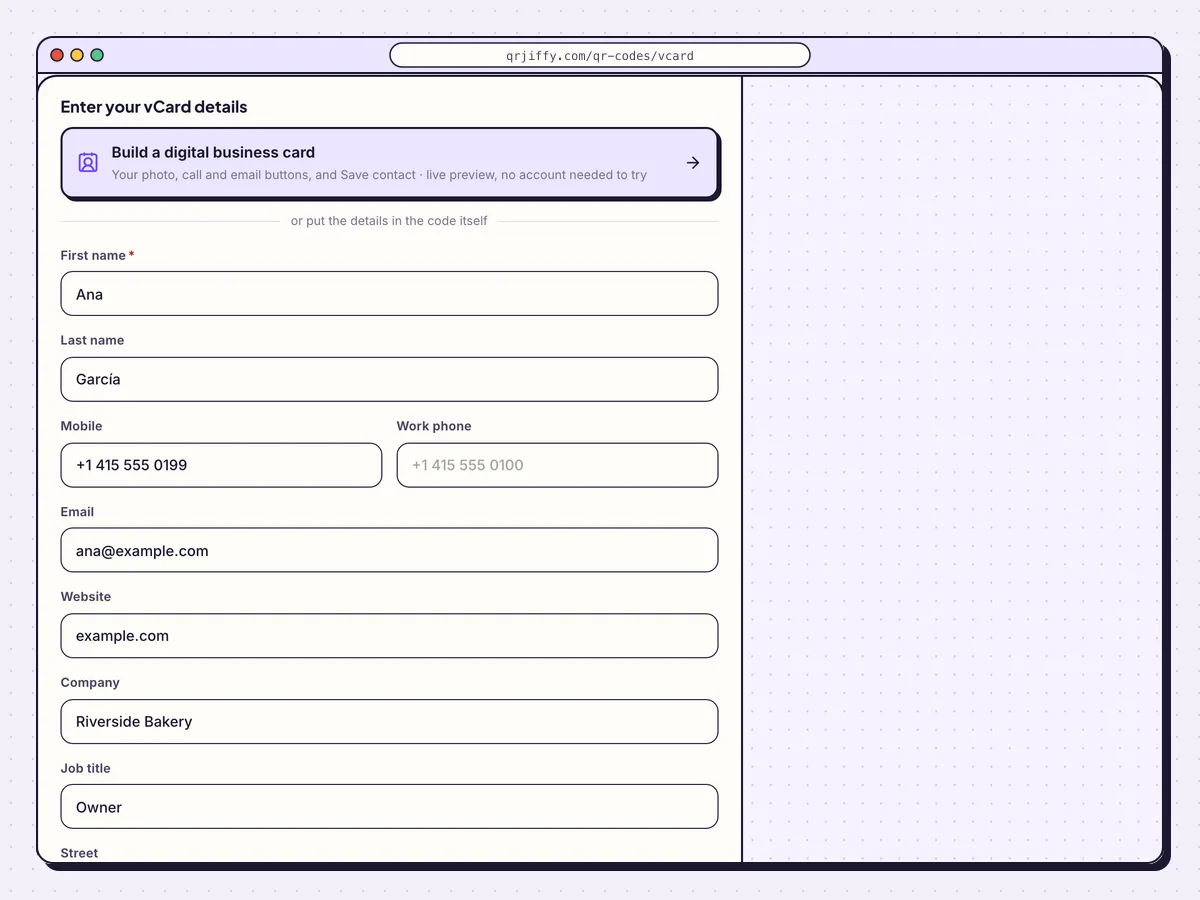
The Logo tab puts an icon or your own mark in the centre of the contact code. 5Download the code for your card
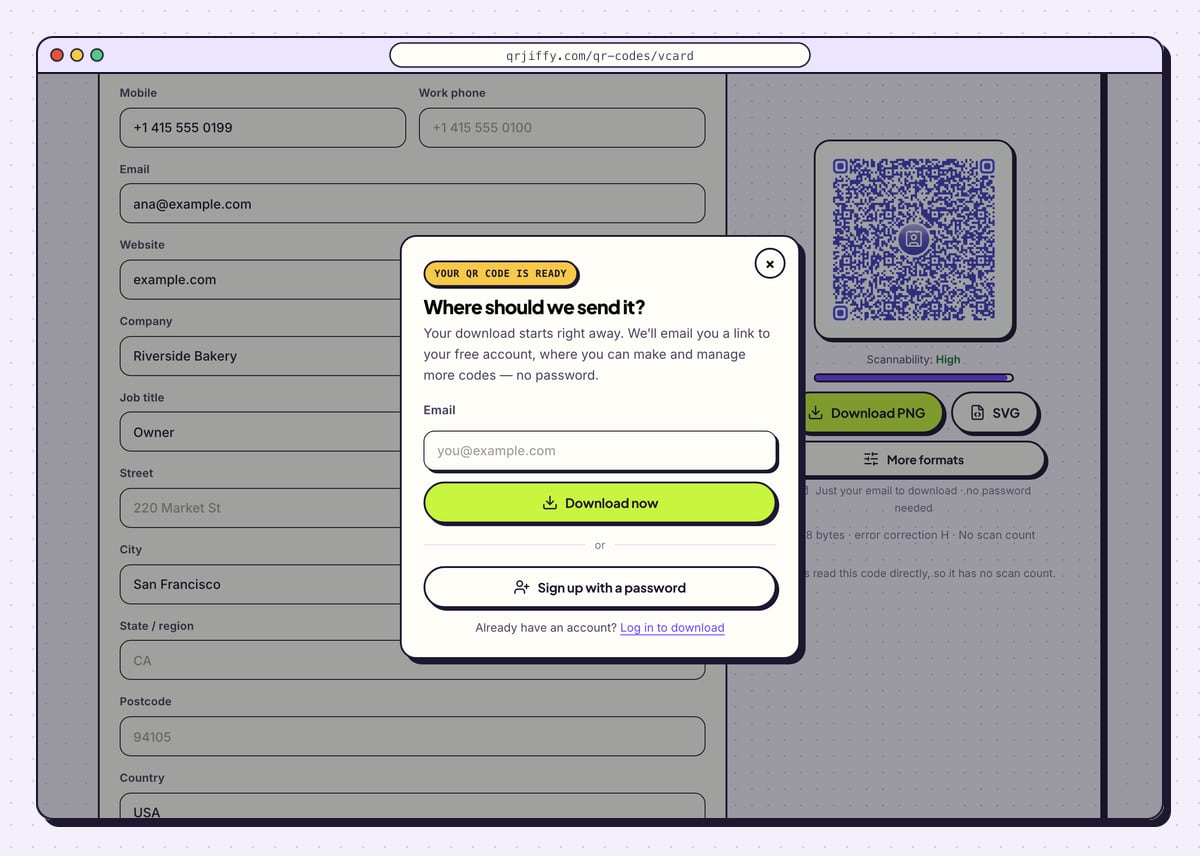
Choose SVG if a print shop is producing your business cards, since it scales without blur. Download PNG suits an email signature. The email box on a first download needs one address and a click on Download now. The saved file is
qrjiffy-vcard.png.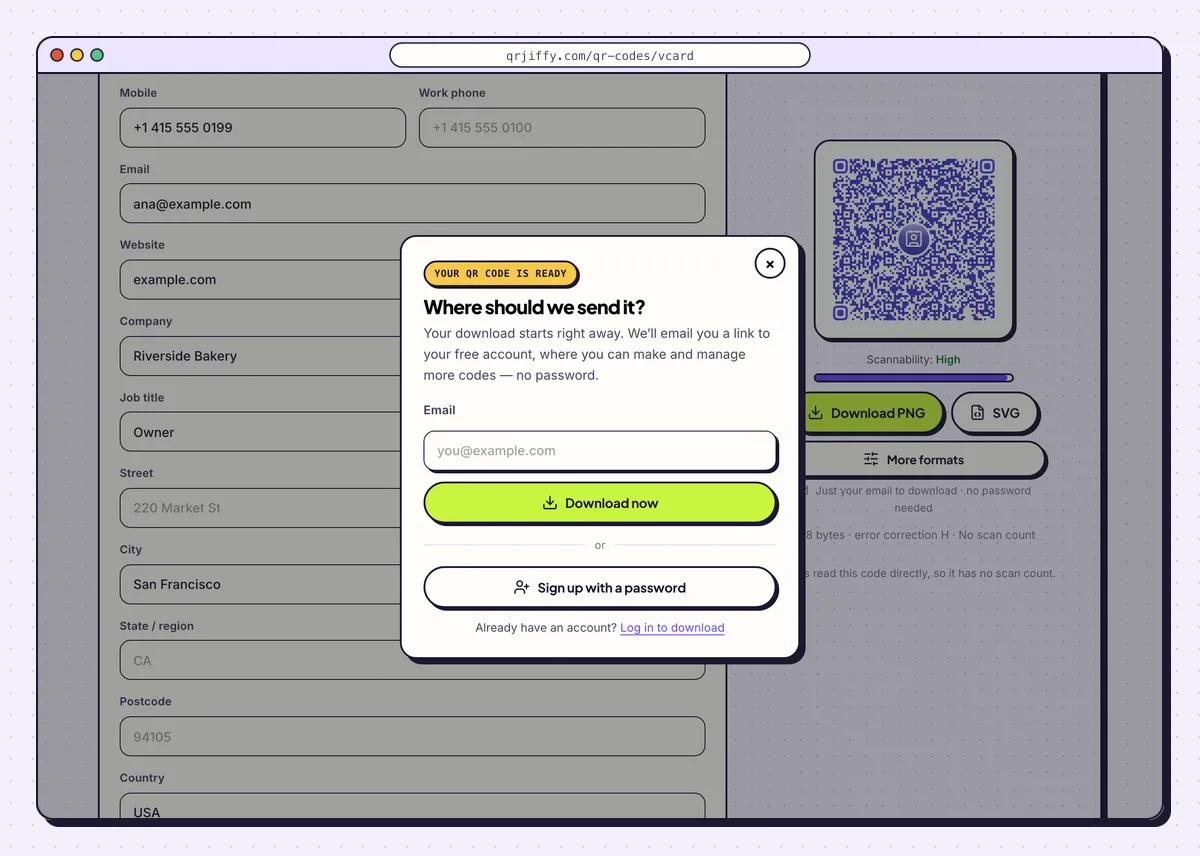
One email address unlocks the download of the contact code. 6Save the contact on two phones
Scan the file with an iPhone: a “Contact” banner opens a filled-in card with Create New Contact and Add to Existing Contact. On Android, the camera or Google Lens offers Add contact. Save it on both and check every field.
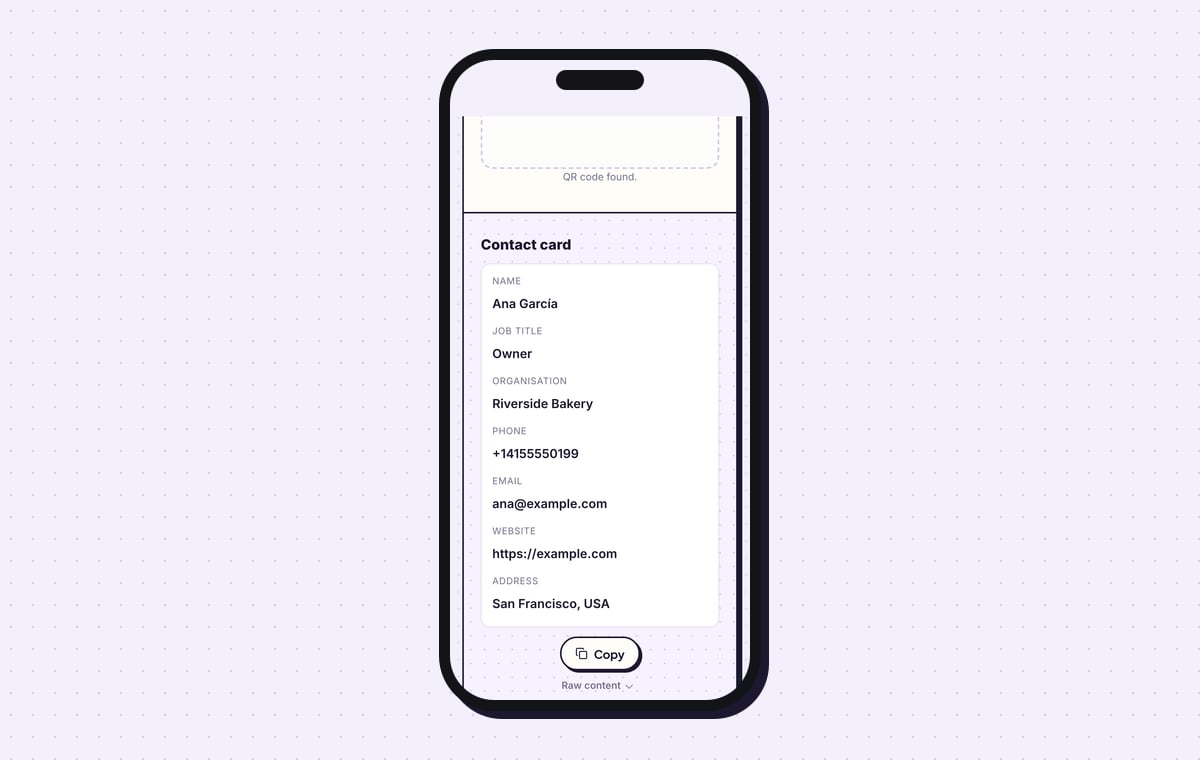
The QRJiffy scanner gives a quick read without saving anything. Under “Contact card” it lists the name, organisation, phone and email.
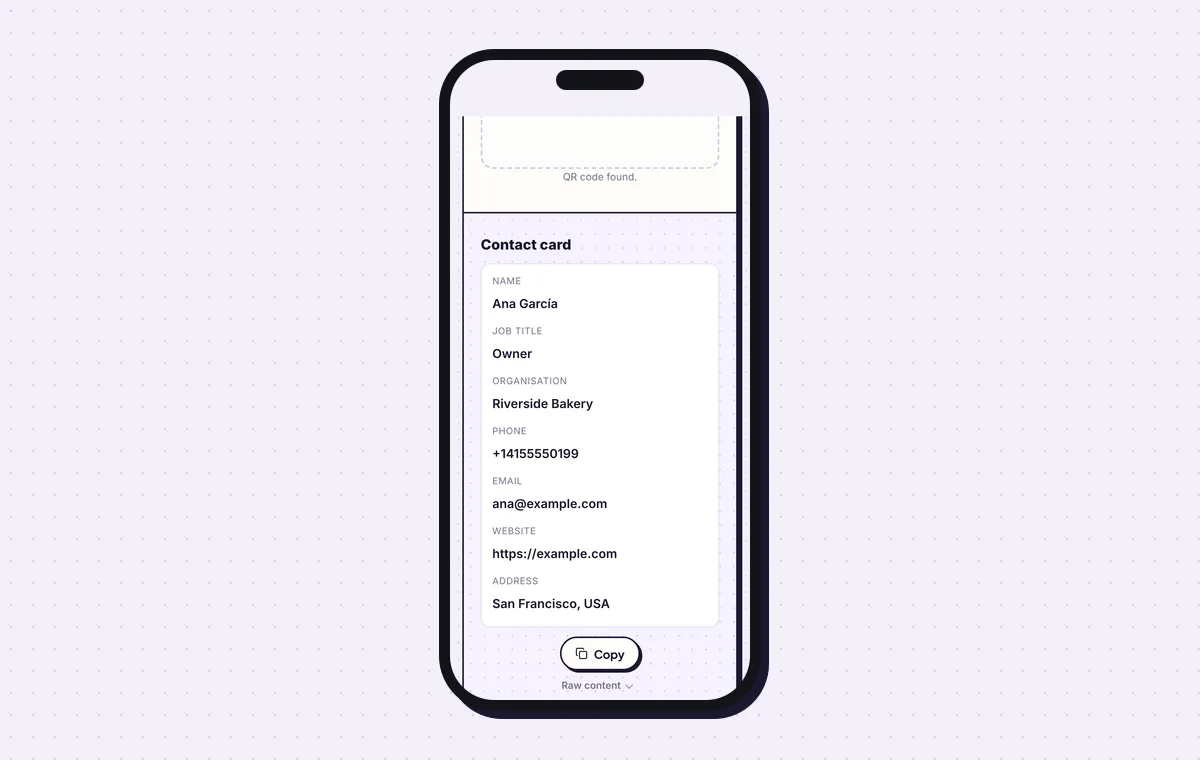
The scanner reads the name, organisation, phone and email back from the downloaded file. 7Print the code at 2.5 cm or larger
On a business card, print the code 2.5 × 2.5 cm (1 in) or more. A card with all 13 fields filled needs about 3.5 cm. Scan a single proof before ordering the full run.
Open the vCard QR Code generatorFree. Nothing to install.
How do you make a digital business card with a Save contact button?
1Fill in the Content step
Click Build a digital business card on the vCard page. The builder opens on Content, the first of three steps. Choose one of seven page colours, from Neo to Midnight, set Layout to Card, Photo hero or Minimal, and press Upload to add a photo.
Then type your name, Job title and Company. The phone under “Live preview” shows your initials until a photo is uploaded.
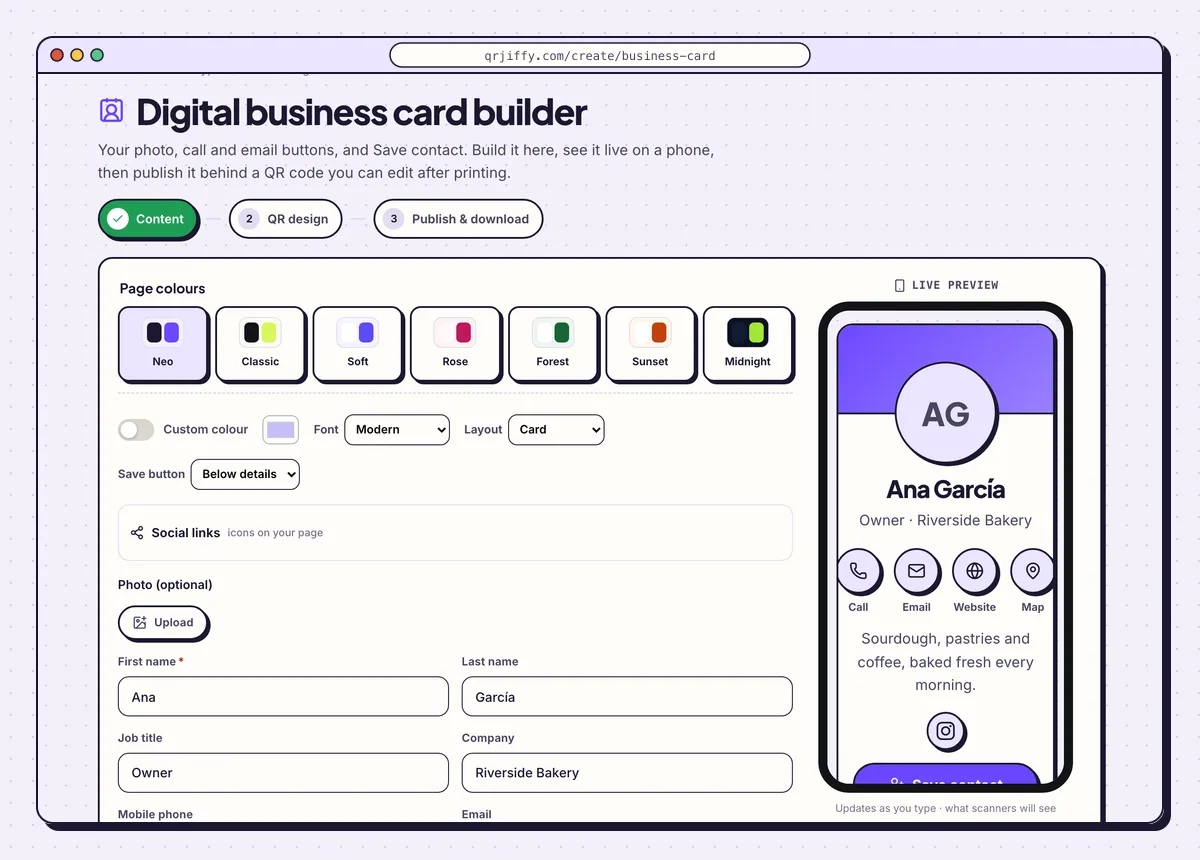
The builder’s Content step, with the card previewed live on a phone at the right. 2Style the code in the QR design step
Click Next: QR design. This second step styles the code that leads to your page. Keep the dots dark on a light background, then move on to step three.
3Publish the page and download the code
On Publish & download, click Publish & download PNG and sign up for the free account when asked. The page goes live at its own short link. Visitors see your name and role, round Call, Email, Website and Map buttons, and a wide Save contact button.
When your number or job title changes, edit the page from the dashboard. The printed code keeps working.
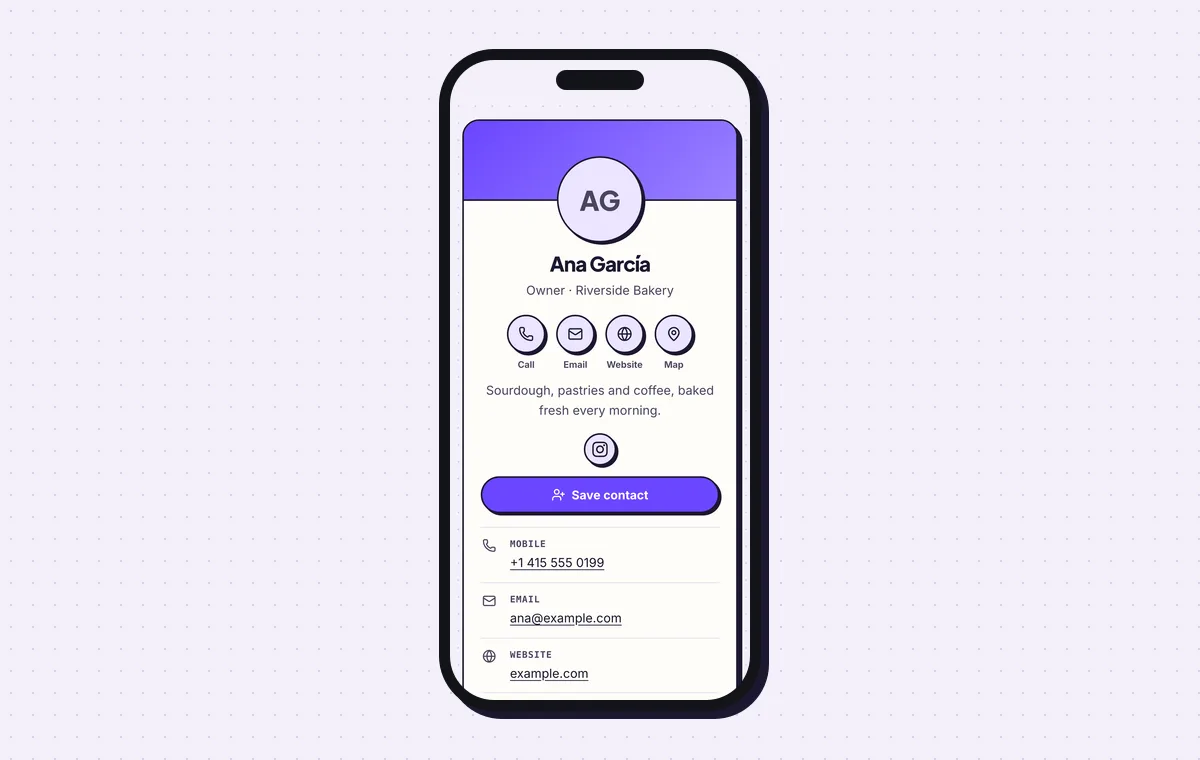
The published card as a visitor sees it, with Save contact in the middle of the page.
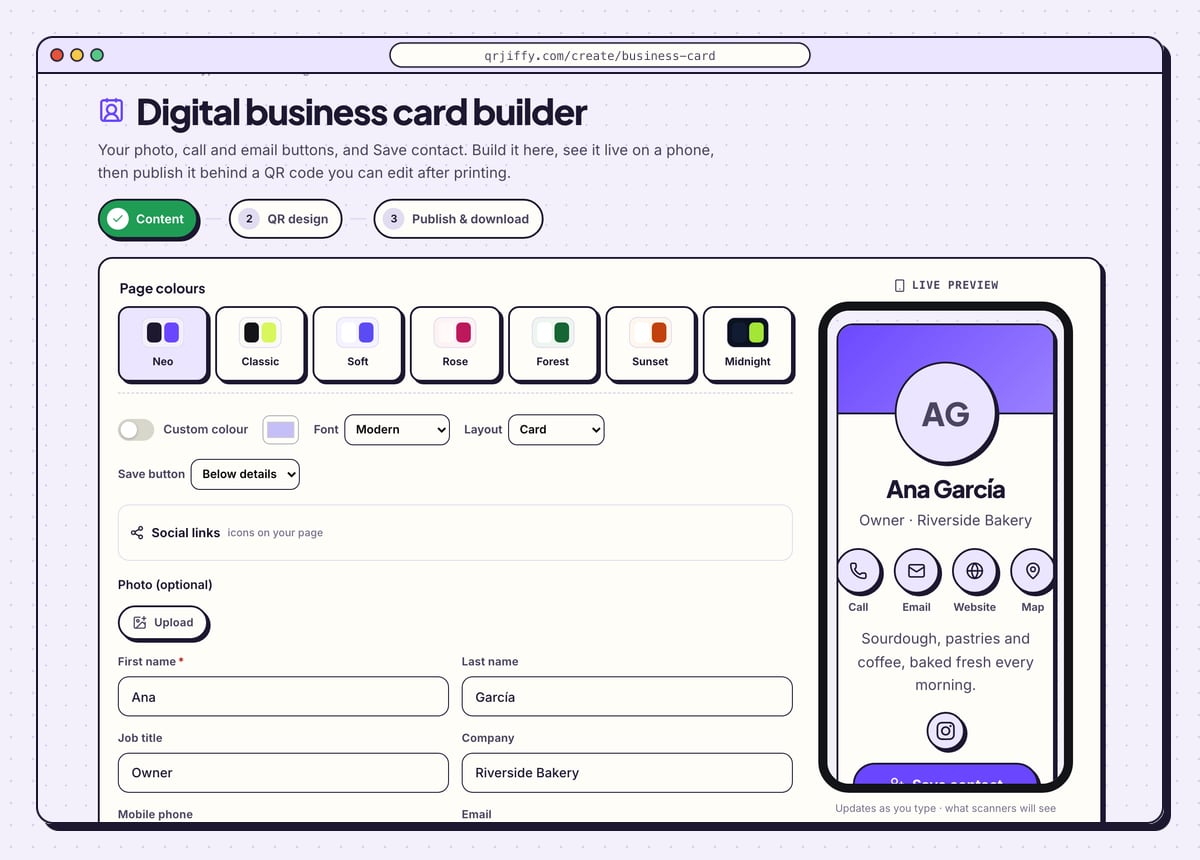
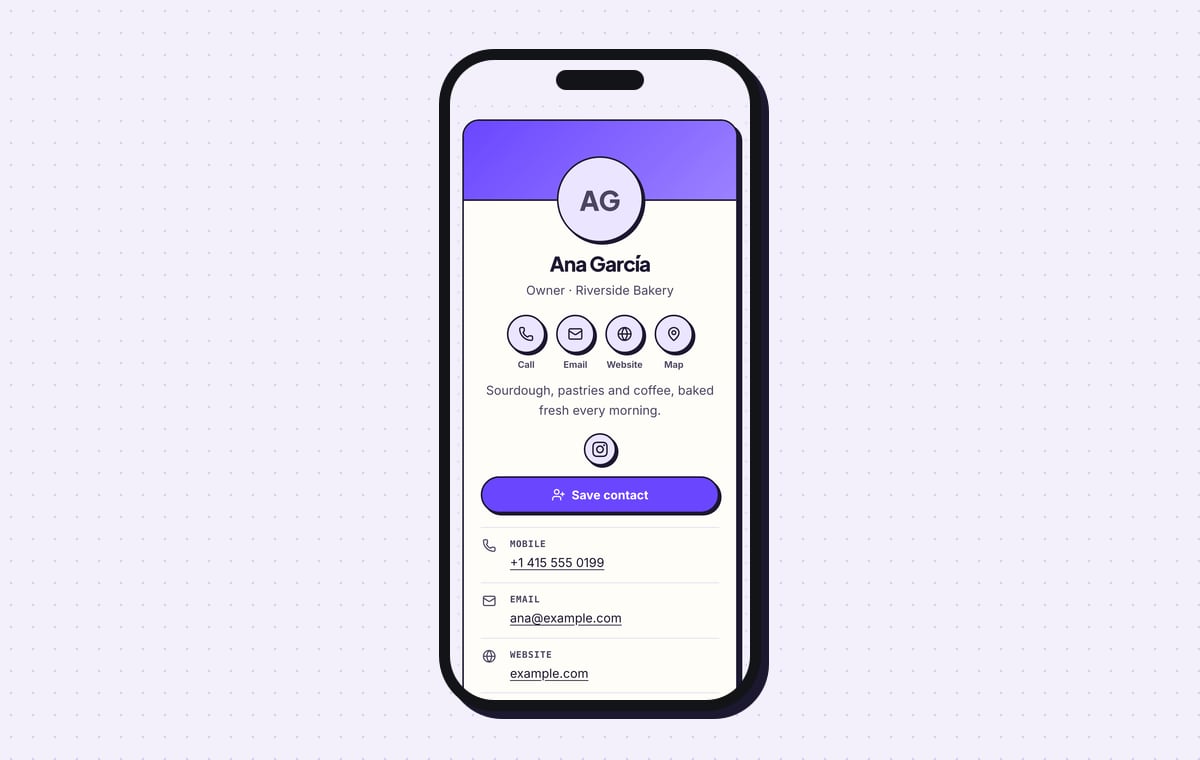
Build a digital business cardLive preview. No account needed to try.
What happens when someone scans a vCard QR code?
The phone recognises a contact card and offers to save it, with the name, numbers, email and company already entered.
- iPhone (iOS 11 or later): the Camera shows a Contact banner. Tapping it opens the card with Create New Contact and Add to Existing Contact.
- Android (9 or later): the camera or Google Lens shows Add contact, which opens the Contacts app with the fields filled in.
- Offline: the contact saves with no reception, because all fields are in the pattern.
Can you update a vCard QR code after it is printed?
No. A vCard code made with the form stores your details in the pattern, so a new phone number or job title means a new code and new cards. If your details change every year or two, publish a digital business card page and print its code: that page is edited without a reprint.
vCard QR code or digital business card: which one do you need?
Choose the vCard code for a contact that saves offline in one tap, and the digital business card for a page with a photo and details you can edit. A QR code holds 2,953 bytes at most, too little for a usable photo, so a picture needs the hosted page.
What mistakes stop a vCard QR code from working?
These 4 mistakes cause most failed vCard QR codes; each has a quick fix. Test the downloaded file with two different phones before you print anything.
| Mistake | Fix |
|---|---|
| Phone numbers written in local format, such as 0415 555 0199 | Start each number with + and the country code so it dials from abroad. |
| All 13 fields filled for a code printed 2 cm wide | Fill only the fields people use, or print the code about 3.5 cm wide. |
| A print run of 500 cards ordered before any scan | Order one proof and scan it with an iPhone and an Android phone. |
| Details that change soon after printing | Make a new code, or switch to the digital business card page, which is edited without reprinting. |
Frequently asked questions
Can I make a vCard QR code without paying?
Yes. The vCard form and the download are free, with no watermark on the image. You enter an email address or create a free account at the first download.
How many fields fit in a vCard QR code?
All 13 fields fit. A card with a name, 2 phone numbers, an email, a company and a website scans reliably at 2.5 cm, and a full 13-field card needs about 3.5 cm.
Which vCard version does the code use?
vCard 3.0. iPhone Contacts, Google Contacts and Outlook all import it without errors.
Can I see who scanned my vCard QR code?
No. The contact is read from the pattern without any web request, so nothing is logged. The digital business card page does count scans, by day, device and country.
Ready to make your vCard QR code?
The generator is free and works in the browser on a phone or a computer. Your code downloads as PNG for screens or SVG for print.
Open the vCard QR Code generator
Related guides: How to Print a QR Code · QR Code Size · QR Code Not Working