 QRJiffy
How to Make a WhatsApp QR Code
You make a WhatsApp QR code by entering your WhatsApp number and an optional pre-filled message in a WhatsApp QR code generator, then downloading the code. Whoever scans it lands in a chat with you, with the message waiting in the text box, and never has to save your number. It takes roughly 3 minutes. This is a chat code, not the login code for WhatsApp Web.
What do you need before you start?
You need 4 things ready, and no account to try the generator. A free account, or just your email, is asked for only at the download step.
- The number registered on WhatsApp or WhatsApp Business, with its country code.
- An opening message that tells you where the chat came from, such as “Hi from the menu!”.
- A second phone with WhatsApp installed, to test the chat from a customer’s side.
- An email address, which also gives you the dashboard for later edits.
How do you make a WhatsApp QR code step by step?
Follow these 7 steps in the WhatsApp QR Code generator; the preview updates as you type. Each screenshot below is the real screen, filled in with a sample bakery’s details.
1Enter your WhatsApp number in the generator
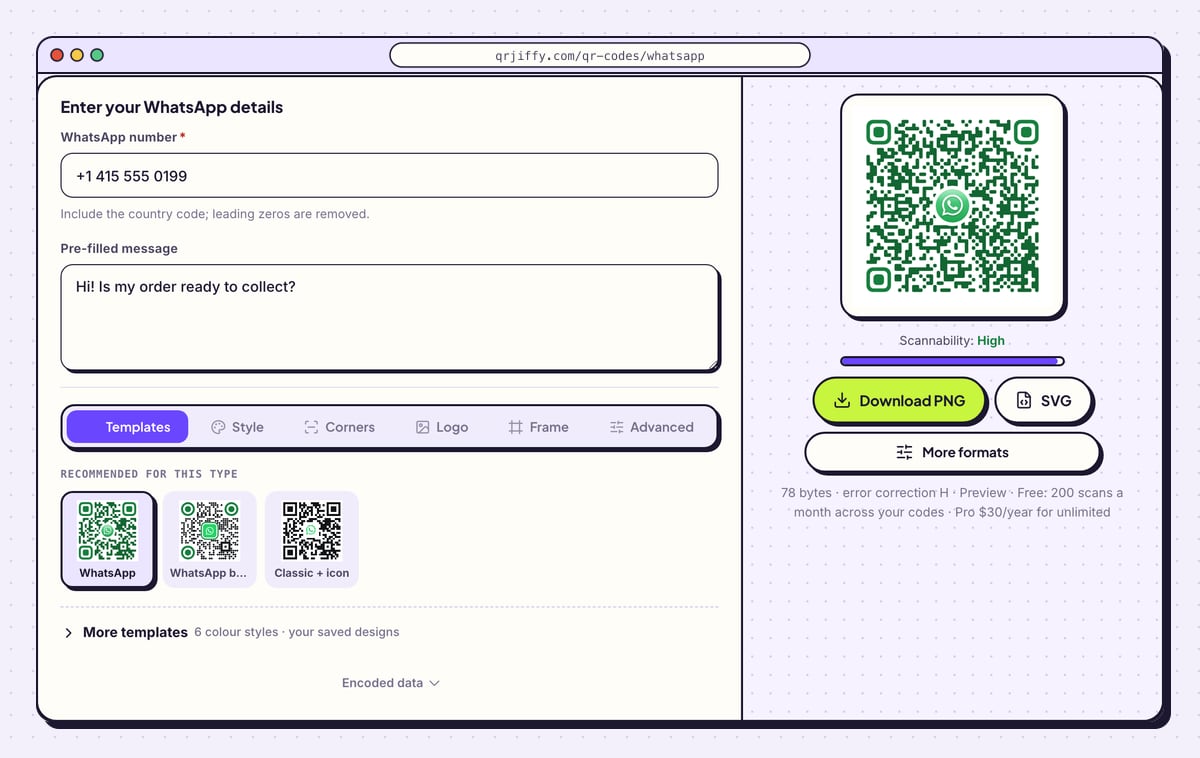
On the WhatsApp QR code generator, type your number into WhatsApp number. The help text reads “Include the country code; leading zeros are removed.” A UK mobile written 07700 900123 therefore goes in as +44 7700 900123.
The sample number is +1 415 555 0199. Behind the form it becomes the click-to-chat address
wa.me/14155550199: digits only, with no plus sign and no spaces.Tip: Copy the number from your WhatsApp profile, so the code uses the one registered on the account.
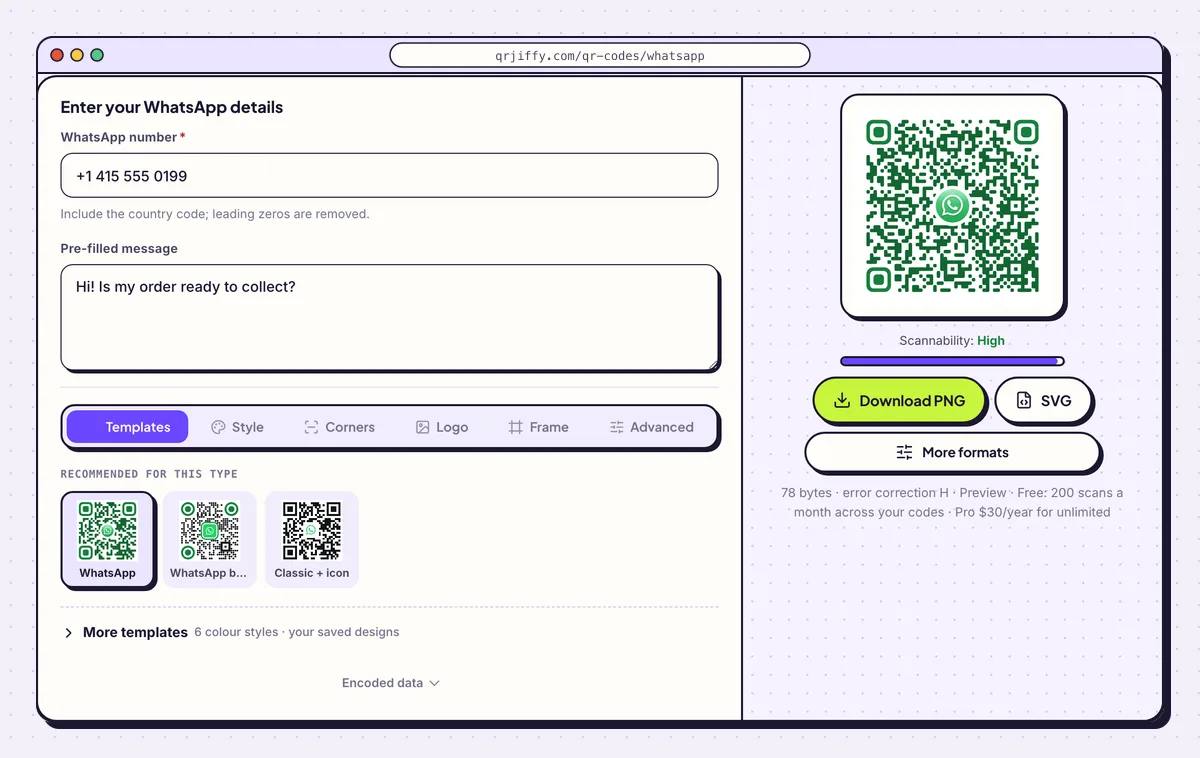
The number and the opening message, with the green WhatsApp code previewed. 2Write the pre-filled message
Pre-filled message is optional, and worth filling. The text appears in the customer’s chat box, so the conversation starts with context. The sample is “Hi! Is my order ready to collect?”.
Work the placement into the wording. “Hi from the window poster!” on one code and “Hi from the menu!” on another show you, in each incoming chat, which print brought the customer.
3Keep or replace the WhatsApp logo
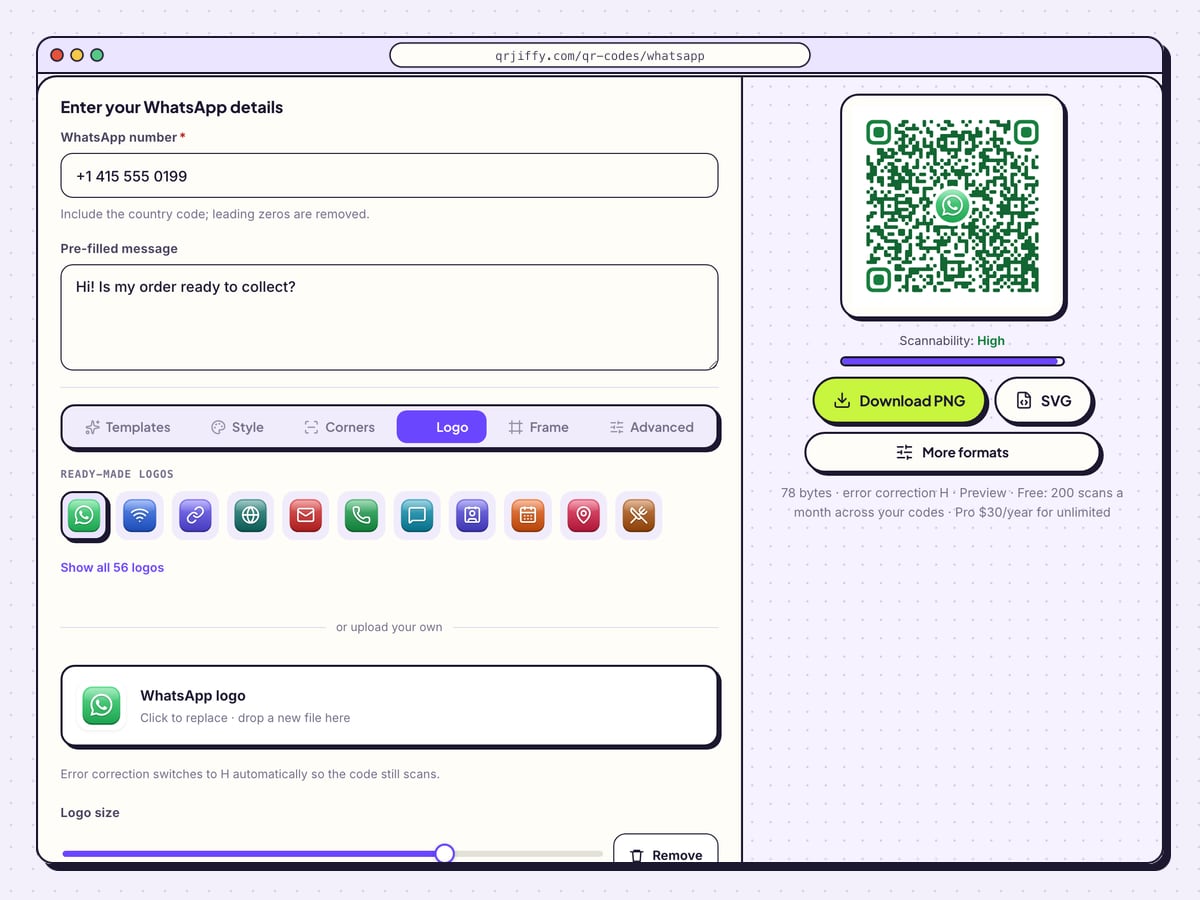
The Logo tab starts with the WhatsApp icon in the centre, which tells people what the code opens before they scan. To use your shop logo, click the box labelled WhatsApp logo and choose a file. The Padding control sets the clear space between the logo and the dots, and Border draws a ring around it.
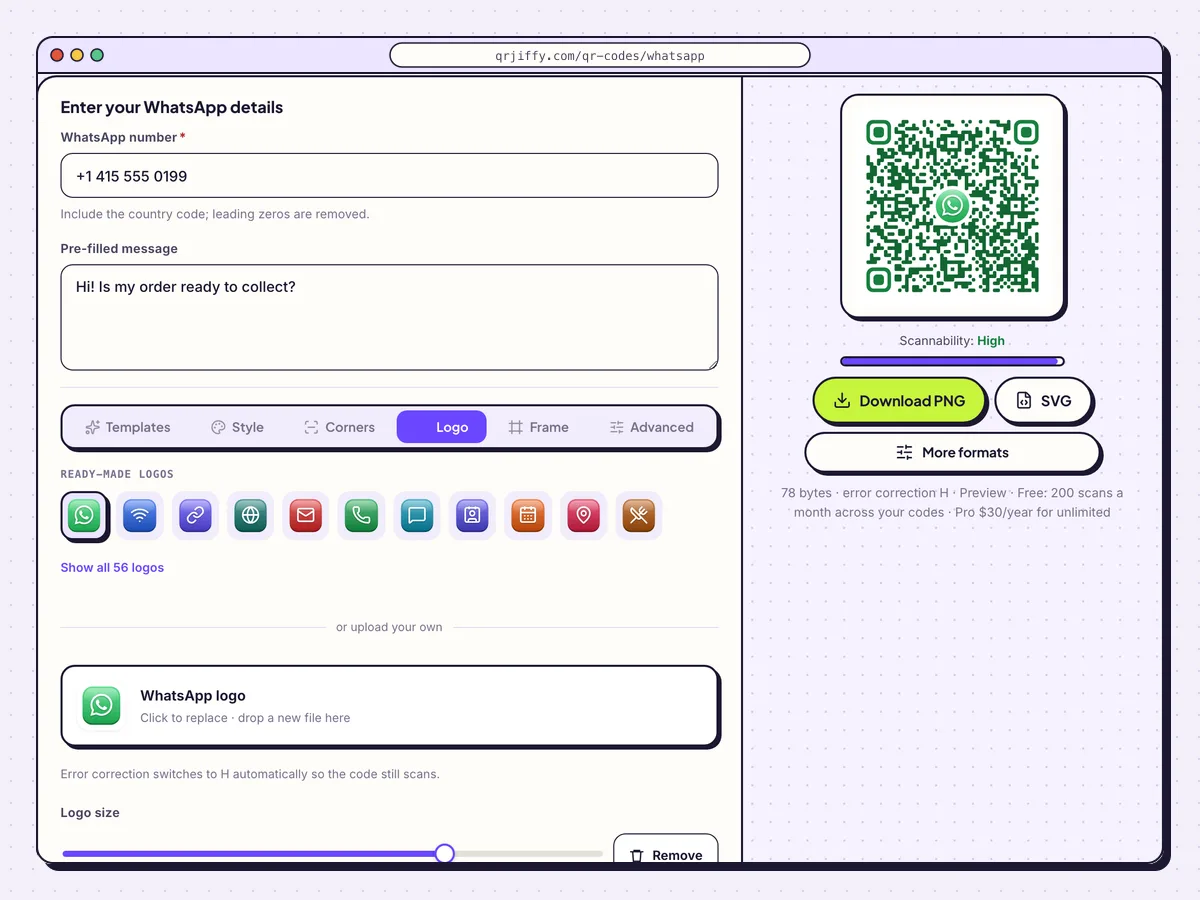
The WhatsApp icon is the default centre logo and can be replaced with your own. 4Download the code and note the short link
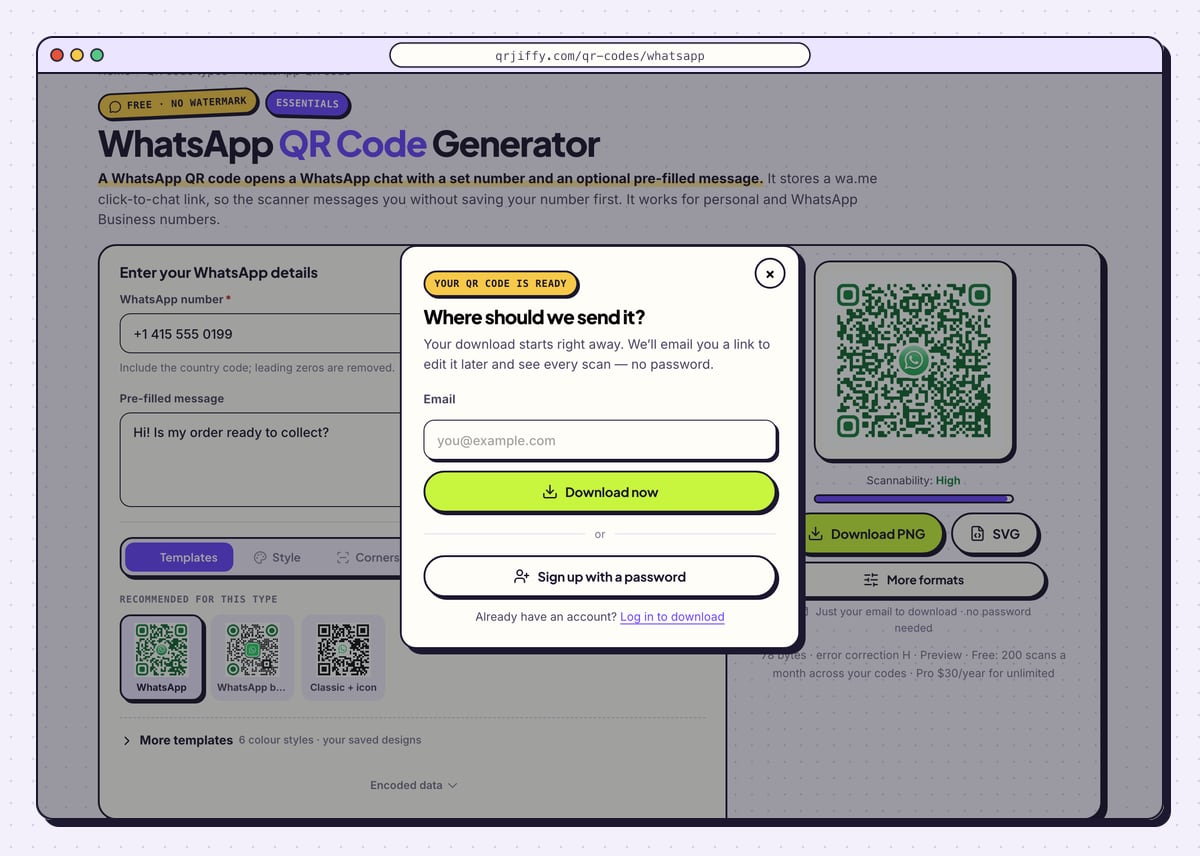
Pick Download PNG or SVG. When the box asks where to send the code, type your email and confirm with Download now. The file arrives named like
qrjiffy-whatsapp-EFTa7Vb.png.The page then displays a short link beginning
qrjiffy.com/r/, with a note that you can change where it points while the printed code stays the same. That link is what the pattern stores, and it forwards to your wa.me chat address.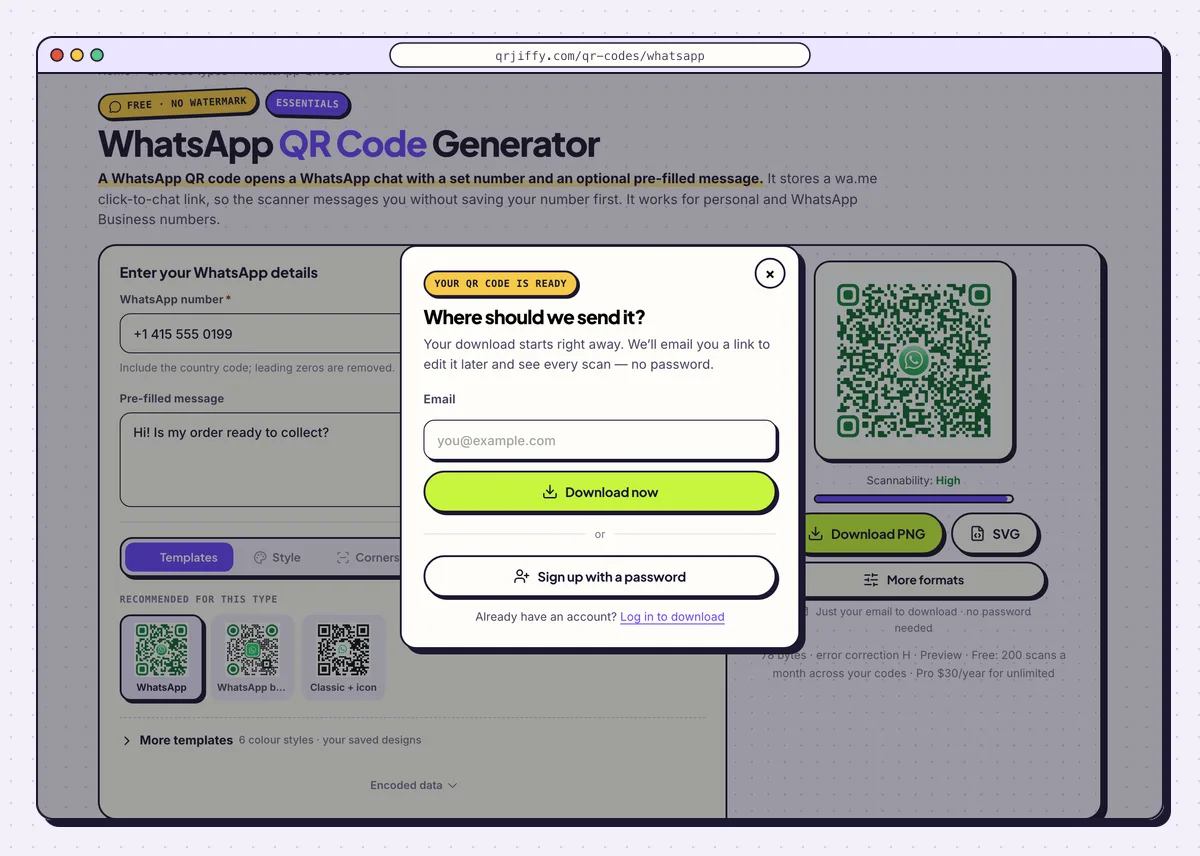
After this box, the file downloads and the page shows the code’s short link. 5Test the chat from another phone
Scan the code with a phone that has WhatsApp and is not signed in to your own number. The camera shows a link banner; tap it and WhatsApp opens a chat with your number, the message already typed. Send it, and check it arrives on your phone.
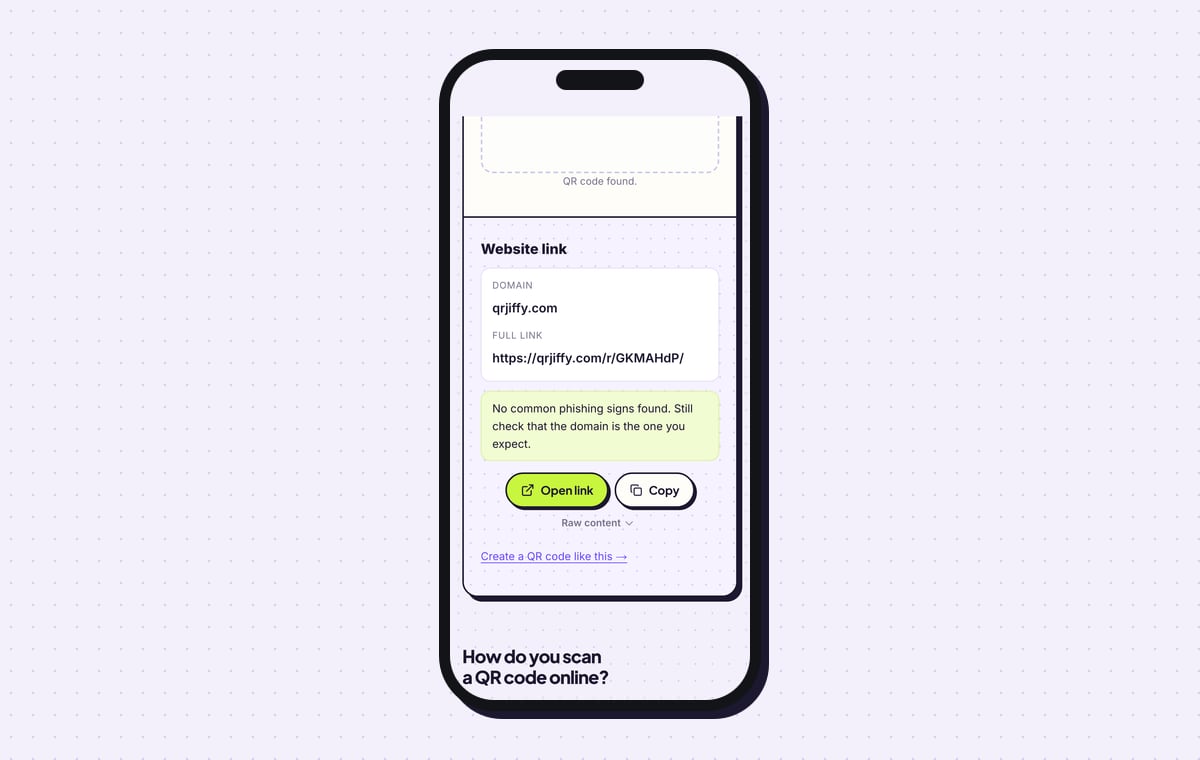
In the QRJiffy scanner the same file reads as “Website link” with the domain qrjiffy.com. That is correct: the short link is inside the code. Press Open link to continue into WhatsApp.
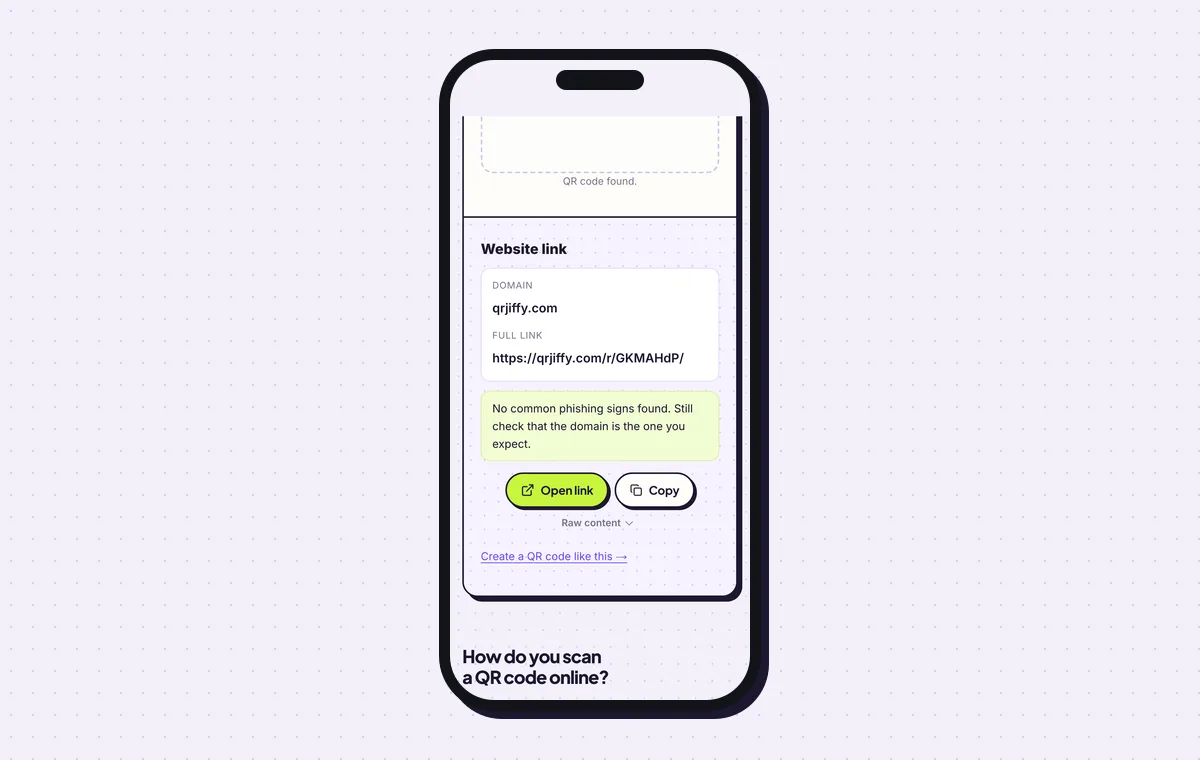
The scanner reveals the short link. Open link carries on to the WhatsApp chat. 6Change the number or message later
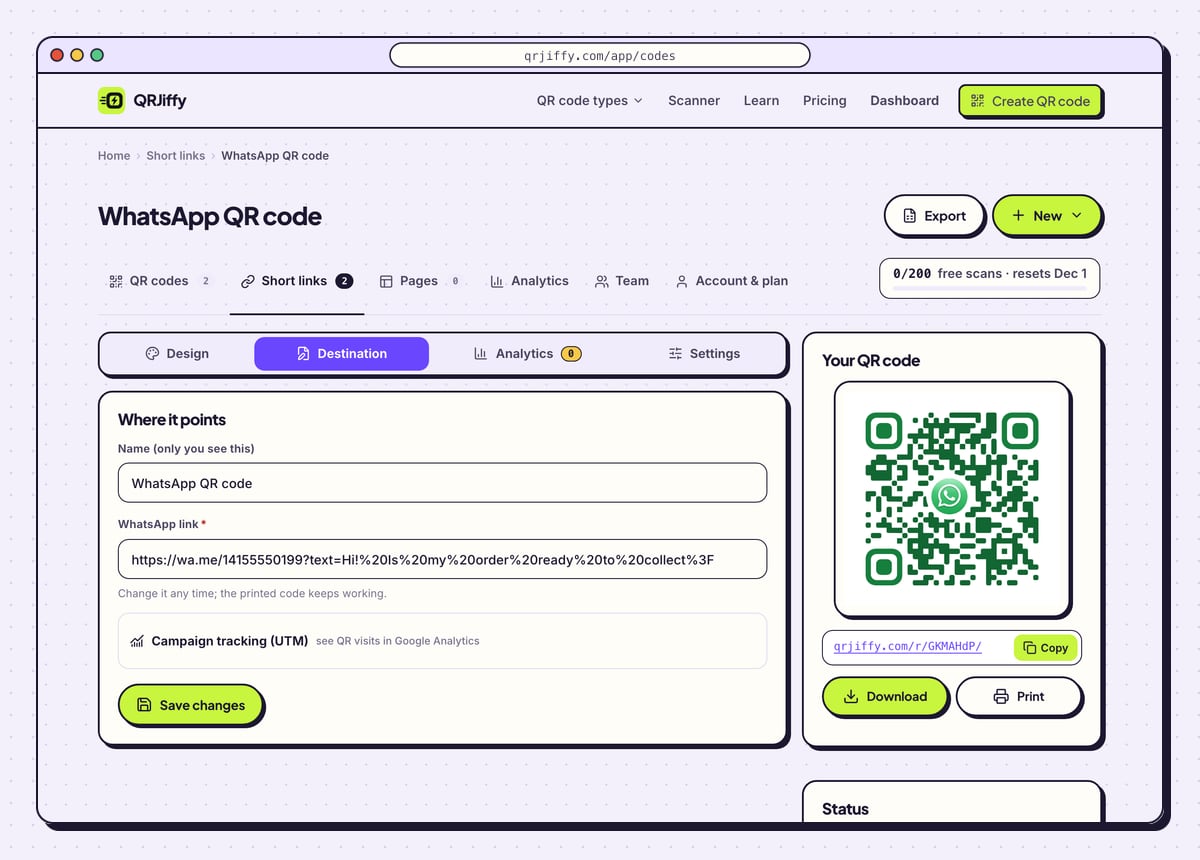
The code’s page in the dashboard has four tabs. Under Destination you replace the number or rewrite the opening message, and codes already on menus and windows open the new chat from then on.
Analytics counts scans by day, device and country. The free plan includes 200 scans a month, shared by all your codes; Pro lifts that limit for $30 a year.
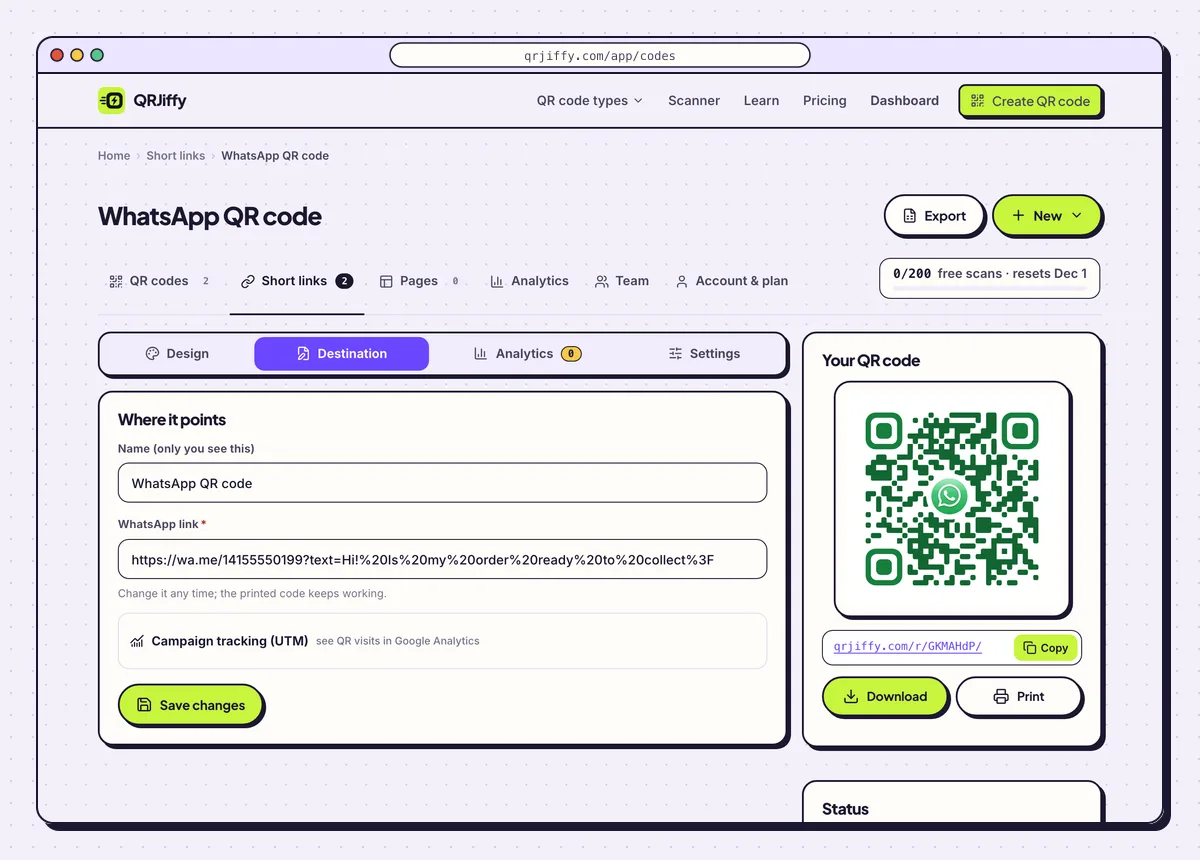
The dashboard page for a WhatsApp code: design, destination, analytics and settings. 7Print it where customers wait
Menus, counters, shop windows and packaging are the common spots. The code prints down to 2 × 2 cm (0.8 in), and a window sign read from 1 m needs 10 cm. Add a line such as “Chat with us on WhatsApp” so people know the code opens a chat. The article on how to print a QR code explains margins and file types.
Open the WhatsApp QR Code generatorFree. Nothing to install.
What happens when someone scans a WhatsApp QR code?
The phone opens the short link, which forwards to WhatsApp and starts a chat with your number, with the pre-filled message in the text box. The person taps Send to begin. Your number is not added to their contacts, and an internet connection is required.
- Phone with WhatsApp: the camera opens the link, which hands over to the WhatsApp app with the chat ready.
- Phone without WhatsApp: the link opens a WhatsApp web page that offers to download the app.
- Desktop: laptops do not scan the code, but the same link, clicked, opens WhatsApp Web or WhatsApp Desktop.
Is this the same as the WhatsApp Web login QR code?
No. The WhatsApp Web login code is produced by WhatsApp on web.whatsapp.com and refreshes about every 20 seconds, so no generator makes it. To log in on a computer, follow these three steps.
- Open web.whatsapp.com on the computer.
- On the phone, open WhatsApp › Settings › Linked devices › Link a device.
- Scan the code on the computer screen with WhatsApp itself, not with the camera app.
Does WhatsApp have its own QR code?
Yes. WhatsApp has a built-in profile QR code, found in Settings by tapping the QR icon next to your name, and it scans only inside WhatsApp. A code from a generator scans with any phone camera. It also carries a pre-filled message, prints in your colours, and is repointed if your number changes.
How do you make a WhatsApp QR code for a group?
Copy the group’s invite link in WhatsApp and turn that link into a link QR code. Open the group, tap Group info, then Invite via link, then copy the link, which starts with chat.whatsapp.com. The number field of the WhatsApp generator is for one-to-one chats only.
What mistakes stop a WhatsApp QR code from working?
These 5 mistakes cause most failed WhatsApp QR codes; each has a quick fix. Test the downloaded file with two different phones before you print anything.
| Mistake | Fix |
|---|---|
| The number is typed without its country code | Add the country code. The generator removes the leading zero for you. |
| The number belongs to a phone line that is not on WhatsApp | Register the number in WhatsApp or WhatsApp Business first, then test the chat from a second phone. |
| A WhatsApp Web login code was expected | Open web.whatsapp.com for that. This code starts a chat. |
| A group invite link pasted into the number field | Encode the chat.whatsapp.com link with the link QR code generator. |
| Every print carries the same opening message | Name the placement in each message, such as “Hi from the menu!”. |
Frequently asked questions
How much does a WhatsApp QR code cost?
Nothing to make and download. A free account covers 200 scans a month across all of your codes, and Pro costs $30 a year for unlimited scans.
Does the person need to save my number first?
No. The chat opens straight away without the number being added to their contacts.
Does a WhatsApp QR code work with WhatsApp Business?
Yes. The click-to-chat address works for personal and WhatsApp Business numbers alike.
Can I change the number after printing the code?
Yes. Edit the number or the message in the dashboard, and the printed code opens the new chat from the next scan.
What if the person scanning does not have WhatsApp?
The link opens a WhatsApp web page that offers to download the app or to chat in WhatsApp Web.
Ready to make your WhatsApp QR code?
The generator is free and works in the browser on a phone or a computer. Your code downloads as PNG for screens or SVG for print.
Open the WhatsApp QR Code generator
Related guides: How to Print a QR Code · QR Code Size · QR Code Not Working