 QRJiffy
How to Make a WiFi QR Code
You make a WiFi QR code by typing the network name, password and encryption type into a WiFi QR code generator, then downloading the image and printing it. Guests point a phone camera at the code and tap one banner to join, with no password to spell out. The whole job takes about 2 minutes, and the steps below show every screen.
What do you need before you start?
You need 4 things ready, and no account to try the generator. A free account, or just your email, is asked for only at the download step.
- The network name (SSID), exactly as it appears in your phone’s WiFi list, including capital letters and spaces.
- The WiFi password. Check it by joining the network once with it.
- The encryption type: WPA for almost every router sold since 2006.
- A phone that is not yet connected to that network, for the test in step 5.
How do you make a WiFi QR code step by step?
Follow these 6 steps in the WiFi QR Code generator; the preview updates as you type. Each screenshot below is the real screen, filled in with a sample bakery’s details.
1Open the WiFi QR code generator
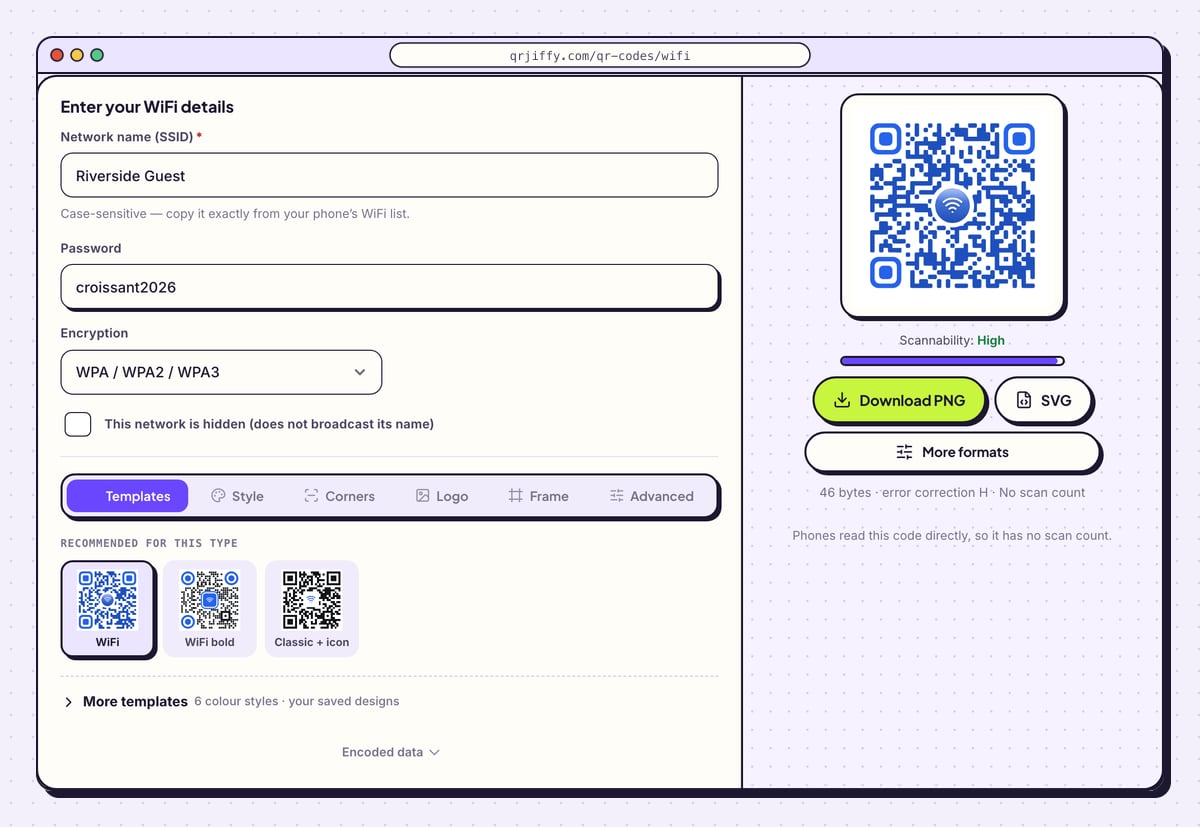
Open the WiFi QR code generator in any browser, on a phone or a computer. The form sits on the left and a sample code on the right, under a small “Sample” tag that disappears once you type your own details.
Tip: Make the code on the guest network, not the main one. A printed password stays readable for as long as the sign is on the wall.
2Type the network name and password
Type the name into Network name (SSID) and the key into Password. Both are case-sensitive: “Riverside Guest” and “riverside guest” are different networks to a phone. The code on the right redraws with every character, and the line under it shows how many bytes it holds.
Leave Encryption on WPA / WPA2 / WPA3 unless the router is older than 2006 (WEP (legacy)) or the network has no password (None (open network)). Tick This network is hidden only when the router does not broadcast its name.
Tip: Copy the name from the phone’s WiFi list instead of typing it from memory. A trailing space is stored in the code and breaks the connection.
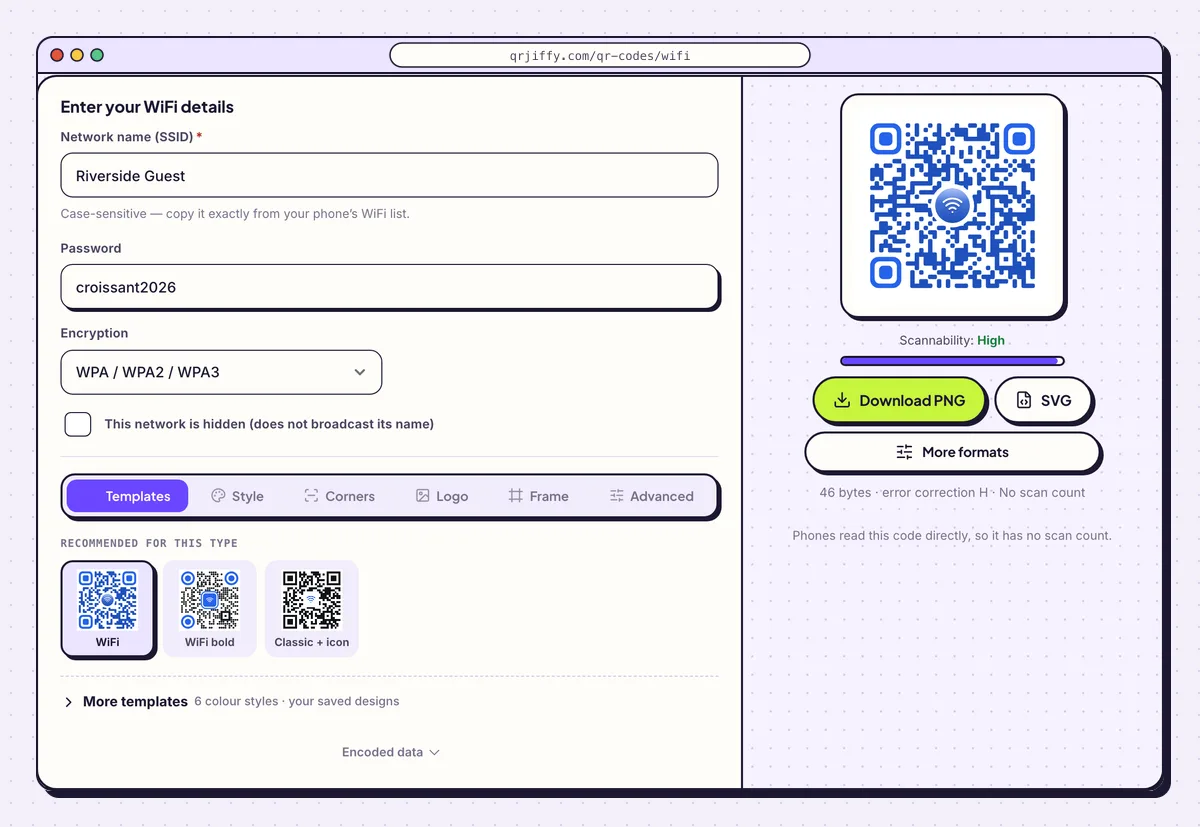
The generator with a sample network typed in. The preview on the right is already the real code. 3Add a label so people know what the code does
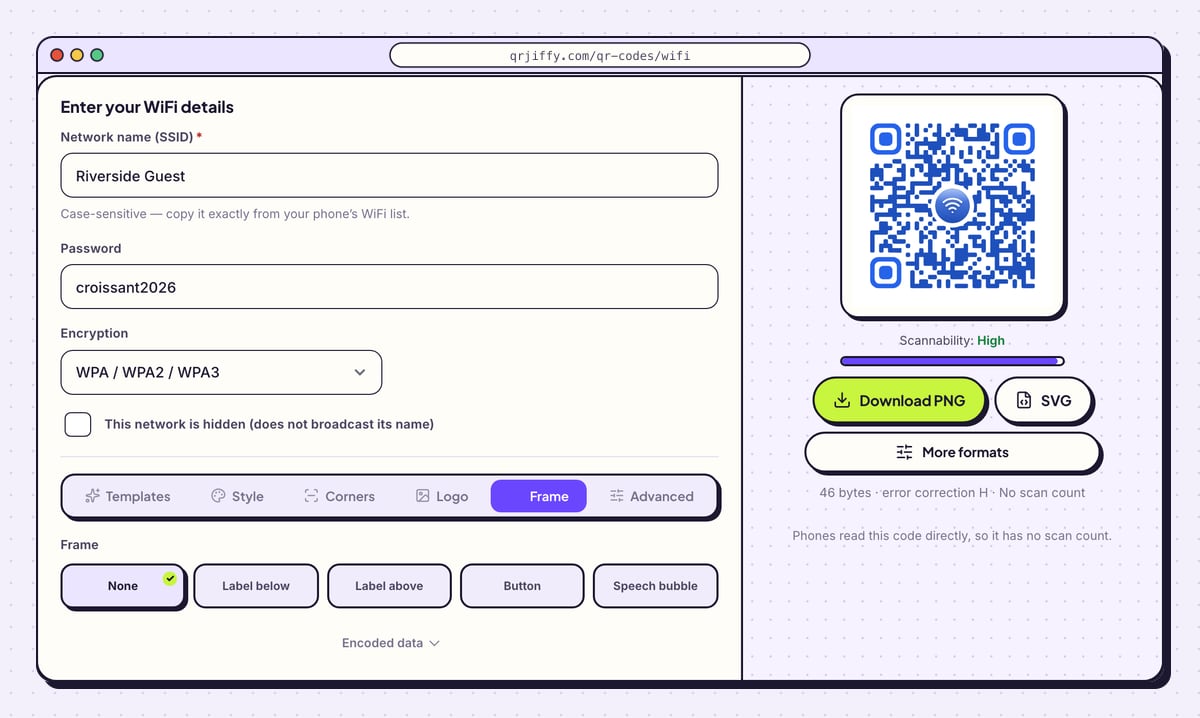
Open the Frame tab under the form and pick Label below, then type a short instruction such as “Scan to join WiFi”. A bare code on a wall gets ignored; a code with a label gets scanned.
The Templates tab has three ready-made WiFi designs, and Style, Corners and Logo change the dots, the corner squares and the centre icon. Keep the dots dark on a light background, and watch the Scannability bar under the preview: it stays on “High” while the design is safe to scan.
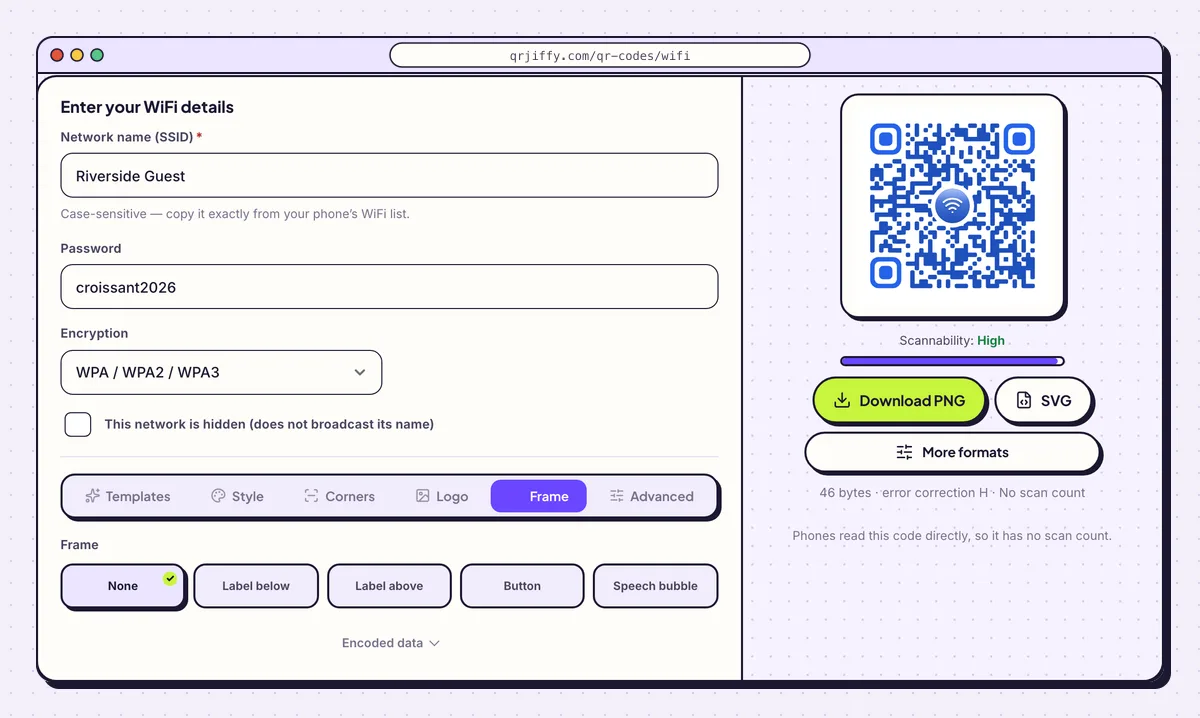
The Frame tab adds a caption to the code. Templates, Style, Corners and Logo sit beside it. 4Download the code as PNG or SVG
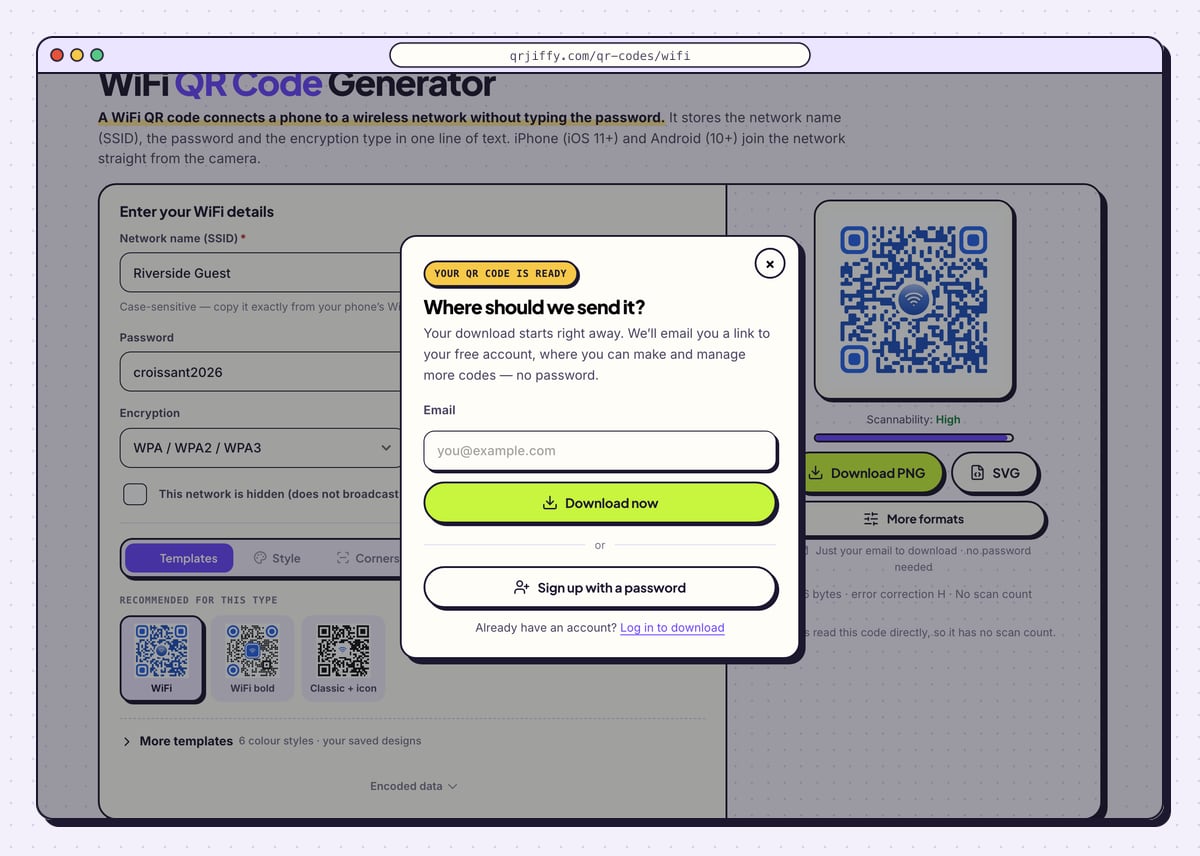
Click Download PNG for screens and office printers, or SVG for a print shop. The first time, a box asks “Where should we send it?”: type your email and click Download now, and the file downloads straight away. Sign up with a password does the same with a full account. The file is named
qrjiffy-wifi.png.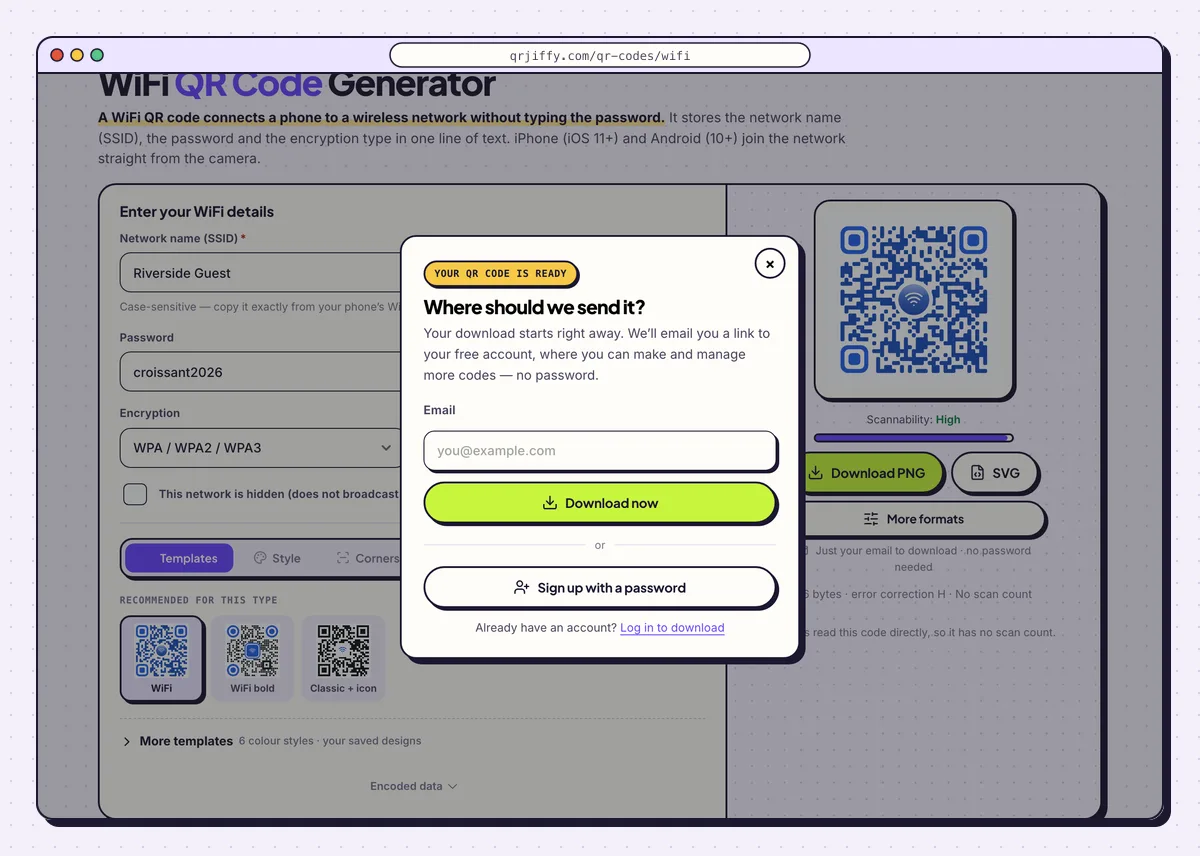
The download step asks for an email once. The file downloads immediately. 5Test the code before you print it
On a phone, forget the network first (Settings › WiFi › the network › Forget), then point the camera at the code on your screen. An iPhone shows a “Join Network” banner and an Android phone shows “Connect to network”. One tap must connect without asking for the password.
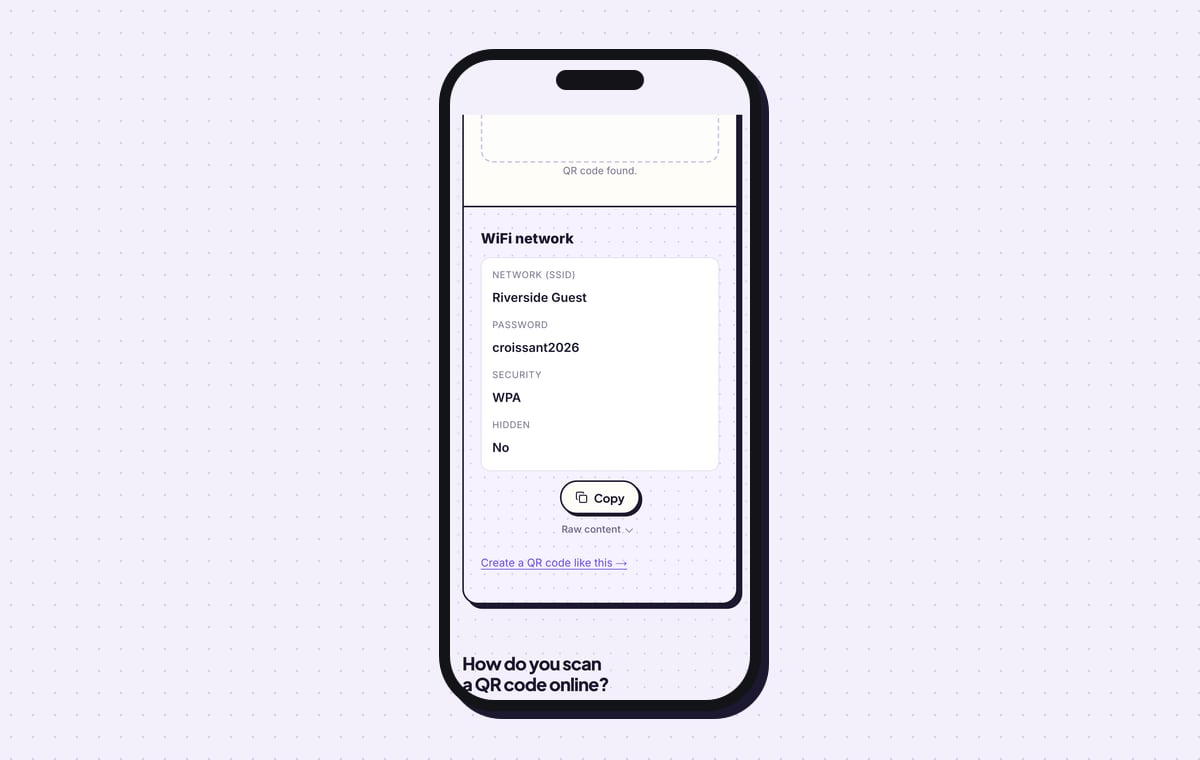
To check what the file contains without joining, upload it to the QRJiffy QR code scanner. It lists the network name, password, security type and whether the network is hidden, exactly as stored.
Tip: Test with one iPhone and one Android phone. A code that joins on both works for almost every guest.
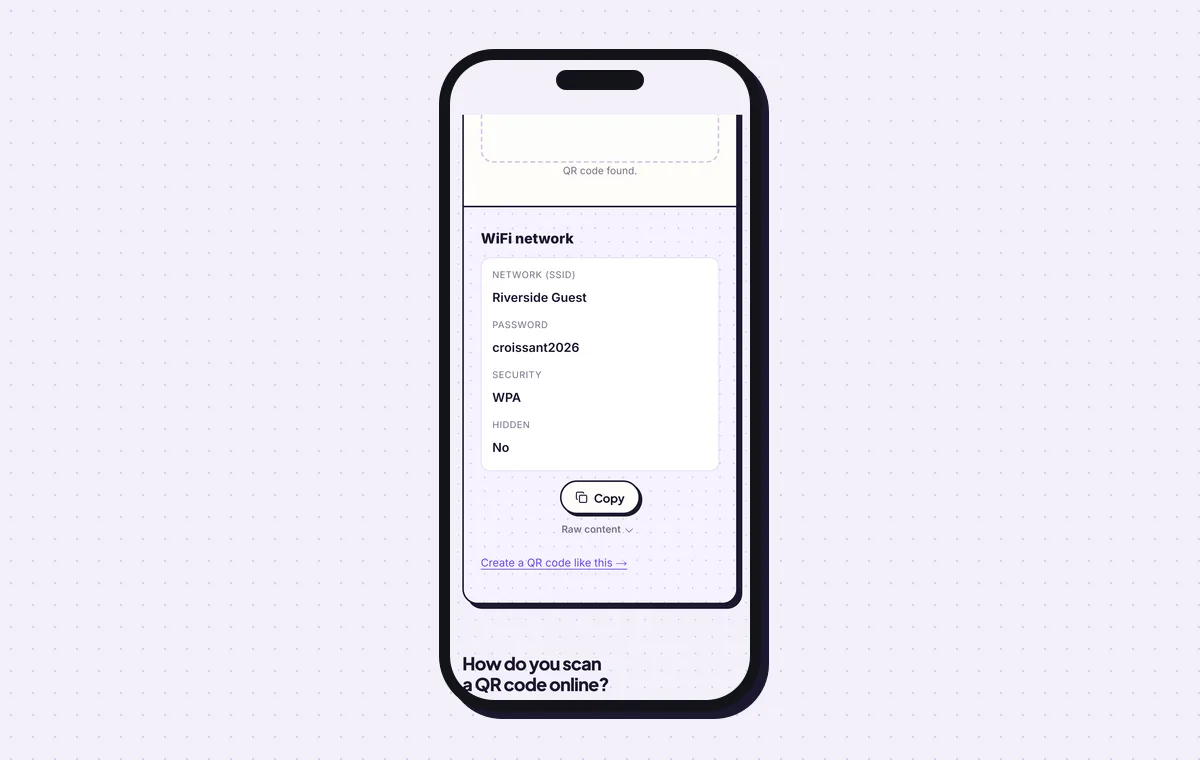
The scanner reads the downloaded file back, so you can check every character before printing. 6Print it and put it where guests look
Print the code at least 2.5 × 2.5 cm (1 in) for a card held in the hand, and at least 5 × 5 cm for a table sign read from 50 cm. Leave a white margin of 4 dots around it. Add the network name and password in small text under the code, because Windows and macOS laptops do not join WiFi from a QR code.
Open the WiFi QR Code generatorFree. Nothing to install.
What happens when someone scans a WiFi QR code?
The phone reads the network name, password and encryption from the code and offers to join the network; nothing is sent over the internet. iPhones on iOS 11 or later and Android phones on Android 10 or later do this in the built-in camera. Phones read this code directly, so the generator shows no scan count for it.
- iPhone: the Camera app shows “Join “Riverside Guest” Network”. One tap connects.
- Android: the camera or Google Lens shows “Connect to network”. Settings › WiFi › the QR icon beside “Add network” scans it too.
- Laptops: Windows and macOS show the text but do not join. Print the name and password under the code for them.
What do you do when the WiFi password changes?
Make a new code and reprint the sign the same day, because a WiFi QR code stores the password inside the pattern. The old code keeps scanning but the phone fails to connect, with no error that explains why. Changing only the design, such as colours or the label, also needs a new download, since the image itself is the code.
Is it safe to put your WiFi password in a QR code?
Yes for a guest network, because anyone who can see the sign is someone you already let onto that network. The password is readable by any QR scanner, so treat the printed code like the password written on a card. Keep the main network, with your printers, tills and files, on a separate key that is never printed.
What mistakes stop a WiFi QR code from working?
These 5 mistakes cause most failed WiFi QR codes; each has a quick fix. Test the downloaded file with two different phones before you print anything.
| Mistake | Fix |
|---|---|
| The network name has different capitals or a trailing space | Copy the name from the phone’s WiFi list; “CafeGuest” and “Cafeguest” are different networks. |
| Encryption left on WPA for an open network | Choose None (open network) and leave the password empty. |
| The password changed after the sign was printed | Make a new code and replace the sign; the old one fails silently. |
| “This network is hidden” ticked for a normal network | Untick it. Some phones then search for a hidden network and never connect. |
| The code is printed too small or behind glossy lamination | Print at least 2.5 cm wide, use matte lamination and choose error correction Q in the Advanced tab. |
Frequently asked questions
Can I make a WiFi QR code for free?
Yes. The WiFi QR code generator is free and adds no watermark. The download asks for an email or a free account once.
Does a WiFi QR code stop working after a while?
No, the code works for as long as the network name and password stay the same. It contains the details themselves, so it does not rely on any website.
Do guests need an app to use a WiFi QR code?
No. iPhones on iOS 11 or later and Android phones on Android 10 or later join from the built-in camera app.
Can I see how many people scanned my WiFi QR code?
No. The phone connects straight to the router without opening any link, so there is nothing to count.
Can one QR code hold two WiFi networks?
No, one code holds one network. Print two labelled codes side by side for a 2.4 GHz and a 5 GHz network with different names.
Ready to make your WiFi QR code?
The generator is free and works in the browser on a phone or a computer. Your code downloads as PNG for screens or SVG for print.
Open the WiFi QR Code generator
Related guides: How to Print a QR Code · QR Code Size · QR Code Not Working