 QRJiffy
How to Make an App Download QR Code
You make an App Store QR code by copying your app’s store link, pasting it into an app download QR code generator and downloading the image. The form takes an App Store link and a Google Play link. An app that is in one store only needs one of them. The whole job takes about 3 minutes once both links are copied.
What do you need before you start?
You need 4 things ready, and no account to try the generator. A free account, or just your email, is asked for only at the download step.
- Your App Store link: open the app in the App Store, tap Share, then Copy Link. It looks like
https://apps.apple.com/app/id123456789. - Your Google Play link: open the app in Google Play, tap ⋮, then Share. It ends in
details?id=and the package name. - The app icon as an image file, for the centre of the code.
- One iPhone and one Android phone for testing.
How do you make an App download QR code step by step?
Follow these 7 steps in the App Store QR Code generator; the preview updates as you type. Each screenshot below is the real screen, filled in with a sample bakery’s details.
1Copy the store links for your app
Open your app’s page in the App Store and use Share › Copy Link. Do the same in Google Play with ⋮ › Share. To attribute installs to this code, add a campaign token:
?ct=posteron the App Store link, or&utm_source=qron the Google Play link.App Store Connect reports installs per
cttoken, and Google Play Console reports them per UTM source.2Paste both links into the generator
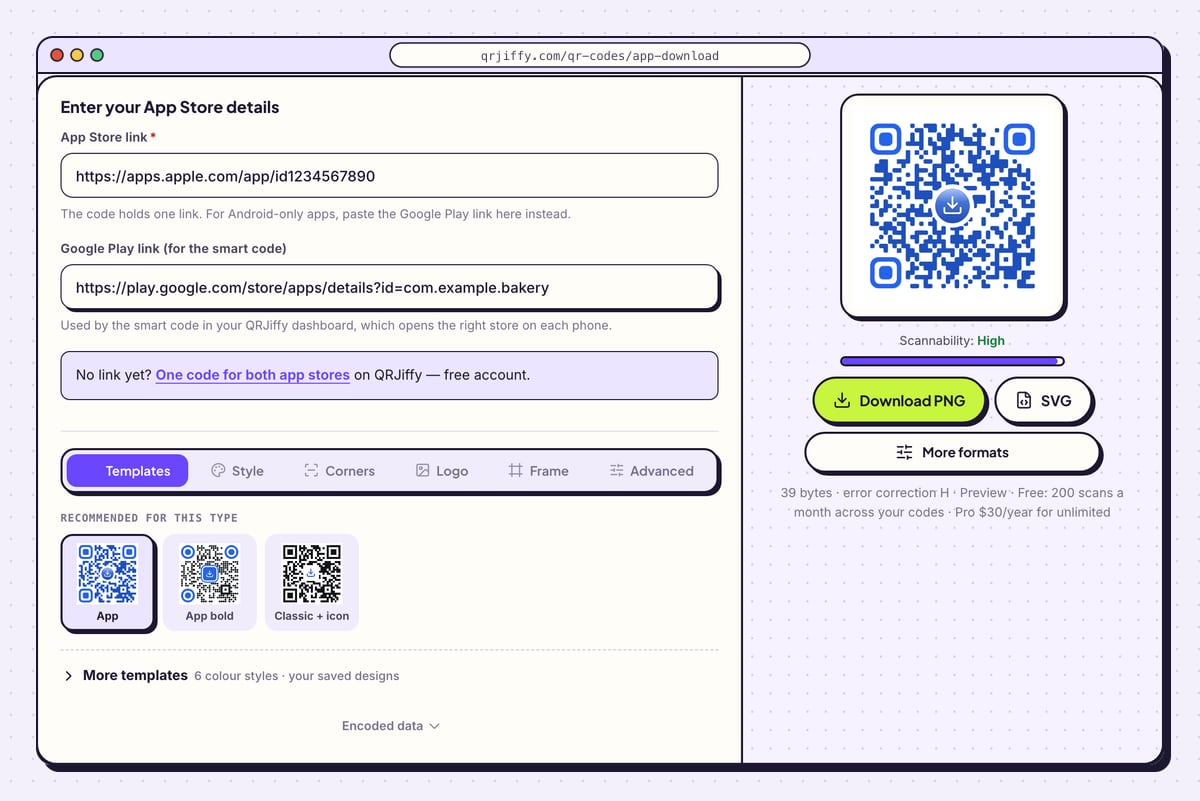
Open the app download QR code generator. Paste the Apple link into App Store link, the required field. Its helper text says the code holds one link, and that an Android-only app puts its Google Play link in this field instead.
Paste the Android link into Google Play link (for the smart code). The text under it says this link is used by the smart code in your QRJiffy dashboard, which opens the right store on each phone. The preview on the right shows a blue code with a download icon.
Tip: The preview on this page encodes the first field only, 39 bytes in the sample. Test the downloaded code on both kinds of phone, as in step 5, before relying on it for a mixed audience.
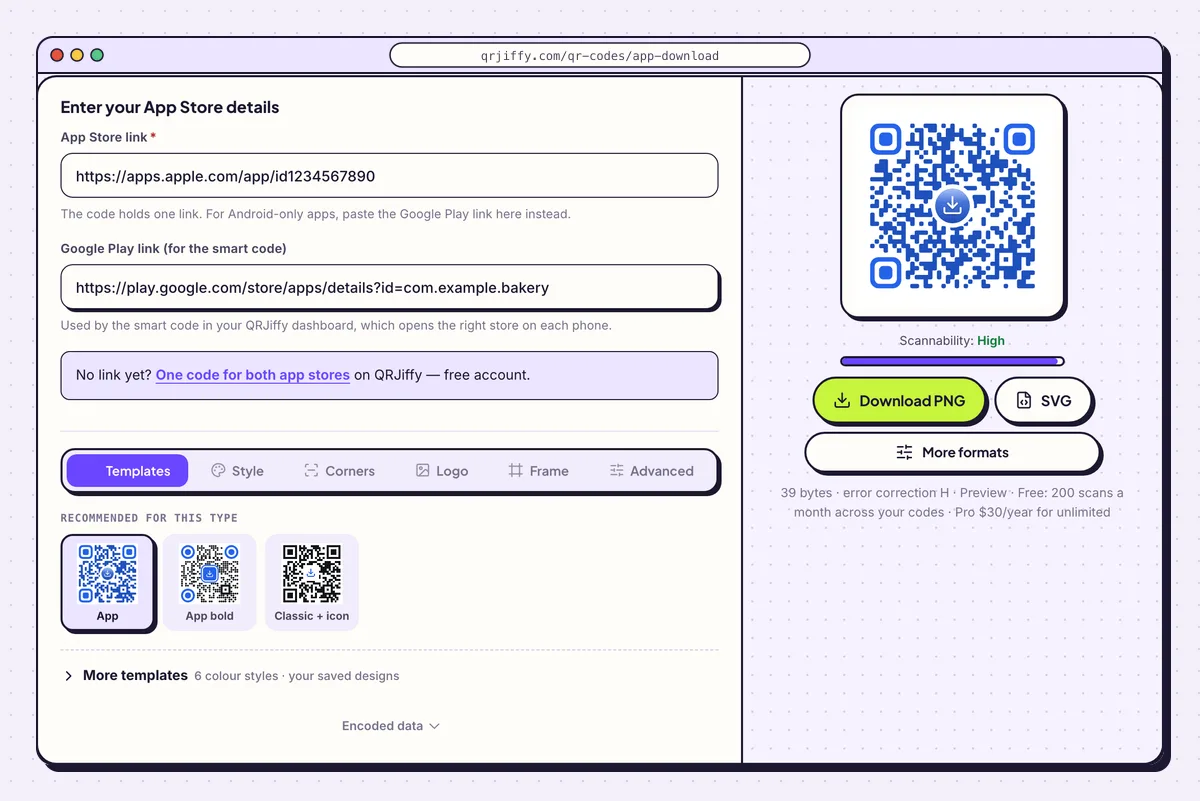
Two fields: the App Store link is required, the Google Play link feeds the smart code. 3Put the app icon in the centre
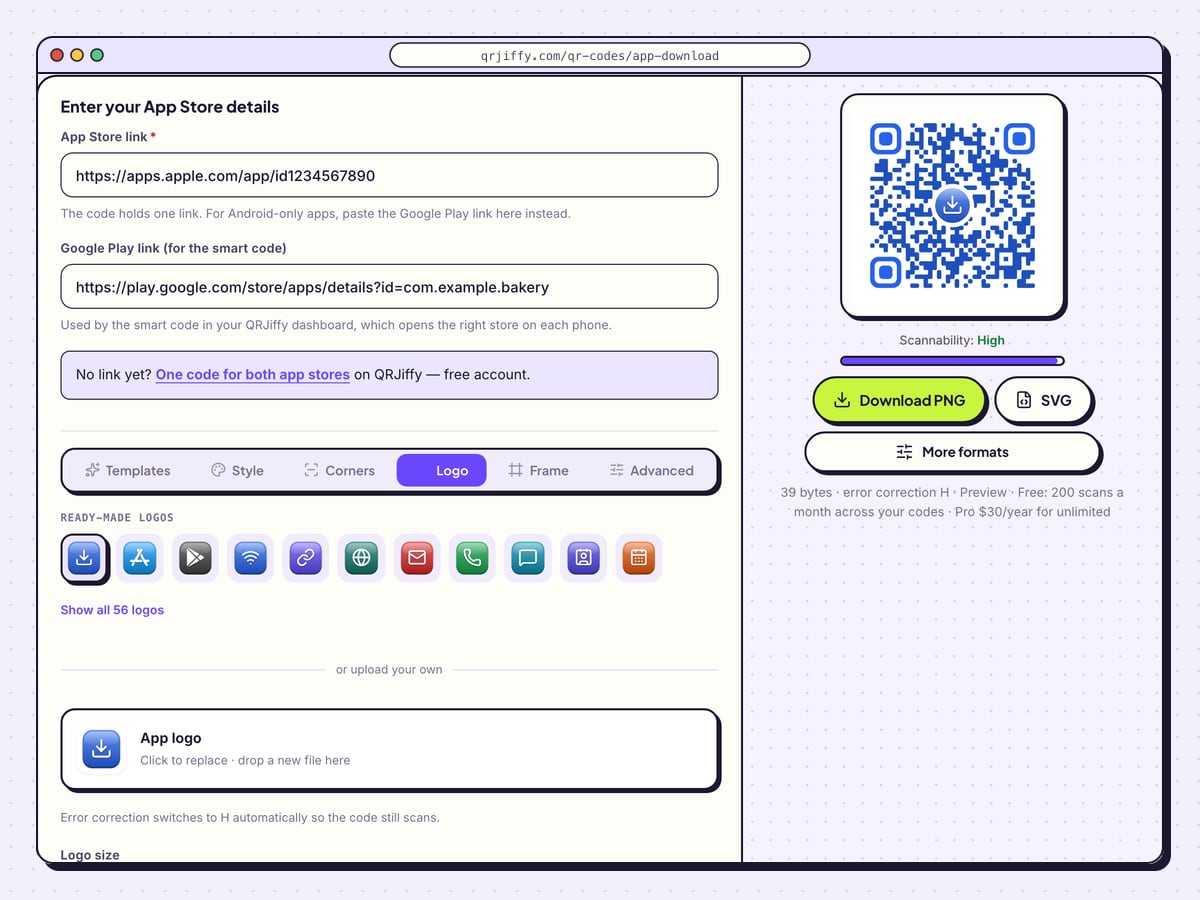
Open the Logo tab and drop the app icon onto the upload box. Set Logo size, choose Rounded to echo the shape of a home-screen icon, and adjust Padding so a clear ring separates the icon from the dots. Flat and 3D change the look of the plate, and Border adds an outline.
People recognise the icon before they read any text, which tells them what the code installs. The line under the preview shows error correction H, the level that protects a code with a logo.
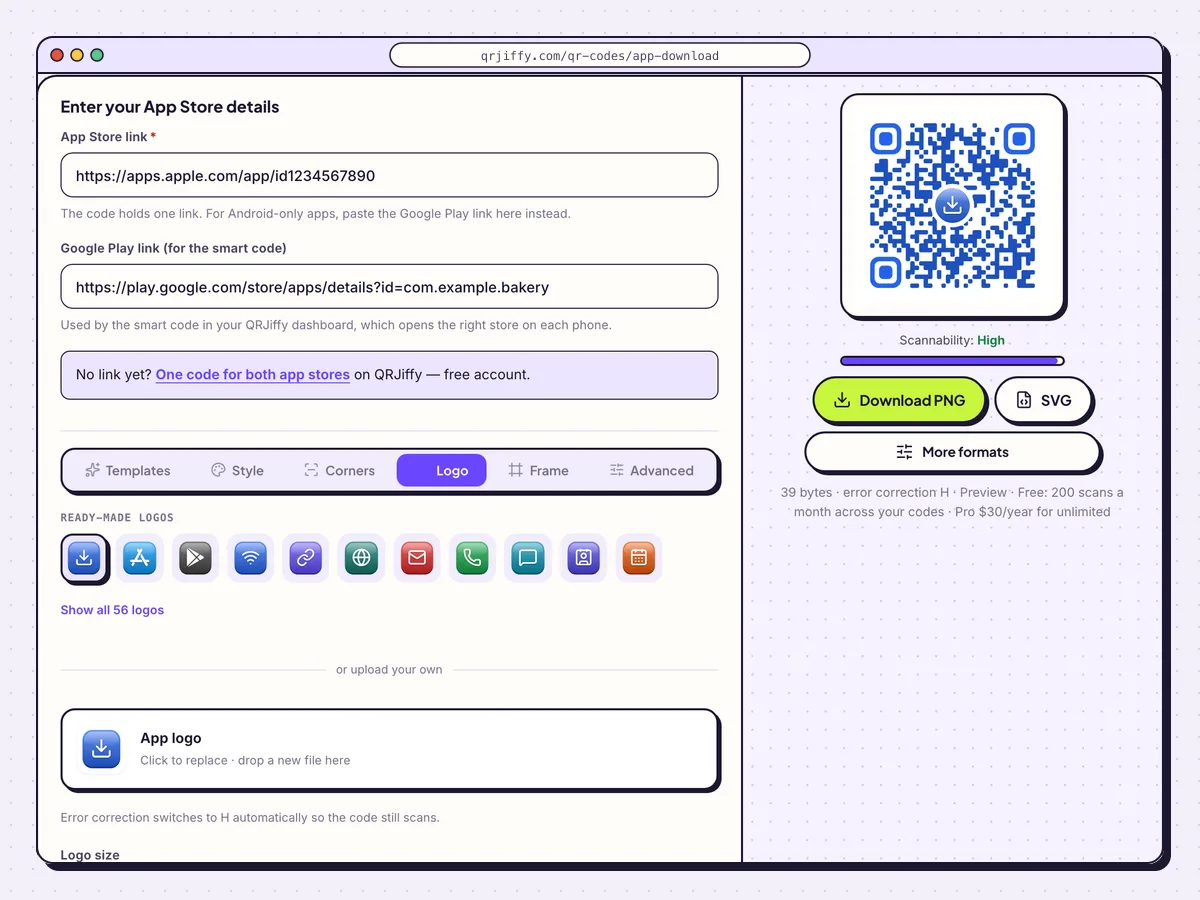
The Logo tab places the app icon in the middle of the code. 4Download the code
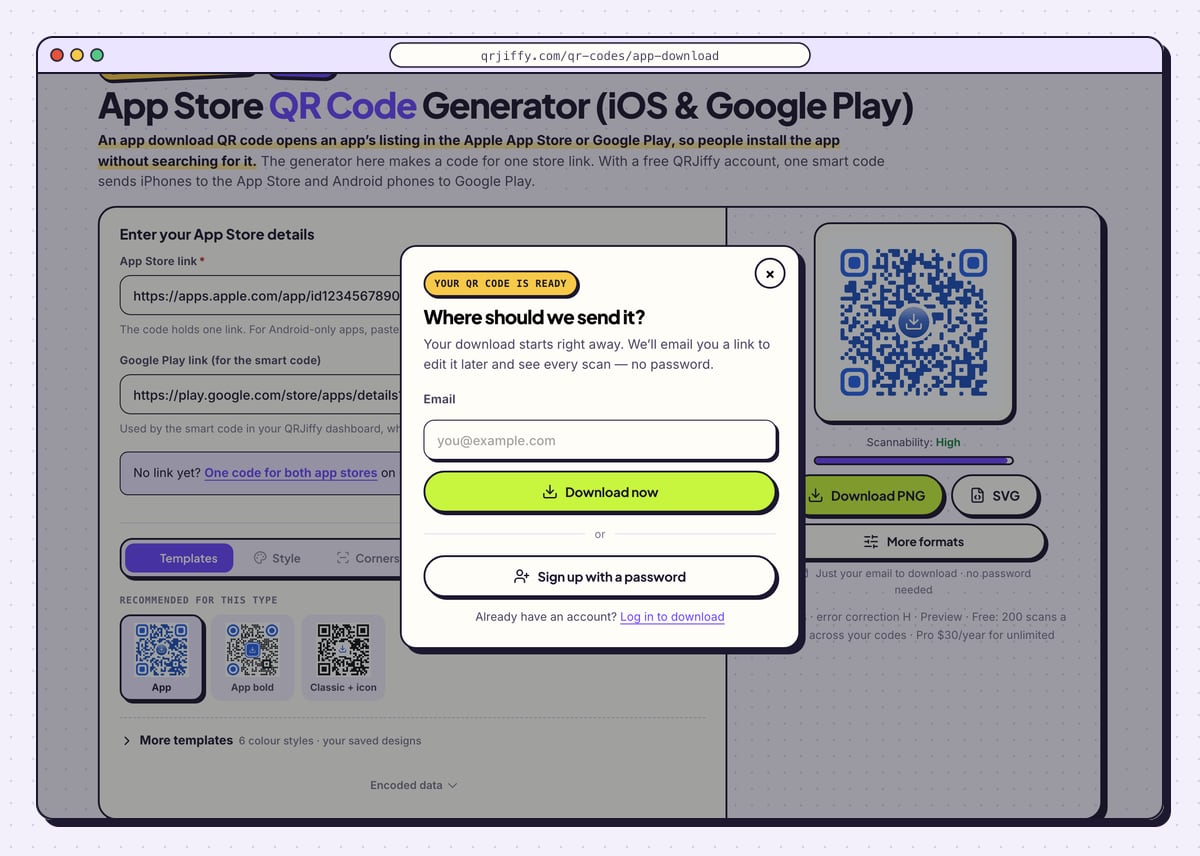
Download PNG gives a file for slides, emails and screens; SVG is for packaging and posters. On the first download, enter an email in the “Where should we send it?” dialog and click Download now. The file is named in the pattern
qrjiffy-app-download-JZ26fRx.png.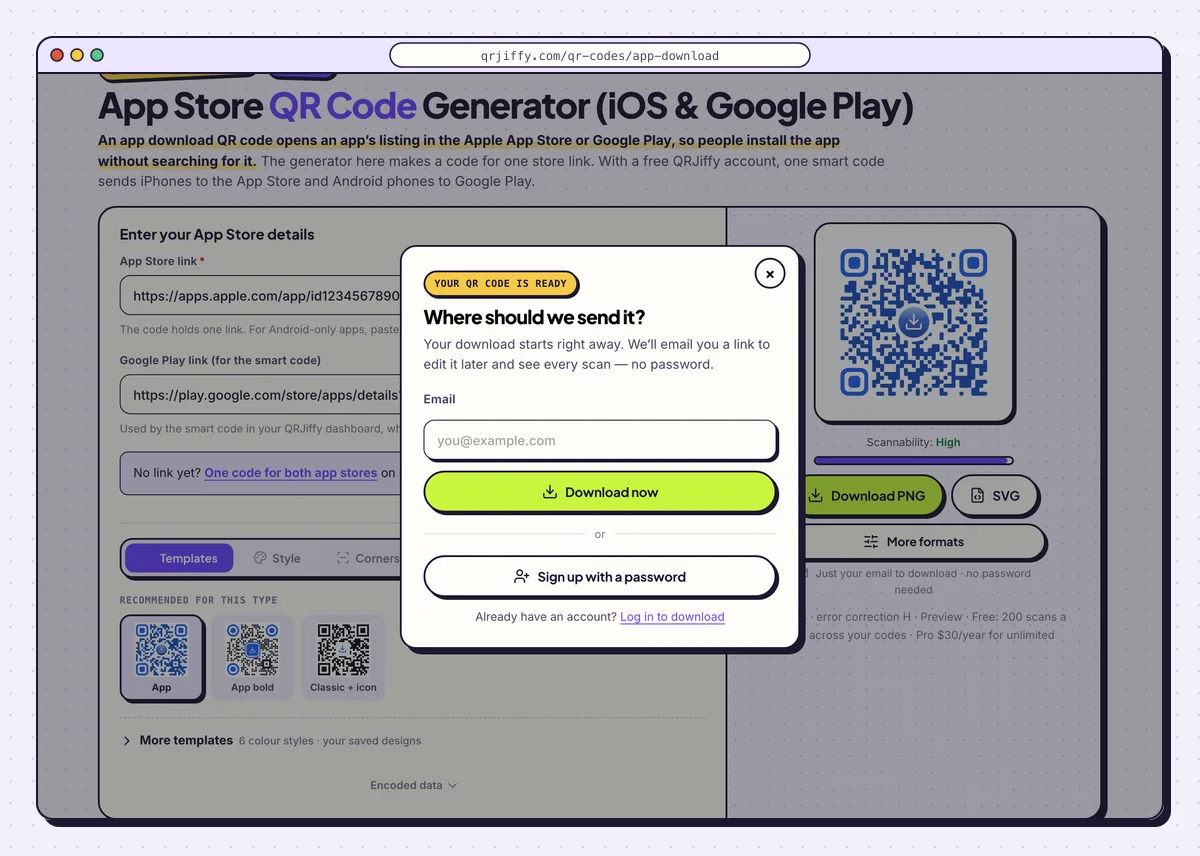
The download dialog is the same for PNG and SVG. 5Scan it on an iPhone and on an Android phone
Scan the code with both phones. On the iPhone, the App Store app opens on your listing with the Get button. On Android, a Google Play link opens the Play Store app with the Install button. A phone that lands in the wrong store sees a web preview with no install button: that is the failure to look for.
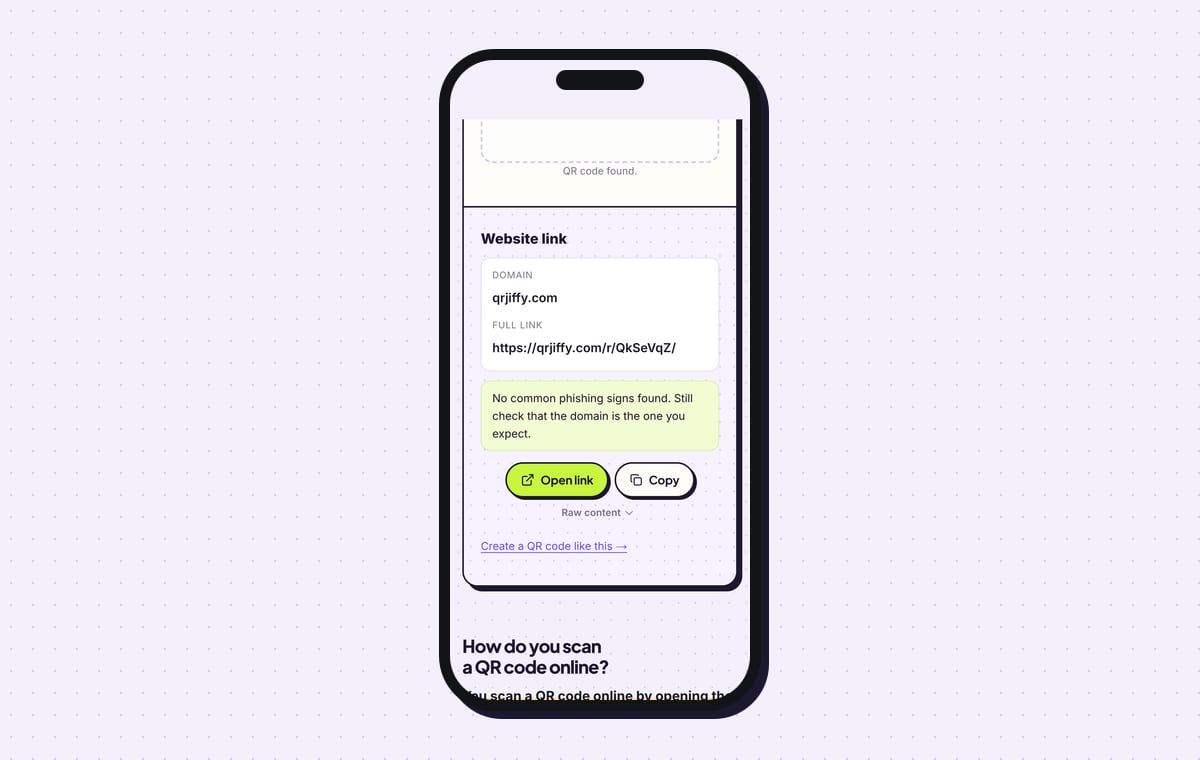
The QRJiffy scanner reads the downloaded file as “Website link”, domain qrjiffy.com, with the full short link. The file holds that short link, not the store address.
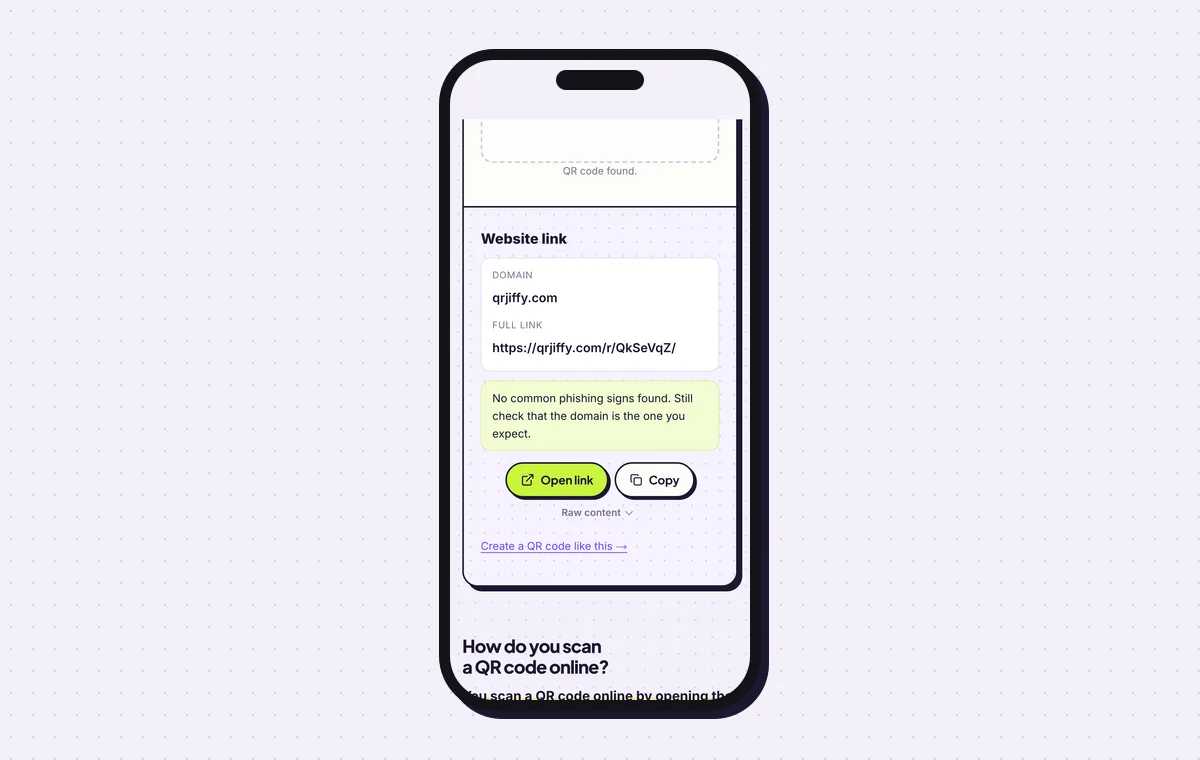
The printed code carries a qrjiffy.com short link that forwards to the store. 6Update the store links from the dashboard
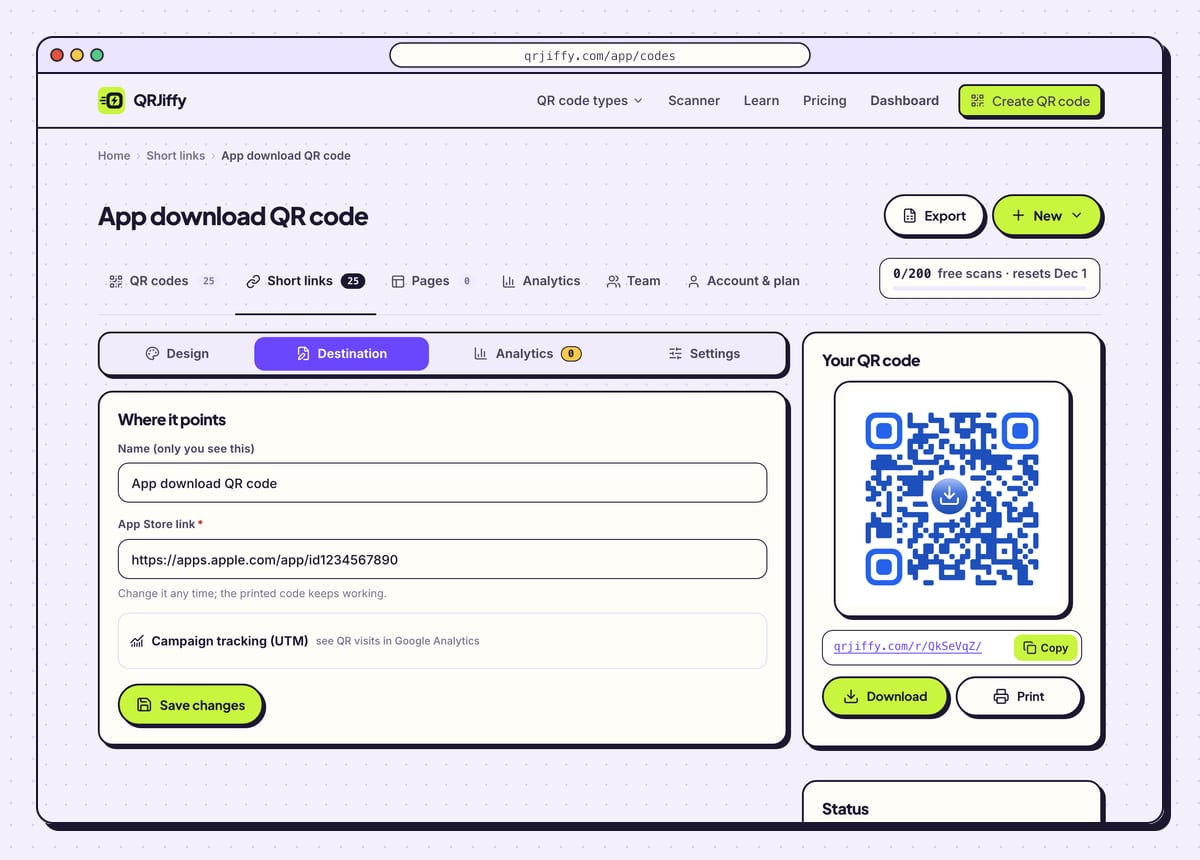
The code has its own page in the dashboard, titled “App download QR code”, with the tabs Design, Destination, Analytics and Settings. Destination is where either store link is updated, for example after the app moves to a new listing. The printed code stays as it is.
Analytics breaks scans down by day, device and country. The device split shows how many iPhones and how many Android phones scanned, which tells you where the Google Play link matters.
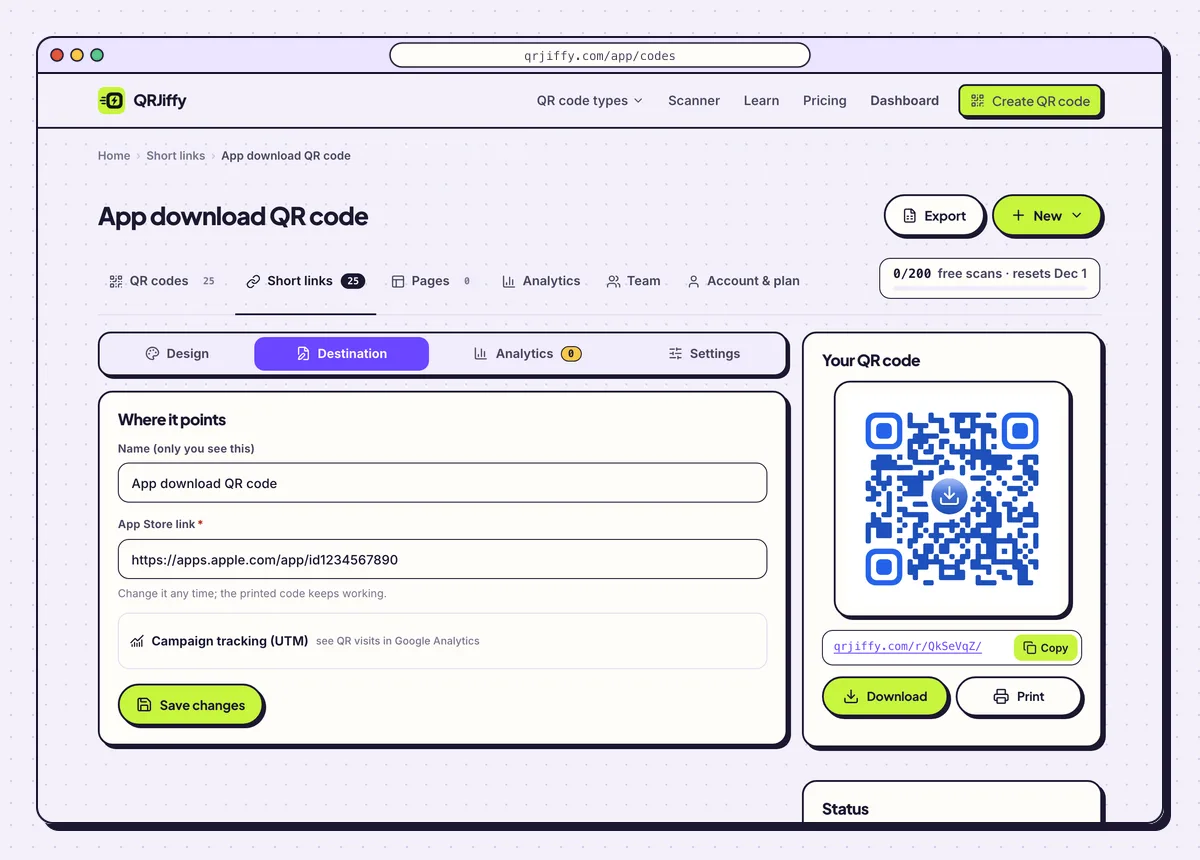
The app code in the dashboard, with its short link and scan analytics. 7Print it beside the store badges
Print the code at least 2 × 2 cm (0.8 in), and wider for anything read from a distance: a code on a TV screen read from 3 m needs 30 cm. Place the official “Download on the App Store” and “Get it on Google Play” badges next to it. The badges tell people which phones the app supports before they scan.
Open the App Store QR Code generatorFree. Nothing to install.
Can one QR code open both the App Store and Google Play?
Yes, with a smart link that detects the phone’s operating system and redirects to the matching store. A plain store link opens one store only. QRJiffy builds the smart code from both store links with a free account: paste both into the form, or use the “One code for both app stores” link on the generator page.
- App Store link on an iPhone: the App Store app opens on the listing with Get.
- Google Play link on Android: the Play Store app opens on the listing with Install.
- App Store link on Android: a web preview opens, with no install button.
- Google Play link on an iPhone: a web page opens, with no install button.
Can the QR code open the app itself instead of the store?
Yes, when the code holds a universal link (iOS) or an app link (Android) that your app registers. Phones with the app installed open it directly, and phones without it open the web page. A store link always opens the store listing, even on a phone that has the app.
How do you know how many installs came from the code?
The stores report installs per campaign token, and QRJiffy reports scans. Add ?ct=poster-spring to the App Store link and read the result in App Store Connect. Add utm_source=qr to the Google Play link and read it in Google Play Console. Scans divided into installs gives the conversion rate of the poster.
What do you do when the app is on Google Play only?
Paste the Google Play link into the App Store link field, as the helper text under that field says. The first field is the one the code opens. Print the “Get it on Google Play” badge alone next to the code, so iPhone owners do not scan a code that has nothing for them.
What mistakes stop an App download QR code from working?
These 5 mistakes cause most failed App download QR codes; each has a quick fix. Test the downloaded file with two different phones before you print anything.
| Mistake | Fix |
|---|---|
| Only an App Store link is used for a mixed audience | Fill in both fields and use the smart code, so Android phones reach Google Play. |
| The link was copied from a search result, with tracking junk attached | Copy it from the store itself: Share › Copy Link in the App Store, ⋮ › Share in Google Play. |
| The code was tested on one platform only | Scan it on an iPhone and an Android phone and look for Get and Install. |
| There are no store badges beside the code | Place the official App Store and Google Play badges next to it. |
| The app icon covers too much of the code | Keep the icon to about 20% of the code area and leave error correction on H. |
Frequently asked questions
Is an app download QR code free?
Yes. The code is free to make and store links cost nothing to share. A free account includes 200 scans a month across its codes.
Do people need a scanner app to use the code?
No. iPhones on iOS 11 or later and Android phones on Android 9 or later with Google Lens scan with the built-in camera.
What happens when someone scans the code on a computer?
The link shows the store’s web listing. Desktop webcams rarely scan codes, so this mostly happens when the link is clicked.
Can I change the link after the packaging is printed?
Yes. Update either store link in the QRJiffy dashboard. The printed code holds a short link, so the box stays the same.
What size does the code need on a product box?
At least 2 × 2 cm (0.8 in). A code this size scans from about 20 cm, which is the distance of a box held in the hand.
Ready to make your App download QR code?
The generator is free and works in the browser on a phone or a computer. Your code downloads as PNG for screens or SVG for print.
Open the App Store QR Code generator
Related guides: How to Print a QR Code · QR Code Size · QR Code Not Working