 QRJiffy
How to Make an Email QR Code
You make an email QR code by entering a recipient address, a subject and a short message in an email QR code generator and downloading the result. Scanning it opens a ready-written draft in the person’s own mail app, and they tap Send. Setting it up takes around 3 minutes, including one test email to yourself.
What do you need before you start?
You need 4 things ready, and no account to try the generator. A free account, or just your email, is asked for only at the download step.
- The recipient address. A shared inbox such as support@ or hello@ keeps working when staff change.
- A subject line that names where the code is printed, for example “Flyer: spring offer”.
- A message template of 150 characters or fewer that the sender finishes.
- A phone with a mail account set up, to send the test in step 6.
How do you make an Email QR code step by step?
Follow these 7 steps in the Email QR Code generator; the preview updates as you type. Each screenshot below is the real screen, filled in with a sample bakery’s details.
1Open the email QR code generator
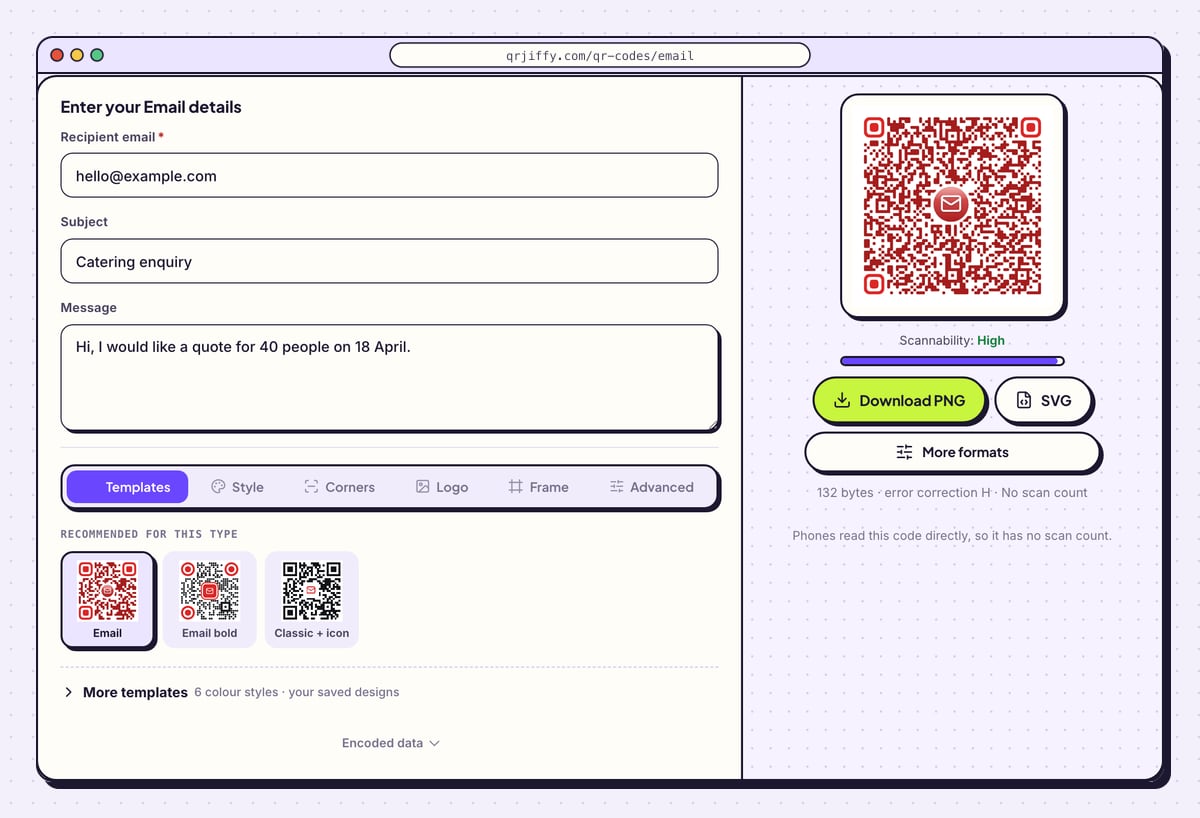
Bring up the email QR code generator. It has three fields in a column: Recipient email, Subject and Message. Only the first is required, but the other two are what turn a bare address into a draft people send without typing.
Tip: Decide who answers these emails before you start. An inbox nobody reads wastes every scan.
2Enter the recipient and the subject
Type the address into Recipient email and read it back character by character: one wrong letter sends every email to nobody, or to a stranger. In Subject, write a line your inbox can filter on. The sample uses hello@example.com with the subject “Catering enquiry”.
Phones show no scan count for this type, so the subject doubles as your counter. Give the poster, the flyer and the receipt a different subject each, and the inbox tells you which one works.
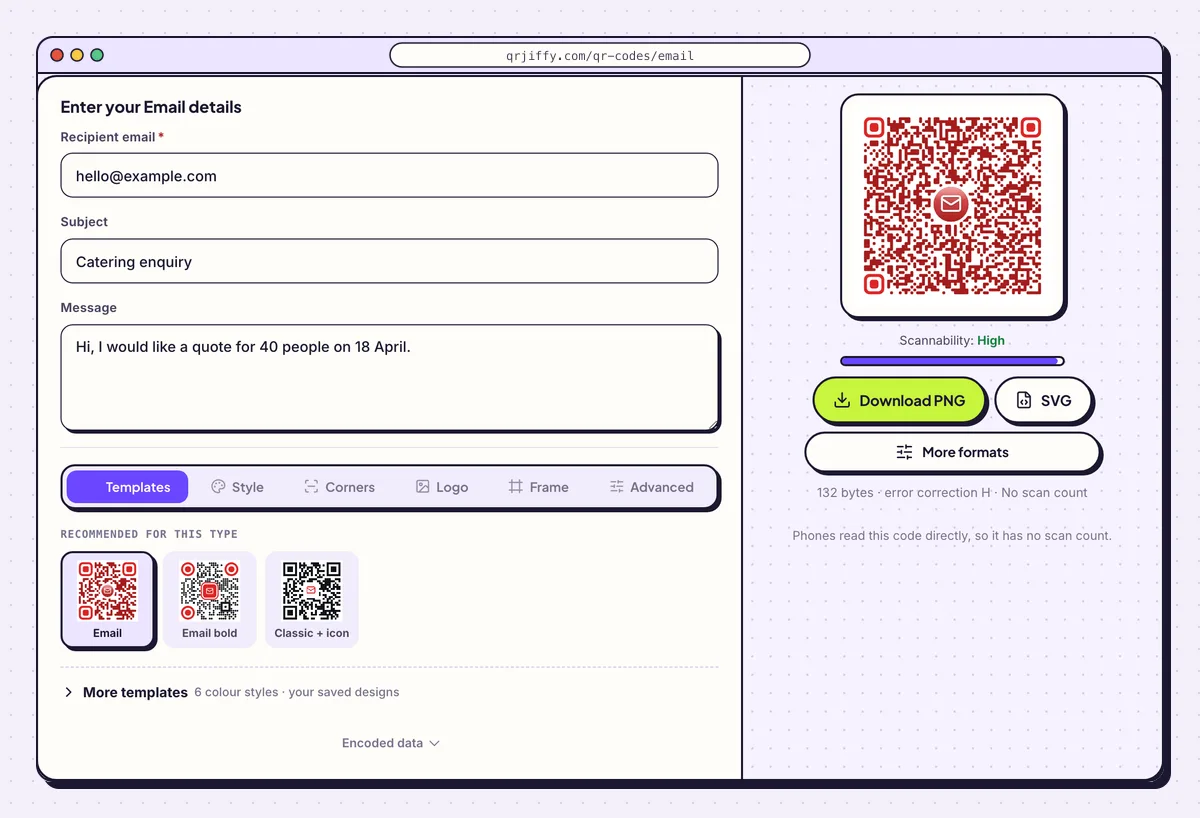
Recipient, subject and message filled in with the bakery’s catering example. 3Write a message the sender completes
In Message, start the email for the person: the sample reads “Hi, I would like a quote for 40 people on 18 April.” Leave the specifics to them. They edit the draft freely before sending.
The code stores a
mailto:link in which every space becomes%20, three characters for one. A long body therefore grows the code quickly. Stay under 150 characters and check the byte count under the preview.4Colour the code to match your print
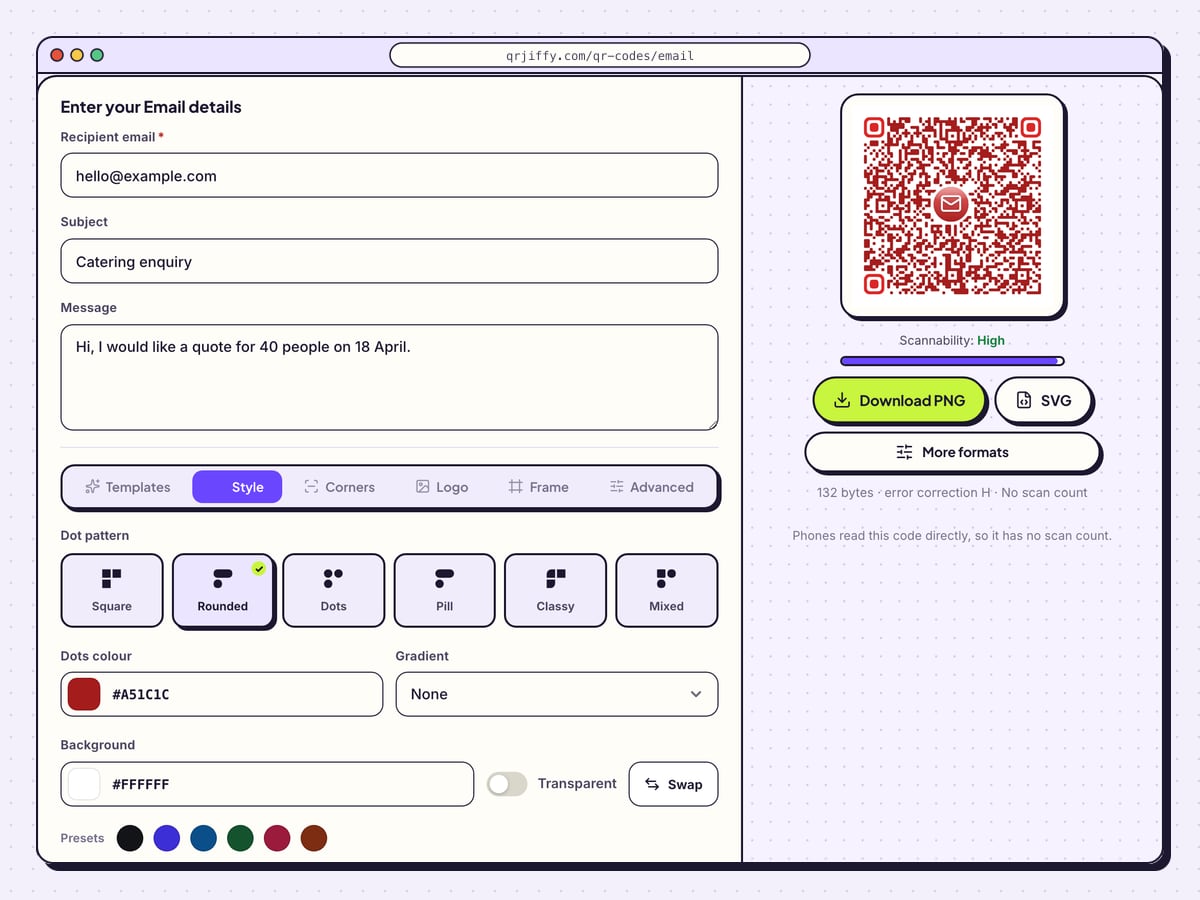
Go to Style and set Dots colour to a dark shade from your brand palette. To fade between two shades, open the Gradient menu, choose a Second colour and set the Direction. Of the six dot patterns, Square and Rounded stay the most readable once a message body has made the dots small.
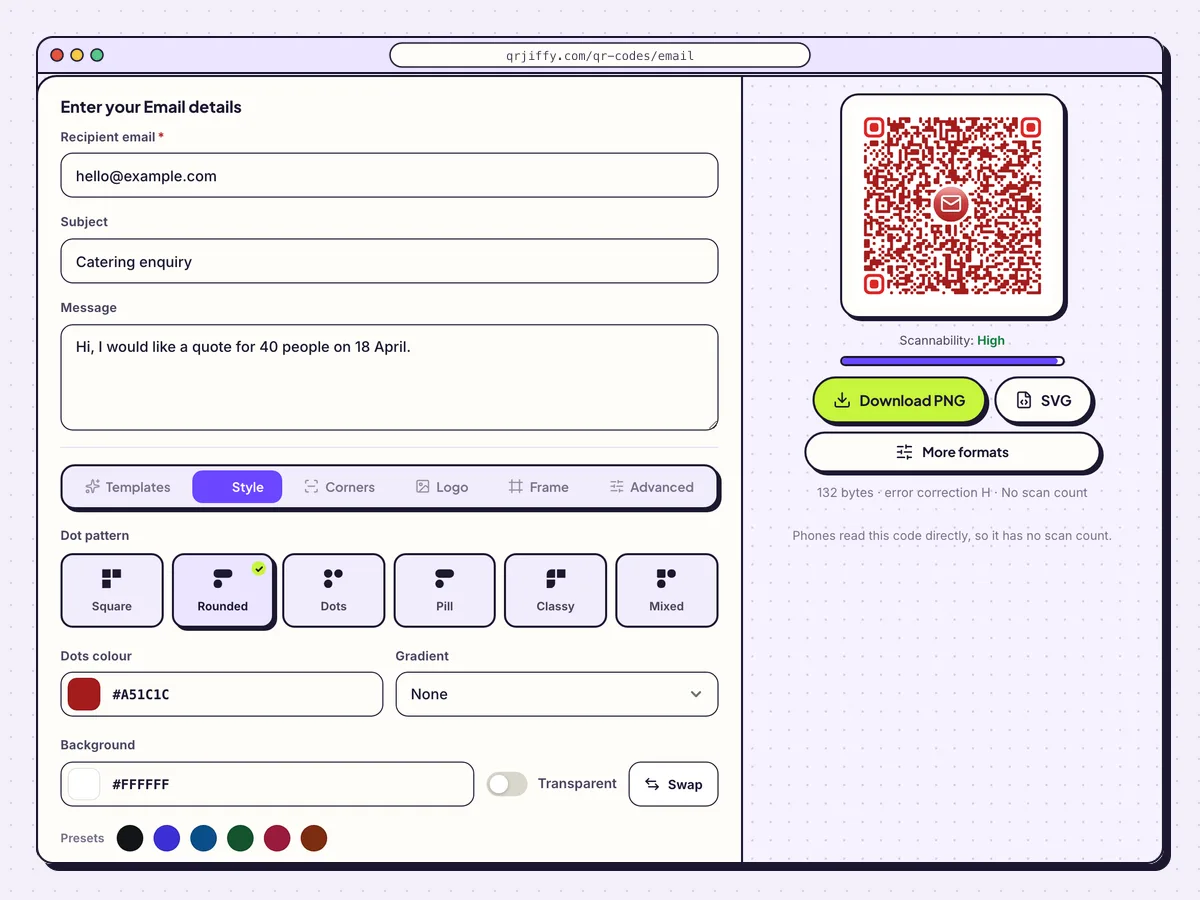
Dot pattern, colour and gradient controls on the Style tab. 5Download the PNG or SVG
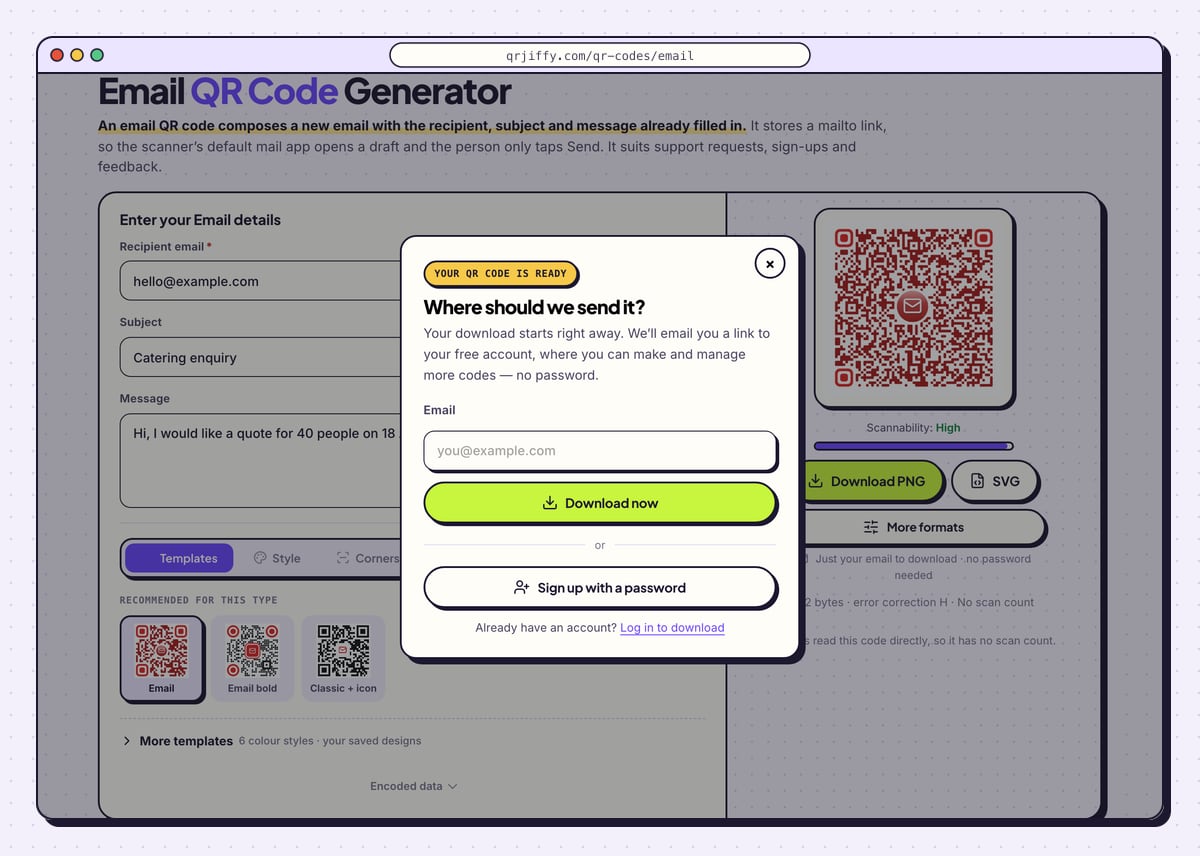
The two buttons under the preview are Download PNG and SVG. PNG drops into a Word document or a receipt template; SVG goes to a designer or print shop. A dialog asks where to send the code the first time. Give an email address, press Download now and look for
qrjiffy-email.pngin your downloads.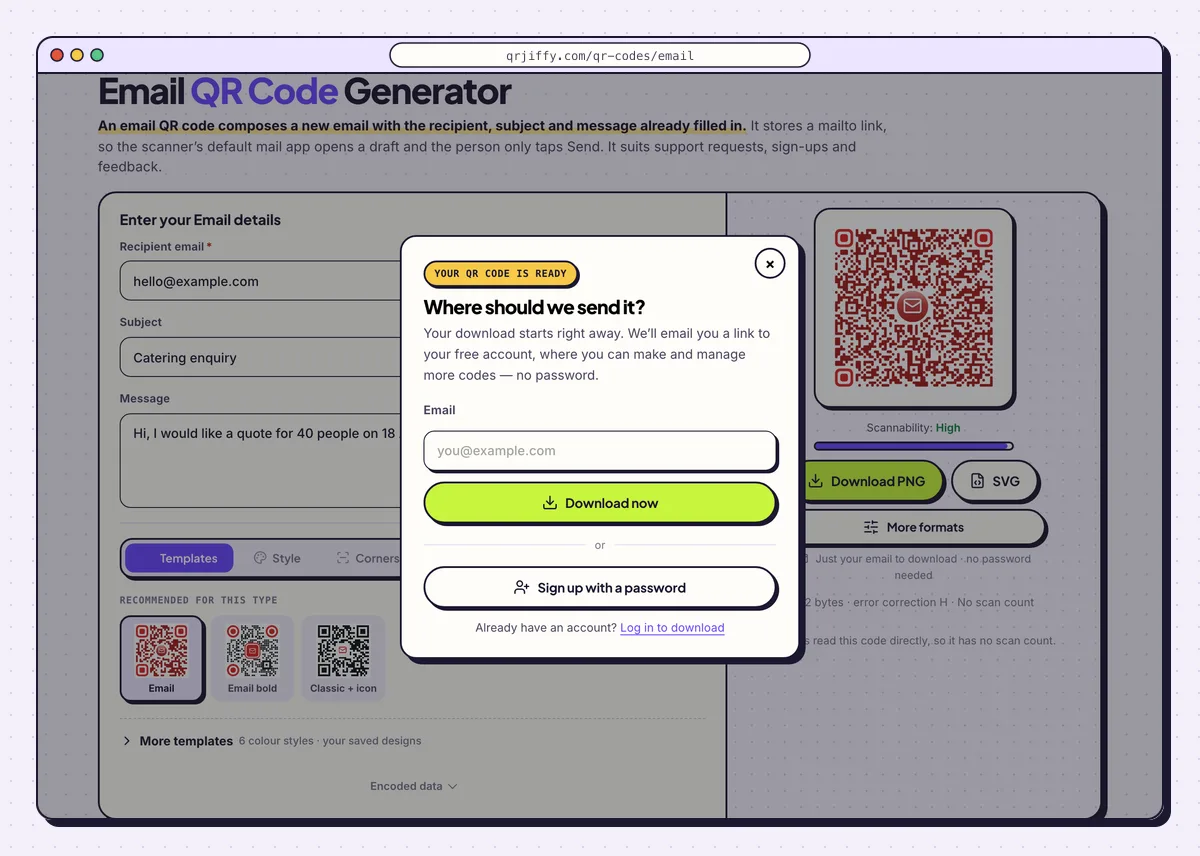
The download dialog, shown once, before the file saves. 6Send yourself a test email
Scan the file with a phone camera. On an iPhone the banner shows the address and opens Mail, or the default mail app, with the draft ready. On Android the camera or Google Lens offers Send email and opens Gmail. Tap Send and wait for the message to arrive in the right inbox.
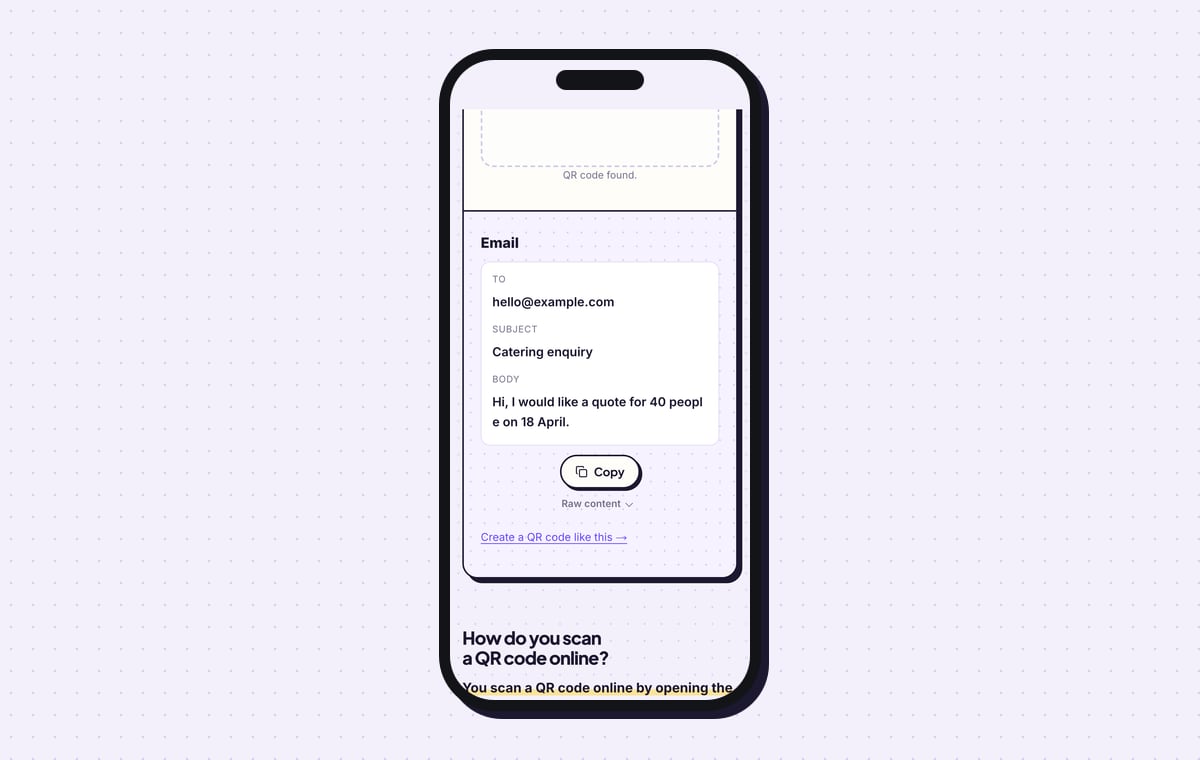
The QRJiffy scanner shows the three parts separately: To, Subject and Body. Use it to spot a typo in the address without sending anything.
Tip: Try the code in two mail apps. Some apps open the draft with the address and subject but leave the body empty.
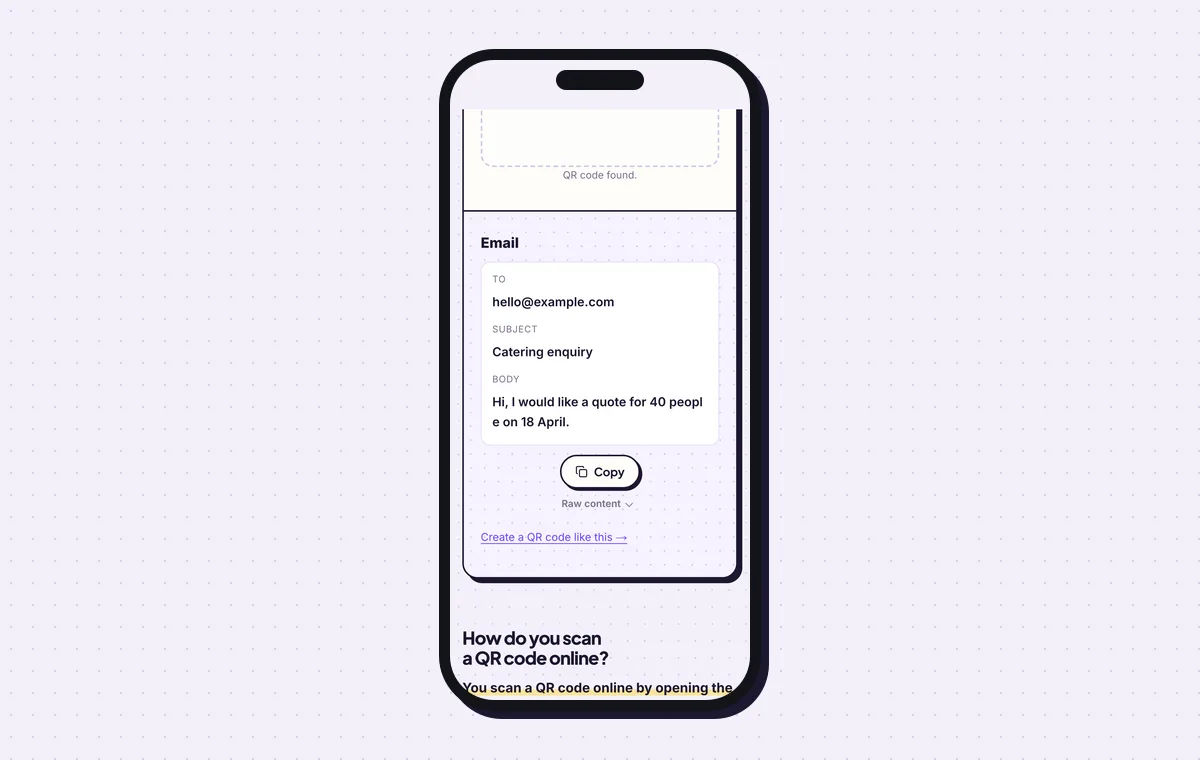
The scanner splits the code into recipient, subject and body. 7Print it with the address in plain text
A code with only an address and a short subject prints at 2 × 2 cm. Add a message body and it needs 3 × 3 cm. Write the email address under the code as well: a phone with no mail account set up shows the address to copy, and a reader at a desk types it. See how to print a QR code for paper and file advice.
Open the Email QR Code generatorFree. Nothing to install.
What happens when someone scans an email QR code?
The phone opens a new email in its default mail app, addressed to you, with the subject and message already written. No email leaves the phone until the person taps Send. The draft opens without a connection and the email goes out when the phone is back online.
- iPhone: the Camera banner shows the address. Tapping it opens Mail, or the default mail app chosen in Settings.
- Android: the camera or Google Lens offers Send email, which opens Gmail or the default mail app.
- No mail app: a phone without a mail account shows the address with a copy option in place of a draft.
Can you change the address or subject after printing?
No. The address, subject and message are written into the pattern, so any change means making and printing a new code. This is why a role address is the safer choice. When the person behind support@ changes, the forwarding changes in your mail system and the printed code stays correct.
How do you count how many people used an email QR code?
Count the emails that arrive with the code’s subject line, because the generator records no scans for this type. The phone opens the draft by itself and never contacts QRJiffy. A distinct subject per placement, plus a mail filter or label for each, gives a count per poster. People who scan and do not send stay invisible.
What mistakes stop an Email QR code from working?
These 5 mistakes cause most failed Email QR codes; each has a quick fix. Test the downloaded file with two different phones before you print anything.
| Mistake | Fix |
|---|---|
| A typo in the recipient address | Send a test email from the scanned code and confirm it arrives before printing. |
| One employee’s personal address on 2,000 flyers | Use a shared inbox such as support@ that outlives staff changes. |
| A message body of several paragraphs | Keep the body under 150 characters. The sender writes the rest. |
| The same subject on every poster, flyer and receipt | Give each placement its own subject line and filter the inbox by it. |
| Tested in a single mail app | Scan with an iPhone and an Android phone. Some mail apps ignore the body field. |
Frequently asked questions
Is an email QR code free to create?
Yes. You fill in the three fields and download the code at no charge and with no watermark. The first download asks once for an email address or a free account.
Does scanning an email QR code send the email automatically?
No. Scanning only opens a draft. The person reads it, edits it if they wish and taps Send.
Does an email QR code work offline?
Yes. The draft opens with no connection, and the email sends once the phone reconnects.
How long can the pre-filled message be?
About 300 characters is the practical limit. Longer bodies make the code too dense for a small print.
Can people see my email address in the code?
Yes. The address is stored as readable text and appears on the phone screen when the code is scanned.
Ready to make your Email QR code?
The generator is free and works in the browser on a phone or a computer. Your code downloads as PNG for screens or SVG for print.
Open the Email QR Code generator
Related guides: How to Print a QR Code · QR Code Size · QR Code Not Working